> ## Documentation Index
> Fetch the complete documentation index at: https://docs.apinizer.com/llms.txt
> Use this file to discover all available pages before exploring further.
# Execution and Monitoring
> You can run API Promotion operations individually or in batch, manage approval workflows, schedule executions, and track step-by-step progress.
## Execution List
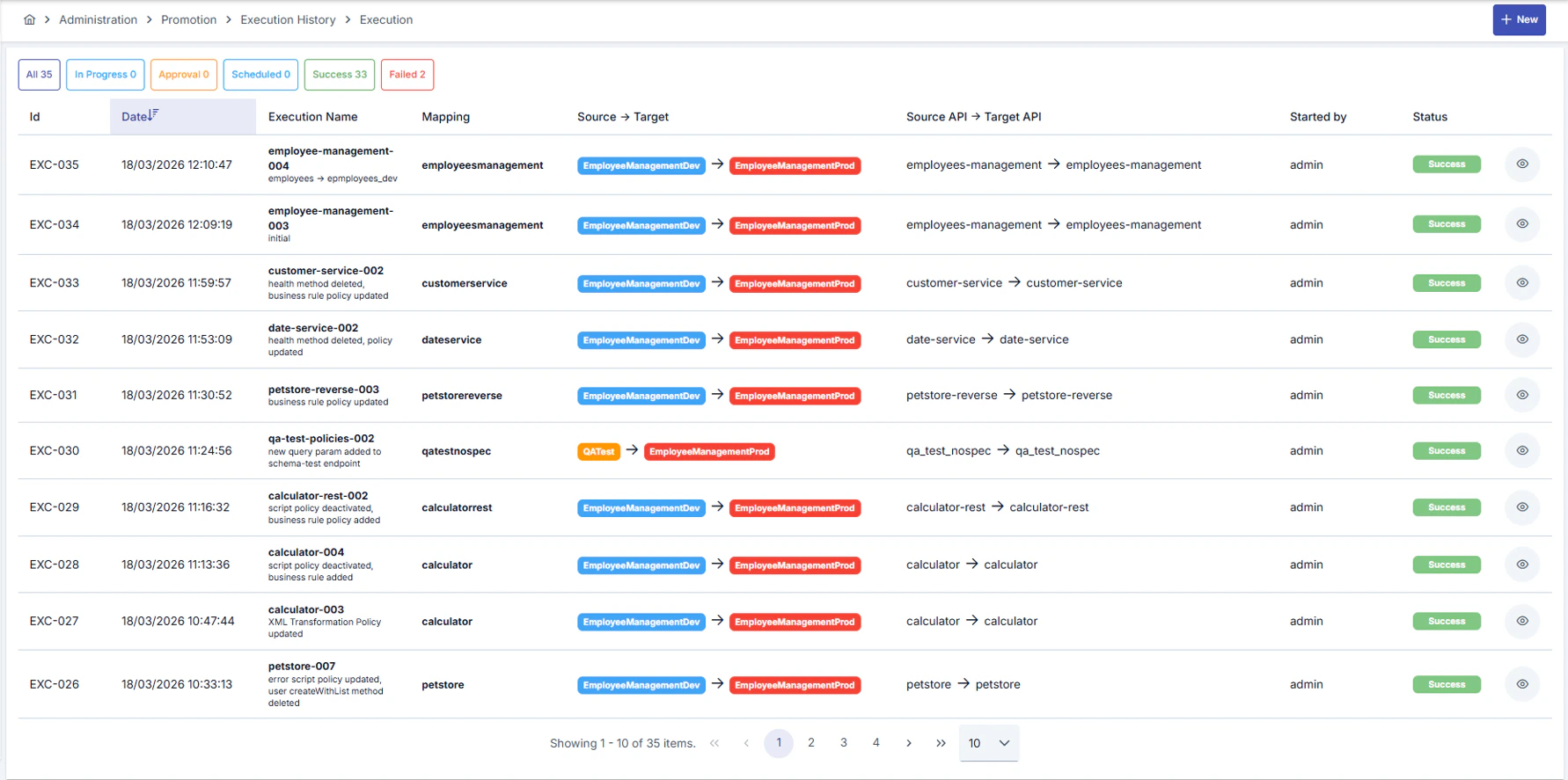
In the execution list, you can view the entire transfer history. The list can be filtered by status tabs:
| Tab | Description |
| --------------- | ------------------------------------- |
| **All** | All executions |
| **In Progress** | Currently running transfers |
| **Approval** | Transfers waiting for approval |
| **Scheduled** | Transfers scheduled for a future date |
| **Success** | Successfully completed transfers |
| **Failed** | Failed transfers |
Each row shows the execution name, mapping information, source-target APIs, initiating user, date, duration, and status.
 ### Statistics
Next to each status tab, the corresponding **execution count** is shown:
* **All**: Total number of all executions
* **In Progress**: Number of executions currently in progress
* **Approval**: Number of executions waiting for approval
* **Scheduled**: Number of executions scheduled for a future date
* **Success**: Number of successfully completed executions
* **Failed**: Number of executions that ended with an error
## Single Execution
To execute a mapping, use the **Execute** button from the mapping list or mapping detail screen.
When an execution is started:
* If the target instance **does not require approval**: Execution starts immediately
* If the target instance **requires approval**: Execution enters "Approval Waiting" status
## Batch Execution
To execute multiple mappings at once, use the **New** button. In the dialog that opens:
1. Select the mappings you want to execute (or use **Select All** to check all)
2. Approval status is shown for each mapping
3. Click the **Execute** button after selection
4. Enter an execution name and description
5. A separate execution record is created for each selected mapping
### Statistics
Next to each status tab, the corresponding **execution count** is shown:
* **All**: Total number of all executions
* **In Progress**: Number of executions currently in progress
* **Approval**: Number of executions waiting for approval
* **Scheduled**: Number of executions scheduled for a future date
* **Success**: Number of successfully completed executions
* **Failed**: Number of executions that ended with an error
## Single Execution
To execute a mapping, use the **Execute** button from the mapping list or mapping detail screen.
When an execution is started:
* If the target instance **does not require approval**: Execution starts immediately
* If the target instance **requires approval**: Execution enters "Approval Waiting" status
## Batch Execution
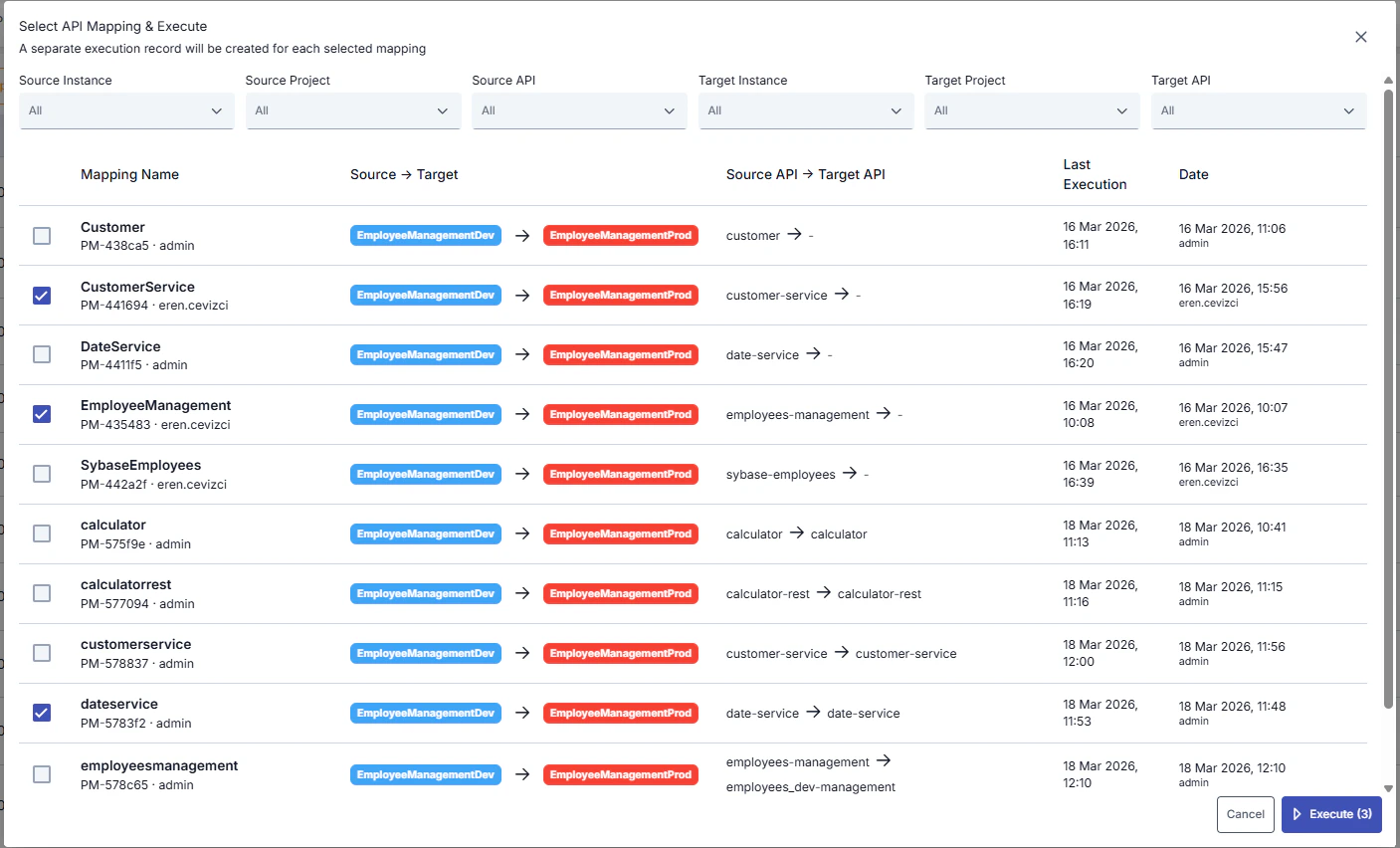
To execute multiple mappings at once, use the **New** button. In the dialog that opens:
1. Select the mappings you want to execute (or use **Select All** to check all)
2. Approval status is shown for each mapping
3. Click the **Execute** button after selection
4. Enter an execution name and description
5. A separate execution record is created for each selected mapping
 ## Approval Process
If the approval mechanism is active on the target instance, the execution automatically enters **Approval Waiting** status.
### Approving
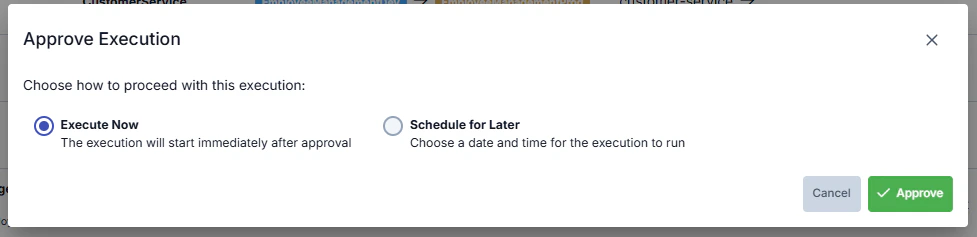
A user defined as an approver can approve a pending execution. During approval, two options are presented:
* **Execute Now**: Execution starts immediately after approval
* **Schedule for Later**: Select the date and time for the execution to run
## Approval Process
If the approval mechanism is active on the target instance, the execution automatically enters **Approval Waiting** status.
### Approving
A user defined as an approver can approve a pending execution. During approval, two options are presented:
* **Execute Now**: Execution starts immediately after approval
* **Schedule for Later**: Select the date and time for the execution to run
 ### Rejecting
The approver can reject a pending execution. Rejected executions enter **Cancelled** status.
### Scheduled Execution
Executions scheduled for a future date are displayed in the **Scheduled** tab. For a scheduled execution:
* **Execute Now**: Run immediately without waiting for the scheduled date
* **Cancel**: Cancel the scheduled execution
## Execution Detail and Monitoring
You can open an execution's detail view to track step-by-step progress.
### Execution Information
General information is shown at the top of the detail screen:
* **Status**: Current status of the execution
* **Start / End**: Execution time information
* **Duration**: Total execution time
* **Executed By**: User who started the operation
* **Promoted APIs**: APIs included in the transfer scope
### Rejecting
The approver can reject a pending execution. Rejected executions enter **Cancelled** status.
### Scheduled Execution
Executions scheduled for a future date are displayed in the **Scheduled** tab. For a scheduled execution:
* **Execute Now**: Run immediately without waiting for the scheduled date
* **Cancel**: Cancel the scheduled execution
## Execution Detail and Monitoring
You can open an execution's detail view to track step-by-step progress.
### Execution Information
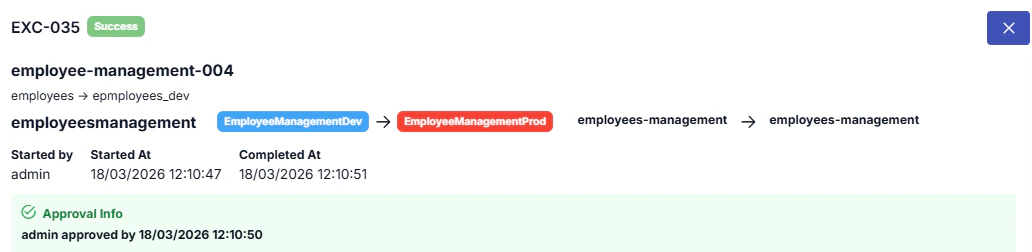
General information is shown at the top of the detail screen:
* **Status**: Current status of the execution
* **Start / End**: Execution time information
* **Duration**: Total execution time
* **Executed By**: User who started the operation
* **Promoted APIs**: APIs included in the transfer scope
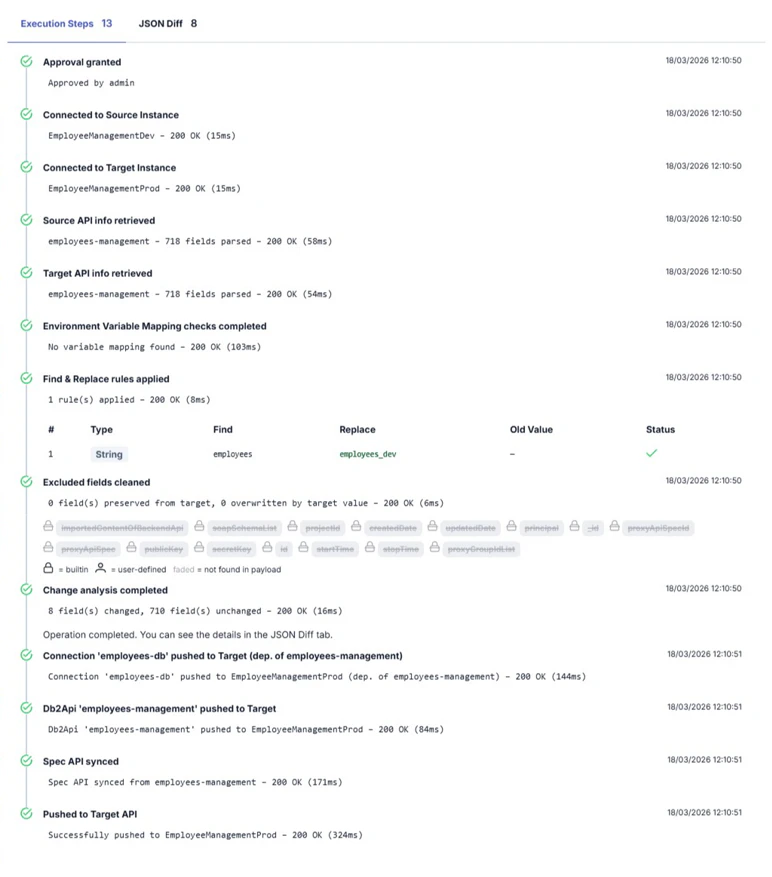
 ### Execution Steps (Timeline)
Each execution consists of multiple steps. Steps are displayed sequentially in a timeline view:
* Start and end time of each step
* Status of each step (successful, failed, in progress)
* Detailed error message in case of failure
### Execution Steps (Timeline)
Each execution consists of multiple steps. Steps are displayed sequentially in a timeline view:
* Start and end time of each step
* Status of each step (successful, failed, in progress)
* Detailed error message in case of failure
 ### JSON Diff View
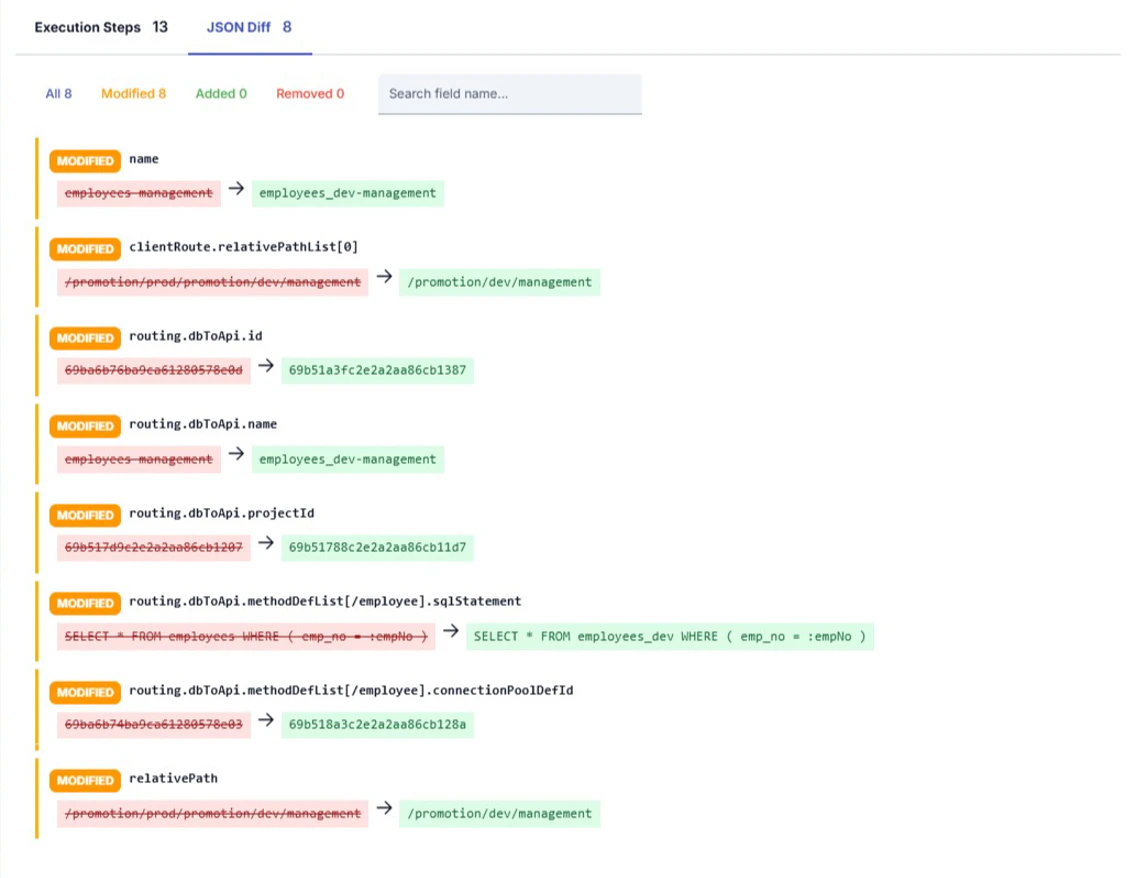
When an execution is completed, you can view the changes made between source and target API in the JSON Diff tab in detail:
* **Changed fields**: Previous value (target) and new value (source) are shown side by side
* **Added fields**: Fields added to the target environment are marked
* **Removed fields**: Fields removed from the target environment are marked
You can search by field name and filter by change type (All, Changed, Added, Removed).
### JSON Diff View
When an execution is completed, you can view the changes made between source and target API in the JSON Diff tab in detail:
* **Changed fields**: Previous value (target) and new value (source) are shown side by side
* **Added fields**: Fields added to the target environment are marked
* **Removed fields**: Fields removed from the target environment are marked
You can search by field name and filter by change type (All, Changed, Added, Removed).
 ### Excluded Fields
Fields excluded in the mapping definition are not included in the comparison. You can see which fields were excluded in the execution detail.
### Pre-Flight Check Results
Pre-check results performed before execution are also displayed in the detail screen.
## Error Management
### Failed Execution
When an execution fails:
1. You can see at which step the error occurred in the timeline
2. You can examine error message details
3. You can restart the same execution with the **Retry** button
### Execution Cancellation
You can stop a running execution with the **Cancel** button. Cancelled executions enter **Cancelled** status.
## Status Flow
Statuses and transitions that an execution can go through:
| Current Status | Next Status | Condition |
| -------------------- | ---------------- | ------------------------------------------------------ |
| **Pending** | Approval Waiting | If approval mechanism is active on the target instance |
| **Pending** | Running | Starts directly if no approval is required |
| **Approval Waiting** | Running | If approver selects "Execute Now" |
| **Approval Waiting** | Scheduled | If approver selects a future date |
| **Approval Waiting** | Cancelled | If approver rejects |
| **Scheduled** | Running | When scheduled date arrives or manually started |
| **Scheduled** | Cancelled | If user cancels |
| **Running** | Success | If all steps complete successfully |
| **Running** | Failed | If an error occurs at any step |
| **Running** | Cancelled | If user cancels during execution |
| **Failed** | Running | If restarted with "Retry" |
### Excluded Fields
Fields excluded in the mapping definition are not included in the comparison. You can see which fields were excluded in the execution detail.
### Pre-Flight Check Results
Pre-check results performed before execution are also displayed in the detail screen.
## Error Management
### Failed Execution
When an execution fails:
1. You can see at which step the error occurred in the timeline
2. You can examine error message details
3. You can restart the same execution with the **Retry** button
### Execution Cancellation
You can stop a running execution with the **Cancel** button. Cancelled executions enter **Cancelled** status.
## Status Flow
Statuses and transitions that an execution can go through:
| Current Status | Next Status | Condition |
| -------------------- | ---------------- | ------------------------------------------------------ |
| **Pending** | Approval Waiting | If approval mechanism is active on the target instance |
| **Pending** | Running | Starts directly if no approval is required |
| **Approval Waiting** | Running | If approver selects "Execute Now" |
| **Approval Waiting** | Scheduled | If approver selects a future date |
| **Approval Waiting** | Cancelled | If approver rejects |
| **Scheduled** | Running | When scheduled date arrives or manually started |
| **Scheduled** | Cancelled | If user cancels |
| **Running** | Success | If all steps complete successfully |
| **Running** | Failed | If an error occurs at any step |
| **Running** | Cancelled | If user cancels during execution |
| **Failed** | Running | If restarted with "Retry" |