> ## Documentation Index
> Fetch the complete documentation index at: https://docs.apinizer.com/llms.txt
> Use this file to discover all available pages before exploring further.
# Project Creation
> Learn about creating new projects in Apinizer, loading existing projects, and project configuration settings.
# Projects
The function of a project is to group and manage all entities related to designing, publishing, developing, and analyzing a group of APIs.
Therefore, the project structure is one of the most important structures in Apinizer.
API Proxies categorized under a purpose framework and their related connections and configurations make management related to the API lifecycle easier.
Apinizer provides a **Default** project on first installation. This Default project cannot be edited or deleted.
After project definition is made, members are generally defined according to their roles. Click [here](/en/admin/project-management/project-members) for detailed information about member definition.
## Project Creation
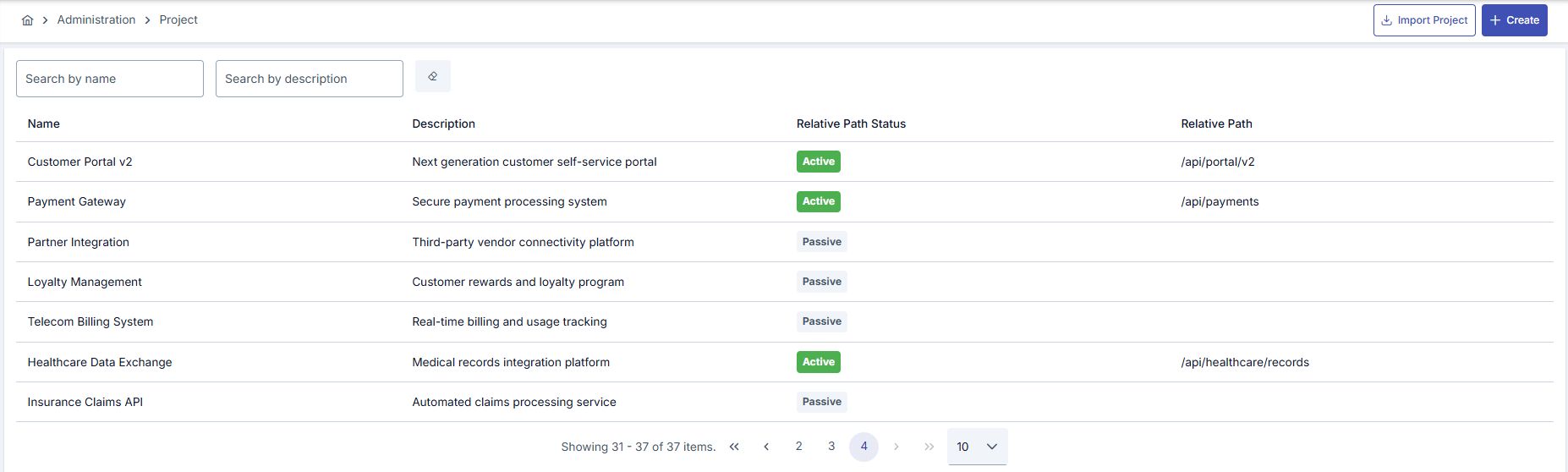
All projects in Apinizer can be viewed from the **Management → Projects** screen or a new project can be created.
A project can be created in two ways:
* A new project definition can be made with the **New (Create)** button.
* A project can be created by loading an existing project configuration file by clicking the **Import Project** link.
**The visual containing the project list is provided below:**
 If a user with **Project Owner** role is deleted from that project; **Admin** user becomes Project Owner for that project.
**The visual containing project settings is provided below:**
If a user with **Project Owner** role is deleted from that project; **Admin** user becomes Project Owner for that project.
**The visual containing project settings is provided below:**
 The fields used for project configuration are shown in the table below.
| Field | Description |
| --------------------------------------------- | ------------------------------------------------------------------------------------------------------------------------------------------------------------------------------------------------------------------------------------------------------------------------------------------------ |
| File Upload *(Project)* | This field appears on the screen when an exported version of an existing project will be imported as a new project via the "File Upload" link and is used to upload the .zip file to be imported. |
| Name | Project name information for the created project. |
| Enable Relative Path *(Enable Relative Path)* | Activated if a common prefix is desired to be used in all gateway addresses within the project. |
| Relative Path *(Relative Path)* | The prefix expression that all Gateway addresses defined in the project will start with is entered in this field. An automatic UUID is given by the system.
The fields used for project configuration are shown in the table below.
| Field | Description |
| --------------------------------------------- | ------------------------------------------------------------------------------------------------------------------------------------------------------------------------------------------------------------------------------------------------------------------------------------------------ |
| File Upload *(Project)* | This field appears on the screen when an exported version of an existing project will be imported as a new project via the "File Upload" link and is used to upload the .zip file to be imported. |
| Name | Project name information for the created project. |
| Enable Relative Path *(Enable Relative Path)* | Activated if a common prefix is desired to be used in all gateway addresses within the project. |
| Relative Path *(Relative Path)* | The prefix expression that all Gateway addresses defined in the project will start with is entered in this field. An automatic UUID is given by the system.
For example; when the project gateway address is "account", the API proxy gateway address appears as: **/account/proxy1** |
| Description | A description can be written to facilitate management related to the created project. |