> ## Documentation Index
> Fetch the complete documentation index at: https://docs.apinizer.com/llms.txt
> Use this file to discover all available pages before exploring further.
# Project General Settings
> Updating and deleting information belonging to the active project
To perform these operations, you must have the **Project Owner** or **System Administrator** role.
## Project Update
Creating a new project is done through the admin menu.
Editing and deleting existing projects are done from the project menu.
**The image containing project settings is shown below:**
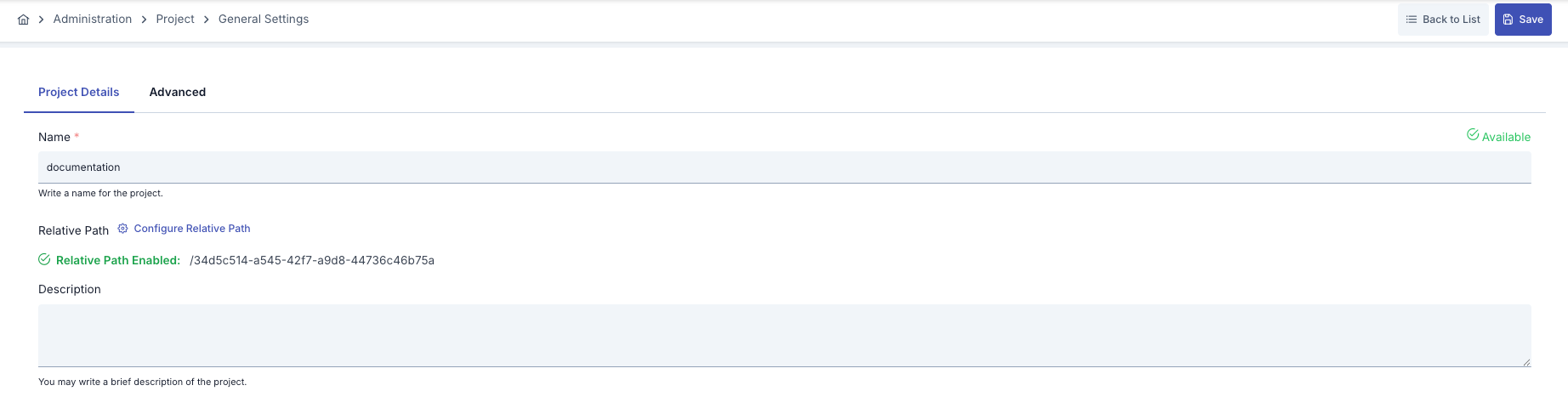 The fields used for project configuration are shown in the table below.
| Field | Description |
| --------------------------------- | ------------------------------------------------------------------------------------------------------------------------------------------------------------------------------------- |
| Name | Project name information for the created project. |
| Gateway Address *(Relative Path)* | Root gateway address where all gateway addresses to be defined within the project will start. An automatic UUID is given by the system.
The fields used for project configuration are shown in the table below.
| Field | Description |
| --------------------------------- | ------------------------------------------------------------------------------------------------------------------------------------------------------------------------------------- |
| Name | Project name information for the created project. |
| Gateway Address *(Relative Path)* | Root gateway address where all gateway addresses to be defined within the project will start. An automatic UUID is given by the system.
For example; **/myproject/proxy1** |
| Description | A description can be written to facilitate management related to the created project. |
## Project Deletion
Click the **Delete Project** button from the **Advanced** tab of the project. After confirming the operation in the opened dialog, the project and all information connected to the project are deleted.
 When you delete a project, all assets (API Proxies, Connection Configurations, Credentials information, etc.) and configuration information belonging to that project will be deleted.