> ## Documentation Index
> Fetch the complete documentation index at: https://docs.apinizer.com/llms.txt
> Use this file to discover all available pages before exploring further.
# Project Members
> Authorize selected projects by assigning roles to users or teams created in Apinizer
Through the Members screen, authorization can be made for selected projects by assigning roles to users or teams created in Apinizer.
A separate role can be defined for each project for a user or team.
When a team is added as a member to a project, there is no need to select a role. Since the roles of users in the team are defined when adding the team, the roles of users within the team are valid.
## Adding Team
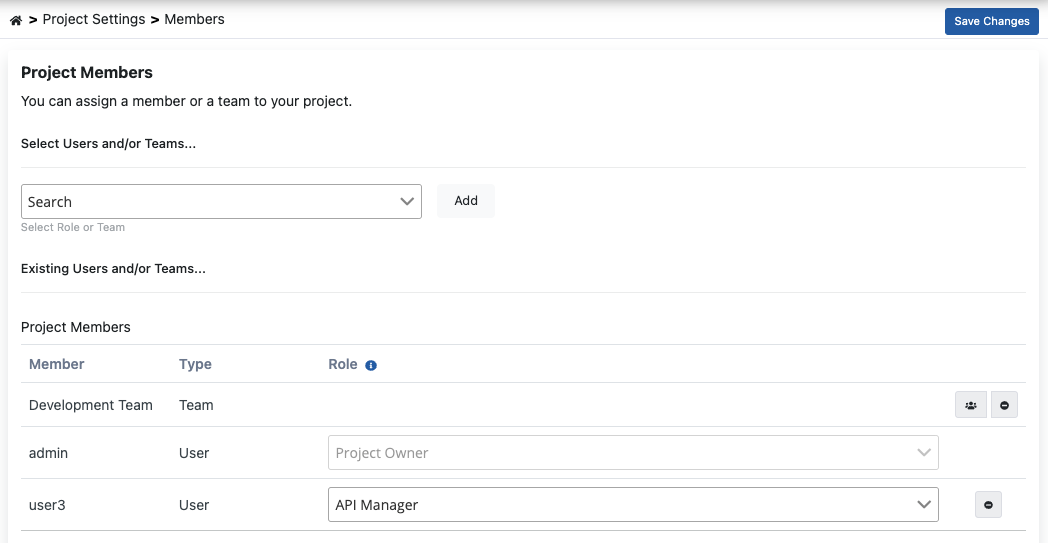
To add members from a team to the active project, select the team from the list in the **Select Users and/or Teams** field, then click the **Add** button.
 ## Adding User
To add a user to the active project, select the user from the list in the **Select Users and/or Teams** field, then click the **Add** button.
## Adding User
To add a user to the active project, select the user from the list in the **Select Users and/or Teams** field, then click the **Add** button.
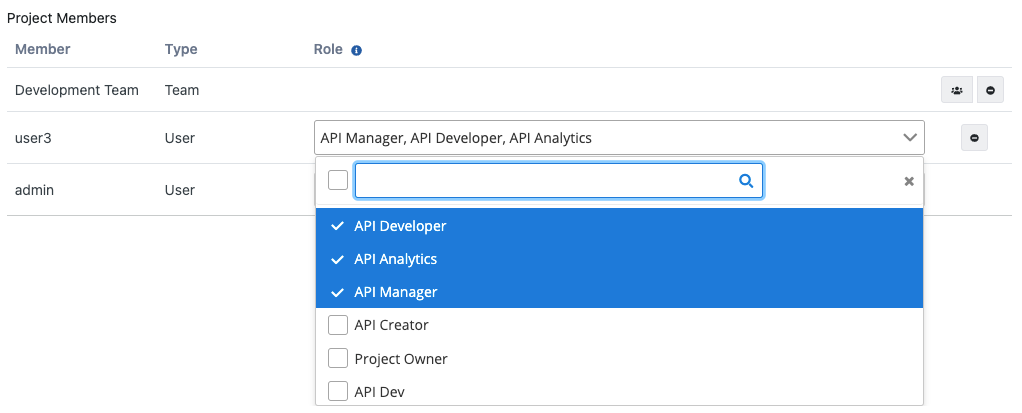
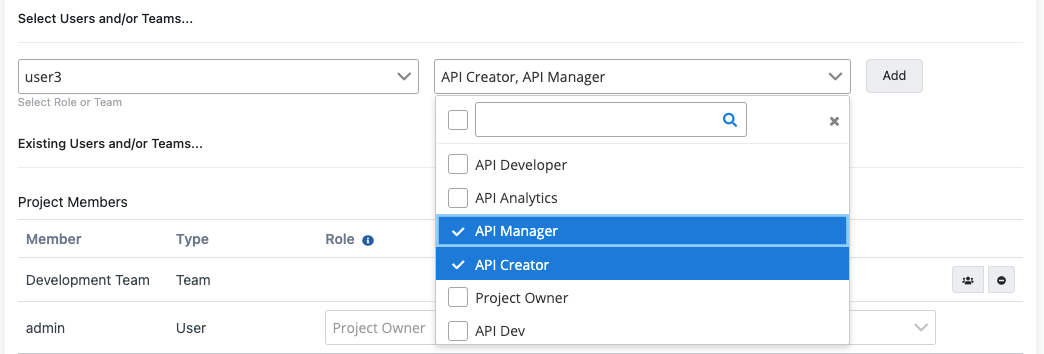 To update the role of the added user, select from the **role** list.
 ## Viewing Team Details
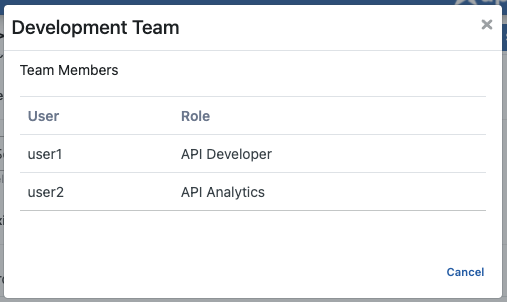
To see the users and roles within the added team, click the **Team Details** button.
## Viewing Team Details
To see the users and roles within the added team, click the **Team Details** button.
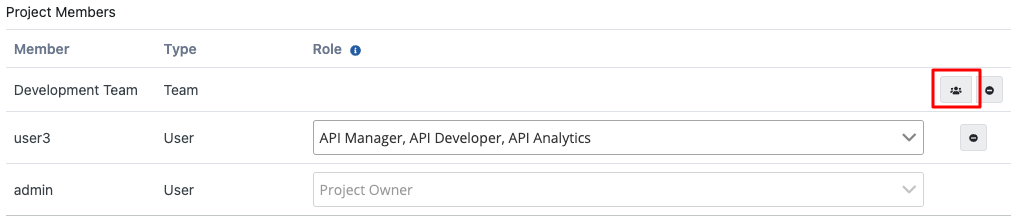 In the opened window, you can see the users in the team and the roles of these users within the relevant team.
 ## Removing Member
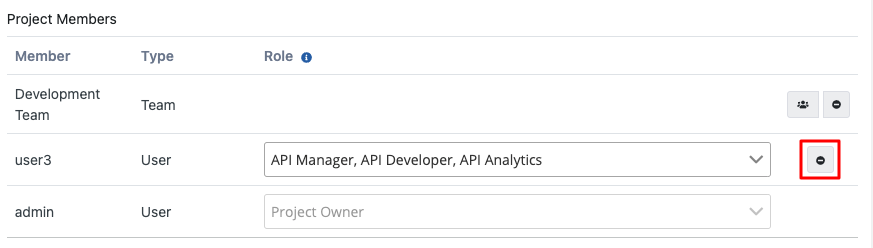
To remove the added team, click the **Delete Member** button, then confirm the operation in the window that appears.
## Removing Member
To remove the added team, click the **Delete Member** button, then confirm the operation in the window that appears.
 To see user creation details, [see here.](/en/admin/user-access-management/users)
To see team creation details, [see here.](/en/admin/user-access-management/teams)
To see role creation details, [see here.](/en/admin/user-access-management/roles)
To see user creation details, [see here.](/en/admin/user-access-management/users)
To see team creation details, [see here.](/en/admin/user-access-management/teams)
To see role creation details, [see here.](/en/admin/user-access-management/roles)