> ## Documentation Index
> Fetch the complete documentation index at: https://docs.apinizer.com/llms.txt
> Use this file to discover all available pages before exploring further.
# License Management
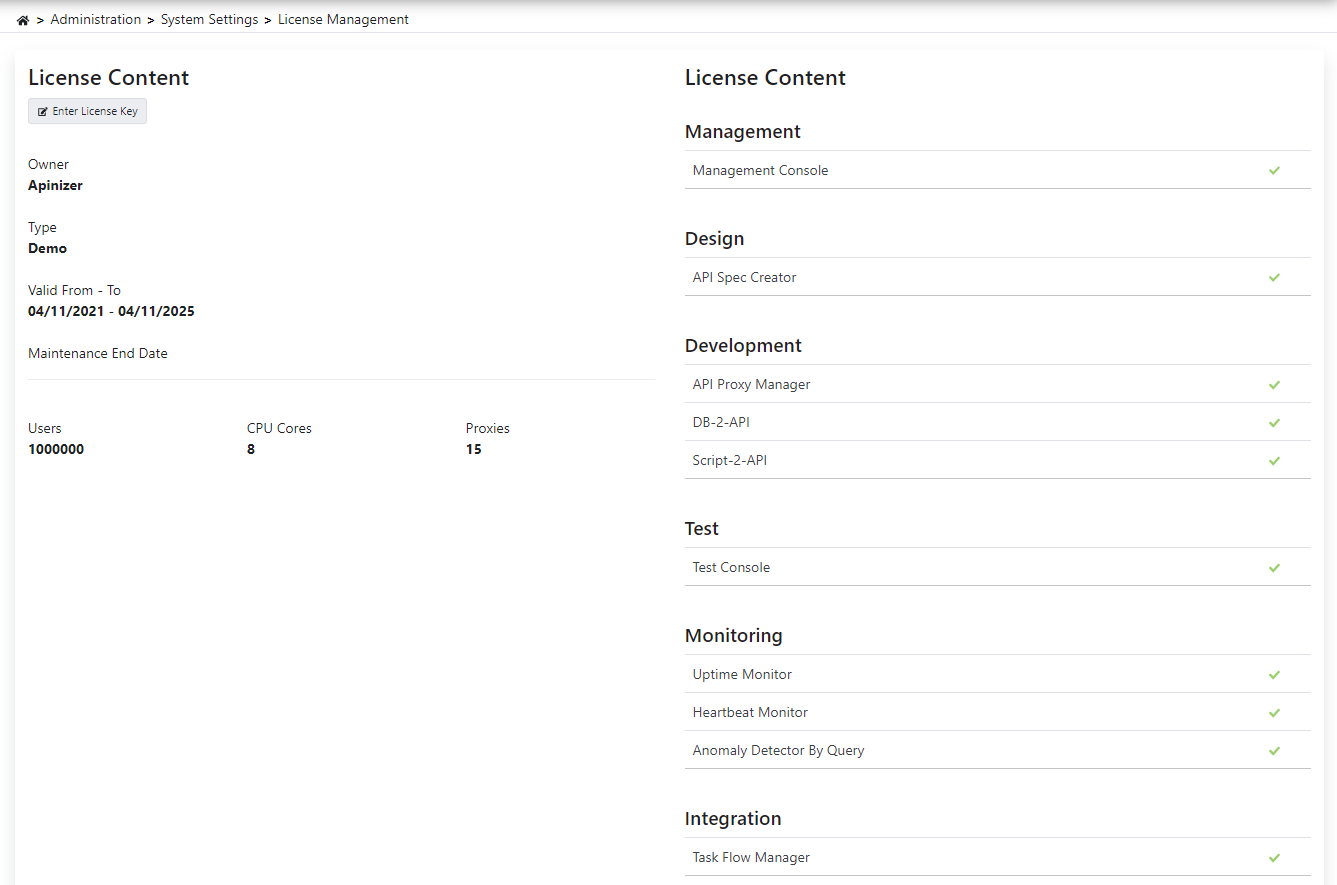
> You can view Apinizer license information, update license and manage perpetual/time-limited license types. You can enter license key and apply license.
## Apinizer License Types
There are two types of licenses in Apinizer. **Perpetual** and **Time Limited.**
If you have a **Time Limited** license, the Apinizer Management Console will not open when your license period expires. However, services will continue to run.
In **Perpetual License** usage, you will not be able to make new version updates when your maintenance period ends. You will receive a warning in the Apinizer Management Console when the license or maintenance period is about to expire. Please contact your Apinizer consultant to avoid problems in this case.
 ## License Update
Go to the **Management → System Settings → License Management** screen.
Paste your license key into the field that opens by clicking the **Enter License Key** button.
Complete the update process by clicking the **Apply License** button.
## License Update
Go to the **Management → System Settings → License Management** screen.
Paste your license key into the field that opens by clicking the **Enter License Key** button.
Complete the update process by clicking the **Apply License** button.