> ## Documentation Index
> Fetch the complete documentation index at: https://docs.apinizer.com/llms.txt
> Use this file to discover all available pages before exploring further.
# Client Route Report
> You can analyze conflict statuses of your client routes in Apinizer. You can examine route configurations of your API Proxies and Proxy Groups, detect conflicting routes, and view deployment statuses.
## Overview
Client Route Report analyzes the client route configurations of your API Proxies and Proxy Groups to detect potential conflicts. Through this report, you can see route conflicts in advance and resolve configuration issues.
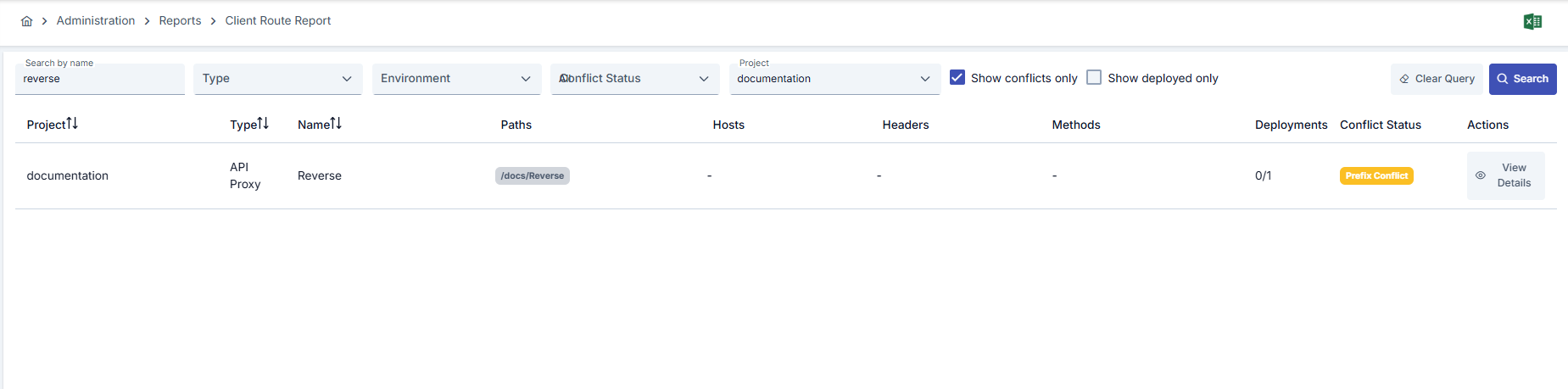 ## Report Table
Report results are displayed in the following columns:
| Field | Description |
| ----------- | ------------------------------------------------------------------------ |
| Project | Name of the project that the route belongs to |
| Type | Type of the route (API Proxy or Proxy Group) |
| Name | Name of the API Proxy or Proxy Group |
| Paths | Defined paths of the route |
| Hosts | Defined hosts of the route |
| Headers | Defined headers of the route (in name:value format) |
| Methods | HTTP methods supported by the route |
| Deployments | Deployed/Total environment count (e.g., 2/3) |
| Conflict | Conflict status of the route (No Conflict, Exact Match, Prefix Conflict) |
| Actions | View details button |
## View Details
You can click the **View Details** button to view route details. The detail dialog shows the following information:
* Project name
* Type (API Proxy/Proxy Group)
* Name
* Paths
* Hosts
* Headers
* Methods
* Conflict status
* Environment name
* Access URL
* Deploy status
* Redeploy requirement
Information about other routes in conflict:
* Project name
* Type
* Name
* Path
* Conflict reason
## Conflict Statuses
Routes can have three different conflict statuses:
The route has no conflicts with other routes. This route can be used safely.
The route's path, host, header, and method configuration exactly matches another route. This is a serious conflict.
The route's path conflicts with the prefix of another route's path. This situation may cause a potential problem.
## Excel Export
You can export report results in Excel format. You can download the report created according to the current filtering criteria in ZIP format by clicking the **Export** button.
Excel export includes all results according to the current filtering criteria.
## Sorting
You can sort the report table in ascending or descending order by **Project**, **Type**, and **Name** columns. You can click the column header to sort.
This report is designed to analyze all routes. All results are displayed without pagination.
## Report Table
Report results are displayed in the following columns:
| Field | Description |
| ----------- | ------------------------------------------------------------------------ |
| Project | Name of the project that the route belongs to |
| Type | Type of the route (API Proxy or Proxy Group) |
| Name | Name of the API Proxy or Proxy Group |
| Paths | Defined paths of the route |
| Hosts | Defined hosts of the route |
| Headers | Defined headers of the route (in name:value format) |
| Methods | HTTP methods supported by the route |
| Deployments | Deployed/Total environment count (e.g., 2/3) |
| Conflict | Conflict status of the route (No Conflict, Exact Match, Prefix Conflict) |
| Actions | View details button |
## View Details
You can click the **View Details** button to view route details. The detail dialog shows the following information:
* Project name
* Type (API Proxy/Proxy Group)
* Name
* Paths
* Hosts
* Headers
* Methods
* Conflict status
* Environment name
* Access URL
* Deploy status
* Redeploy requirement
Information about other routes in conflict:
* Project name
* Type
* Name
* Path
* Conflict reason
## Conflict Statuses
Routes can have three different conflict statuses:
The route has no conflicts with other routes. This route can be used safely.
The route's path, host, header, and method configuration exactly matches another route. This is a serious conflict.
The route's path conflicts with the prefix of another route's path. This situation may cause a potential problem.
## Excel Export
You can export report results in Excel format. You can download the report created according to the current filtering criteria in ZIP format by clicking the **Export** button.
Excel export includes all results according to the current filtering criteria.
## Sorting
You can sort the report table in ascending or descending order by **Project**, **Type**, and **Name** columns. You can click the column header to sort.
This report is designed to analyze all routes. All results are displayed without pagination.