> ## Documentation Index
> Fetch the complete documentation index at: https://docs.apinizer.com/llms.txt
> Use this file to discover all available pages before exploring further.
# API Portal Integration with Claude Desktop MCP
> You can integrate Apinizer API Portal with Claude Desktop through Model Context Protocol (MCP). With this integration, you can perform API discovery, application management, testing, and analytics operations using all MCP tools of API Portal through Claude Desktop. Provides step-by-step installation and configuration instructions for Windows, macOS, and Linux operating systems.
## Prerequisites
Must be downloaded and installed from the official Anthropic website.
[Download Link](https://claude.ai/download)
MCP servers run on Node.js. v16.0.0 or higher is required.
[Download Link](https://nodejs.org/en/download)
Can be installed globally for advanced usage (optional).
### Node.js Installation Check
After installation, you can check the version with the following command in terminal/command prompt:
```bash theme={null}
node --version
npm --version
```
**Minimum Requirements:**
* Node.js v16.0.0 or higher
* npm v8.0.0 or higher
### MCP SDK Installation (Optional)
You can install MCP SDK globally for advanced usage:
```bash theme={null}
npm install -g @modelcontextprotocol/sdk
```
Model Context Protocol (MCP) is an open standard that enables AI assistants to securely communicate with external tools and data sources. Claude Desktop can work integrated with Apinizer API Portal thanks to this protocol.
**More information:** [https://modelcontextprotocol.io/quickstart/user](https://modelcontextprotocol.io/quickstart/user)
## Getting Apinizer MCP Token
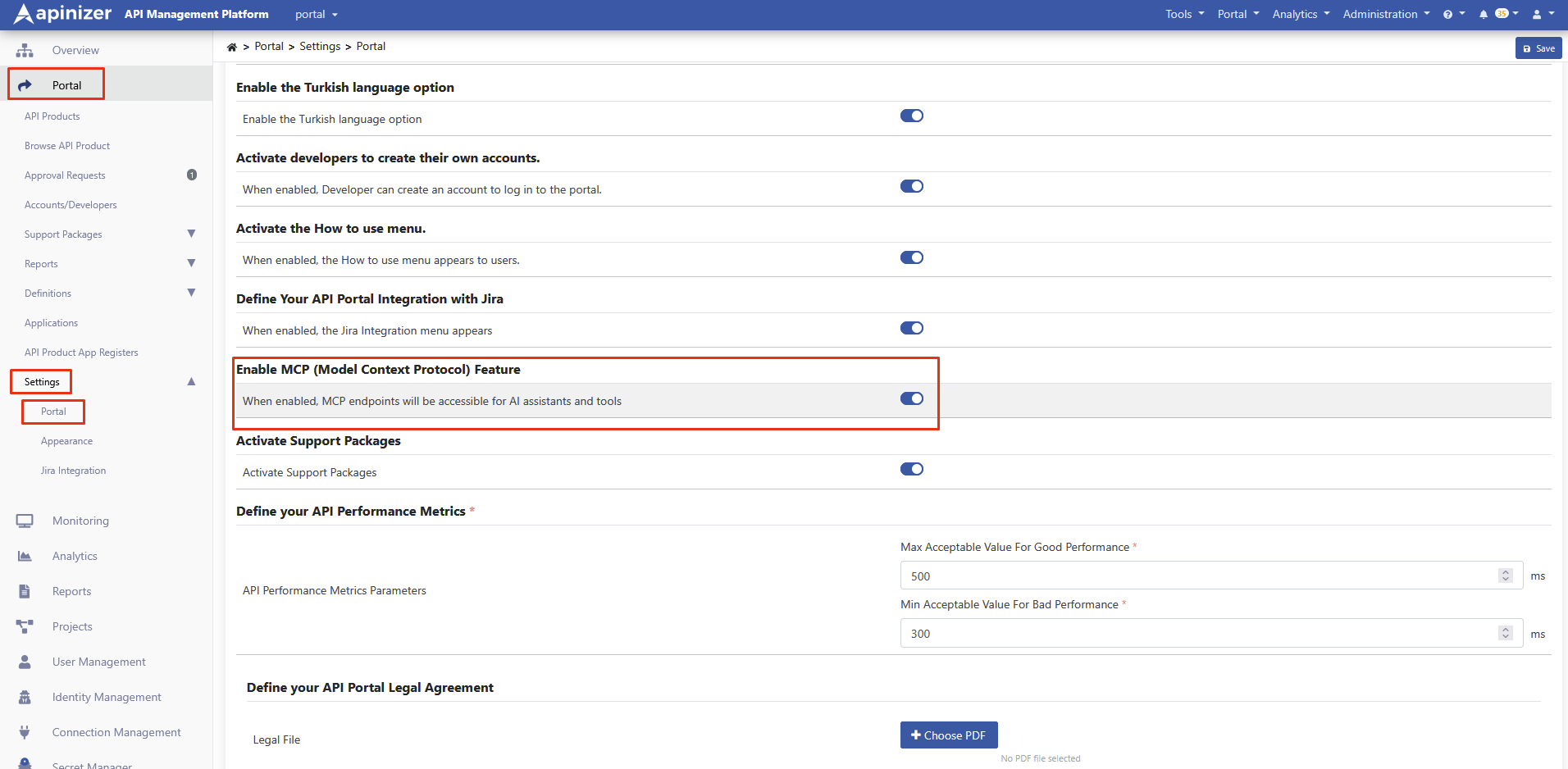
### 1. Enabling MCP Usage from Apinizer Management Console
Go to Portal settings page in Apinizer interface and enable MCP.
 ### 2. Logging into API Portal and Creating Token for MCP Connection
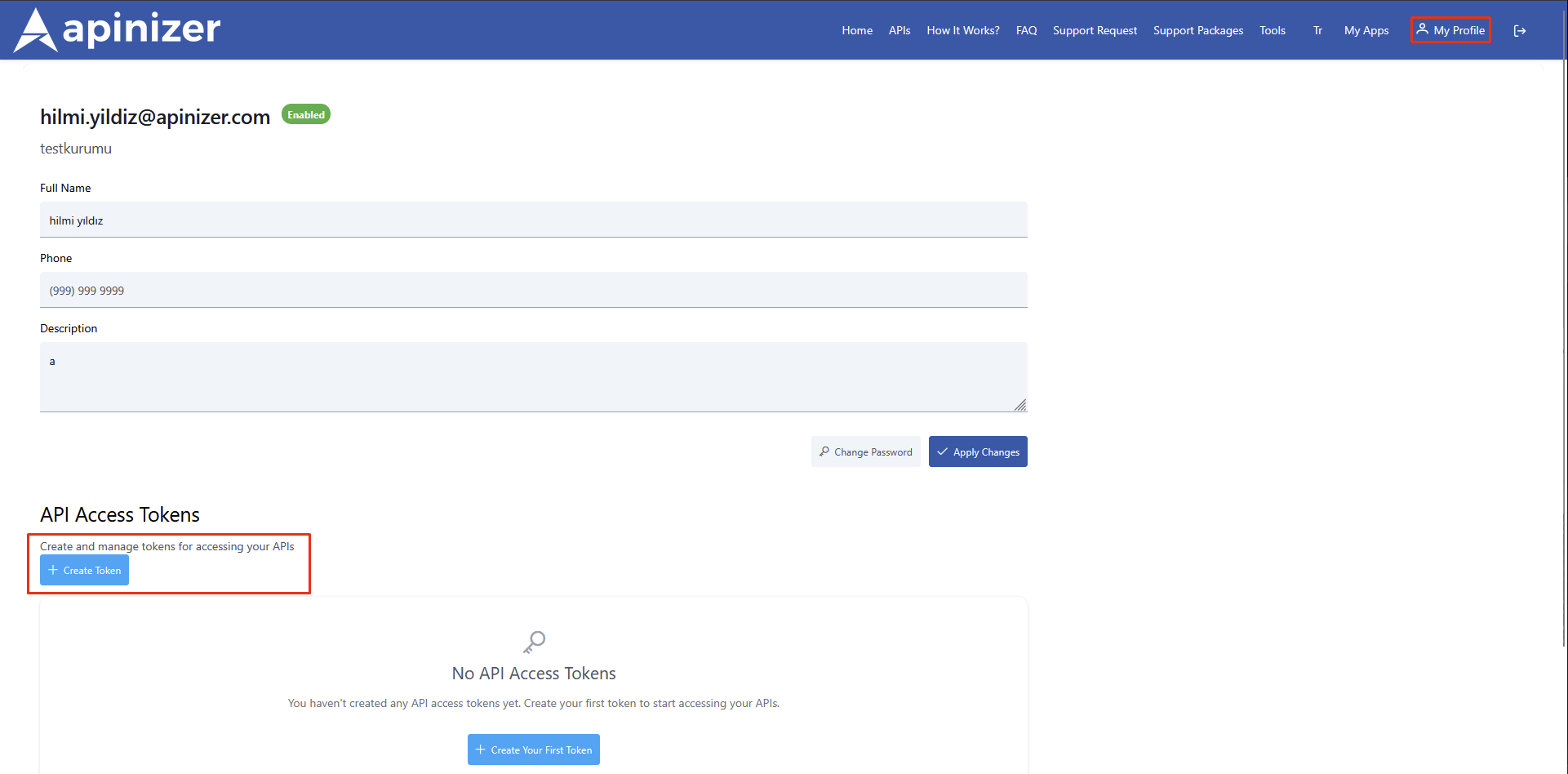
Log into Apinizer API Portal
Go to **My Profile** page
Scroll down to **API Access Tokens** section at the bottom of the page
Click the **Create Token** button
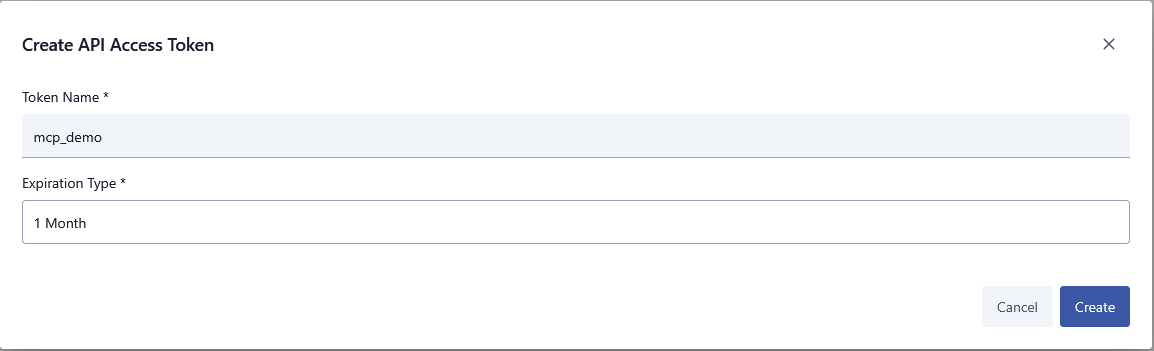
Give the token a name, determine the token's lifetime, and create it
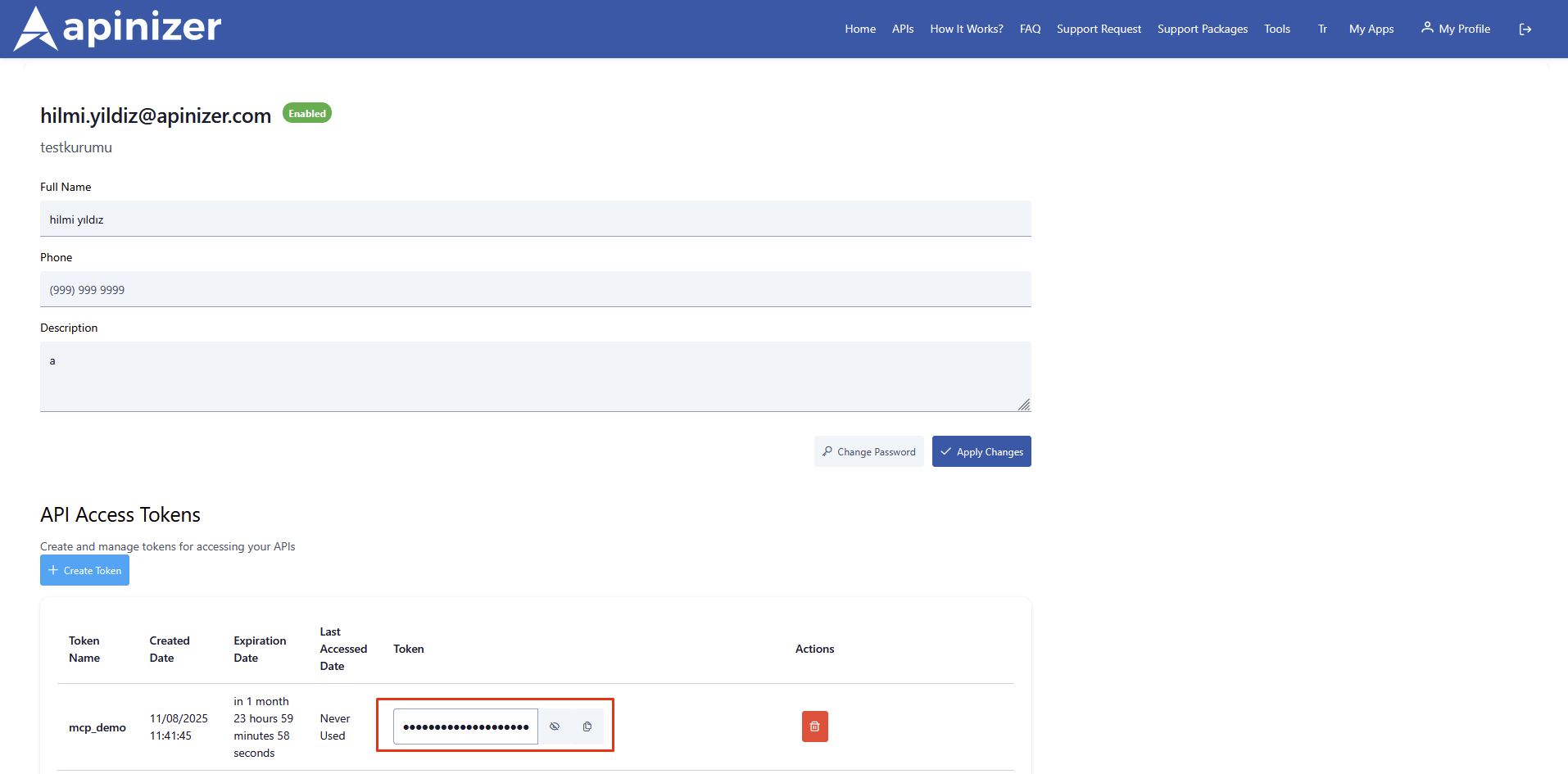
Store the created token in a secure location
### 2. Logging into API Portal and Creating Token for MCP Connection
Log into Apinizer API Portal
Go to **My Profile** page
Scroll down to **API Access Tokens** section at the bottom of the page
Click the **Create Token** button
Give the token a name, determine the token's lifetime, and create it
Store the created token in a secure location
 ## Claude Desktop MCP Configuration
### 1. Accessing Configuration File
Go to **Settings** > **Developer** > **Local MCP Servers** page in Claude Desktop
Click the **Edit Config** button
This operation will create a configuration file in the following locations:
`~/Library/Application Support/Claude/claude_desktop_config.json`
`%APPDATA%\Claude\claude_desktop_config.json`
`~/.config/claude/claude_desktop_config.json`
### 2. Preparing Proxy Files
First, you need to save MCP proxy files to a folder on your system. Save the files with the following content. Confirm that you do not need Administration permissions when accessing the files, change the location where you save them if necessary.
The recommended directory structure is as follows. Different directory paths are used for Windows, macOS, and Linux.
```
C:\Users\[kullanıcı_adı]\AppData\Local\Claude\mcp\
├── apinizer_http_proxy.js
└── apinizer_ws_proxy.js
```
```
~/.claude/mcp/
├── apinizer_http_proxy.js
└── apinizer_ws_proxy.js
```
### HTTP Connection Settings (apinizer\_http\_proxy.js)
If you are on **Unix/Linux/macOS** systems, you must add the following expression at the beginning of this file you will create.
```javascript theme={null}
#!/usr/bin/env node
```
```javascript theme={null}
const http = require('http');
const https = require('https');
const readline = require('readline');
//// Get configuration from environment variables
const MCP_TOKEN = process.env.APINIZER_TOKEN;
const HTTP_HOSTNAME = process.env.HTTP_HOSTNAME;
// Use default values if values are not entered in config file for those other than APINIZER_TOKEN and HTTP_HOSTNAME
const HTTP_PORT = parseInt(process.env.HTTP_PORT || '443');
const HTTP_PATH = process.env.HTTP_PATH || '/apiportal/management/mcp/api';
const TOKEN_HEADER = process.env.TOKEN_HEADER || 'APINIZER-TOKEN';
const TIMEOUT = parseInt(process.env.TIMEOUT_AS_MS) || 30000;
// HTTPS configuration
const USE_HTTPS = process.env.USE_HTTPS || true;
const VERIFY_CERTIFICATE = process.env.VERIFY_CERTIFICATE !== 'false'; // Default: true
// Protocol selection
const PROTOCOL = USE_HTTPS ? 'https' : 'http';
const httpModule = USE_HTTPS ? https : http;
console.error('HTTP/HTTPS Proxy Configuration:');
console.error(`- Endpoint: ${PROTOCOL}://${HTTP_HOSTNAME}:${HTTP_PORT}${HTTP_PATH}`);
console.error(`- Protocol: ${PROTOCOL.toUpperCase()}`);
console.error(`- Method: POST`);
console.error(`- Token Header: ${TOKEN_HEADER}`);
console.error(`- Token: ${MCP_TOKEN.substring(0, 8)}...`);
console.error(`- Certificate Verification: ${USE_HTTPS ? VERIFY_CERTIFICATE : 'N/A'}`);
async function sendHttpRequest(data) {
return new Promise((resolve, reject) => {
const postData = JSON.stringify(data);
const options = {
hostname: HTTP_HOSTNAME,
port: HTTP_PORT,
path: HTTP_PATH,
method: 'POST',
headers: {
'Content-Type': 'application/json',
'Accept': 'application/json',
[TOKEN_HEADER]: MCP_TOKEN
}
};
// Certificate verification setting for HTTPS
if (USE_HTTPS && !VERIFY_CERTIFICATE) {
options.rejectUnauthorized = false;
options.requestCert = false;
console.error('WARNING: Certificate verification is disabled!');
}
const req = httpModule.request(options, (res) => {
let responseData = '';
res.on('data', (chunk) => {
responseData += chunk;
});
res.on('end', () => {
console.error(`Status: ${res.statusCode}`);
console.error(`Raw Response: ${responseData}`);
// 401 Unauthorized check
if (res.statusCode === 401) {
reject(new Error('Unauthorized: Invalid MCP token'));
return;
}
// 403 Forbidden check
if (res.statusCode === 403) {
reject(new Error('Forbidden: Access denied'));
return;
}
// 404 Not Found check
if (res.statusCode === 404) {
reject(new Error(`Not Found: ${HTTP_PATH}`));
return;
}
// 500+ Server Error check
if (res.statusCode >= 500) {
reject(new Error(`Server Error: ${res.statusCode}`));
return;
}
try {
const response = JSON.parse(responseData);
// Ultra secure cleanup for Claude Desktop
const cleanResponse = {
jsonrpc: response.jsonrpc || "2.0"
};
// ID check - null, undefined, or notification status
if (response.id !== null && response.id !== undefined) {
cleanResponse.id = response.id;
} else if (data.method && data.method.startsWith('notifications/')) {
console.error('Notification detected - skipping ID');
} else {
cleanResponse.id = data.id || "unknown";
}
// Add if result exists
if (response.result !== null && response.result !== undefined) {
cleanResponse.result = response.result;
}
// Add if error exists
if (response.error !== null && response.error !== undefined) {
cleanResponse.error = response.error;
}
// Special handling for notifications
if (data.method && data.method.startsWith('notifications/')) {
console.error('Notification acknowledged - no response sent');
return;
}
console.error(`Cleaned Response: ${JSON.stringify(cleanResponse)}`);
resolve(cleanResponse);
} catch (error) {
console.error(`Parse Error: ${error.message}`);
reject(new Error(`Invalid JSON: ${responseData.substring(0, 100)}`));
}
});
});
req.on('error', (error) => {
console.error(`Request Error: ${error.message}`);
// Certificate error check
if (error.code === 'UNABLE_TO_VERIFY_LEAF_SIGNATURE' ||
error.code === 'CERT_HAS_EXPIRED' ||
error.code === 'DEPTH_ZERO_SELF_SIGNED_CERT' ||
error.code === 'SELF_SIGNED_CERT_IN_CHAIN') {
console.error('Certificate Error detected. You can disable verification with VERIFY_CERTIFICATE=false');
}
reject(error);
});
// Add timeout
req.setTimeout(TIMEOUT, () => {
req.destroy();
reject(new Error('Request timeout after ' + TIMEOUT + ' seconds'));
});
req.write(postData);
req.end();
});
}
const rl = readline.createInterface({
input: process.stdin,
output: process.stdout,
terminal: false
});
rl.on('line', async (line) => {
try {
console.error(`Input: ${line}`);
const request = JSON.parse(line);
// Special handling for notifications
if (request.method && request.method.startsWith('notifications/')) {
console.error('Processing notification...');
await sendHttpRequest(request);
return;
}
const response = await sendHttpRequest(request);
if (response) {
console.log(JSON.stringify(response));
}
} catch (error) {
console.error('Error:', error.message);
let errorCode = -32603;
// Determine error code
if (error.message.includes('Unauthorized')) {
errorCode = -32001;
} else if (error.message.includes('Forbidden')) {
errorCode = -32002;
} else if (error.message.includes('Not Found')) {
errorCode = -32003;
} else if (error.message.includes('timeout')) {
errorCode = -32004;
} else if (error.message.includes('Invalid JSON')) {
errorCode = -32700;
} else if (error.code && error.code.includes('CERT')) {
errorCode = -32005;
error.message = `Certificate Error: ${error.code}. Set VERIFY_CERTIFICATE=false to bypass`;
}
const errorResponse = {
jsonrpc: "2.0",
id: "error",
error: {
code: errorCode,
message: error.message
}
};
console.log(JSON.stringify(errorResponse));
}
});
// Security warning
if (USE_HTTPS && !VERIFY_CERTIFICATE) {
console.error('\nWARNING: Running in INSECURE mode with certificate verification disabled!');
console.error('This should only be used for development/testing purposes.\n');
}
console.error(`Secure MCP ${PROTOCOL.toUpperCase()} proxy started`);
console.error(`Using token: ${MCP_TOKEN.substring(0, 8)}...`);
```
### WebSocket Connection Settings (apinizer\_ws\_proxy.js)
```javascript theme={null}
#!/usr/bin/env node
const connection = require('wss');
const readline = require('readline');
// Get token from environment variable
const APINIZER_TOKEN = process.env.APINIZER_TOKEN;
const HTTP_HOSTNAME = process.env.HTTP_HOSTNAME;
const APINIZER_PORT = process.env.APINIZER_PORT;
const WS_URL = 'wss://' + HTTP_HOSTNAME + ':' + APINIZER_PORT + '/apiportal/management/mcp/ws';
let ws;
function cleanMcpResponse(jsonStr) {
try {
const response = JSON.parse(jsonStr);
// Create clean format for Claude Desktop
const cleanResponse = {
jsonrpc: response.jsonrpc || "2.0",
id: response.id
};
// Add if result exists
if (response.result !== null && response.result !== undefined) {
cleanResponse.result = response.result;
}
// Add if error exists
if (response.error !== null && response.error !== undefined) {
cleanResponse.error = response.error;
}
return JSON.stringify(cleanResponse);
} catch (error) {
console.error('Clean response error:', error.message);
return jsonStr;
}
}
function connect() {
console.error('Connecting to WebSocket server with token...');
// WebSocket connection options with headers
const wsOptions = {
headers: {
'APINIZER-TOKEN': APINIZER_TOKEN
}
};
ws = new connection(WS_URL, wsOptions);
ws.on('open', () => {
console.error(`Connected to MCP WebSocket server with token: ${APINIZER_TOKEN.substring(0, 8)}...`);
const rl = readline.createInterface({
input: process.stdin,
output: process.stdout,
terminal: false
});
rl.on('line', (line) => {
if (ws.readyState === connection.OPEN) {
console.error('Sending to WebSocket:', line);
ws.send(line);
}
});
process.stdin.on('end', () => {
console.error('Stdin ended, closing connection');
ws.close();
});
});
ws.on('message', (data) => {
const message = data.toString().trim();
console.error('Received from WebSocket:', message);
try {
// Validate JSON
const parsed = JSON.parse(message);
// Clean response
const cleanedMessage = cleanMcpResponse(message);
console.error('Cleaned response:', cleanedMessage);
// Send to Claude Desktop
console.log(cleanedMessage);
} catch (error) {
console.error('JSON Parse Error:', error.message);
console.error('Raw message:', message);
// Send error response
const errorResponse = {
jsonrpc: "2.0",
id: "error",
error: {
code: -32603,
message: `WebSocket JSON parse error: ${error.message}`
}
};
console.log(JSON.stringify(errorResponse));
}
});
ws.on('close', (code, reason) => {
console.error(`WebSocket closed: ${code} ${reason}`);
if (code === 1002) {
console.error('WebSocket closed due to protocol error - possibly authentication failed');
}
process.exit(0);
});
ws.on('error', (error) => {
console.error('WebSocket error:', error.message);
if (error.message.includes('401') || error.message.includes('403')) {
console.error('Authentication failed: Check your MCP token');
}
process.exit(1);
});
}
// Handle process termination
process.on('SIGINT', () => {
console.error('Received SIGINT, closing connection');
if (ws) {
ws.close();
}
process.exit(0);
});
process.on('SIGTERM', () => {
console.error('Received SIGTERM, closing connection');
if (ws) {
ws.close();
}
process.exit(0);
});
connect();
```
**For Setting File Permissions (Unix/Linux/macOS):**
```bash theme={null}
chmod +x ~/.claude/mcp/apinizer_http_proxy.js
chmod +x ~/.claude/mcp/apinizer_ws_proxy.js
```
### 3. Editing Configuration File
Edit the `claude_desktop_config.json` file as follows.
Replace the following placeholder values with your own information:
* ``: Full path of HTTP proxy file
* ``: Full path of WebSocket proxy file
* ``: Your Apinizer API Portal token starting with "mcp\_"
* ``: Your Apinizer API Portal access address (e.g., "apiportal.apinizer.com")
**File Path Examples:**
* `"C:\\Users\\[kullanıcı_adı]\\AppData\\Local\\Claude\\mcp\\apinizer_http_proxy.js"`
* `"C:\\Users\\[kullanıcı_adı]\\AppData\\Local\\Claude\\mcp\\apinizer_ws_proxy.js"`
* `"/Users/[kullanıcı_adı]/.claude/mcp/apinizer_http_proxy.js"`
* `"/Users/[kullanıcı_adı]/.claude/mcp/apinizer_ws_proxy.js"`
### Claude Desktop MCP Connection Settings (claude\_desktop\_config.json)
```json theme={null}
{
"mcpServers": {
"apinizer-portal-mcp-http": {
"command": "node",
"args": [
""
],
"env": {
"APINIZER_TOKEN": "",
"HTTP_HOSTNAME": "",
"TIMEOUT_AS_MS": "30000"
}
},
"apinizer-portal-mcp-websocket": {
"command": "node",
"args": [
""
],
"env": {
"APINIZER_TOKEN": "",
"HTTP_HOSTNAME": "",
"TIMEOUT_AS_MS": "30000"
}
}
}
}
```
## Restarting Claude Desktop
For configuration changes to take effect, you need to completely close and reopen Claude Desktop:
**Completely** close Claude Desktop
**Windows:** Also exit from system tray (bottom right corner)
**macOS:** Right-click on Dock and select "Quit"
Reopen the application
## Connection Check
### 1. Settings Check
After reopening Claude Desktop:
Go to **Settings** > **Developer** > **Local MCP Servers** page
Verify that Apinizer MCP servers appear in the list
Verify that connection statuses are displayed as **Connected**
### 2. Connection Test
To test whether the connection is successful, you can ask Claude questions like:
```bash theme={null}
-How many APIs are in my Apinizer API portal?
-Can you connect to Apinizer API portal with mcp_xxx token?
-Is my connection to Apinizer API portal working?
```
## Troubleshooting
**Possible Causes:**
* Token is invalid or incorrect
* Network connection issue
* Incorrect host/port information
**Solution Steps:**
* Check token from Apinizer Portal
* Test network connection (`ping apiportal.apinizer.com`)
* Verify host/port information in configuration
* Create a new token and try
**Cause:** Node.js is not installed or not defined in PATH
**Solution:**
```bash theme={null}
# Check Node.js installation
node --version
npm --version
# If not installed, install again
# Windows: Download from nodejs.org
# macOS: brew install node
# Linux: sudo apt-get install nodejs npm
```
**Cause:** Proxy file paths are incorrect
**Solution:**
* Check file paths
* Verify that files are actually in that location
* Use absolute path (instead of relative path)
**Cause:** File permissions issue
**macOS/Linux Solution:**
```bash theme={null}
chmod +x ~/.claude/mcp/apinizer_http_proxy.js
chmod +x ~/.claude/mcp/apinizer_ws_proxy.js
```
**Windows Solution:**
* Right-click files
* Check permissions in Properties → Security
* If necessary, open Claude Desktop with "Run as Administrator"
**Cause:** Corporate firewall or proxy
**Solution:**
Add this part to the Json file:
```json theme={null}
{
"env": {
"NODE_TLS_REJECT_UNAUTHORIZED": "0",
"HTTPS_PROXY": "http://your-proxy:port"
}
}
```
### Reviewing Log Files
For more detailed check, review log files:
`%APPDATA%\Claude\logs\`
`~/Library/Logs/Claude/`
`~/.config/claude/logs/`
## Support
If you encounter problems during installation:
* Review the steps in this document again
* Check log files
* Contact Apinizer support team
## Security Notes
* Create tokens with minimal validity period (30-90 days)
* Store tokens in secure password manager
* Never store tokens in code repository
* Immediately revoke unused tokens
* Regularly perform token rotation
* Store proxy files in secure directory
* Keep file permissions at minimum required level
* Backup configuration file
* Monitor network traffic
* Regularly check connection logs
* Track abnormal API usage
## Claude Desktop MCP Configuration
### 1. Accessing Configuration File
Go to **Settings** > **Developer** > **Local MCP Servers** page in Claude Desktop
Click the **Edit Config** button
This operation will create a configuration file in the following locations:
`~/Library/Application Support/Claude/claude_desktop_config.json`
`%APPDATA%\Claude\claude_desktop_config.json`
`~/.config/claude/claude_desktop_config.json`
### 2. Preparing Proxy Files
First, you need to save MCP proxy files to a folder on your system. Save the files with the following content. Confirm that you do not need Administration permissions when accessing the files, change the location where you save them if necessary.
The recommended directory structure is as follows. Different directory paths are used for Windows, macOS, and Linux.
```
C:\Users\[kullanıcı_adı]\AppData\Local\Claude\mcp\
├── apinizer_http_proxy.js
└── apinizer_ws_proxy.js
```
```
~/.claude/mcp/
├── apinizer_http_proxy.js
└── apinizer_ws_proxy.js
```
### HTTP Connection Settings (apinizer\_http\_proxy.js)
If you are on **Unix/Linux/macOS** systems, you must add the following expression at the beginning of this file you will create.
```javascript theme={null}
#!/usr/bin/env node
```
```javascript theme={null}
const http = require('http');
const https = require('https');
const readline = require('readline');
//// Get configuration from environment variables
const MCP_TOKEN = process.env.APINIZER_TOKEN;
const HTTP_HOSTNAME = process.env.HTTP_HOSTNAME;
// Use default values if values are not entered in config file for those other than APINIZER_TOKEN and HTTP_HOSTNAME
const HTTP_PORT = parseInt(process.env.HTTP_PORT || '443');
const HTTP_PATH = process.env.HTTP_PATH || '/apiportal/management/mcp/api';
const TOKEN_HEADER = process.env.TOKEN_HEADER || 'APINIZER-TOKEN';
const TIMEOUT = parseInt(process.env.TIMEOUT_AS_MS) || 30000;
// HTTPS configuration
const USE_HTTPS = process.env.USE_HTTPS || true;
const VERIFY_CERTIFICATE = process.env.VERIFY_CERTIFICATE !== 'false'; // Default: true
// Protocol selection
const PROTOCOL = USE_HTTPS ? 'https' : 'http';
const httpModule = USE_HTTPS ? https : http;
console.error('HTTP/HTTPS Proxy Configuration:');
console.error(`- Endpoint: ${PROTOCOL}://${HTTP_HOSTNAME}:${HTTP_PORT}${HTTP_PATH}`);
console.error(`- Protocol: ${PROTOCOL.toUpperCase()}`);
console.error(`- Method: POST`);
console.error(`- Token Header: ${TOKEN_HEADER}`);
console.error(`- Token: ${MCP_TOKEN.substring(0, 8)}...`);
console.error(`- Certificate Verification: ${USE_HTTPS ? VERIFY_CERTIFICATE : 'N/A'}`);
async function sendHttpRequest(data) {
return new Promise((resolve, reject) => {
const postData = JSON.stringify(data);
const options = {
hostname: HTTP_HOSTNAME,
port: HTTP_PORT,
path: HTTP_PATH,
method: 'POST',
headers: {
'Content-Type': 'application/json',
'Accept': 'application/json',
[TOKEN_HEADER]: MCP_TOKEN
}
};
// Certificate verification setting for HTTPS
if (USE_HTTPS && !VERIFY_CERTIFICATE) {
options.rejectUnauthorized = false;
options.requestCert = false;
console.error('WARNING: Certificate verification is disabled!');
}
const req = httpModule.request(options, (res) => {
let responseData = '';
res.on('data', (chunk) => {
responseData += chunk;
});
res.on('end', () => {
console.error(`Status: ${res.statusCode}`);
console.error(`Raw Response: ${responseData}`);
// 401 Unauthorized check
if (res.statusCode === 401) {
reject(new Error('Unauthorized: Invalid MCP token'));
return;
}
// 403 Forbidden check
if (res.statusCode === 403) {
reject(new Error('Forbidden: Access denied'));
return;
}
// 404 Not Found check
if (res.statusCode === 404) {
reject(new Error(`Not Found: ${HTTP_PATH}`));
return;
}
// 500+ Server Error check
if (res.statusCode >= 500) {
reject(new Error(`Server Error: ${res.statusCode}`));
return;
}
try {
const response = JSON.parse(responseData);
// Ultra secure cleanup for Claude Desktop
const cleanResponse = {
jsonrpc: response.jsonrpc || "2.0"
};
// ID check - null, undefined, or notification status
if (response.id !== null && response.id !== undefined) {
cleanResponse.id = response.id;
} else if (data.method && data.method.startsWith('notifications/')) {
console.error('Notification detected - skipping ID');
} else {
cleanResponse.id = data.id || "unknown";
}
// Add if result exists
if (response.result !== null && response.result !== undefined) {
cleanResponse.result = response.result;
}
// Add if error exists
if (response.error !== null && response.error !== undefined) {
cleanResponse.error = response.error;
}
// Special handling for notifications
if (data.method && data.method.startsWith('notifications/')) {
console.error('Notification acknowledged - no response sent');
return;
}
console.error(`Cleaned Response: ${JSON.stringify(cleanResponse)}`);
resolve(cleanResponse);
} catch (error) {
console.error(`Parse Error: ${error.message}`);
reject(new Error(`Invalid JSON: ${responseData.substring(0, 100)}`));
}
});
});
req.on('error', (error) => {
console.error(`Request Error: ${error.message}`);
// Certificate error check
if (error.code === 'UNABLE_TO_VERIFY_LEAF_SIGNATURE' ||
error.code === 'CERT_HAS_EXPIRED' ||
error.code === 'DEPTH_ZERO_SELF_SIGNED_CERT' ||
error.code === 'SELF_SIGNED_CERT_IN_CHAIN') {
console.error('Certificate Error detected. You can disable verification with VERIFY_CERTIFICATE=false');
}
reject(error);
});
// Add timeout
req.setTimeout(TIMEOUT, () => {
req.destroy();
reject(new Error('Request timeout after ' + TIMEOUT + ' seconds'));
});
req.write(postData);
req.end();
});
}
const rl = readline.createInterface({
input: process.stdin,
output: process.stdout,
terminal: false
});
rl.on('line', async (line) => {
try {
console.error(`Input: ${line}`);
const request = JSON.parse(line);
// Special handling for notifications
if (request.method && request.method.startsWith('notifications/')) {
console.error('Processing notification...');
await sendHttpRequest(request);
return;
}
const response = await sendHttpRequest(request);
if (response) {
console.log(JSON.stringify(response));
}
} catch (error) {
console.error('Error:', error.message);
let errorCode = -32603;
// Determine error code
if (error.message.includes('Unauthorized')) {
errorCode = -32001;
} else if (error.message.includes('Forbidden')) {
errorCode = -32002;
} else if (error.message.includes('Not Found')) {
errorCode = -32003;
} else if (error.message.includes('timeout')) {
errorCode = -32004;
} else if (error.message.includes('Invalid JSON')) {
errorCode = -32700;
} else if (error.code && error.code.includes('CERT')) {
errorCode = -32005;
error.message = `Certificate Error: ${error.code}. Set VERIFY_CERTIFICATE=false to bypass`;
}
const errorResponse = {
jsonrpc: "2.0",
id: "error",
error: {
code: errorCode,
message: error.message
}
};
console.log(JSON.stringify(errorResponse));
}
});
// Security warning
if (USE_HTTPS && !VERIFY_CERTIFICATE) {
console.error('\nWARNING: Running in INSECURE mode with certificate verification disabled!');
console.error('This should only be used for development/testing purposes.\n');
}
console.error(`Secure MCP ${PROTOCOL.toUpperCase()} proxy started`);
console.error(`Using token: ${MCP_TOKEN.substring(0, 8)}...`);
```
### WebSocket Connection Settings (apinizer\_ws\_proxy.js)
```javascript theme={null}
#!/usr/bin/env node
const connection = require('wss');
const readline = require('readline');
// Get token from environment variable
const APINIZER_TOKEN = process.env.APINIZER_TOKEN;
const HTTP_HOSTNAME = process.env.HTTP_HOSTNAME;
const APINIZER_PORT = process.env.APINIZER_PORT;
const WS_URL = 'wss://' + HTTP_HOSTNAME + ':' + APINIZER_PORT + '/apiportal/management/mcp/ws';
let ws;
function cleanMcpResponse(jsonStr) {
try {
const response = JSON.parse(jsonStr);
// Create clean format for Claude Desktop
const cleanResponse = {
jsonrpc: response.jsonrpc || "2.0",
id: response.id
};
// Add if result exists
if (response.result !== null && response.result !== undefined) {
cleanResponse.result = response.result;
}
// Add if error exists
if (response.error !== null && response.error !== undefined) {
cleanResponse.error = response.error;
}
return JSON.stringify(cleanResponse);
} catch (error) {
console.error('Clean response error:', error.message);
return jsonStr;
}
}
function connect() {
console.error('Connecting to WebSocket server with token...');
// WebSocket connection options with headers
const wsOptions = {
headers: {
'APINIZER-TOKEN': APINIZER_TOKEN
}
};
ws = new connection(WS_URL, wsOptions);
ws.on('open', () => {
console.error(`Connected to MCP WebSocket server with token: ${APINIZER_TOKEN.substring(0, 8)}...`);
const rl = readline.createInterface({
input: process.stdin,
output: process.stdout,
terminal: false
});
rl.on('line', (line) => {
if (ws.readyState === connection.OPEN) {
console.error('Sending to WebSocket:', line);
ws.send(line);
}
});
process.stdin.on('end', () => {
console.error('Stdin ended, closing connection');
ws.close();
});
});
ws.on('message', (data) => {
const message = data.toString().trim();
console.error('Received from WebSocket:', message);
try {
// Validate JSON
const parsed = JSON.parse(message);
// Clean response
const cleanedMessage = cleanMcpResponse(message);
console.error('Cleaned response:', cleanedMessage);
// Send to Claude Desktop
console.log(cleanedMessage);
} catch (error) {
console.error('JSON Parse Error:', error.message);
console.error('Raw message:', message);
// Send error response
const errorResponse = {
jsonrpc: "2.0",
id: "error",
error: {
code: -32603,
message: `WebSocket JSON parse error: ${error.message}`
}
};
console.log(JSON.stringify(errorResponse));
}
});
ws.on('close', (code, reason) => {
console.error(`WebSocket closed: ${code} ${reason}`);
if (code === 1002) {
console.error('WebSocket closed due to protocol error - possibly authentication failed');
}
process.exit(0);
});
ws.on('error', (error) => {
console.error('WebSocket error:', error.message);
if (error.message.includes('401') || error.message.includes('403')) {
console.error('Authentication failed: Check your MCP token');
}
process.exit(1);
});
}
// Handle process termination
process.on('SIGINT', () => {
console.error('Received SIGINT, closing connection');
if (ws) {
ws.close();
}
process.exit(0);
});
process.on('SIGTERM', () => {
console.error('Received SIGTERM, closing connection');
if (ws) {
ws.close();
}
process.exit(0);
});
connect();
```
**For Setting File Permissions (Unix/Linux/macOS):**
```bash theme={null}
chmod +x ~/.claude/mcp/apinizer_http_proxy.js
chmod +x ~/.claude/mcp/apinizer_ws_proxy.js
```
### 3. Editing Configuration File
Edit the `claude_desktop_config.json` file as follows.
Replace the following placeholder values with your own information:
* ``: Full path of HTTP proxy file
* ``: Full path of WebSocket proxy file
* ``: Your Apinizer API Portal token starting with "mcp\_"
* ``: Your Apinizer API Portal access address (e.g., "apiportal.apinizer.com")
**File Path Examples:**
* `"C:\\Users\\[kullanıcı_adı]\\AppData\\Local\\Claude\\mcp\\apinizer_http_proxy.js"`
* `"C:\\Users\\[kullanıcı_adı]\\AppData\\Local\\Claude\\mcp\\apinizer_ws_proxy.js"`
* `"/Users/[kullanıcı_adı]/.claude/mcp/apinizer_http_proxy.js"`
* `"/Users/[kullanıcı_adı]/.claude/mcp/apinizer_ws_proxy.js"`
### Claude Desktop MCP Connection Settings (claude\_desktop\_config.json)
```json theme={null}
{
"mcpServers": {
"apinizer-portal-mcp-http": {
"command": "node",
"args": [
""
],
"env": {
"APINIZER_TOKEN": "",
"HTTP_HOSTNAME": "",
"TIMEOUT_AS_MS": "30000"
}
},
"apinizer-portal-mcp-websocket": {
"command": "node",
"args": [
""
],
"env": {
"APINIZER_TOKEN": "",
"HTTP_HOSTNAME": "",
"TIMEOUT_AS_MS": "30000"
}
}
}
}
```
## Restarting Claude Desktop
For configuration changes to take effect, you need to completely close and reopen Claude Desktop:
**Completely** close Claude Desktop
**Windows:** Also exit from system tray (bottom right corner)
**macOS:** Right-click on Dock and select "Quit"
Reopen the application
## Connection Check
### 1. Settings Check
After reopening Claude Desktop:
Go to **Settings** > **Developer** > **Local MCP Servers** page
Verify that Apinizer MCP servers appear in the list
Verify that connection statuses are displayed as **Connected**
### 2. Connection Test
To test whether the connection is successful, you can ask Claude questions like:
```bash theme={null}
-How many APIs are in my Apinizer API portal?
-Can you connect to Apinizer API portal with mcp_xxx token?
-Is my connection to Apinizer API portal working?
```
## Troubleshooting
**Possible Causes:**
* Token is invalid or incorrect
* Network connection issue
* Incorrect host/port information
**Solution Steps:**
* Check token from Apinizer Portal
* Test network connection (`ping apiportal.apinizer.com`)
* Verify host/port information in configuration
* Create a new token and try
**Cause:** Node.js is not installed or not defined in PATH
**Solution:**
```bash theme={null}
# Check Node.js installation
node --version
npm --version
# If not installed, install again
# Windows: Download from nodejs.org
# macOS: brew install node
# Linux: sudo apt-get install nodejs npm
```
**Cause:** Proxy file paths are incorrect
**Solution:**
* Check file paths
* Verify that files are actually in that location
* Use absolute path (instead of relative path)
**Cause:** File permissions issue
**macOS/Linux Solution:**
```bash theme={null}
chmod +x ~/.claude/mcp/apinizer_http_proxy.js
chmod +x ~/.claude/mcp/apinizer_ws_proxy.js
```
**Windows Solution:**
* Right-click files
* Check permissions in Properties → Security
* If necessary, open Claude Desktop with "Run as Administrator"
**Cause:** Corporate firewall or proxy
**Solution:**
Add this part to the Json file:
```json theme={null}
{
"env": {
"NODE_TLS_REJECT_UNAUTHORIZED": "0",
"HTTPS_PROXY": "http://your-proxy:port"
}
}
```
### Reviewing Log Files
For more detailed check, review log files:
`%APPDATA%\Claude\logs\`
`~/Library/Logs/Claude/`
`~/.config/claude/logs/`
## Support
If you encounter problems during installation:
* Review the steps in this document again
* Check log files
* Contact Apinizer support team
## Security Notes
* Create tokens with minimal validity period (30-90 days)
* Store tokens in secure password manager
* Never store tokens in code repository
* Immediately revoke unused tokens
* Regularly perform token rotation
* Store proxy files in secure directory
* Keep file permissions at minimum required level
* Backup configuration file
* Monitor network traffic
* Regularly check connection logs
* Track abnormal API usage