> ## Documentation Index
> Fetch the complete documentation index at: https://docs.apinizer.com/llms.txt
> Use this file to discover all available pages before exploring further.
# Responsible Unit
> You can define internal units responsible for the management and continuity of API Products. You can manage communication, maintenance, and operational processes related to API Products corporately. When creating an API Product, you can select which unit will manage the relevant product. API Developer Portal users can see which unit they need to contact when they want to get information about the API or request support.
When creating an API Product, which unit will manage the relevant product is selected from this field. This way, API Developer Portal users can easily see which unit they need to contact when they want to get information about the API or request support.
The API Product Responsible Units screen is a corporate management tool that helps you define teams or people responsible for managing your API products and associate these responsible parties with API products. You can centrally record operation, support, development, or business unit responsible parties for each API product, send notifications to these teams when needed, and make them visible in reports.
## Creating a New Responsible Unit
This screen is used to define new units that will be responsible for managing API Products within the organization. A new unit is created by filling the fields on the form. When required fields are completely filled, the registration process is completed by clicking the Save button.
**A screenshot containing the responsible unit creation screen is shown below:**
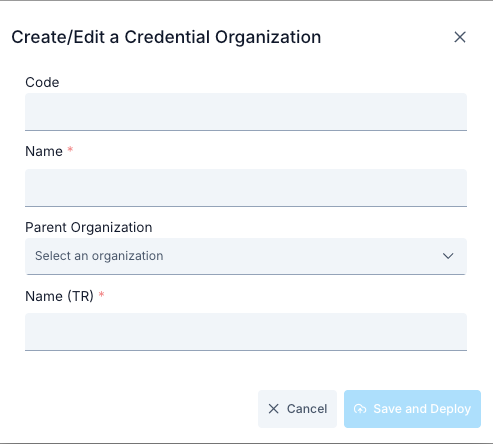 Fields used for responsible unit creation configuration are shown in the table below.
| # | Section | Description |
| - | ------------------------------ | -------------------------------------------------------------------------------------------------------------------------------------------------------------- |
| 1 | **List Table** | Shows name, optional description, and related user count of all registered responsible units. Editing or deletion can be done with the action menu on the row. |
| 2 | **New Unit Add Button** | `New Responsible Unit` button in the top right opens the new registration form. |
| 3 | **Search/Filter Fields** | Enables narrowing the list by criteria such as unit name or linked API product. |
| 4 | **Edit/Delete Actions** | Unit information update or deletion operations are performed with dropdown menu or icons on each row. |
| 5 | **Selected Unit Detail Panel** | When a unit is selected, associated API products and assigned users are visible in this panel (may vary according to developed interface). |
When both Turkish Language Option and English Language Option are enabled in Portal settings, the system automatically switches to Multilanguage mode.
If the Multilanguage feature is enabled from [Portal Settings](/en/api-portal/api-portal-settings), form fields are displayed in both English and Turkish, and separate data entry can be made for each language.
### Steps for Creating a New Responsible Unit
Open the **Portal Management** heading from the Apinizer Manager menu.
Click on **API Products → Responsible Units** option from the submenu.
See the table listing existing responsible units on the screen.
Click the **New Responsible Unit** button in the top right.
**api-product-resp-unit-update** modal form opens; form fields are initially empty.
Write a unique name for the unit in the **Name** field (example: Open API Support Team).
Enter the unit's job description, SLA, or contact notes in the **Description** field (optional).
Open the **Related API Products** multi-select field.
Select API products for which this unit is responsible.
Selections are immediately displayed in the list below the form.
If there is a **Members** or **Contacts** field on the form, open the dropdown.
Select users you want to associate with the unit.
Selected users are associated with this unit on the portal and referenced in notifications.
Make sure required fields (Name and relationships if needed) are filled.
Fix any red validation warnings on the form.
If ready, click the **Save** button; request is sent to **POST /api/api-product-responsible-units** endpoint.
See "Saved successfully" expression in toast message on successful save.
Modal closes and list screen automatically refreshes.
If newly added unit is not visible on the first page, clear the filter or reload the table.
Fields used for responsible unit creation configuration are shown in the table below.
| # | Section | Description |
| - | ------------------------------ | -------------------------------------------------------------------------------------------------------------------------------------------------------------- |
| 1 | **List Table** | Shows name, optional description, and related user count of all registered responsible units. Editing or deletion can be done with the action menu on the row. |
| 2 | **New Unit Add Button** | `New Responsible Unit` button in the top right opens the new registration form. |
| 3 | **Search/Filter Fields** | Enables narrowing the list by criteria such as unit name or linked API product. |
| 4 | **Edit/Delete Actions** | Unit information update or deletion operations are performed with dropdown menu or icons on each row. |
| 5 | **Selected Unit Detail Panel** | When a unit is selected, associated API products and assigned users are visible in this panel (may vary according to developed interface). |
When both Turkish Language Option and English Language Option are enabled in Portal settings, the system automatically switches to Multilanguage mode.
If the Multilanguage feature is enabled from [Portal Settings](/en/api-portal/api-portal-settings), form fields are displayed in both English and Turkish, and separate data entry can be made for each language.
### Steps for Creating a New Responsible Unit
Open the **Portal Management** heading from the Apinizer Manager menu.
Click on **API Products → Responsible Units** option from the submenu.
See the table listing existing responsible units on the screen.
Click the **New Responsible Unit** button in the top right.
**api-product-resp-unit-update** modal form opens; form fields are initially empty.
Write a unique name for the unit in the **Name** field (example: Open API Support Team).
Enter the unit's job description, SLA, or contact notes in the **Description** field (optional).
Open the **Related API Products** multi-select field.
Select API products for which this unit is responsible.
Selections are immediately displayed in the list below the form.
If there is a **Members** or **Contacts** field on the form, open the dropdown.
Select users you want to associate with the unit.
Selected users are associated with this unit on the portal and referenced in notifications.
Make sure required fields (Name and relationships if needed) are filled.
Fix any red validation warnings on the form.
If ready, click the **Save** button; request is sent to **POST /api/api-product-responsible-units** endpoint.
See "Saved successfully" expression in toast message on successful save.
Modal closes and list screen automatically refreshes.
If newly added unit is not visible on the first page, clear the filter or reload the table.