> ## Documentation Index
> Fetch the complete documentation index at: https://docs.apinizer.com/llms.txt
> Use this file to discover all available pages before exploring further.
# Support Package Requests
> Lists support package requests created by API Portal users in Apinizer, approves or rejects them. Manages support packages that portal users want to purchase and can change application statuses between PENDING, APPROVED, or REJECTED.
## Roles and Access
* Menu path: Portal Management → Support Package → Requests.
* Access: Users with portal management authority (e.g., PORTAL\_MANAGER) can view and perform operations.
* Portal end users do not access this screen; operations are only performed from the management panel.
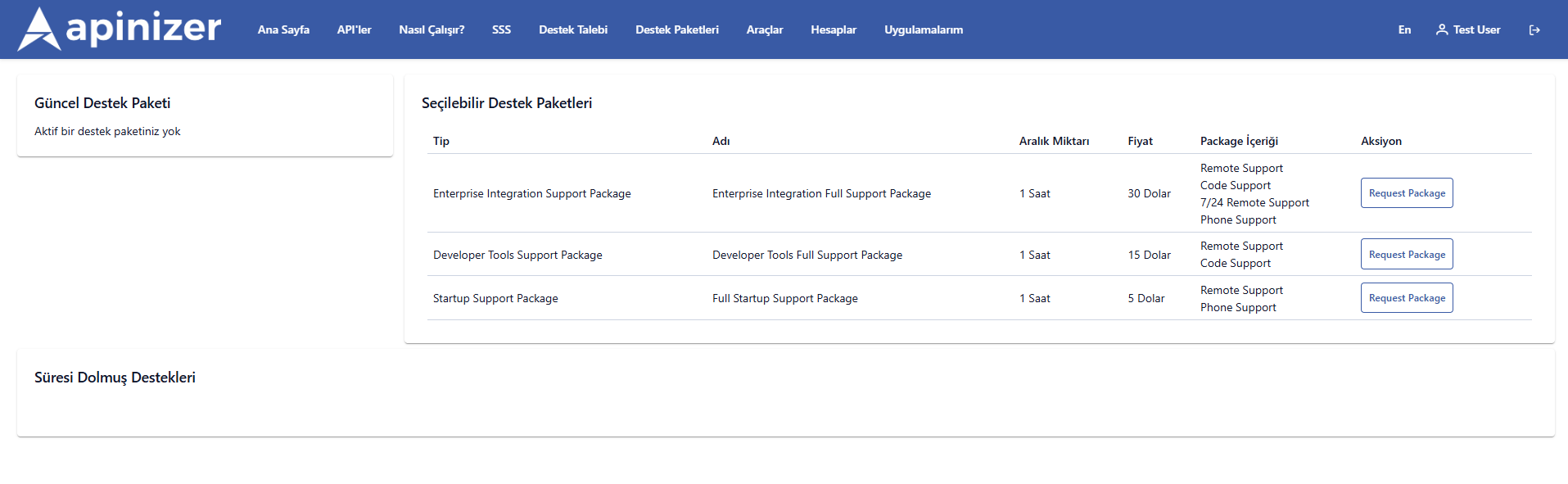
For a **request** to appear on the **Support Package Requests** screen, the user performs the following steps on the API Portal side:
Developer or project member logs into their API Portal account with username and password.
Clicks on **Support Packages** tab from Portal menu.
Selects one of the following example packages:
* Enterprise Integration Full Support Package
* Developer Tools Full Support Package
* Full Startup Support Package
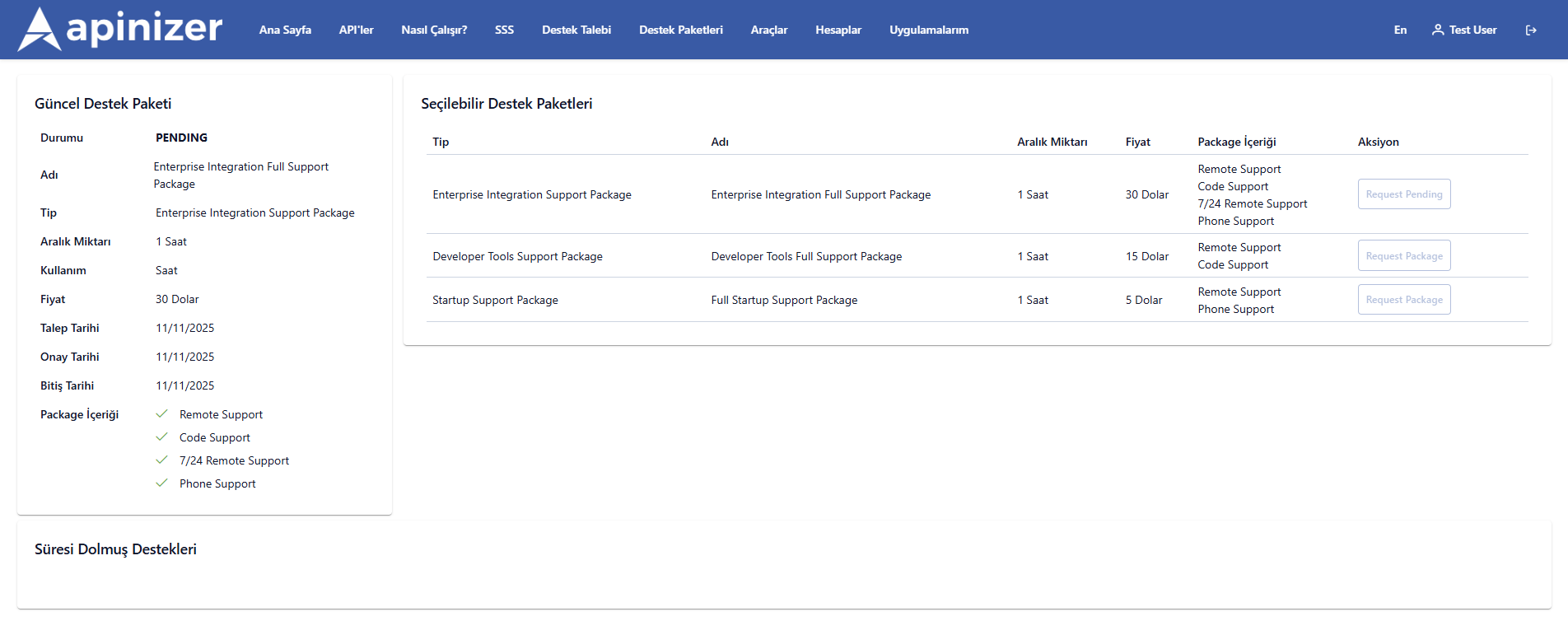
Clicks the **"Request Support Package"** button for the selected package and submits the request.
The created request transitions to **PENDING** status and appears on the **Apinizer Manager** panel.
User receives an email notification when the request status changes (when approved or rejected).
 The administrator checks support package requests coming to the Apinizer Manager interface with the following steps:
Admin logs into **Apinizer Manager Panel** with user credentials.
Follows this path through menu: **Administration → Portal → Support Packages → Support Package Requests**
Support package requests created by all users are listed in table format.
Administrator can see the detail, status, and dates of each request in the table. (Table details are below.)
Administrator can perform operations in the **Actions** field on each request's row:
**Approve** – Updates status to *APPROVED*.
**Reject** – Updates status to *REJECTED*.
**Approved Date** and **Expired Date** information of approved request is automatically updated.
When the operation is completed, the system sends an email or portal notification to the user (the person who created the request).
## Approval and Rejection Flow
1. Click Approve button (only visible in PENDING or REJECTED statuses).
2. Confirmation dialog opens.
3. If you approve, supportPackageRequestService.approve(id, currentUserId) is called.
4. After operation, list automatically refreshes; status becomes APPROVED.
1. Click Reject button (only visible in PENDING or APPROVED statuses).
2. RejectDialogComponent opens for reason entry.
3. Reason is required; if left empty, button remains inactive.
4. When you save, supportPackageRequestService.reject(id, currentUserId, reason) is called.
5. List refreshes; status is updated to REJECTED.
## Business Rules
* There is no deletion operation. Manual intervention via API/DB is required if needed.
* PENDING record can be both approved and rejected.
* APPROVED record can be rejected again (e.g., in case of accidental approval).
* REJECTED record can be approved again (e.g., if user request is re-evaluated).
* After operation, entire list is reloaded; no page refresh needed.
The administrator checks support package requests coming to the Apinizer Manager interface with the following steps:
Admin logs into **Apinizer Manager Panel** with user credentials.
Follows this path through menu: **Administration → Portal → Support Packages → Support Package Requests**
Support package requests created by all users are listed in table format.
Administrator can see the detail, status, and dates of each request in the table. (Table details are below.)
Administrator can perform operations in the **Actions** field on each request's row:
**Approve** – Updates status to *APPROVED*.
**Reject** – Updates status to *REJECTED*.
**Approved Date** and **Expired Date** information of approved request is automatically updated.
When the operation is completed, the system sends an email or portal notification to the user (the person who created the request).
## Approval and Rejection Flow
1. Click Approve button (only visible in PENDING or REJECTED statuses).
2. Confirmation dialog opens.
3. If you approve, supportPackageRequestService.approve(id, currentUserId) is called.
4. After operation, list automatically refreshes; status becomes APPROVED.
1. Click Reject button (only visible in PENDING or APPROVED statuses).
2. RejectDialogComponent opens for reason entry.
3. Reason is required; if left empty, button remains inactive.
4. When you save, supportPackageRequestService.reject(id, currentUserId, reason) is called.
5. List refreshes; status is updated to REJECTED.
## Business Rules
* There is no deletion operation. Manual intervention via API/DB is required if needed.
* PENDING record can be both approved and rejected.
* APPROVED record can be rejected again (e.g., in case of accidental approval).
* REJECTED record can be approved again (e.g., if user request is re-evaluated).
* After operation, entire list is reloaded; no page refresh needed.
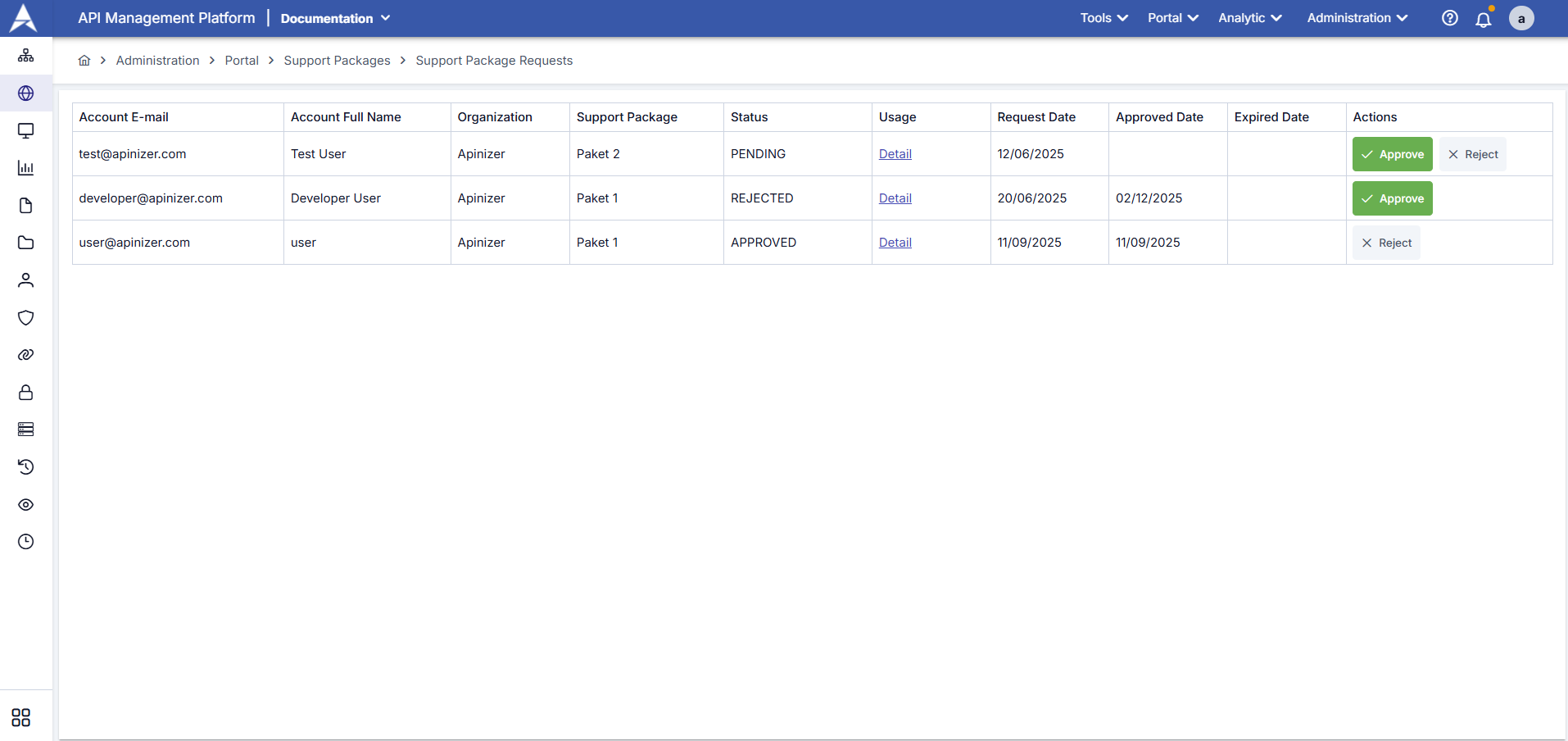 | Column Name | Description |
| --------------------- | ------------------------------------------------------------------------------------------ |
| **Account E-mail** | Email address of the user who created the request |
| **Account Full Name** | Full name of the user |
| **Organization** | Organization or project name to which the user belongs |
| **Support Package** | Type of requested support package (example: *Enterprise Integration Full Support Package*) |
| **Status** | Current status of the request (example: *PENDING*, *APPROVED*, *REJECTED*) |
| **Usage (Detail)** | Link that redirects to package usage detail page |
| **Request Date** | Date the request was created |
| **Approved Date** | If request is approved, the date it was approved |
| **Expired Date** | Expiration date of the support package validity period |
| **Actions** | Operations that can be performed by administrator (✅ Approve / ❌ Reject) |
## Frequently Asked Questions
No. Only approval and rejection operations are supported.
Reject dialog records the reason. Display of the reason in external systems depends on backend/portal integration.
Yes. "Approve" button is visible for rejected record; you can re-evaluate.
This page is only for package request management; package definitions are made on other screens of portal management.
| Column Name | Description |
| --------------------- | ------------------------------------------------------------------------------------------ |
| **Account E-mail** | Email address of the user who created the request |
| **Account Full Name** | Full name of the user |
| **Organization** | Organization or project name to which the user belongs |
| **Support Package** | Type of requested support package (example: *Enterprise Integration Full Support Package*) |
| **Status** | Current status of the request (example: *PENDING*, *APPROVED*, *REJECTED*) |
| **Usage (Detail)** | Link that redirects to package usage detail page |
| **Request Date** | Date the request was created |
| **Approved Date** | If request is approved, the date it was approved |
| **Expired Date** | Expiration date of the support package validity period |
| **Actions** | Operations that can be performed by administrator (✅ Approve / ❌ Reject) |
## Frequently Asked Questions
No. Only approval and rejection operations are supported.
Reject dialog records the reason. Display of the reason in external systems depends on backend/portal integration.
Yes. "Approve" button is visible for rejected record; you can re-evaluate.
This page is only for package request management; package definitions are made on other screens of portal management.