> ## Documentation Index
> Fetch the complete documentation index at: https://docs.apinizer.com/llms.txt
> Use this file to discover all available pages before exploring further.
# Tools
> Provides JSONPath, XPath, XML transformer, and data processing tools in Apinizer API Portal. Test tools are only visible to logged-in users and can be enabled from portal settings.
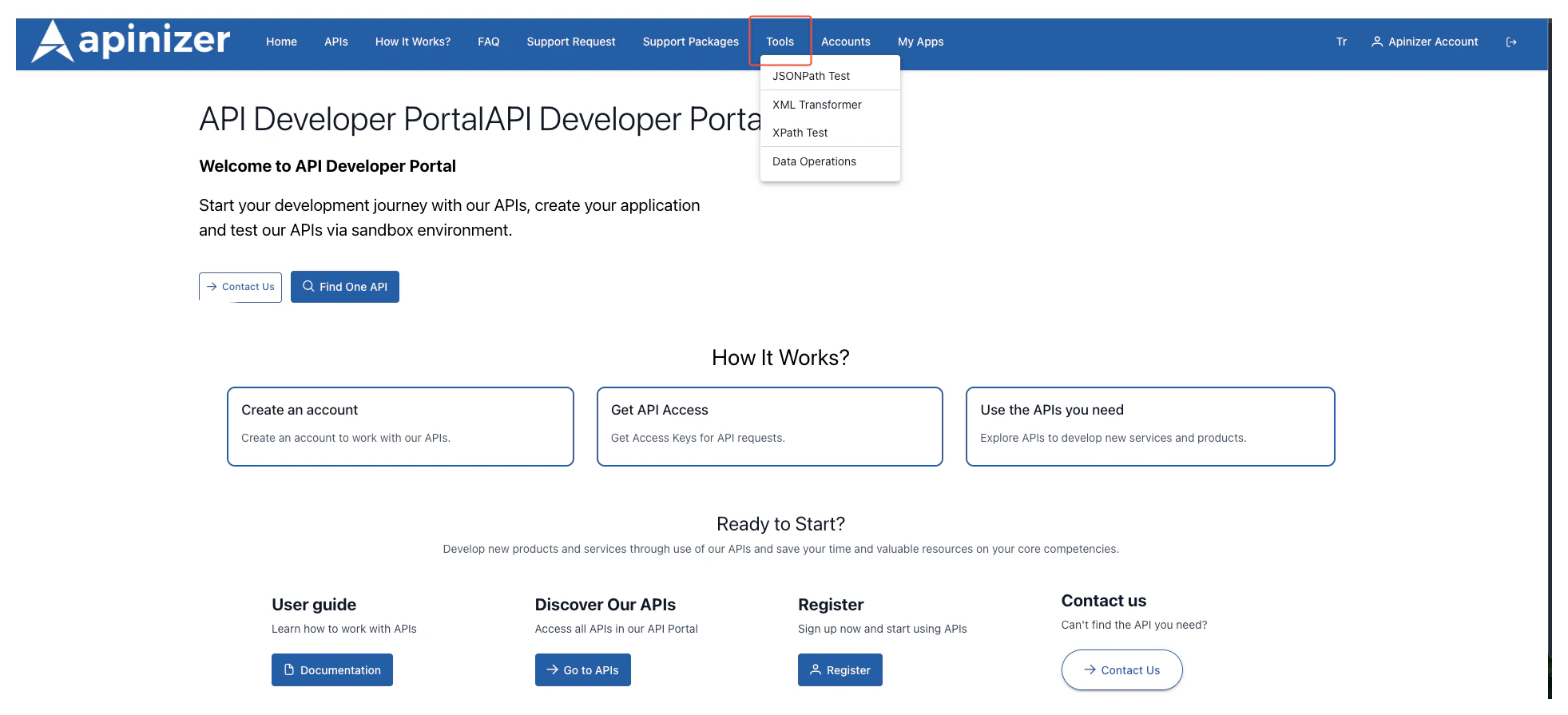 ### JSONPath Test
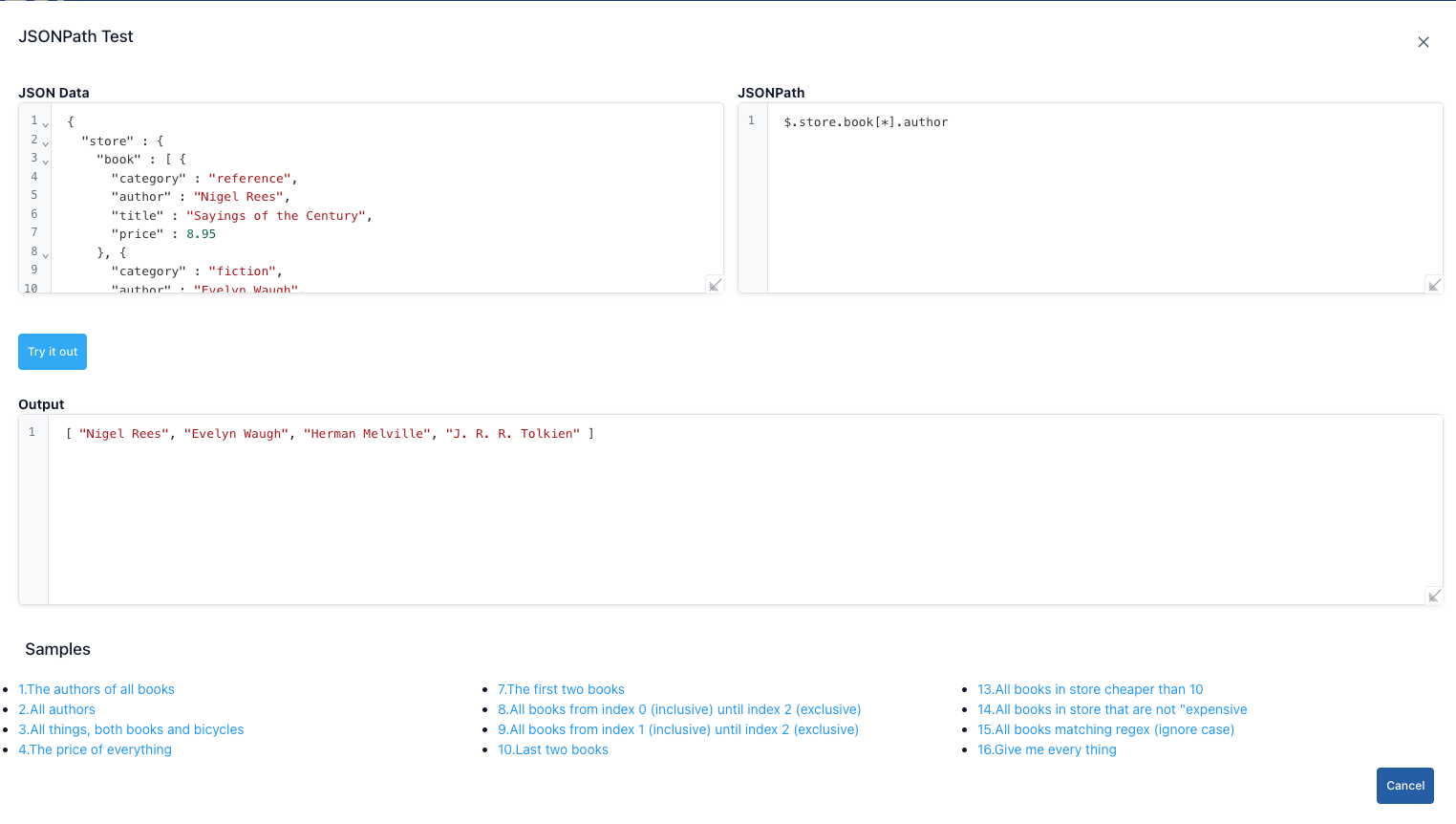 **Step-by-Step Usage:**
Click JSONPath option from Test Tools menu.
Paste the entire JSON you want to query into the JSON Data field.
Write an expression in the JSONPath box, for example: `$.store.book[*].author`.
Press the **Try It Out** button. Matching results are listed in JSON format in the bottom section.
Use the `Cancel` button or the close icon in the top right to close the dialog.
If you are working with large JSONs, you can increase the dialog width by dragging.
### XML Transformer
**Step-by-Step Usage:**
Click JSONPath option from Test Tools menu.
Paste the entire JSON you want to query into the JSON Data field.
Write an expression in the JSONPath box, for example: `$.store.book[*].author`.
Press the **Try It Out** button. Matching results are listed in JSON format in the bottom section.
Use the `Cancel` button or the close icon in the top right to close the dialog.
If you are working with large JSONs, you can increase the dialog width by dragging.
### XML Transformer
 **Step-by-Step XML Transformer Usage:**
Click the **Transform XML** option from the `Test Tools` menu.
Select one of the `XML to XML` or `XML to JSON` options from the **Message Type** field at the top.
Paste the XML you want to transform into the `XML Data` editor or click the links at the bottom to use one of the sample data.
When you press the `Try` button, transformation is performed according to the type you selected and the result is shown in the `Result` panel at the bottom.
If you press the `Cancel` button, the dialog closes.
**XML to XML mode**
* You write the transformation template in the XSLT editor that opens on the right. XSLT's `match` and `template` rules shape the output according to how they will match.
* When you press the `Try` button, XSLT is applied to the XML on the left and the response is written to the `Result` field again as XML.
* If you use namespace in XSLT, place `xmlns:` definitions at the beginning; otherwise you will get a `"Namespace prefix ... is not defined"` error.
* To test, the example links in the bottom section automatically fill both the input XML and XSLT in a matched way.
* The output editor comes with XML syntax highlight by default; the result does not convert to JSON format.
**XML to JSON mode**
* When this option is selected, the XSLT editor is hidden, and instead options to shape the JSON output are shown.
* **Ignore NULL values:** Check if there are `xsi:nil="true"` or empty elements in XML and you don't want them transferred to JSON.
* **Ignore empty values:** Does not include elements containing only empty strings in JSON.
* **Write numbers as strings:** Stores numeric values as strings in JSON output; ideal for services requiring type conversion.
* **Use null for xsi:nil:** Produces real `null` value instead of `"null"` for elements containing `xsi:nil="true"`.
* **Unwrap element:** Single child nodes return directly as value in JSON; prevents intermediate nodes from being crowded.
* **Path Arrays:** Enter XPath-like paths (e.g., `/Envelope/Body/authors/name`) to make multiple repeating nodes mandatory as arrays in JSON. The AutoComplete field stores entered paths as a list.
* Options are connected to the `jhi-xml-to-json-transformation` component; after the `Try` button, JSON output is shown in the `Result` panel and the editor switches to JSON highlight.
* If an error occurs during transformation (corrupted XML, etc.), the process stops and you need to fix the XML before changing the relevant checkbox settings.
### XPath Test
**Step-by-Step XML Transformer Usage:**
Click the **Transform XML** option from the `Test Tools` menu.
Select one of the `XML to XML` or `XML to JSON` options from the **Message Type** field at the top.
Paste the XML you want to transform into the `XML Data` editor or click the links at the bottom to use one of the sample data.
When you press the `Try` button, transformation is performed according to the type you selected and the result is shown in the `Result` panel at the bottom.
If you press the `Cancel` button, the dialog closes.
**XML to XML mode**
* You write the transformation template in the XSLT editor that opens on the right. XSLT's `match` and `template` rules shape the output according to how they will match.
* When you press the `Try` button, XSLT is applied to the XML on the left and the response is written to the `Result` field again as XML.
* If you use namespace in XSLT, place `xmlns:` definitions at the beginning; otherwise you will get a `"Namespace prefix ... is not defined"` error.
* To test, the example links in the bottom section automatically fill both the input XML and XSLT in a matched way.
* The output editor comes with XML syntax highlight by default; the result does not convert to JSON format.
**XML to JSON mode**
* When this option is selected, the XSLT editor is hidden, and instead options to shape the JSON output are shown.
* **Ignore NULL values:** Check if there are `xsi:nil="true"` or empty elements in XML and you don't want them transferred to JSON.
* **Ignore empty values:** Does not include elements containing only empty strings in JSON.
* **Write numbers as strings:** Stores numeric values as strings in JSON output; ideal for services requiring type conversion.
* **Use null for xsi:nil:** Produces real `null` value instead of `"null"` for elements containing `xsi:nil="true"`.
* **Unwrap element:** Single child nodes return directly as value in JSON; prevents intermediate nodes from being crowded.
* **Path Arrays:** Enter XPath-like paths (e.g., `/Envelope/Body/authors/name`) to make multiple repeating nodes mandatory as arrays in JSON. The AutoComplete field stores entered paths as a list.
* Options are connected to the `jhi-xml-to-json-transformation` component; after the `Try` button, JSON output is shown in the `Result` panel and the editor switches to JSON highlight.
* If an error occurs during transformation (corrupted XML, etc.), the process stops and you need to fix the XML before changing the relevant checkbox settings.
### XPath Test
 **Step-by-Step XPATH Usage:**
Click the **XPath** option from the `Test Tools` menu.
Paste the XML content you want to query into the `XML Data` section.
Write an expression in the `XPath` field, for example `/catalog/book[price>10]`.
Press the `Try it out` button; matching nodes are listed in a table below along with `` tags.
Click the `Cancel` button to close the dialog.
### Data Operations
**Step-by-Step XPATH Usage:**
Click the **XPath** option from the `Test Tools` menu.
Paste the XML content you want to query into the `XML Data` section.
Write an expression in the `XPath` field, for example `/catalog/book[price>10]`.
Press the `Try it out` button; matching nodes are listed in a table below along with `` tags.
Click the `Cancel` button to close the dialog.
### Data Operations
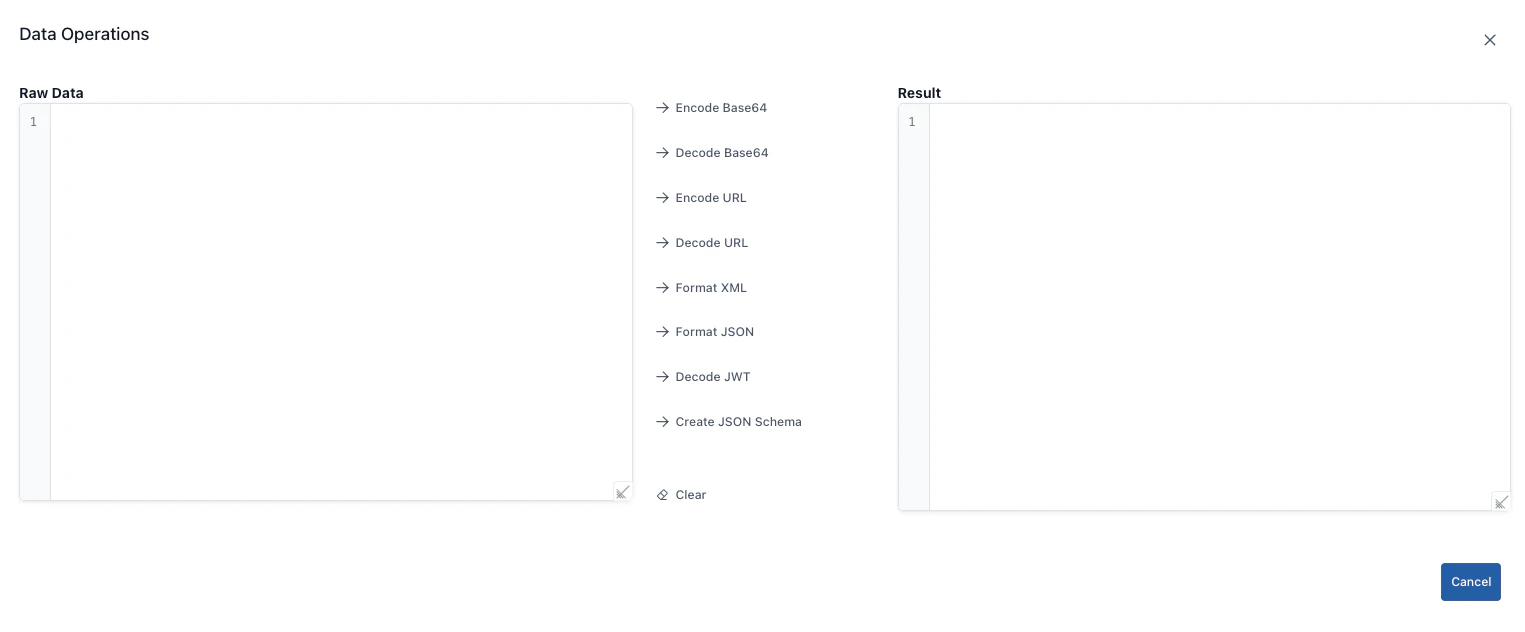 | Field | Function |
| -------------------- | ----------------------------------------------------------------------------------------------------------------------------------------------------------------------- |
| Encode Base64 | Encodes plain text in Raw Data field as Base64. You see the encoded text in the Result field. Make sure it is UTF-8 compatible to avoid issues with Unicode characters. |
| Decode Base64 | Decodes Base64 encoded text in Raw Data field, transfers decoded text to Result field. Gives "Invalid Base64 string" error for invalid Base64 strings. |
| Encode Url | Converts raw data to URL-safe format (e.g., makes spaces `%20`). You can use it when preparing query strings for API calls. |
| Decode Url | Converts URL-encoded text back to normal. If you try to decode text that is not already encoded, the result remains the same. |
| Format XML | Makes XML in Raw Data field readable (adds indentation). Converted XML is written to Result field. If there is a missing tag, an error message is displayed. |
| Format JSON | Prettifies JSON text. If JSON is invalid, you get an error notification; check the erroneous line. |
| Decode JWT | Base64 decodes JWT token (header.payload.signature) and brings header and payload to Result field in JSON format. Does not verify signature; only decodes. |
| Generate JSON Schema | Automatically generates a JSON Schema draft from sample JSON in raw data. Draft schema is in Result field; manual edits may be needed. |
| Clear | Empties both Raw Data and Result fields; prepares you for a new operation. |
| Field | Function |
| -------------------- | ----------------------------------------------------------------------------------------------------------------------------------------------------------------------- |
| Encode Base64 | Encodes plain text in Raw Data field as Base64. You see the encoded text in the Result field. Make sure it is UTF-8 compatible to avoid issues with Unicode characters. |
| Decode Base64 | Decodes Base64 encoded text in Raw Data field, transfers decoded text to Result field. Gives "Invalid Base64 string" error for invalid Base64 strings. |
| Encode Url | Converts raw data to URL-safe format (e.g., makes spaces `%20`). You can use it when preparing query strings for API calls. |
| Decode Url | Converts URL-encoded text back to normal. If you try to decode text that is not already encoded, the result remains the same. |
| Format XML | Makes XML in Raw Data field readable (adds indentation). Converted XML is written to Result field. If there is a missing tag, an error message is displayed. |
| Format JSON | Prettifies JSON text. If JSON is invalid, you get an error notification; check the erroneous line. |
| Decode JWT | Base64 decodes JWT token (header.payload.signature) and brings header and payload to Result field in JSON format. Does not verify signature; only decodes. |
| Generate JSON Schema | Automatically generates a JSON Schema draft from sample JSON in raw data. Draft schema is in Result field; manual edits may be needed. |
| Clear | Empties both Raw Data and Result fields; prepares you for a new operation. |