> ## Documentation Index
> Fetch the complete documentation index at: https://docs.apinizer.com/llms.txt
> Use this file to discover all available pages before exploring further.
# API Integrator
> API Integrator (API Integrator), the component in the Apinizer platform that meets integration requirements without writing code and automates them, exposing them as APIs or web services. It is also called Task Flow Manager and is a workflow management system that can automatically execute multiple tasks in a specific order. It performs integration operations between different systems using Task Flows (Task Flows). Integration scenarios can be created with a visual interface and provides support for 15+ different connectors.
## API Integrator Concept
Visual task flow creation
Creating integration scenarios with drag-and-drop interface.
Support for 15+ different connectors
Database, message queue, HTTP, file, and more.
Tasks run in the order they are defined
Each task can use the output of the previous task.
Triggering with scheduler or HTTP
Task flows can run automatically with scheduler or HTTP requests.
Predefined operations in case of error
Operations to be performed in case of error can be defined.
Step-by-step log records and statistics
Execution and log records of each task can be viewed.
Form-based configuration
Creating integration scenarios without writing code with visual interface.
Publishing Task Flows as APIs
Task Flows can be published as REST API or SOAP web service.
## API Integrator Features
### Task Flow Builder
* Drag-and-drop interface
* Connector connections
* Flow control (IF-THEN-ELSE)
* Loop and iteration
* JSON ↔ XML conversion
* Data mapping
* Field transformation
* Data enrichment
* Try-catch blocks
* Error handling strategies
* Retry mechanism
* Fallback strategies
### Connectors
API Integrator provides support for 15+ different connectors. Connectors are explained in detail on the connector.mdx page:
Database Connector
Connection to SQL databases (MySQL, PostgreSQL, Oracle, MSSQL, DB2). Running SQL queries and calling stored procedures.
Kafka, RabbitMQ, ActiveMQ
Sending messages to message queues. Message publishing for event-driven architectures.
HTTP/REST, Webhook, Email
REST API calls, sending webhooks, and email sending operations.
FTP/SFTP, Elasticsearch, Script
File transfer, Elasticsearch queries, and running JavaScript/Groovy scripts.
Notification, SNMP, Syslog, Logback
Sending notifications, sending SNMP traps, and sending log records.
Linux Script
Running commands and scripts on remote Linux servers via SSH.
For detailed information about connectors, see the [Connector](/en/concepts/core-concepts/connector) page.
### Expose as API
* Publishing as REST endpoint
* HTTP method support
* Request/Response handling
* Scheduled execution
* Cron expression
* Event-based triggering
## Task Flow Manager Usage Areas
Data transfer and exchange between different systems
Data synchronization and transfer between systems.
Automatic email and notification sending
Scheduled or event-driven notifications.
Regular and manageable reporting
Automatic report generation for business workflows.
Scheduling multiple API calls
API calls at specific time intervals or conditions.
Sending messages to systems like Kafka, RabbitMQ
Sending data to message queue systems.
## Task Flow Manager Task Types
If the flow fails to complete successfully, you can be notified by defining an **action** from any of the following task types:
Actions that can be executed when Task Flow fails to complete successfully:
* **Send Email**: Sending notifications with email connector
* **API Call**: Notifying external systems by making API Call
* **Database Operation**: Performing operations with database connector
* **Linux Script**: Running Linux script
* **Script**: Running JavaScript/Groovy script
* **Notification**: Creating notification
* **SNMP**: Sending SNMP trap
Actions are automatically executed when Task Flow fails to complete successfully and ensure awareness of error situations.
Sending notifications with email connector
Notifying external systems by making API Call
Performing operations with database connector
Running Linux script
Running JavaScript/Groovy script
Creating notification
Sending SNMP trap
## API Integrator Usage Scenarios
1. Pulling data from source system (Database Connector)
2. Data transformation (Transformation)
3. Sending data to target system (HTTP Connector)
4. Notification in case of error (Email Connector)
1. Sending operation results to message queue (Kafka/RabbitMQ/ActiveMQ Connector)
2. Event publishing
3. Sending messages for event-driven architectures
1. Getting file from FTP (FTP Connector)
2. Parsing file content (Script Connector)
3. Saving to database (Database Connector)
4. Notification after operation (Email Connector)
1. Sending email in alarm and monitoring situations (Email Connector)
2. Logging (Logback/Syslog Connector)
3. Sending notifications (Notification Connector)
1. Sending API traffic logs to systems like Elasticsearch, Graylog
2. Using Elasticsearch/Graylog Connector
3. Central logging and analysis
1. Providing protocol conversion like HTTP to MQTT
2. Leaving data in message queue with HTTP protocol
3. Creating Connector API Proxy
## API Integrator Advantages
* Rapid integration without writing code
* Visual designer
* Visual flow diagrams
* Easy debugging
* Reusing Task Flows
* Sharing connectors
* Horizontal scaling
* High throughput
## API Integrator Configuration and Access
Configuration needs to be done to use API Integrator:
1. Go to **Administration** tab
2. Open **General Settings** page
3. Find **Define Your API Integration Module** field
4. Enter the integrator access address information
5. Save settings
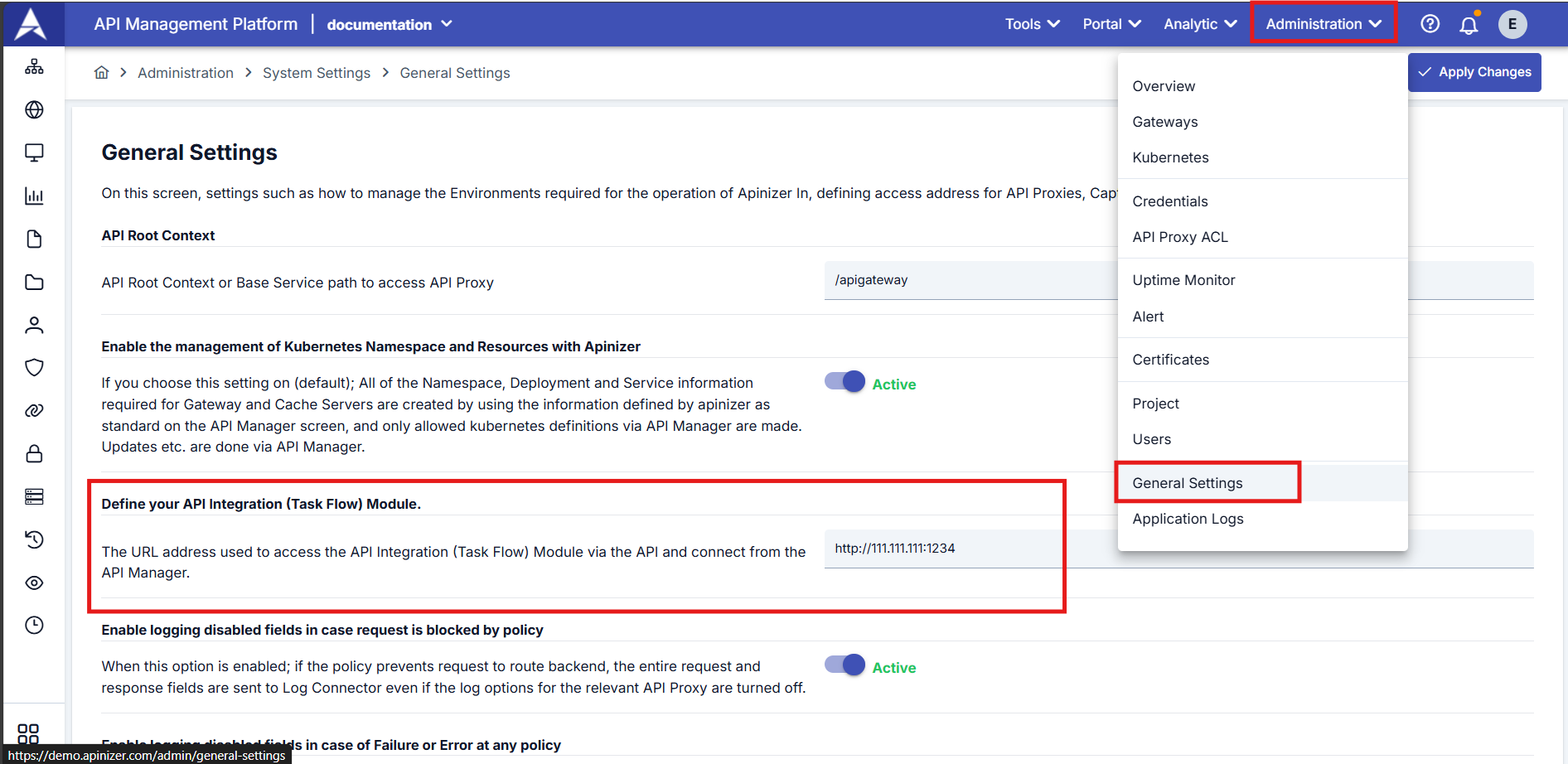 The integrator access address is the URL where the API Integrator service is running. This address is required for API Manager to communicate with API Integrator.
Accessing Task Flow Manager:
You can access **API Integrator** (Task Flow Manager) under the **Development** tab in the navigation bar on the left side of the screen.
The integrator access address is the URL where the API Integrator service is running. This address is required for API Manager to communicate with API Integrator.
Accessing Task Flow Manager:
You can access **API Integrator** (Task Flow Manager) under the **Development** tab in the navigation bar on the left side of the screen.
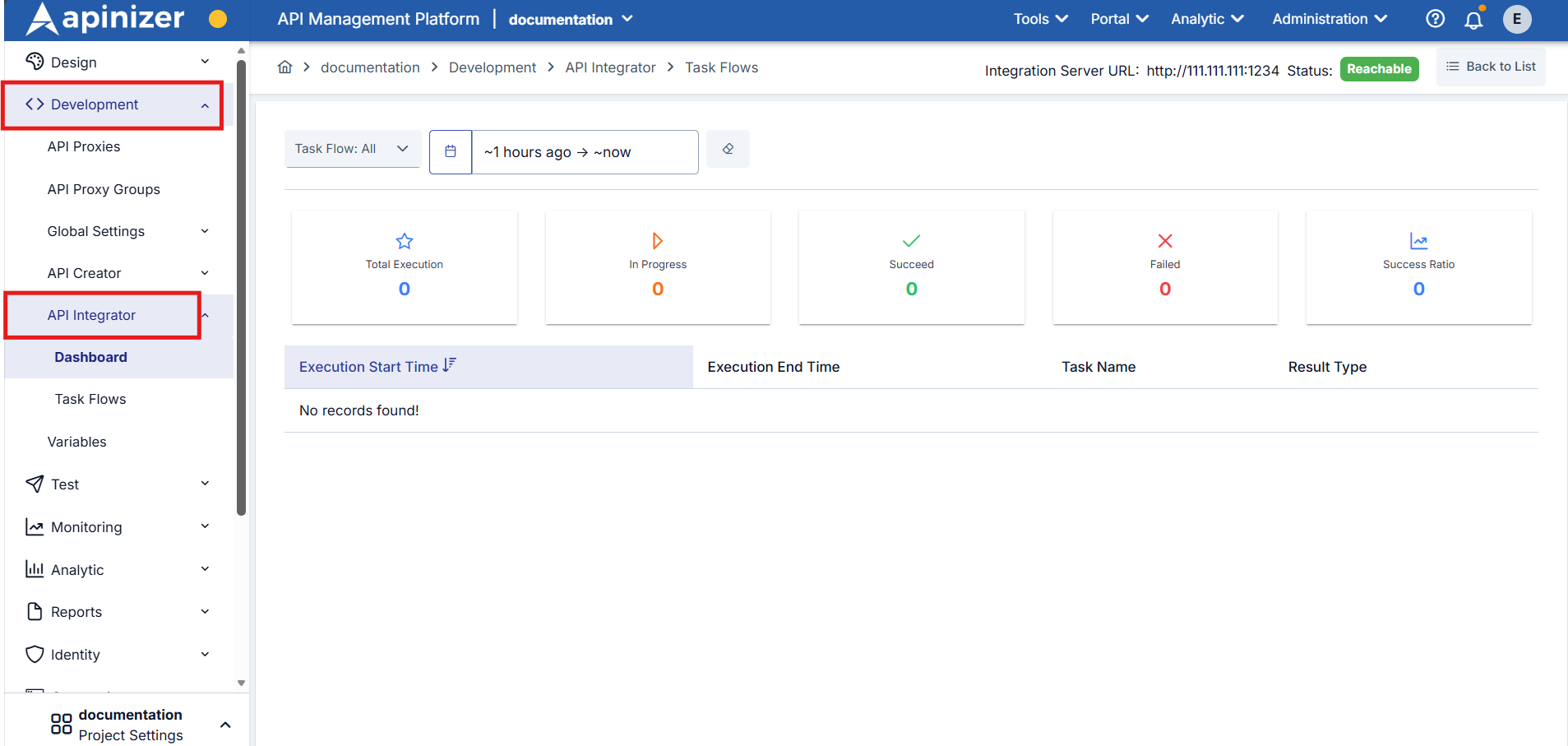 API Integrator is located under the Development menu and is also called Task Flow Manager.
## Next Steps
Learn about connector concept
Task Flow Builder usage
Learn about connection concept
Learn about API Creator component
API Integrator is located under the Development menu and is also called Task Flow Manager.
## Next Steps
Learn about connector concept
Task Flow Builder usage
Learn about connection concept
Learn about API Creator component