> ## Documentation Index
> Fetch the complete documentation index at: https://docs.apinizer.com/llms.txt
> Use this file to discover all available pages before exploring further.
# Policy Management
> You can manage policies to be applied to request and response messages during message flow in the API Proxy's development tab. You can add, update, delete, activate/deactivate policies, and manage them through the visual flow diagram. The development tab is the tab where policies to be applied to request and response messages during message flow are configured. The interface is designed to show this flow. Thus, you can visually see which policies are applied in which order before a request message is sent to the Backend API after being sent from the client, and which policies are applied in which order before the response message returned from the Backend API is transmitted to the client.
For conceptual information about message flow, policy pipeline, and policy application order, you can refer to the [Message Processing and Policy Application](/en/concepts/core-concepts/message-processing-and-policy-application) core concepts page.
## Message Flow
The flow between the client and Backend API is shown with:
* An arrow symbolizing the request message going from the client to the Backend API,
* An arrow symbolizing the response message going from the Backend API to the client,
* Icons showing the policies applied to request or response messages and the order of application
This section will not go into the details of policies. For detailed information about policies, you can refer to the [Policies](/en/develop/policies/api-based-throttling) page.
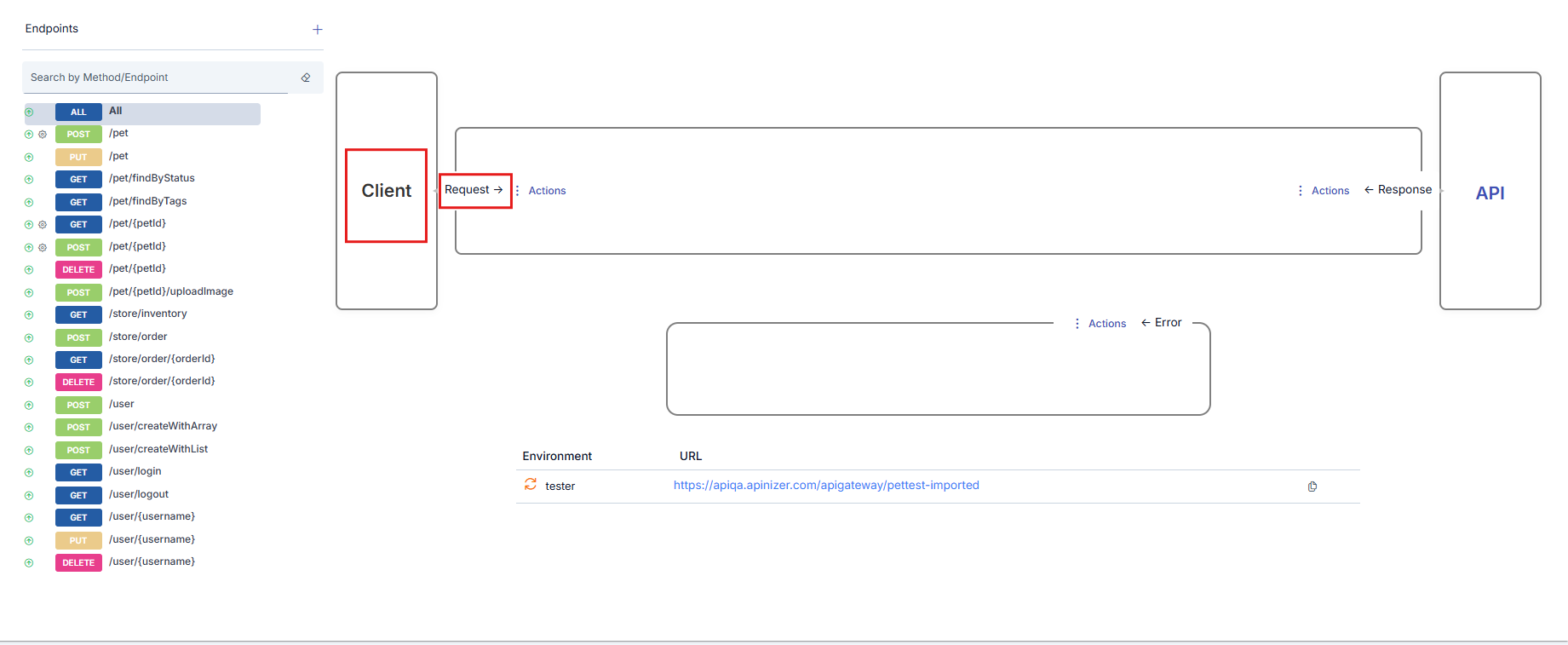
### Client
Shown in the frame on the left side of the interface. It is the stakeholder that sends requests to the API Proxy. It starts the flow. The message coming from the client reaches the Backend API after policies are applied.
 ### Backend API
The original API that is closed to direct access from the client and hidden from the client, receives requests from the API Proxy and returns responses to the API Proxy. Shown with the frame on the right side of the interface. The Backend API's response is sent to the client after policies are applied.
### Backend API
The original API that is closed to direct access from the client and hidden from the client, receives requests from the API Proxy and returns responses to the API Proxy. Shown with the frame on the right side of the interface. The Backend API's response is sent to the client after policies are applied.
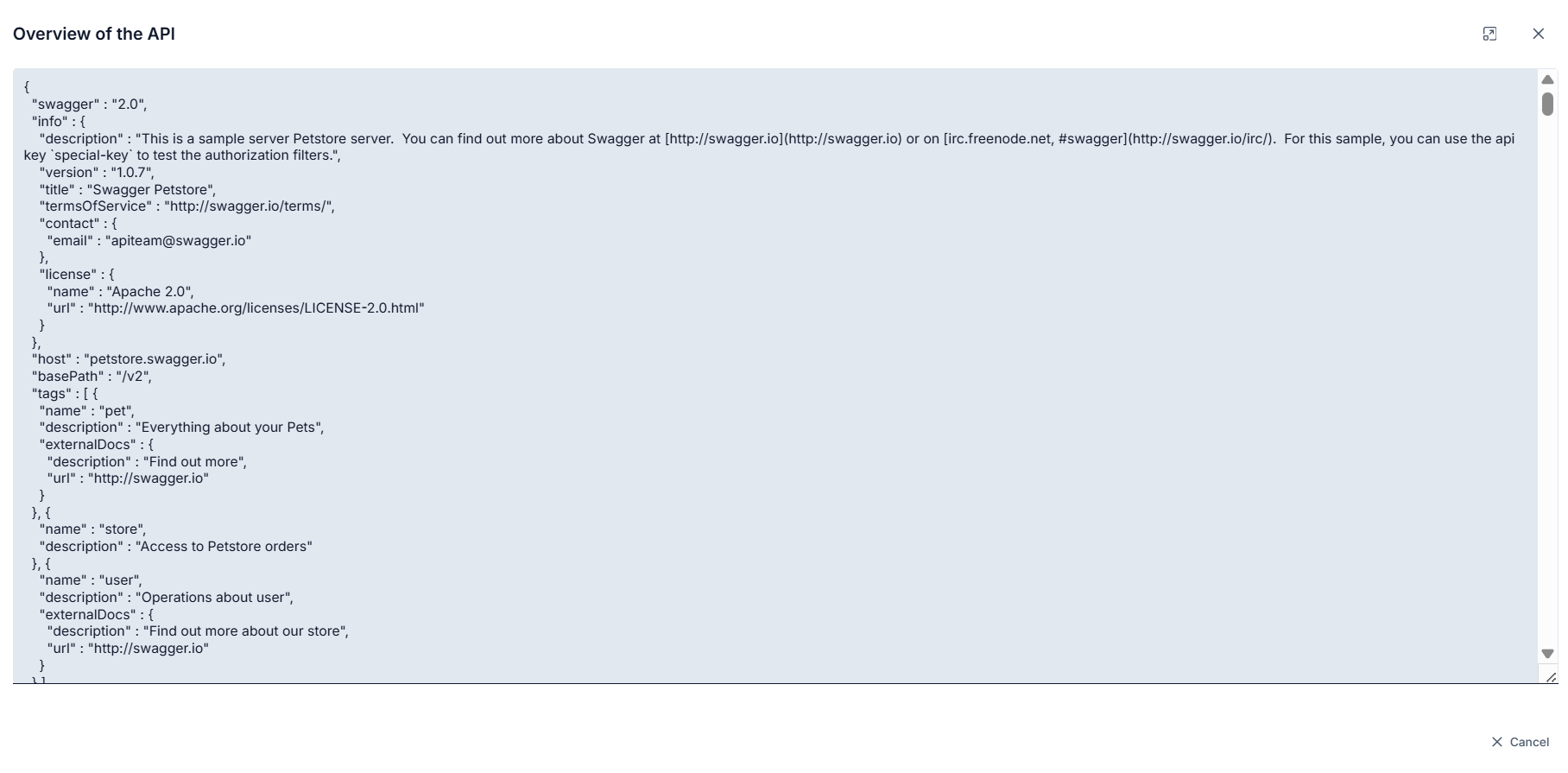
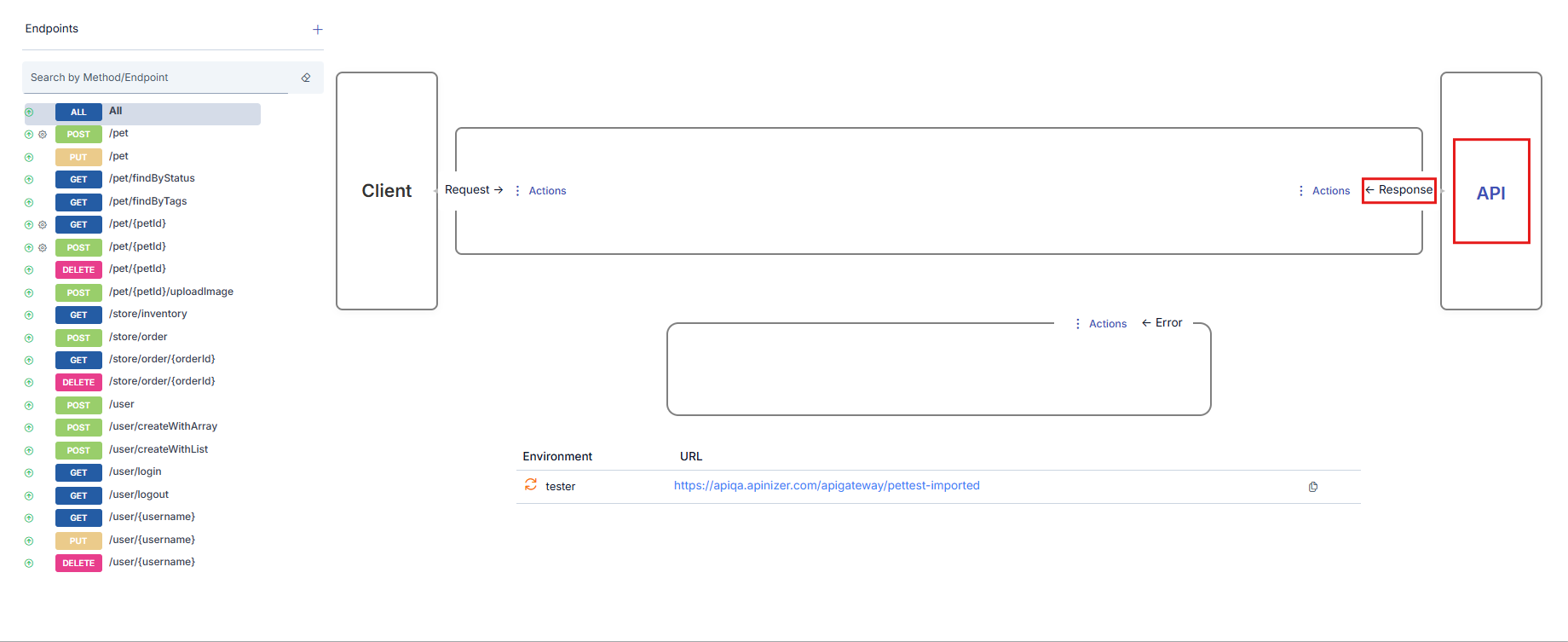 When the **API** link in the Backend API box is clicked, the Backend API's API Specification Document is displayed.
 ## Policy Management
This section explains the management operations that can be performed on policies in the API Proxy's development tab. For detailed information about the [What is Policy?](/en/concepts/core-concepts/what-is-policy) concept, you can refer to the core concepts page. To get detailed information about any policy, you can refer to the documentation related to that policy from the [Policies](/en/develop/policies/api-based-throttling) section.
### Policy Location and Execution Order
Policies can be added to 3 different points:
* **[API Proxy Group](/en/concepts/core-concepts/api-proxy-group)**: A policy added to an API Proxy Group is executed only if the request came through the API Proxy Group.
* **[API Proxy](/en/concepts/core-concepts/what-is-api-proxy)**: A policy added to an API Proxy is executed for all methods/endpoints of that API Proxy.
* **[Method/Endpoint](/en/concepts/core-concepts/endpoint)**: A policy added to a method/endpoint is executed only for that method/endpoint.
The visual below contains an example related to policies added to all 3 of these points.
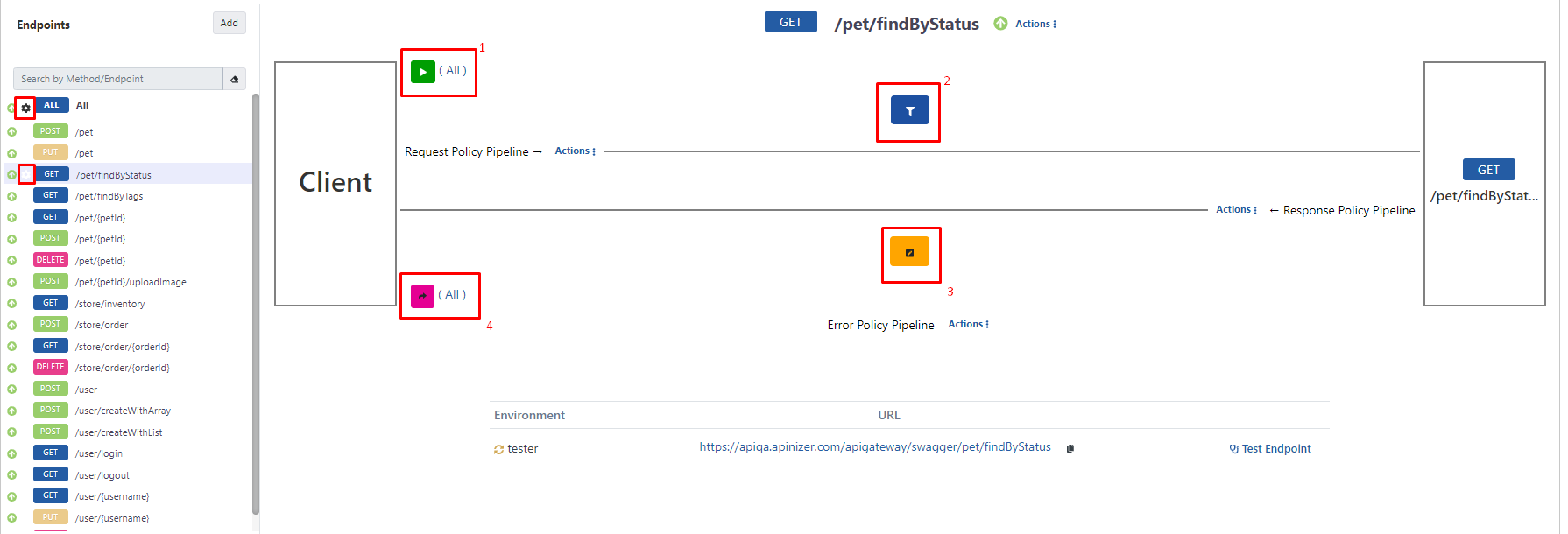
In the visual, it is seen that the API Proxy with the selected method/endpoint named **GET - findByStatus** has been added to an API Proxy Group named **Proxy Group - 1**.
The marked areas are the places where policies are displayed depending on where they are added:
* In the area marked with **frame number 1**, policies added to be valid for all methods/endpoints of this API Proxy without selecting any method/endpoint, and to be applied to request messages, are seen. The text **All** expresses this.
* In the area marked with **frame number 2**, policies added to be valid for the selected method/endpoint and to be applied to request messages are seen.
* In the area marked with **frame number 3**, policies added to be valid for the selected method/endpoint and to be applied to response messages are seen.
* In the area marked with **frame number 4**, policies added to be valid for all methods/endpoints of this API Proxy without selecting any method/endpoint, and to be applied to response messages, are seen. The text **All** expresses this.
## Policy Management
This section explains the management operations that can be performed on policies in the API Proxy's development tab. For detailed information about the [What is Policy?](/en/concepts/core-concepts/what-is-policy) concept, you can refer to the core concepts page. To get detailed information about any policy, you can refer to the documentation related to that policy from the [Policies](/en/develop/policies/api-based-throttling) section.
### Policy Location and Execution Order
Policies can be added to 3 different points:
* **[API Proxy Group](/en/concepts/core-concepts/api-proxy-group)**: A policy added to an API Proxy Group is executed only if the request came through the API Proxy Group.
* **[API Proxy](/en/concepts/core-concepts/what-is-api-proxy)**: A policy added to an API Proxy is executed for all methods/endpoints of that API Proxy.
* **[Method/Endpoint](/en/concepts/core-concepts/endpoint)**: A policy added to a method/endpoint is executed only for that method/endpoint.
The visual below contains an example related to policies added to all 3 of these points.
In the visual, it is seen that the API Proxy with the selected method/endpoint named **GET - findByStatus** has been added to an API Proxy Group named **Proxy Group - 1**.
The marked areas are the places where policies are displayed depending on where they are added:
* In the area marked with **frame number 1**, policies added to be valid for all methods/endpoints of this API Proxy without selecting any method/endpoint, and to be applied to request messages, are seen. The text **All** expresses this.
* In the area marked with **frame number 2**, policies added to be valid for the selected method/endpoint and to be applied to request messages are seen.
* In the area marked with **frame number 3**, policies added to be valid for the selected method/endpoint and to be applied to response messages are seen.
* In the area marked with **frame number 4**, policies added to be valid for all methods/endpoints of this API Proxy without selecting any method/endpoint, and to be applied to response messages, are seen. The text **All** expresses this.
 If this API Proxy has been added to an API Proxy Group, policies exist in the added API Proxy Group, and the request came through the API Proxy Group, then those on the request line are applied first, then the policies on the response line are also applied. However, these are not shown on this page.
If any policy has been added for any method/endpoint of the API Proxy, a gear icon appears next to the method/endpoint.
If no specific method/endpoint of the API Proxy is selected (or **All** is selected), 2 regions appear as shown in the visual below:
If this API Proxy has been added to an API Proxy Group, policies exist in the added API Proxy Group, and the request came through the API Proxy Group, then those on the request line are applied first, then the policies on the response line are also applied. However, these are not shown on this page.
If any policy has been added for any method/endpoint of the API Proxy, a gear icon appears next to the method/endpoint.
If no specific method/endpoint of the API Proxy is selected (or **All** is selected), 2 regions appear as shown in the visual below:
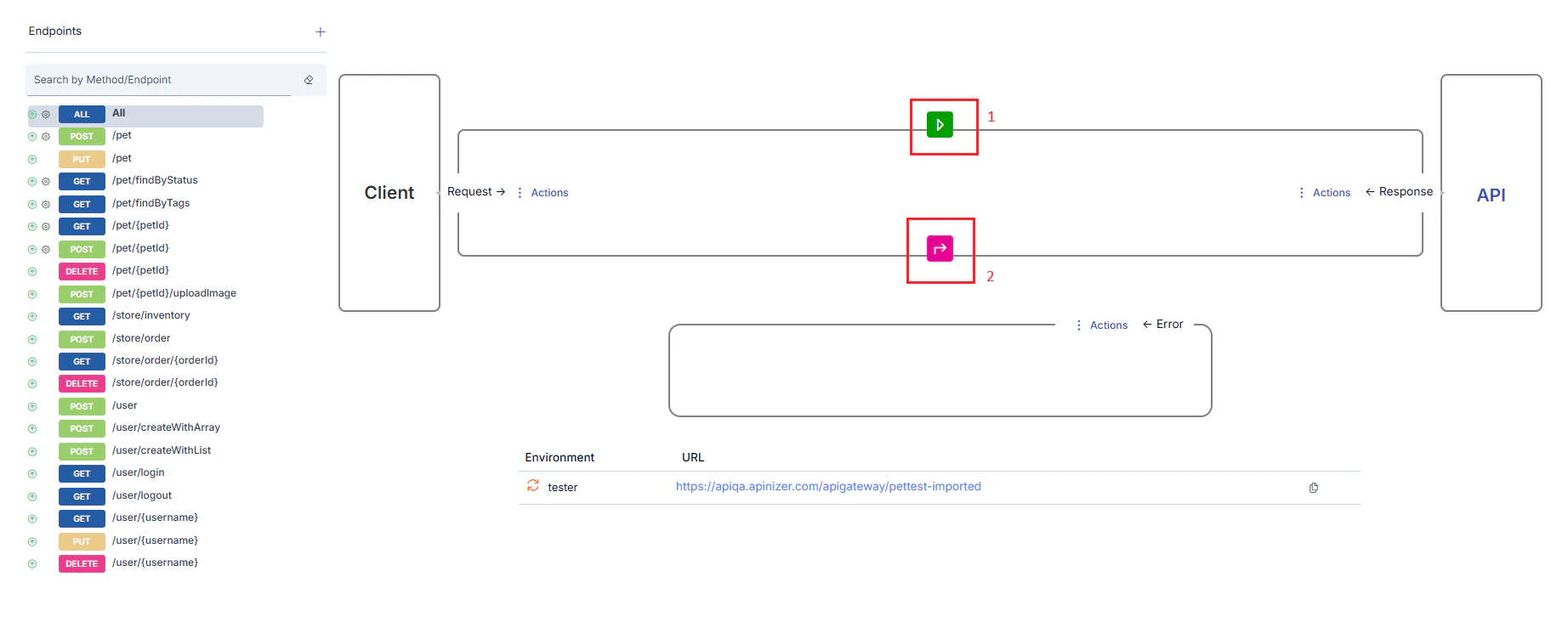 * In the area marked with **frame number 1**, policies added to be valid for all methods/endpoints of this API Proxy and to be applied to request messages are seen.
* In the area marked with **frame number 2**, policies added to be valid for all methods/endpoints of this API Proxy and to be applied to response messages are seen.
## Policy Execution Order
Policies are executed in the order of message flow as follows:
* **For request message**: API Proxy Group → API Proxy → method/endpoint
* **For response message**: method/endpoint → API Proxy → API Proxy Group
At each level, policies at that level are processed according to the ordering in the message flow direction.
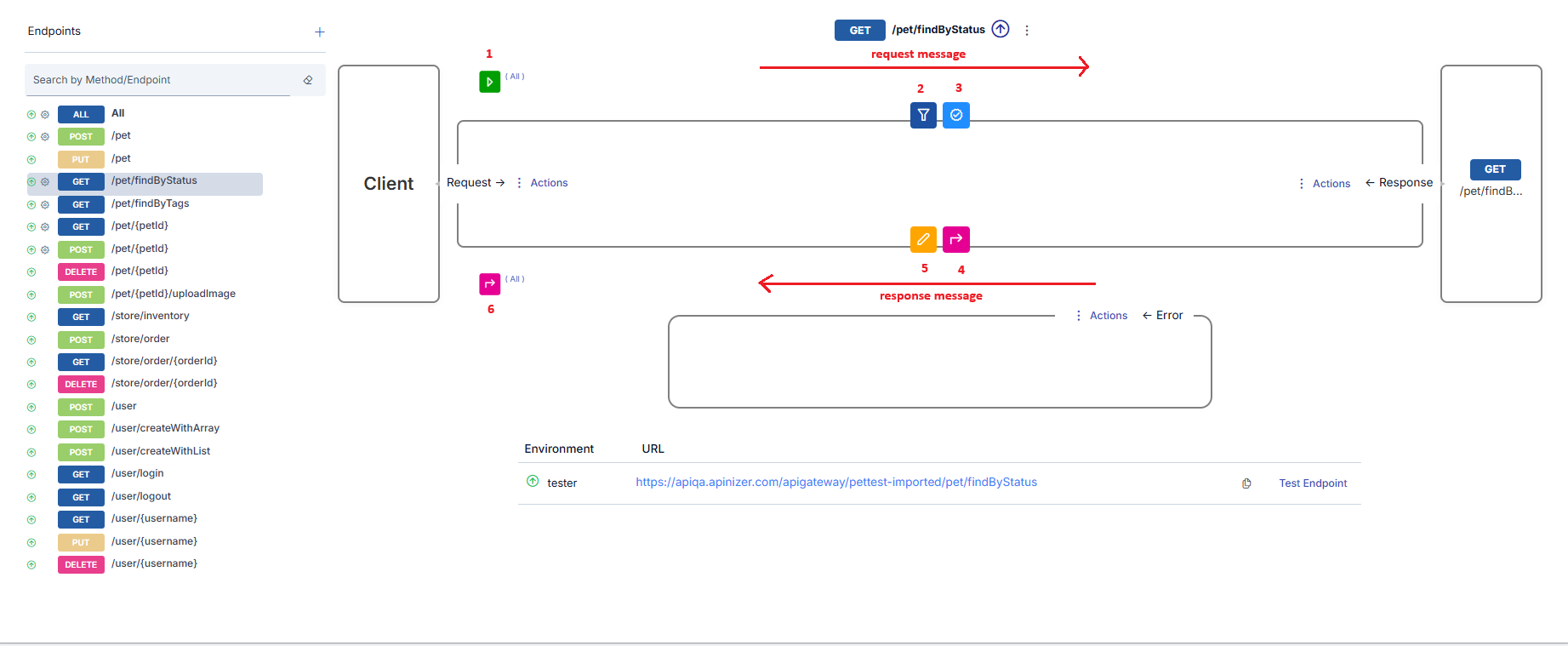
In the visual below, this situation is summarized, and the order in which policies are processed is shown with numbers.
* In the area marked with **frame number 1**, policies added to be valid for all methods/endpoints of this API Proxy and to be applied to request messages are seen.
* In the area marked with **frame number 2**, policies added to be valid for all methods/endpoints of this API Proxy and to be applied to response messages are seen.
## Policy Execution Order
Policies are executed in the order of message flow as follows:
* **For request message**: API Proxy Group → API Proxy → method/endpoint
* **For response message**: method/endpoint → API Proxy → API Proxy Group
At each level, policies at that level are processed according to the ordering in the message flow direction.
In the visual below, this situation is summarized, and the order in which policies are processed is shown with numbers.
 ### Policy Execution Order in Error Cases
Policies to be executed in error cases are added with the "Add Error Policy" option.
If an error occurs at any point in the flow, the normal flow is interrupted and first, if there is an error response template, it is applied to the error message.
Then, policies added to the "Error Policies" line are executed **from right to left** in order.
## Policy Management Operations
### Adding Policy to Flow
To add a policy:
* The entity where the policy is desired to be added is selected. For example, for a policy desired to be applied to all methods/endpoints of the API Proxy, **All** is selected in the API Proxy's method/endpoint field.
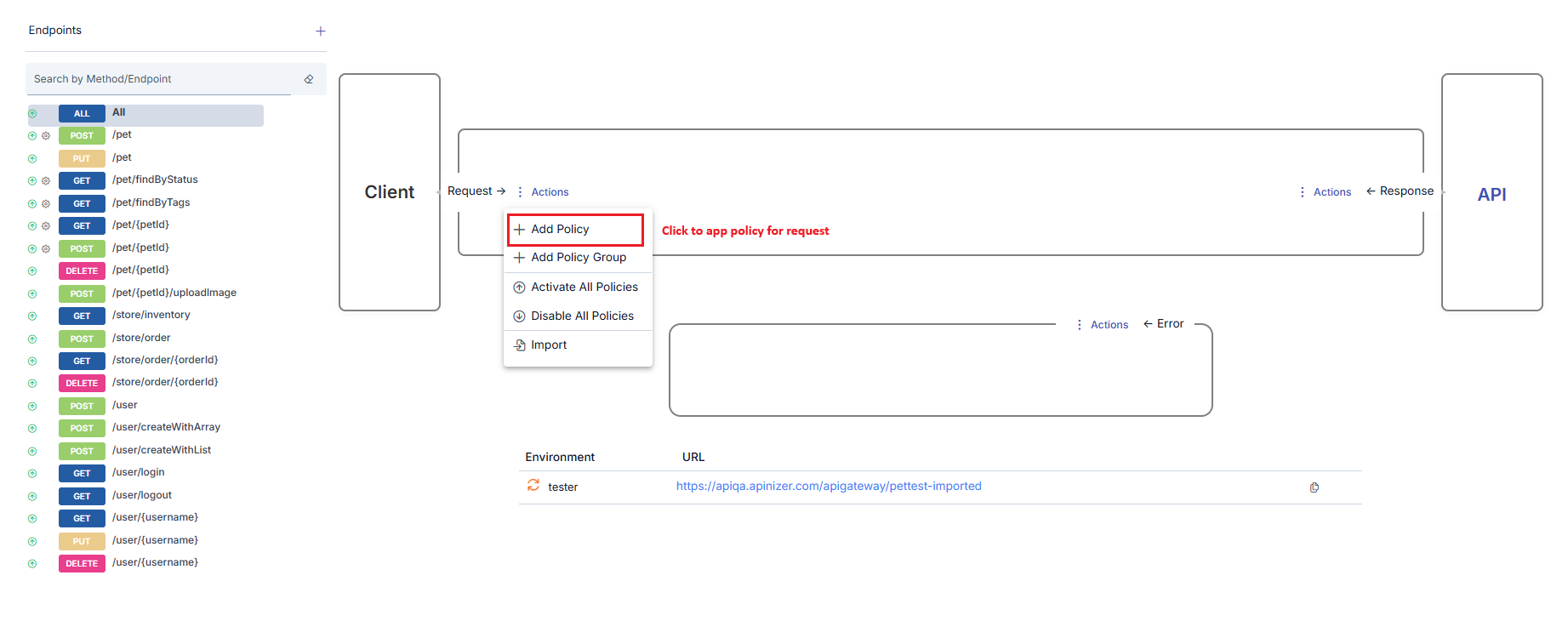
* The **➕ Add Policy** icon in the appropriate area is clicked according to whether the policy will be added to the request message or response message.
### Policy Execution Order in Error Cases
Policies to be executed in error cases are added with the "Add Error Policy" option.
If an error occurs at any point in the flow, the normal flow is interrupted and first, if there is an error response template, it is applied to the error message.
Then, policies added to the "Error Policies" line are executed **from right to left** in order.
## Policy Management Operations
### Adding Policy to Flow
To add a policy:
* The entity where the policy is desired to be added is selected. For example, for a policy desired to be applied to all methods/endpoints of the API Proxy, **All** is selected in the API Proxy's method/endpoint field.
* The **➕ Add Policy** icon in the appropriate area is clicked according to whether the policy will be added to the request message or response message.
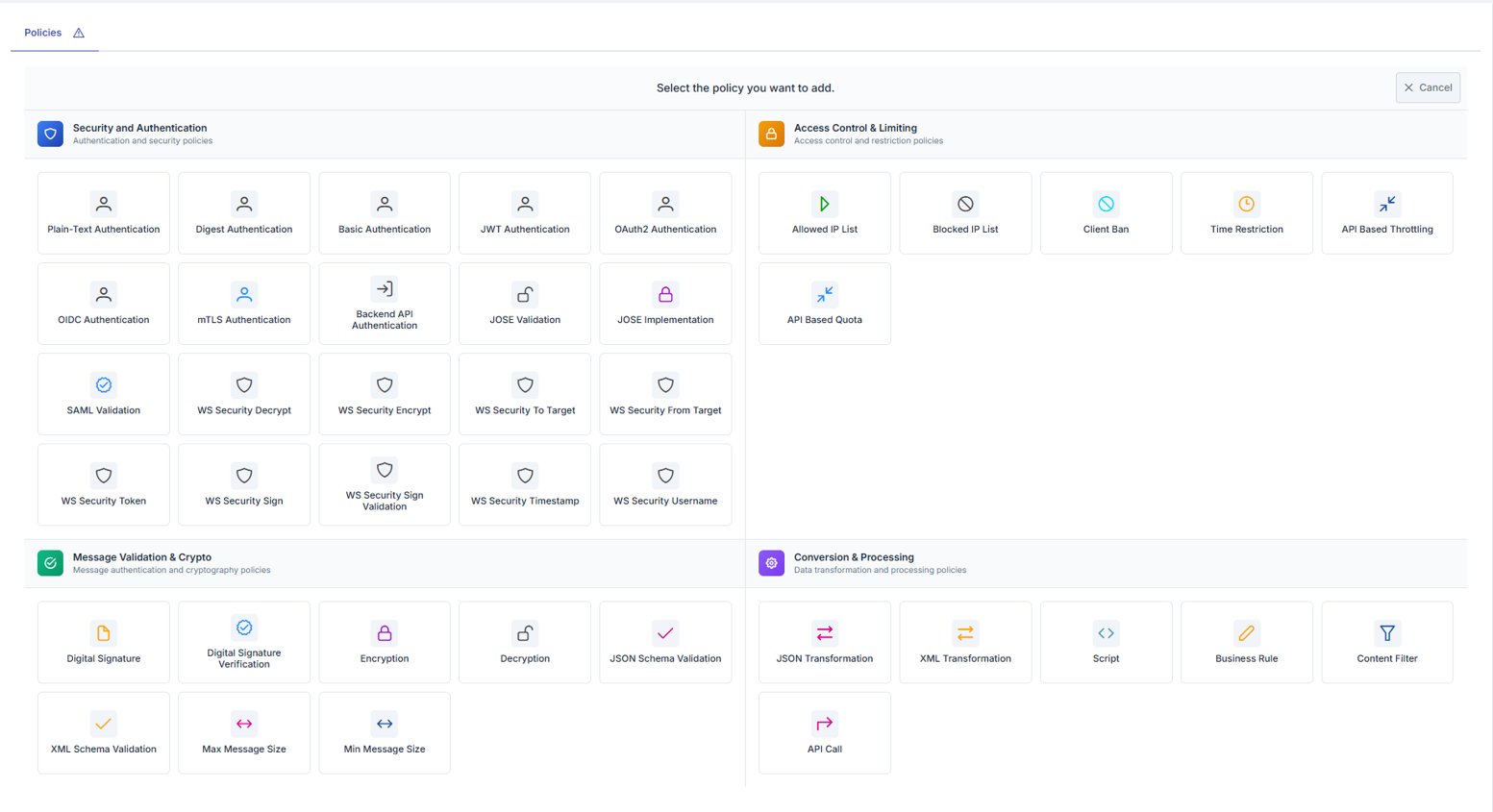
 * The type of policy desired to be added is selected from the window that opens. The policy types shown in this window vary according to the active API Proxy's type and which region the policy is desired to be added to.
 * When the policy desired to be added is selected, a window opens where configuration information related to that policy can be entered. Policies can be added in different ways from this window:
1. **To add an existing global policy**: In the policy window, the **Select From Global Policies** link next to the policy type at the top is clicked. The appropriate policy is selected from the window that opens and the process is completed.
2. **To create a local policy**: A local policy is created with the data entered in the window that opens without any special operation.
### Updating Policy in Flow
When the icon of an existing policy is clicked, a window opens where that policy's information can be updated.
### Activating/Deactivating Selected Policy
A policy can be temporarily disabled without being deleted from the method/endpoint or API Proxy where it is added. For this, the policy is opened for update and the **Deactivate** button at the top of the opened window is clicked.
### Activating/Deactivating All Policies
In the method/endpoint section, the **Disable All Policies** link appears at the bottom of the middle section. When this link is clicked, if it is in the **All** option, all policies added to the API Proxy; if it is in any method, only all policies added within that method are disabled. Disabled policies can later be reactivated one by one from the policy update window or collectively by clicking the **Activate All Policies** link.
When policies are disabled, the colors of the icons change to a gray appearance.
If the API Proxy has been added to an API Proxy Group and policies have been applied through this API Proxy Group, disabling all policies does not affect policies coming from the API Proxy Group, these policies remain active.
### Removing Policy from Flow
When the mouse is hovered over the policy desired to be deleted, an icon appears that will delete the policy. The policy can be deleted by clicking this icon.
In the policy deletion operation performed in the development tab;
* if the policy is local, it is completely deleted,
* if the policy is global, only its relationship with this method/endpoint or API Proxy is removed, the policy itself is not deleted. It can be added again later. If a global policy is desired to be completely deleted, the deletion operation must be done from the [Global Policies](/en/develop/global-configurations/global-policies) interfaces.
## Related Pages
Learn about message flow and policy application concept
Learn about policy concept
Get detailed information about all policies
Learn about global policy configurations
* When the policy desired to be added is selected, a window opens where configuration information related to that policy can be entered. Policies can be added in different ways from this window:
1. **To add an existing global policy**: In the policy window, the **Select From Global Policies** link next to the policy type at the top is clicked. The appropriate policy is selected from the window that opens and the process is completed.
2. **To create a local policy**: A local policy is created with the data entered in the window that opens without any special operation.
### Updating Policy in Flow
When the icon of an existing policy is clicked, a window opens where that policy's information can be updated.
### Activating/Deactivating Selected Policy
A policy can be temporarily disabled without being deleted from the method/endpoint or API Proxy where it is added. For this, the policy is opened for update and the **Deactivate** button at the top of the opened window is clicked.
### Activating/Deactivating All Policies
In the method/endpoint section, the **Disable All Policies** link appears at the bottom of the middle section. When this link is clicked, if it is in the **All** option, all policies added to the API Proxy; if it is in any method, only all policies added within that method are disabled. Disabled policies can later be reactivated one by one from the policy update window or collectively by clicking the **Activate All Policies** link.
When policies are disabled, the colors of the icons change to a gray appearance.
If the API Proxy has been added to an API Proxy Group and policies have been applied through this API Proxy Group, disabling all policies does not affect policies coming from the API Proxy Group, these policies remain active.
### Removing Policy from Flow
When the mouse is hovered over the policy desired to be deleted, an icon appears that will delete the policy. The policy can be deleted by clicking this icon.
In the policy deletion operation performed in the development tab;
* if the policy is local, it is completely deleted,
* if the policy is global, only its relationship with this method/endpoint or API Proxy is removed, the policy itself is not deleted. It can be added again later. If a global policy is desired to be completely deleted, the deletion operation must be done from the [Global Policies](/en/develop/global-configurations/global-policies) interfaces.
## Related Pages
Learn about message flow and policy application concept
Learn about policy concept
Get detailed information about all policies
Learn about global policy configurations