> ## Documentation Index
> Fetch the complete documentation index at: https://docs.apinizer.com/llms.txt
> Use this file to discover all available pages before exploring further.
# Environment Variables Management
> You can create, edit, and use environment variables in API Proxy configurations. You can define variables globally or environment-specifically, securely store secret values, and ensure automatic resolution during deployment.
For detailed information about the Environment Variables concept, you can refer to the [Environment Variable](/en/concepts/core-concepts/environment-variable) core concepts page.
This page contains practical information on how Environment Variables are created, edited, and used. Environment Variables is a feature in the Apinizer API Management Platform that allows you to centrally manage configuration information that needs to use different values in different environments *(Development, Test, Production)*. Thanks to this feature, the same API Proxy configuration can dynamically use different values such as backend addresses, database connection information, and API keys in different environments.
## Working Logic
### 1. Definition Stage
Environment variables are defined at the project level and can be of two types:
* **Global (All Environments)**: Uses the same value in all environments
* **Environment-Specific**: Different values can be defined for each environment
### 2. Usage Stage
Environment variables are used in configuration fields in the `${variableName}` format:
* **Example 1**: `${BACKEND_URL}` for backend address
* **Example 2**: `jdbc:mysql://${DB_HOST}:${DB_PORT}/${DB_NAME}` for database connection string
* **Example 3**: `${API_KEY}` for API key
### 3. Runtime Resolution
When the API Proxy is running (runtime):
1. Expressions in `${variableName}` format in the configuration are detected
2. The variable value of the relevant environment (Environment) is retrieved
3. Secret values are automatically decrypted
4. Variable name is replaced with the actual value
5. Operation continues with the actual value
**Example Scenario:**
* **Development Environment**: `BACKEND_URL = dev-api.example.com`
* **Production Environment**: `BACKEND_URL = api.example.com`
* **In Configuration**: `${BACKEND_URL}`
* **At Runtime in Development**: `dev-api.example.com`
* **At Runtime in Production**: `api.example.com`
## Creating Environment Variable (Create)
The visual containing the steps for creating an environment variable is shown below:
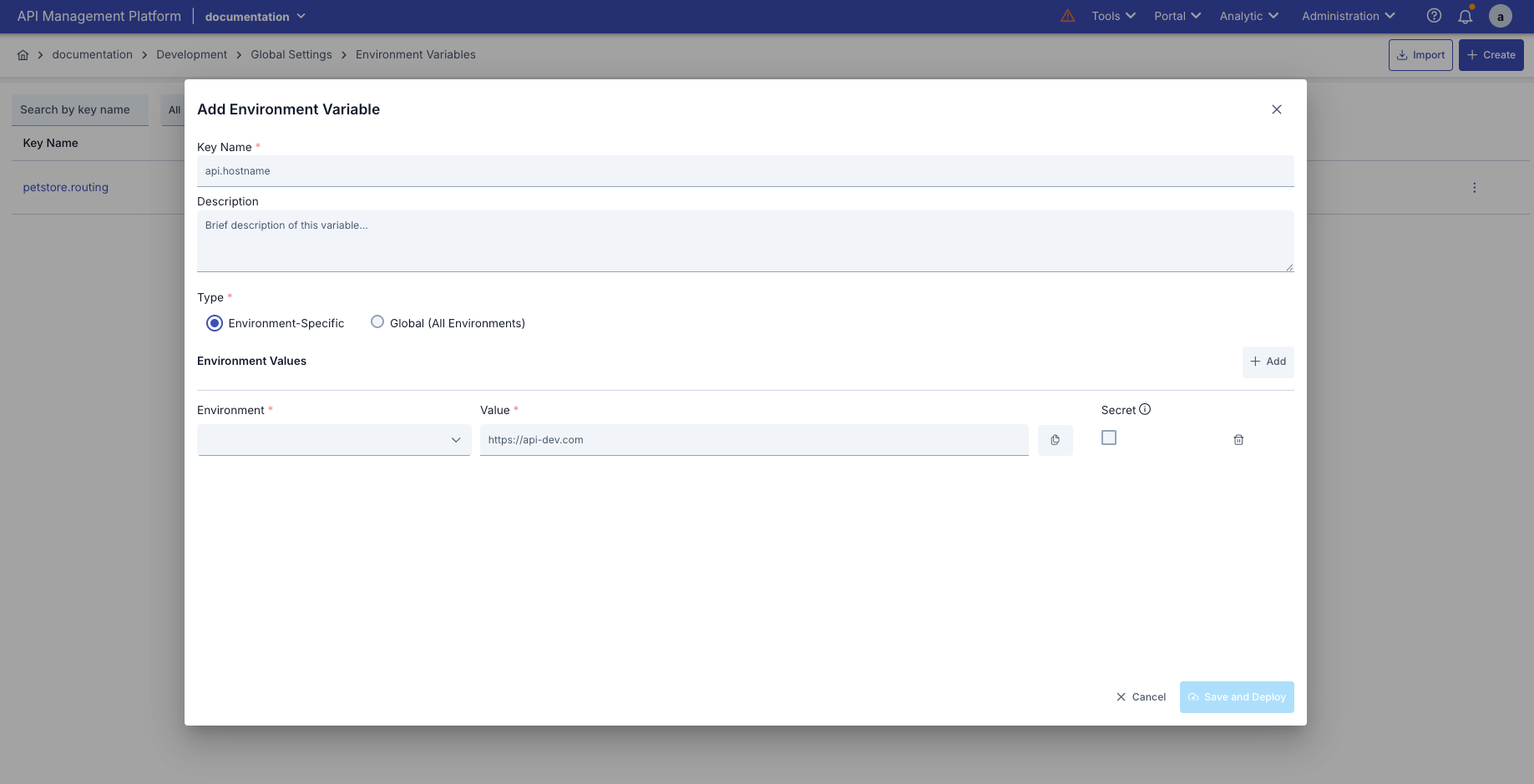 Environment variable creation configurations are explained step by step in the table below:
| Step | Function |
| --------------------------------------- | ----------------------------------------------------------------------------------------------------------------------------------------------------------------------------------------------------------------------------------------------------------------------------------------------------------------------------------------------------------------------------------------------------------------------------------------------------------------------------------------------------------------------------------------------------------------------------------------------------------------------------------------------------------------------------------------------------------------------------------------------------------------------------------------------------------------------------------------------- |
| Step 1: Adding New Environment Variable | **Go to Environment Variables** page
Environment variable creation configurations are explained step by step in the table below:
| Step | Function |
| --------------------------------------- | ----------------------------------------------------------------------------------------------------------------------------------------------------------------------------------------------------------------------------------------------------------------------------------------------------------------------------------------------------------------------------------------------------------------------------------------------------------------------------------------------------------------------------------------------------------------------------------------------------------------------------------------------------------------------------------------------------------------------------------------------------------------------------------------------------------------------------------------------- |
| Step 1: Adding New Environment Variable | **Go to Environment Variables** page
Click the **"Create"** button in the upper right corner
Environment Variable editing window opens |
| Step 2: Entering Basic Information | **Key Name (Variable Name)**:
Required field
Must be unique within the project
Name check is performed automatically
Valid name: Green checkmark
Existing name: Red warning sign
**Description**:
Optional field
Describes what the variable is used for |
| Step 3: Type Selection | **Environment-Specific**:
Different values can be defined for each environment
Selected when creating a new record
Cannot be changed after the record is created
**Global (All Environments)**:
Same value is used in all environments
Selected when creating a new record
Cannot be changed after the record is created
Type selection can only be made when creating a new record. The type of existing records cannot be changed. |
| Step 4: Value Definition | **For Environment-Specific Variables:**
**Adding Environment**: Click "Add Environment" button to add a new environment
**Environment Selection**: Select an environment for each value
Existing environments are selected from the list
Custom environment name can be entered with "Custom..." option
**Entering Value**: Enter value for each environment
**Setting Secret**: Check "Secret" checkbox for sensitive information
Secret values are masked after saving (\*\*\*\*\*\*\*\*\*\*\*\*)
Secret values are stored encrypted
If value is not changed during update, existing value is preserved
**For Global Variables:**
**Global Value**: Enter a single value (valid for all environments)
**Setting Secret**: Check "Secret" checkbox for sensitive information |
| Step 5: Saving and Deployment | **Form Control**: All required fields must be filled and name must be valid
Click **"Save and Deploy"** button
**Confirmation Dialog**:
You are asked to enter the variable name again (for security)
Affected components are listed:
API Proxy Routing settings
Policy Configuration settings
Connector settings
Other configuration settings
**Deployment Result**:
Automatically deployed to all running environments (Environments)
Deployment results are displayed |
1. **Go to Environment Variables** page
2. Click the **"Create"** button in the upper right corner
3. Environment Variable editing window opens
**Key Name (Variable Name)**:
* Required field
* Must be unique within the project
* Name check is performed automatically
* Valid name: Green checkmark
* Existing name: Red warning sign
**Description**:
* Optional field
* Describes what the variable is used for
**Environment-Specific**:
* Different values can be defined for each environment
* Selected when creating a new record
* Cannot be changed after the record is created
**Global (All Environments)**:
* Same value is used in all environments
* Selected when creating a new record
* Cannot be changed after the record is created
Type selection can only be made when creating a new record. The type of existing records cannot be changed.
#### For Environment-Specific Variables:
1. **Adding Environment**: Click "Add Environment" button to add a new environment
2. **Environment Selection**: Select an environment for each value
* Existing environments are selected from the list
* Custom environment name can be entered with "Custom..." option
3. **Entering Value**: Enter value for each environment
4. **Setting Secret**: Check "Secret" checkbox for sensitive information
* Secret values are masked after saving (\*\*\*\*\*\*\*\*\*\*\*\*)
* Secret values are stored encrypted
* If value is not changed during update, existing value is preserved
#### For Global Variables:
1. **Global Value**: Enter a single value (valid for all environments)
2. **Setting Secret**: Check "Secret" checkbox for sensitive information
1. **Form Control**: All required fields must be filled and name must be valid
2. Click **"Save and Deploy"** button
3. **Confirmation Dialog**:
* You are asked to enter the variable name again (for security)
* Affected components are listed:
* API Proxy Routing settings
* Policy Configuration settings
* Connector settings
* Other configuration settings
4. **Deployment Result**:
* Automatically deployed to all running environments (Environments)
* Deployment results are displayed
Values marked as Secret cannot be viewed again after saving.
## Editing Environment Variable (Edit)
### Opening the Edit Modal
The edit modal can be opened in the following ways:
| Method | Description |
| ----------------------- | ------------------------------------------------- |
| **Clicking from List** | Click on the environment variable name |
| **Selection from Menu** | Select "Edit" from the menu at the end of the row |
### Differences in Edit Modal
| Feature | New Record | Edit |
| ------------------- | -------------------------- | ----------------------------------------- |
| **Modal Title** | "Add Environment Variable" | "Edit Environment Variable" |
| **Type Selection** | Active (changeable) | Inactive (cannot be changed) |
| **Secret Values** | Normally visible | Masked visible (\*\*\*\*\*\*\*\*\*\*\*\*) |
| **Secret Checkbox** | Active | Inactive for saved secrets |
### Environment Variables Usage
Environment variables can be used in various configuration fields in the Apinizer API Manager platform. This section explains in detail how environment variables are used, in which configurations they can be used, and practical examples.
### Usage Format
Environment variables are referenced in configuration fields using a special format.
**Format Structure**
| Format | Description | Example |
| ---------------------------------- | ------------------- | ----------------------------------------------- |
| `${variableName}` | Basic usage format | `${BACKEND_URL}` |
| `text${variableName}` | Combining with text | `https://${API_HOST}` |
| `${variableName}text` | Combining with text | `${API_PORT}/api` |
| `text${variable1}text${variable2}` | Multiple variables | `jdbc:mysql://${DB_HOST}:${DB_PORT}/${DB_NAME}` |
**Format Rules**
| Rule | Description |
| ---------------------- | ----------------------------------------------------- |
| **Starting Character** | Must start with `${` |
| **Ending Character** | Must end with `}` |
| **Variable Name** | Variable name is in the middle (without spaces) |
| **Case Sensitivity** | Variable name is case-sensitive |
| **Special Characters** | Dot (.), underscore (\_) can be used in variable name |
### Usage Locations
Environment variables can be used in various configuration fields in the Apinizer platform. However, the **Environment Variable Selection Dialog** is only available in certain fields.
**1. API Proxy - Routing**
**Usage Area:** Upstream Routing addresses
| Feature | Description |
| ------------ | ------------------------------------------------------------------------ |
| **Location** | API Proxy > Upstream/Routing Tab > Define Address(es) |
| **Field** | Backend API address input field |
| **Usage** | Environment-based routing in backend API addresses |
| **Access** | By clicking the list icon button on the right of the address input field |
**Usage Scenario:** To use different backend addresses in different environments
**2. Database Connection**
**Usage Area:** Database connection configuration
| Feature | Description |
| ----------------- | --------------------------------------------------------------- |
| **Location** | Administration > Connection Management > Connection Pool Def DB |
| **Fields** | JDBC URL, Username, Password |
| **Usage** | Environment-based management in database connection information |
| **Dialog Access** | By clicking the list icon button on the right of each field |
| **Secret Usage** | Password field must be marked as secret |
**Usage Scenario:** To use different database connection information in different environments
**3. LDAP Connection**
**Usage Area:** LDAP connection configuration
| Feature | Description |
| ----------------- | ----------------------------------------------------------------- |
| **Location** | Administration > Connection Management > Connection Pool Def LDAP |
| **Fields** | LDAP URL, Bind DN, Bind Password |
| **Usage** | Environment-based management in LDAP connection information |
| **Dialog Access** | By clicking the list icon button on the right of each field |
| **Secret Usage** | Bind Password must be marked as secret |
### Usage Scenarios and Examples
**Problem:** Different backend API addresses are used in different environments.
**Solution:**
1. **Creating Environment Variable:**
```
Key Name: BACKEND_API_URL
Type: Environment-Specific
Development: https://dev-api.example.com
Test: https://test-api.example.com
Production: https://api.example.com
```
2. **Usage in Routing:**
```
Address: ${BACKEND_API_URL}
```
3. **Result:**
* In Development environment, requests go to `https://dev-api.example.com`
* In Test environment, requests go to `https://test-api.example.com`
* In Production environment, requests go to `https://api.example.com`
**Problem:** Different databases are used in each environment.
**Solution:**
1. **Environment Variables:**
```
DB_HOST: Development=dev-db.example.com, Production=prod-db.example.com
DB_PORT: Global=3306
DB_NAME: Development=dev_db, Production=prod_db
DB_USER: Development=dev_user, Production=prod_user
DB_PASSWORD: Development=dev_pass, Production=prod_pass (Secret)
```
2. **Usage in Connector:**
```
Connection String: jdbc:mysql://${DB_HOST}:${DB_PORT}/${DB_NAME}
Username: ${DB_USER}
Password: ${DB_PASSWORD}
```
3. **Result:**
* Development: `jdbc:mysql://dev-db.example.com:3306/dev_db`
* Production: `jdbc:mysql://prod-db.example.com:3306/prod_db`
If there is an underscore (\_) character in the database name, it is shown as `%5F` with URL encoding. For example `dev_db` → `dev%5Fdb`.
**Problem:** Different API keys are used for external services.
**Solution:**
1. **Environment Variable:**
```
Key Name: EXTERNAL_SERVICE_API_KEY
Type: Environment-Specific
Development: dev-key-abc123 (Secret)
Production: prod-key-xyz789 (Secret)
```
2. **Usage in Policy:**
```
Header Name: X-API-Key
Header Value: ${EXTERNAL_SERVICE_API_KEY}
```
3. **Result:**
* Development: `X-API-Key: dev-key-abc123`
* Production: `X-API-Key: prod-key-xyz789`
## Related Pages
Learn about the Environment Variables concept
Learn about the Variable concept