> ## Documentation Index
> Fetch the complete documentation index at: https://docs.apinizer.com/llms.txt
> Use this file to discover all available pages before exploring further.
# Elasticsearch
> Configure and manage Elasticsearch connections. You can transmit REST-based log, metric, and search data to a central cluster, and perform index and lifecycle management
## Overview
Connection transmits log, metric, and search data from Integration Flow or Connector steps to a central Elasticsearch cluster.
Manages REST requests with high availability through multiple host (HTTP/HTTPS) definitions.
Standardizes cluster governance through Index Template and Index Lifecycle Policy (ILM) automation.
Triggers maintenance tasks such as rollover, template creation, and policy synchronization with a single click.
When an Elasticsearch Connection is requested from within an Integration Flow or Connector, the system reads the configured connection parameters.
The HTTP client selects an appropriate connection from the pool or opens a new one based on `ioThreads`, `maxConnectionPerHost`, and `maxConnectionTotal` values.
When Basic Authentication is provided, username/password are sent; otherwise, anonymous access or IP-based security is used.
JSON-bodied CRUD requests are sent to REST endpoints over HTTP/HTTPS; socket settings (keep-alive, reuse) ensure transmission continuity.
When the operation completes, the connection returns to the pool, and open sockets close when keep-alive periods expire.
On connection error, timeout, or authentication error, Apinizer Message Service generates notifications; details are shown in the deployment result dialog.
Writing Gateway logs to central Elasticsearch indices
Accessing read-only clusters for search/reporting purposes
Managing high-volume log clusters requiring ILM and template automation
Routing traffic to disaster recovery or geo-redundant Elasticsearch clusters
## Technical Features and Capabilities
Provides load distribution among cluster nodes through HTTP/HTTPS scheme, host, and port combinations.
Shard/replica counts and refresh interval values are managed through the UI.
When the `Administrate` option is enabled, Index Template, ILM Policy creation, and rollover trigger buttons become active.
Ability to define separate connection parameters for each environment (Development, Test, Production).
Activating or deactivating the connection (enable/disable toggle). In passive state, the connection cannot be used but its configuration is preserved.
Age, size, and replication thresholds for Hot/Warm/Cold/Delete phases are controlled through a modal.
SSL/TLS communication is secured by uploading PKCS#12 or PEM-based CA/keystore files.
In `READ_WRITE` mode, administrative operations are active; in `READ` mode, only queries are performed.
Ability to validate connection parameters before saving using the "Test Connection" button.
Exporting connection configuration as a ZIP file. Importing to different environments (Development, Test, Production). Version control and backup capability.
Monitoring connection health, pool status, and performance metrics.
## Connection Parameters
**Description:** Connection name (must be unique)\
**Example Value:** `Production_ElasticLog`\
**Notes:** Cannot start with a space, special characters should not be used
**Description:** Index name where logs will be written\
**Example Value:** `apinizer-log-apiproxy-default`\
**Notes:** Automatically created when Administrate is enabled; conflicts are checked
**Description:** Scheme/host/port for each host\
**Example Value:** `HTTPS : es-prod-01 : 9243`\
**Notes:** At least one host is required; host and port fields cannot be left empty
**Description:** Wait time for connection establishment\
**Example Value:** 5000\
**Notes:** Default 5000; negative values are not accepted
**Description:** HTTP client thread count\
**Example Value:** 32\
**Notes:** Minimum 1; should be increased for high traffic
**Description:** Concurrent request limit per host\
**Example Value:** 128\
**Notes:** Minimum 1
**Description:** Total connection pool limit\
**Example Value:** 256\
**Notes:** Minimum 1
**Description:** `READ_WRITE` or `READ` mode\
**Example Value:** READ\_WRITE\
**Notes:** If `READ` is selected, administrate is disabled
**Description:** Connection purpose description\
**Default Value:** Empty\
**Recommended Value:** Short text containing operational information
**Description:** Basic Authentication on/off\
**Default Value:** false\
**Recommended Value:** true based on requirements in Production
**Description:** Username\
**Default Value:** Empty\
**Recommended Value:** Required if Authentication is active
**Description:** Password\
**Default Value:** Empty\
**Recommended Value:** Should be entered through secret manager
**Description:** Template/ILM management\
**Default Value:** true (READ\_WRITE)\
**Recommended Value:** Can be closed if external team manages
**Description:** TCP keep-alive\
**Default Value:** true\
**Recommended Value:** Keep enabled if network devices drop idle connections
**Description:** Address reuse\
**Default Value:** true\
**Recommended Value:** Keep enabled in multi-worker deployments
**Description:** TLS hostname verification\
**Default Value:** true\
**Recommended Value:** Change to false in Production
### Timeout and Connection Pool Parameters
**Description:** Maximum wait time for connection establishment\
**Default:** 5000\
**Min:** 1000 | **Max:** 60000\
**Unit:** milliseconds
**Description:** Wait time for Elasticsearch response\
**Default:** 60000\
**Min:** 1000 | **Max:** 120000\
**Unit:** milliseconds
**Description:** Maximum number of connections in the connection pool\
**Default:** 256\
**Min:** 1 | **Max:** 2000\
**Unit:** count
**Description:** Timeout for closing idle connections\
**Default:** 30000\
**Min:** 1000 | **Max:** 600000\
**Unit:** milliseconds
## Usage Scenarios
**Situation:** Millions of log entries per minute\
**Solution:** READ\_WRITE, administrate enabled, `ioThreads=64`, `maxConnectionTotal=512`\
**Expected Behavior:** ILM automatically performs rollover, no write queue forms
**Situation:** Read-only queries\
**Solution:** READ, administrate disabled, authentication=true\
**Expected Behavior:** Cluster only receives queries, management operations are blocked
**Situation:** Two data centers\
**Solution:** Two HTTPS hosts, encrypt communication + PKCS#12 CA\
**Expected Behavior:** Traffic automatically routes to healthy host
**Situation:** New fields added\
**Solution:** Update template name and shard/replica, then run "Create Index Template"\
**Expected Behavior:** New indices open with current schema
**Situation:** Logs older than 90 days will be deleted\
**Solution:** ILM delete phase active, `minAgeOfDelete=90`\
**Expected Behavior:** Old indices are automatically cleaned
**Situation:** TLS required, internal CA\
**Solution:** Encrypt communication enabled, `CA_IN_PEM_FILE` uploaded\
**Expected Behavior:** Secure connection established with certificates
## Connection Configuration
### Creating a New Elasticsearch Connection
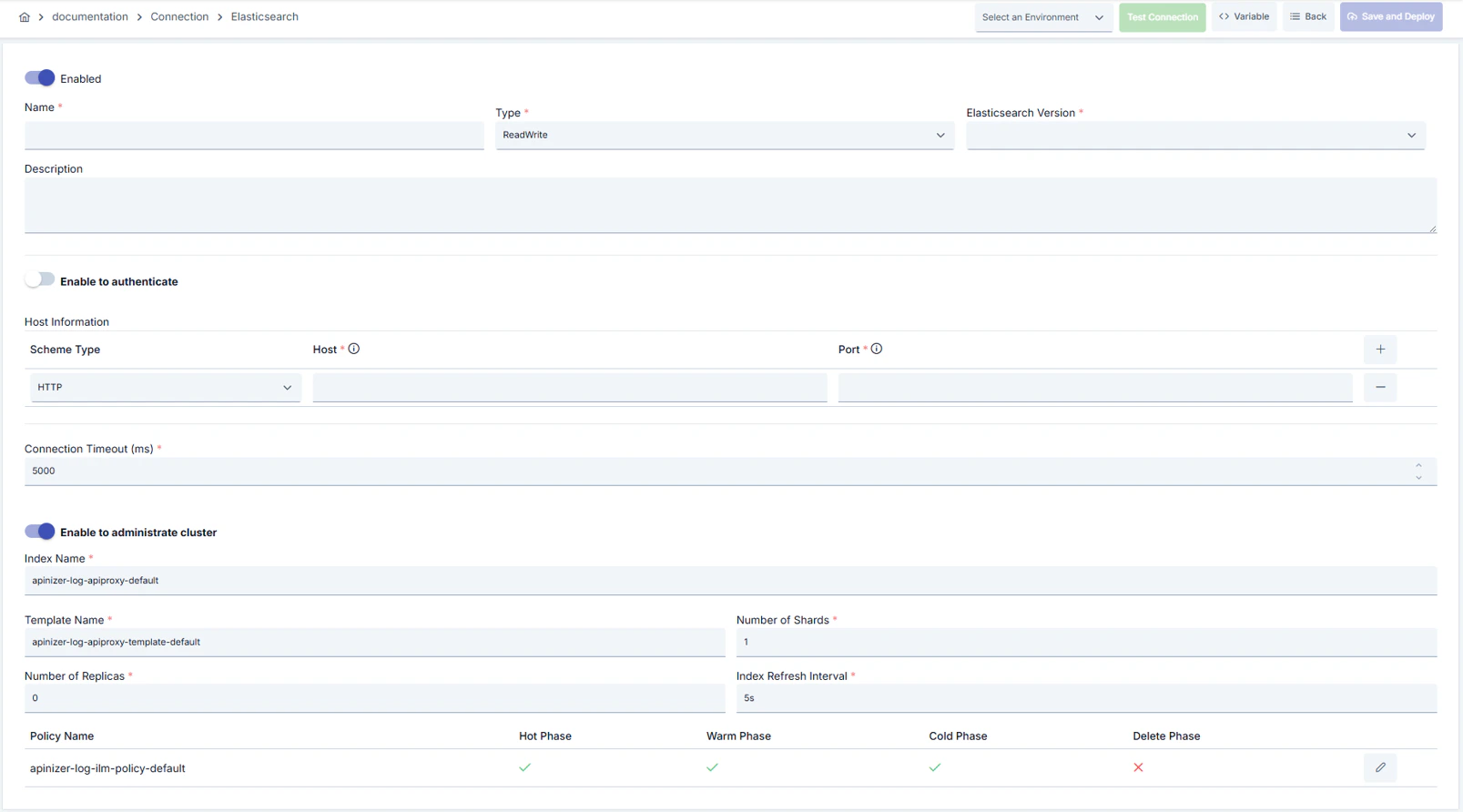 #### Configuration Steps
* Go to **Connection → Elasticsearch** from the left menu.
* Click the **\[+ Create]** button in the top right.
* The new Elasticsearch Connection creation form opens.
**Enable Status (Active Status) Setting:**
* Find the **Enable Status** toggle at the top of the form.
* Set the toggle to **Active** position (defaults to active).
* If you want to make the connection passive, set the toggle to **Passive** position.
* Passive connections cannot be used in Integration Flows but their configurations are preserved.
**Name (Name) - Required Field:**
* Enter a unique connection name in the **Name** field.
* Name examples: `` `Production_ElasticLog` ``, `` `Test_ElasticConnection` ``, `` `Dev_ElasticSearch` ``
* Naming rules:
* Cannot start with a space
* Special characters should not be used (recommended: letters, numbers, underscore)
* Maximum 255 characters
* The system automatically checks as you type:
* Green checkmark: Name is available
* Red X mark: Name already exists, choose a different name
**Description (Description) - Optional:**
* Enter text describing the connection's purpose in the **Description** field.
* Example descriptions:
* "Writes Gateway logs to production cluster"
* "Production environment Elasticsearch connection"
* "Dummy Elasticsearch connection for test environment"
* Maximum 1000 character limit.
* This field can be left empty.
In the action button area at the top of the page, you can use the **\[\<> Variable]** button to select dynamic values, and with global variables, you can manage connection parameters with variable-based values instead of fixed values. For detailed information, review the [Dynamic Variables](/en/concepts/core-concepts/dynamic-variables) page.
* Find the **Environment** dropdown menu.
* Open the dropdown menu and select one of the following options:
* **Development**: For development environment
* **Test**: For test environment
* **Production**: For production environment
* Different connection parameters can be defined for each environment.
* Environment selection determines in which environment the connection will be active.
* Connections with the same name can be created separately for different environments.
You can provide high availability by adding multiple hosts.
**Scheme Selection:**
* Select **Scheme** for each host: **HTTP** or **HTTPS**
* When HTTPS is selected, **Encrypt Communication** automatically opens.
**Host/Port - Required:**
* Enter the Elasticsearch node's address in the **Host** field.
* Enter the port number in the **Port** field (default: 9200).
* Host format:
* FQDN (Fully Qualified Domain Name): `` `es-prod-01.company.com` ``
* IP address: `` `192.168.1.100` ``
* Add multiple hosts to backup cluster access.
* At least one host is required.
**Connection Type Selection:**
* Select from the **Connection Type** dropdown menu:
* **READ\_WRITE**: For read and write operations (administrative operations active)
* **READ**: For read-only operations (administrate disabled)
* Connection type selection determines administrate behavior.
**Index Name - Required:**
* Enter the index name where logs will be written in the **Index Name** field.
* Example: `` `apinizer-log-apiproxy-default` ``
* Automatically created when Administrate is enabled; conflicts are checked.
**Administrate Setting:**
* Find the **Administrate** toggle.
* Set the toggle to **Active** position for template and ILM management.
* When Administrate is active, the following fields become visible:
* Template name
* Shard count
* Replica count
* Refresh interval
**ILM Policy Configuration:**
* Click the **Edit ILM Policy** button.
* Set hot/warm/cold/delete phase thresholds in the opened modal.
* Verify that the policy name is unique.
* Check the policy name before the first deployment.
**Connection Timeout:**
* Enter the wait time for connection establishment in the **Connection Timeout (ms)** field.
* Default: 5000 milliseconds
* Minimum: 1000, Maximum: 60000 milliseconds
**IO Threads:**
* Enter the HTTP client thread count in the **IO Threads** field.
* Minimum: 1
* Should be increased for high traffic (e.g., 64)
**Max Connection Per Host:**
* Enter the concurrent request limit per host in the **Max Connection Per Host** field.
* Minimum: 1
* Recommended: 128
**Max Connection Total:**
* Enter the total connection pool limit in the **Max Connection Total** field.
* Minimum: 1, Maximum: 2000
* Recommended: 256
**Socket Settings:**
* Find the **Socket Keep Alive** toggle (default: active).
* Find the **Socket Reuse Address** toggle (default: active).
* Keep keep-alive enabled if network devices drop idle connections.
* Keep reuse address enabled in multi-worker deployments.
**Authentication Setting:**
* Find the **Authenticate** toggle.
* If your Elasticsearch cluster requires authentication, set the toggle to **Active** position.
* Most production environments require authentication.
**Username and Password:**
* When the **Authenticate** toggle is active, the **Elastic Username** field becomes visible.
* Enter the Elasticsearch username.
* Enter the password in the **Elastic Password** field.
* The password will appear masked for security reasons.
* Use of secret manager is recommended for sensitive information.
**Encrypt Communication (TLS):**
* When at least one host has HTTPS selected, the **Encrypt Communication** section becomes visible.
* Select TLS type:
* **PKCS#12 CA**: CA file in PKCS#12 format
* **PEM CA**: CA file in PEM format
* **PKCS#12 cert+key**: Certificate and key file in PKCS#12 format
* Upload the required files.
* Forms with missing files will error and not allow saving.
**Disable Hostname Verification:**
* Find the **Disable Hostname Verification** toggle.
* Change to false in Production (default: true).
* Can be left as true in test environment.
Always use SSL/TLS in production environment and keep hostname verification active.
* Find the **\[Test Connection]** button at the bottom of the form or in the top right corner.
* Click the button.
* The system tests the connection parameters:
* Connection is established to Elasticsearch cluster
* Authentication is performed (if Authentication is active)
* TLS handshake is performed (if Encrypt Communication is active)
* Cluster health is checked
* Test result:
* **Successful**: Green confirmation message is displayed, such as "Connection test successful"
* **Failed**: Red error message is displayed, error details are shown
* In case of error:
* Read the error message
* Check relevant parameters (Host, Port, Username, Password)
* Check firewall and network settings
* Check Elasticsearch cluster health
* Fix parameters and test again until test is successful.
* Ensure all required fields are filled.
* Verify that test connection is successful (recommended).
* Click the **\[Save and Deploy]** button in the top right corner of the form.
* The system saves the connection and deploys it to the selected environment.
* After successful save:
* You are redirected to the connection list page
* New connection appears in the list
* Connection becomes **Enabled**
* Becomes available for use in Integration Flow and Connector steps
**Checklist (Before Saving):**
* Name field is unique and valid
* At least one Host and Port fields are filled
* Index Name is filled
* Connection Type is selected
* If Authentication is active, Username and Password are filled
* Environment is selected
* Test Connection is successful (recommended)
* All required fields are filled
**Result:**
* Connection is successfully created and saved
* Becomes active in the selected environment
* Connection selection can be made in Integration Flow and Connector steps
* Appears in connection list and can be managed
Connection successfully created! You can now use it in Integration Flow and Connector steps.
### Deleting Connection
Select **Delete** from the **⋮** menu at the end of the row or click the **\[Delete]** button on the connection detail page
**Check Before Deleting:** May be in use in Integration Flow or Connector steps. If necessary, assign an alternative connection. Take a backup with **Export** before deleting
Instead of deleting, use the **Disable** option. Connection becomes passive but is not deleted. Can be reactivated when needed
### Exporting/Importing Connection
In this step, users can export (export) existing connections for backup, moving to different environments, or sharing purposes, or import (import) a previously exported connection again. This operation is used to maintain data integrity in version control, transitions between test and production environments, or inter-team sharing processes.
Select **⋮ → Export** from the action menu. ZIP file is automatically downloaded.
Click the **\[Export]** button on the connection detail page. ZIP file is downloaded.
Format: `Date-connection-ConnectionName-export.zip`\
Example: `13 Nov 2025-connection-Production_ElasticLog-export.zip`
* Connection JSON file
* Metadata information
* Dependency information (e.g., certificates, key store)
* Backup
* Moving between environments (Test → Prod)
* Versioning
* Team or project-based sharing
* Click the **\[Import Elasticsearch]** button on the main list.
* Select the downloaded ZIP file.
* System checks: Is format valid? Is there a name conflict? Are dependencies available?
* Then click the **\[Import]** button.
**Scenario 1: Name Conflict** → Overwrite the old connection or create with a new name.
**Scenario 2: Missing Dependencies** → Create missing certificates or key stores first or remove them during import.
### Connection Usage Areas
**Steps:**
1. Create the connection.
2. Verify the connection with **Test Connection**.
3. Save and activate with **Save and Deploy**.
4. Ensure the connection is in **Enabled** status
Connection is selected in steps requiring communication with external systems such as message queues (queue), topics, email, FTP/SFTP, LDAP, or similar. Examples: steps like "Send Message", "Consume Message", "Upload File", "Read Directory". Connection selection is made from the **Connection** field in these steps' configuration
In scheduled tasks (e.g., sending messages at certain intervals, file processing, etc.), connection is selected to access external systems. When connection changes, job behavior is updated accordingly
Connection accuracy can be checked independently of Integration Flow using the Connection Test feature. This test is critical in the debugging process
## Best Practices
**Bad:** `index1`.\
**Good:** `log-prod`.\
**Best:** `` `prod-apiproxy-log-{yyyy.MM.dd}` ``
**Bad:** Not changing defaults.\
**Good:** Setting max size according to daily data volume.\
**Best:** Setting both size and age thresholds and regularly using the rollover button
**Bad:** Sharing the same certificate across all environments.\
**Good:** Loading environment-based certificates.\
**Best:** Planning certificate rotation with automation and setting expiration alarms
**Bad:** Giving `READ_WRITE` to read-only cluster.\
**Good:** Making selection according to permission requirements.\
**Best:** Updating connection type if cluster role changes
**Bad:** Using the same connection parameters in all environments.\
**Good:** Creating separate connections for each environment.\
**Best:** Managing all environments in a single connection using the Environment option, only changing environment when transitioning between environments
**Bad:** Saving and deploying connection without testing.\
**Good:** Verifying with Test Connection before saving.\
**Best:** Testing after every parameter change, performing full integration test in test environment before going to production
Create separate connections and RBAC users for production cluster; do not share access tokens
Do not put PKCS#12/PEM files in version control; upload through secret storage
Disable Hostname Verification should only be used for testing; recommended to leave as false in production
Store sensitive information such as usernames and passwords using environment variables or secret manager. Do not hardcode credentials in code or configuration files. Update passwords periodically
Always enable SSL/TLS in production environment. Use self-signed certificates only in development environment. Track certificate expiration dates and renew them on time
Allow only authorized users to change connection configuration. Store connection change logs. Apply change approval process for critical connections
**Why to avoid:** Creates conflicts in indices sharing the same template.\
**Alternative:** Use project-based prefix
**Why to avoid:** All flows stop if single host fails.\
**Alternative:** Enter at least two hosts, monitor health check
**Why to avoid:** Wrong file type leads to handshake failure.\
**Alternative:** Use certificate package appropriate for HTTPS selection
**Why to avoid:** Test data may be written to production system, real users may be affected, security risk occurs.\
**Alternative:** Create separate connections for each environment, use environment parameter, separate connection names by adding prefix according to environment (Test\_, Prod\_)
**Why to avoid:** Connection continuously times out in network delays, Integration steps fail.\
**Alternative:** Set timeout values according to real usage scenarios, measure network latency and set timeouts accordingly
**Why to avoid:** New connection opens with each request, performance decreases, resource consumption increases, target system load increases.\
**Alternative:** Enable connection pool, set pool size according to traffic volume, set up pool monitoring
**Recommendation:** Determine shard count according to daily record volume, set replica count according to cluster capacity.\
**Effect:** Search performance increases, disk usage is balanced
**Recommendation:** Reduce storage costs by keeping hot phase short and cold phase long.\
**Effect:** Unnecessary data is not kept on expensive nodes
**Recommendation:** Track bulk/search queue lengths from monitor screen; if thresholds are exceeded, increase ioThreads/pool values.\
**Effect:** Number of requests waiting in queue decreases
**Recommendation:** Set pool size according to peak traffic (recommended: concurrent request count × 1.5), set idle connection timeouts, perform pool health check.\
**Effect:** Connection opening cost decreases by 80%, response times decrease, resource usage is optimized
**Recommendation:** Measure real network latency, set timeout values accordingly, avoid very low or very high timeouts.\
**Effect:** Unnecessary waits are prevented, fast fail-over is provided, user experience improves
**Recommendation:** Monitor connection pool usage, track timeout rates, perform connection health check, set up alerting.\
**Effect:** Problems are proactively detected, performance bottlenecks are identified early, downtime decreases
## Troubleshooting
Administrate may be disabled, Template name may conflict, or Elasticsearch user permission may be insufficient.
Enable Administrate.
Change the template name.
Grant `manage_index_templates` permission to the user.
Policy name may exist, Hot phase may be disabled, or UI modal may not be closed.
Make the policy name unique.
Enable the Hot phase.
Click Save in the modal and try again.
Network delay, target system responding slowly, or timeout value may be too low.
Check network connectivity.
Check target system health.
Increase timeout values.
Review connection logs.
Wrong username/password, expired credentials, or permission problem may exist.
Verify credentials.
Check that the user is active in the target system.
Check that necessary permissions are granted.
Check SSL/TLS certificates.
Pool size may be too low, connection leak may exist, or traffic may be too high.
Increase pool size.
Check that connections are properly closed.
Set idle connection timeouts.
Monitor connection usage metrics.
Different connection may be selected in Integration/Connector step, step may be misconfigured, or Flow/Job may not be redeployed.
Check that the connection's enable toggle is active.
Verify that the correct connection is selected in Integration Flow.
Redeploy the connection.
Redeploy Integration Flow or Job.
Check Gateway logs.
## Frequently Asked Questions (FAQ)
Thanks to the environment dropdown, Development/Test/Production values can be kept within the same connection; however, it is safer to create separate connections for access policies.
Manually rollovers the active index of the specified connection; can be used in emergencies before ILM threshold is reached.
No, TLS fields are not visible unless at least one host has HTTPS selected; update host scheme for security requirements.
Indices created with the same template and policy name are affected; if you use different names, manual assignment is required.
Shows bulk/search/ingest queue lengths, rejection counts, and active thread count of Elasticsearch nodes; used for performance tuning.
Yes, the same connection can be used in multiple Integration Flow or Connector steps. This provides central management and guarantees configuration consistency. However, changes made to the connection will affect all usage locations, so care should be taken.
Using connection pool is not mandatory but strongly recommended in high-traffic systems. Reusing existing connections instead of opening new ones with each request significantly increases performance.
Yes, it is recommended to create separate connections for each environment. Alternatively, you can manage all environments within a single connection using the environment parameter. This approach provides easier management and less error risk.
Several reasons may exist:
1. Connection enable toggle may be passive
2. Different connection may be selected in Integration step
3. Connection may not be deployed
4. Integration Flow may not be redeployed yet
#### Configuration Steps
* Go to **Connection → Elasticsearch** from the left menu.
* Click the **\[+ Create]** button in the top right.
* The new Elasticsearch Connection creation form opens.
**Enable Status (Active Status) Setting:**
* Find the **Enable Status** toggle at the top of the form.
* Set the toggle to **Active** position (defaults to active).
* If you want to make the connection passive, set the toggle to **Passive** position.
* Passive connections cannot be used in Integration Flows but their configurations are preserved.
**Name (Name) - Required Field:**
* Enter a unique connection name in the **Name** field.
* Name examples: `` `Production_ElasticLog` ``, `` `Test_ElasticConnection` ``, `` `Dev_ElasticSearch` ``
* Naming rules:
* Cannot start with a space
* Special characters should not be used (recommended: letters, numbers, underscore)
* Maximum 255 characters
* The system automatically checks as you type:
* Green checkmark: Name is available
* Red X mark: Name already exists, choose a different name
**Description (Description) - Optional:**
* Enter text describing the connection's purpose in the **Description** field.
* Example descriptions:
* "Writes Gateway logs to production cluster"
* "Production environment Elasticsearch connection"
* "Dummy Elasticsearch connection for test environment"
* Maximum 1000 character limit.
* This field can be left empty.
In the action button area at the top of the page, you can use the **\[\<> Variable]** button to select dynamic values, and with global variables, you can manage connection parameters with variable-based values instead of fixed values. For detailed information, review the [Dynamic Variables](/en/concepts/core-concepts/dynamic-variables) page.
* Find the **Environment** dropdown menu.
* Open the dropdown menu and select one of the following options:
* **Development**: For development environment
* **Test**: For test environment
* **Production**: For production environment
* Different connection parameters can be defined for each environment.
* Environment selection determines in which environment the connection will be active.
* Connections with the same name can be created separately for different environments.
You can provide high availability by adding multiple hosts.
**Scheme Selection:**
* Select **Scheme** for each host: **HTTP** or **HTTPS**
* When HTTPS is selected, **Encrypt Communication** automatically opens.
**Host/Port - Required:**
* Enter the Elasticsearch node's address in the **Host** field.
* Enter the port number in the **Port** field (default: 9200).
* Host format:
* FQDN (Fully Qualified Domain Name): `` `es-prod-01.company.com` ``
* IP address: `` `192.168.1.100` ``
* Add multiple hosts to backup cluster access.
* At least one host is required.
**Connection Type Selection:**
* Select from the **Connection Type** dropdown menu:
* **READ\_WRITE**: For read and write operations (administrative operations active)
* **READ**: For read-only operations (administrate disabled)
* Connection type selection determines administrate behavior.
**Index Name - Required:**
* Enter the index name where logs will be written in the **Index Name** field.
* Example: `` `apinizer-log-apiproxy-default` ``
* Automatically created when Administrate is enabled; conflicts are checked.
**Administrate Setting:**
* Find the **Administrate** toggle.
* Set the toggle to **Active** position for template and ILM management.
* When Administrate is active, the following fields become visible:
* Template name
* Shard count
* Replica count
* Refresh interval
**ILM Policy Configuration:**
* Click the **Edit ILM Policy** button.
* Set hot/warm/cold/delete phase thresholds in the opened modal.
* Verify that the policy name is unique.
* Check the policy name before the first deployment.
**Connection Timeout:**
* Enter the wait time for connection establishment in the **Connection Timeout (ms)** field.
* Default: 5000 milliseconds
* Minimum: 1000, Maximum: 60000 milliseconds
**IO Threads:**
* Enter the HTTP client thread count in the **IO Threads** field.
* Minimum: 1
* Should be increased for high traffic (e.g., 64)
**Max Connection Per Host:**
* Enter the concurrent request limit per host in the **Max Connection Per Host** field.
* Minimum: 1
* Recommended: 128
**Max Connection Total:**
* Enter the total connection pool limit in the **Max Connection Total** field.
* Minimum: 1, Maximum: 2000
* Recommended: 256
**Socket Settings:**
* Find the **Socket Keep Alive** toggle (default: active).
* Find the **Socket Reuse Address** toggle (default: active).
* Keep keep-alive enabled if network devices drop idle connections.
* Keep reuse address enabled in multi-worker deployments.
**Authentication Setting:**
* Find the **Authenticate** toggle.
* If your Elasticsearch cluster requires authentication, set the toggle to **Active** position.
* Most production environments require authentication.
**Username and Password:**
* When the **Authenticate** toggle is active, the **Elastic Username** field becomes visible.
* Enter the Elasticsearch username.
* Enter the password in the **Elastic Password** field.
* The password will appear masked for security reasons.
* Use of secret manager is recommended for sensitive information.
**Encrypt Communication (TLS):**
* When at least one host has HTTPS selected, the **Encrypt Communication** section becomes visible.
* Select TLS type:
* **PKCS#12 CA**: CA file in PKCS#12 format
* **PEM CA**: CA file in PEM format
* **PKCS#12 cert+key**: Certificate and key file in PKCS#12 format
* Upload the required files.
* Forms with missing files will error and not allow saving.
**Disable Hostname Verification:**
* Find the **Disable Hostname Verification** toggle.
* Change to false in Production (default: true).
* Can be left as true in test environment.
Always use SSL/TLS in production environment and keep hostname verification active.
* Find the **\[Test Connection]** button at the bottom of the form or in the top right corner.
* Click the button.
* The system tests the connection parameters:
* Connection is established to Elasticsearch cluster
* Authentication is performed (if Authentication is active)
* TLS handshake is performed (if Encrypt Communication is active)
* Cluster health is checked
* Test result:
* **Successful**: Green confirmation message is displayed, such as "Connection test successful"
* **Failed**: Red error message is displayed, error details are shown
* In case of error:
* Read the error message
* Check relevant parameters (Host, Port, Username, Password)
* Check firewall and network settings
* Check Elasticsearch cluster health
* Fix parameters and test again until test is successful.
* Ensure all required fields are filled.
* Verify that test connection is successful (recommended).
* Click the **\[Save and Deploy]** button in the top right corner of the form.
* The system saves the connection and deploys it to the selected environment.
* After successful save:
* You are redirected to the connection list page
* New connection appears in the list
* Connection becomes **Enabled**
* Becomes available for use in Integration Flow and Connector steps
**Checklist (Before Saving):**
* Name field is unique and valid
* At least one Host and Port fields are filled
* Index Name is filled
* Connection Type is selected
* If Authentication is active, Username and Password are filled
* Environment is selected
* Test Connection is successful (recommended)
* All required fields are filled
**Result:**
* Connection is successfully created and saved
* Becomes active in the selected environment
* Connection selection can be made in Integration Flow and Connector steps
* Appears in connection list and can be managed
Connection successfully created! You can now use it in Integration Flow and Connector steps.
### Deleting Connection
Select **Delete** from the **⋮** menu at the end of the row or click the **\[Delete]** button on the connection detail page
**Check Before Deleting:** May be in use in Integration Flow or Connector steps. If necessary, assign an alternative connection. Take a backup with **Export** before deleting
Instead of deleting, use the **Disable** option. Connection becomes passive but is not deleted. Can be reactivated when needed
### Exporting/Importing Connection
In this step, users can export (export) existing connections for backup, moving to different environments, or sharing purposes, or import (import) a previously exported connection again. This operation is used to maintain data integrity in version control, transitions between test and production environments, or inter-team sharing processes.
Select **⋮ → Export** from the action menu. ZIP file is automatically downloaded.
Click the **\[Export]** button on the connection detail page. ZIP file is downloaded.
Format: `Date-connection-ConnectionName-export.zip`\
Example: `13 Nov 2025-connection-Production_ElasticLog-export.zip`
* Connection JSON file
* Metadata information
* Dependency information (e.g., certificates, key store)
* Backup
* Moving between environments (Test → Prod)
* Versioning
* Team or project-based sharing
* Click the **\[Import Elasticsearch]** button on the main list.
* Select the downloaded ZIP file.
* System checks: Is format valid? Is there a name conflict? Are dependencies available?
* Then click the **\[Import]** button.
**Scenario 1: Name Conflict** → Overwrite the old connection or create with a new name.
**Scenario 2: Missing Dependencies** → Create missing certificates or key stores first or remove them during import.
### Connection Usage Areas
**Steps:**
1. Create the connection.
2. Verify the connection with **Test Connection**.
3. Save and activate with **Save and Deploy**.
4. Ensure the connection is in **Enabled** status
Connection is selected in steps requiring communication with external systems such as message queues (queue), topics, email, FTP/SFTP, LDAP, or similar. Examples: steps like "Send Message", "Consume Message", "Upload File", "Read Directory". Connection selection is made from the **Connection** field in these steps' configuration
In scheduled tasks (e.g., sending messages at certain intervals, file processing, etc.), connection is selected to access external systems. When connection changes, job behavior is updated accordingly
Connection accuracy can be checked independently of Integration Flow using the Connection Test feature. This test is critical in the debugging process
## Best Practices
**Bad:** `index1`.\
**Good:** `log-prod`.\
**Best:** `` `prod-apiproxy-log-{yyyy.MM.dd}` ``
**Bad:** Not changing defaults.\
**Good:** Setting max size according to daily data volume.\
**Best:** Setting both size and age thresholds and regularly using the rollover button
**Bad:** Sharing the same certificate across all environments.\
**Good:** Loading environment-based certificates.\
**Best:** Planning certificate rotation with automation and setting expiration alarms
**Bad:** Giving `READ_WRITE` to read-only cluster.\
**Good:** Making selection according to permission requirements.\
**Best:** Updating connection type if cluster role changes
**Bad:** Using the same connection parameters in all environments.\
**Good:** Creating separate connections for each environment.\
**Best:** Managing all environments in a single connection using the Environment option, only changing environment when transitioning between environments
**Bad:** Saving and deploying connection without testing.\
**Good:** Verifying with Test Connection before saving.\
**Best:** Testing after every parameter change, performing full integration test in test environment before going to production
Create separate connections and RBAC users for production cluster; do not share access tokens
Do not put PKCS#12/PEM files in version control; upload through secret storage
Disable Hostname Verification should only be used for testing; recommended to leave as false in production
Store sensitive information such as usernames and passwords using environment variables or secret manager. Do not hardcode credentials in code or configuration files. Update passwords periodically
Always enable SSL/TLS in production environment. Use self-signed certificates only in development environment. Track certificate expiration dates and renew them on time
Allow only authorized users to change connection configuration. Store connection change logs. Apply change approval process for critical connections
**Why to avoid:** Creates conflicts in indices sharing the same template.\
**Alternative:** Use project-based prefix
**Why to avoid:** All flows stop if single host fails.\
**Alternative:** Enter at least two hosts, monitor health check
**Why to avoid:** Wrong file type leads to handshake failure.\
**Alternative:** Use certificate package appropriate for HTTPS selection
**Why to avoid:** Test data may be written to production system, real users may be affected, security risk occurs.\
**Alternative:** Create separate connections for each environment, use environment parameter, separate connection names by adding prefix according to environment (Test\_, Prod\_)
**Why to avoid:** Connection continuously times out in network delays, Integration steps fail.\
**Alternative:** Set timeout values according to real usage scenarios, measure network latency and set timeouts accordingly
**Why to avoid:** New connection opens with each request, performance decreases, resource consumption increases, target system load increases.\
**Alternative:** Enable connection pool, set pool size according to traffic volume, set up pool monitoring
**Recommendation:** Determine shard count according to daily record volume, set replica count according to cluster capacity.\
**Effect:** Search performance increases, disk usage is balanced
**Recommendation:** Reduce storage costs by keeping hot phase short and cold phase long.\
**Effect:** Unnecessary data is not kept on expensive nodes
**Recommendation:** Track bulk/search queue lengths from monitor screen; if thresholds are exceeded, increase ioThreads/pool values.\
**Effect:** Number of requests waiting in queue decreases
**Recommendation:** Set pool size according to peak traffic (recommended: concurrent request count × 1.5), set idle connection timeouts, perform pool health check.\
**Effect:** Connection opening cost decreases by 80%, response times decrease, resource usage is optimized
**Recommendation:** Measure real network latency, set timeout values accordingly, avoid very low or very high timeouts.\
**Effect:** Unnecessary waits are prevented, fast fail-over is provided, user experience improves
**Recommendation:** Monitor connection pool usage, track timeout rates, perform connection health check, set up alerting.\
**Effect:** Problems are proactively detected, performance bottlenecks are identified early, downtime decreases
## Troubleshooting
Administrate may be disabled, Template name may conflict, or Elasticsearch user permission may be insufficient.
Enable Administrate.
Change the template name.
Grant `manage_index_templates` permission to the user.
Policy name may exist, Hot phase may be disabled, or UI modal may not be closed.
Make the policy name unique.
Enable the Hot phase.
Click Save in the modal and try again.
Network delay, target system responding slowly, or timeout value may be too low.
Check network connectivity.
Check target system health.
Increase timeout values.
Review connection logs.
Wrong username/password, expired credentials, or permission problem may exist.
Verify credentials.
Check that the user is active in the target system.
Check that necessary permissions are granted.
Check SSL/TLS certificates.
Pool size may be too low, connection leak may exist, or traffic may be too high.
Increase pool size.
Check that connections are properly closed.
Set idle connection timeouts.
Monitor connection usage metrics.
Different connection may be selected in Integration/Connector step, step may be misconfigured, or Flow/Job may not be redeployed.
Check that the connection's enable toggle is active.
Verify that the correct connection is selected in Integration Flow.
Redeploy the connection.
Redeploy Integration Flow or Job.
Check Gateway logs.
## Frequently Asked Questions (FAQ)
Thanks to the environment dropdown, Development/Test/Production values can be kept within the same connection; however, it is safer to create separate connections for access policies.
Manually rollovers the active index of the specified connection; can be used in emergencies before ILM threshold is reached.
No, TLS fields are not visible unless at least one host has HTTPS selected; update host scheme for security requirements.
Indices created with the same template and policy name are affected; if you use different names, manual assignment is required.
Shows bulk/search/ingest queue lengths, rejection counts, and active thread count of Elasticsearch nodes; used for performance tuning.
Yes, the same connection can be used in multiple Integration Flow or Connector steps. This provides central management and guarantees configuration consistency. However, changes made to the connection will affect all usage locations, so care should be taken.
Using connection pool is not mandatory but strongly recommended in high-traffic systems. Reusing existing connections instead of opening new ones with each request significantly increases performance.
Yes, it is recommended to create separate connections for each environment. Alternatively, you can manage all environments within a single connection using the environment parameter. This approach provides easier management and less error risk.
Several reasons may exist:
1. Connection enable toggle may be passive
2. Different connection may be selected in Integration step
3. Connection may not be deployed
4. Integration Flow may not be redeployed yet