> ## Documentation Index
> Fetch the complete documentation index at: https://docs.apinizer.com/llms.txt
> Use this file to discover all available pages before exploring further.
# Email
> Configures and manages email SMTP connections. You can perform notification, alarm, and bulk email sending operations via TLS-enabled SMTP, make environment-based settings, and ensure compatibility with different service providers
## Overview
This Connection enables integration steps running on Apinizer to securely access SMTP servers.
Provides manageability from a single configuration point in warning, alarm, notification, or bulk email scenarios.
Ensures compatibility with different service providers thanks to advanced parameters such as TLS, authentication, and custom SMTP headers.
Reduces repetitive definitions in Development/Test/Production distinctions thanks to environment-based settings.
When SMTP type Connection is requested from within Integration Flow or Connector, the system reads configured connection parameters.
Email Connections work with lightweight sessions opened per request; pool is disabled but worker queues queue concurrent requests.
Authentication is performed with username/password if Auth toggle is on, otherwise with anonymous SMTP access.
MIME messages and additional headers are sent via SMTP with TLS/STARTTLS support.
After the operation is completed, session is closed and worker returns to clean state for new requests.
In case of connection error, timeout, or authentication error, details are written to Apinizer logs, error message and recommended actions are notified to the user.
Automatic email notifications for system events or monitoring alarms
Secure mailboxes that send verification codes from identity providers
Outgoing communication scenarios with PDF attachments such as invoices, receipts, or reports
Sharing periodic status/health reports via Scheduled Jobs
## Technical Features and Capabilities
Upgrades SMTP sessions to TLS with `enableStartTls` toggle.
When `auth` is active, username/password becomes mandatory and credential verification is performed.
Sender address to be used in all messages is centrally defined with `from` field.
Ability to define separate connection parameters for each environment (Development, Test, Production).
Making Connection active or passive (enable/disable toggle). In passive state, connection cannot be used but its configuration is saved.
Server-specific headers or protocol parameters can be added with `additionalProperties`.
Verification is performed before actual sending with `addressToTest` field and Test Mail button.
Deployment of Connection to gateway or worker processes is controlled with `deployToWorker` flag.
Ability to verify connection parameters before saving with "Test Connection" button.
Exporting Connection configuration as ZIP file. Importing to different environments (Development, Test, Production). Version control and backup capability.
Monitoring connection health, pool status, and performance metrics.
## Connection Parameters
**Description:** Connection name (must be unique)\
**Example Value:** `Production_EmailSMTP`\
**Notes:** Should not start with space, special characters should not be used
**Description:** FQDN/IP information of SMTP server\
**Example Value:** `smtp.mailprovider.com`\
**Notes:** 255 character limit
**Description:** SMTP port number\
**Example Value:** `587`\
**Notes:** 587 recommended for TLS, 465 for SSL
**Description:** Sender address to be used in messages\
**Example Value:** `noreply@company.com`\
**Notes:** Must be valid email format
**Description:** Body/header character set\
**Example Value:** `UTF-8`\
**Notes:** Comes as UTF-8 by default in UI
**Description:** SMTP account username\
**Example Value:** `alert.bot`\
**Notes:** Required when Auth toggle is on
**Description:** SMTP account password\
**Example Value:** `••••••`\
**Notes:** Required when Auth toggle is on
**Description:** Description field for Connection purpose\
**Default Value:** Empty\
**Recommended Value:** Example: Prod alarm mail channel
**Description:** Toggle for upgrading to TLS\
**Default Value:** false\
**Recommended Value:** true in environments where TLS is mandatory
**Description:** Authentication requirement\
**Default Value:** false\
**Recommended Value:** true in most providers
**Description:** Address where test mail will be sent\
**Default Value:** Empty\
**Recommended Value:** Dev team distribution list
**Description:** Provider-specific key/value set for SMTP\
**Default Value:** Empty array\
**Recommended Value:** Like `mail.smtp.connectiontimeout=15000`
**Description:** Deployment option on worker
**Default Value:** true
**Recommended Value:** Kept true in high traffic scenarios
**Description:** Determines whether SSL/TLS is used for SMTP connection
**Default Value:** false
**Recommended Value:** true in production environments
**Description:** Certificate selection used when SSL is active
**Default Value:** Empty (system certificates are used)
**Recommended Value:** Relevant certificate should be selected for self-signed servers
**Description:** Maximum wait time for establishing connection\
**Default:** 30000\
**Min:** 5000 | **Max:** 60000\
**Unit:** milliseconds
**Description:** Maximum wait time for request response\
**Default:** 60000\
**Min:** 10000 | **Max:** 120000\
**Unit:** milliseconds
**Description:** Maximum number of connections in Connection pool\
**Default:** 1\
**Min:** 1 | **Max:** 5\
**Unit:** count
**Description:** Wait between failed SMTP attempts\
**Default:** 2000\
**Min:** 1000 | **Max:** 10000\
**Unit:** milliseconds
## Usage Scenarios
**Situation:** Monitoring system produces critical alarm\
**Solution:** Host=smtp.ops.local, From=[alerts@company.com](mailto:alerts@company.com), Auth=true\
**Expected Behavior:** Alarm mail goes to recipient list via TLS
**Situation:** OTP sent during authentication process\
**Solution:** Port=587, Enable STARTTLS=true, DeployToWorker=true\
**Expected Behavior:** OTP message is transmitted within seconds
**Situation:** Monthly reports with PDF attachments sent\
**Solution:** AdditionalProperties with `mail.smtp.writetimeout=120000`\
**Expected Behavior:** Large attachments sent without timeout
**Situation:** Dummy address for test environment scenarios\
**Solution:** Environment=Test, Auth=false, From=[test@dummy.local](mailto:test@dummy.local)\
**Expected Behavior:** Messages fall to sandbox SMTP
**Situation:** Secondary activates when primary SMTP is down\
**Solution:** Host=primary, AdditionalProperties.failover=smtp2\
**Expected Behavior:** Second host is used without flow interruption
**Situation:** High volume in marketing campaign\
**Solution:** Pool Size=5, DeployToWorker=true, Description=Campaign\
**Expected Behavior:** Workers distribute load and increase throughput
## Connection Configuration
### Creating New Email Connection
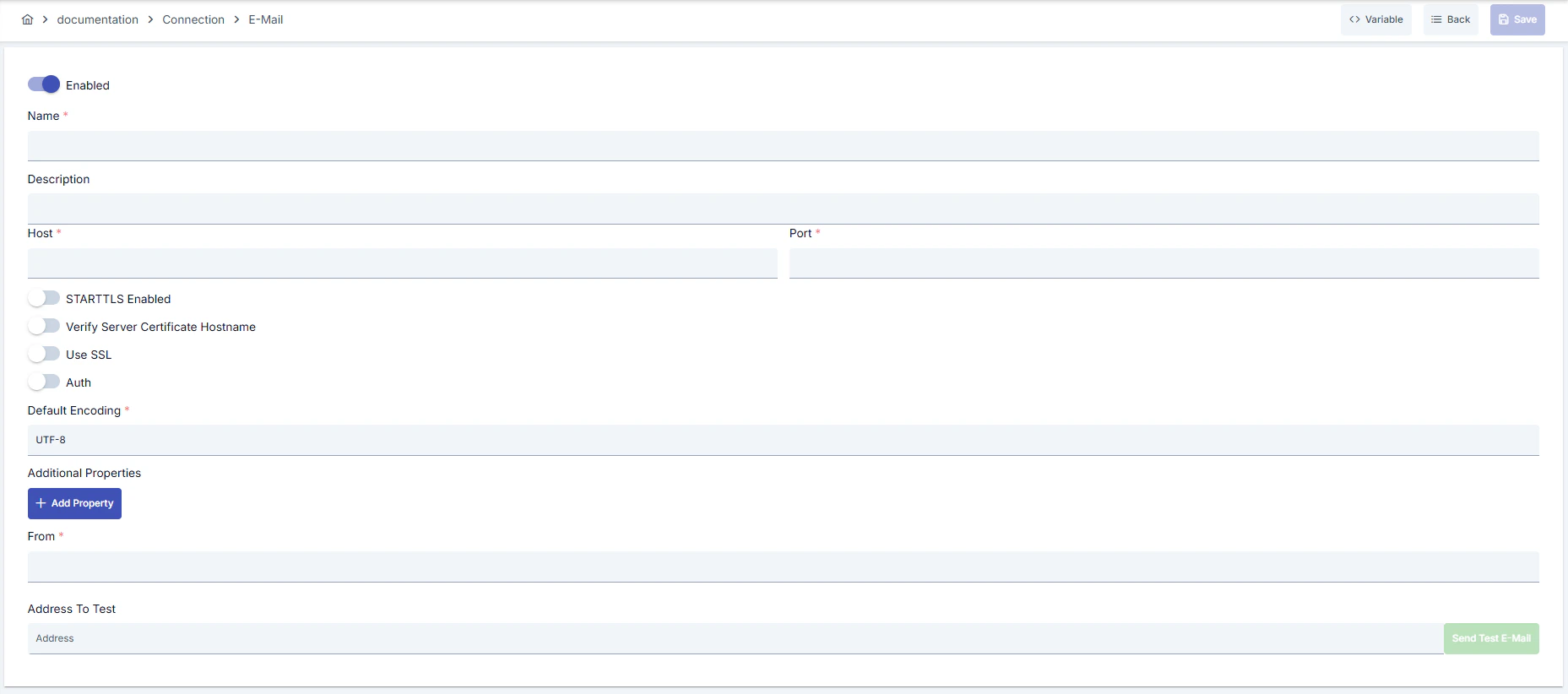 #### Configuration Steps
* Click **Connection** option from left menu on Apinizer main screen.
* Select **Email** option from opened submenu.
* Email Connection list page opens.
* Click **\[+ Create]** button in top right corner of page.
* New Email Connection creation form opens.
**Enable Status (Active Status) Setting:**
* Find **Enable Status** toggle at top of form.
* Set toggle to **Active** position (comes active by default).
* If you want to make Connection passive, set toggle to **Passive** position.
* Passive connections cannot be used in Integration Flows but their configurations are saved.
**Name (Name) - Required Field:**
* Enter a unique connection name in **Name** field.
* Name examples: `Production_EmailSMTP`, `Test_EmailConnection`, `Dev_SMTP_Alerts`
* Name rules:
* Should not start with space
* Special characters should not be used (recommended: letter, number, underscore)
* Maximum 255 characters
* System automatically checks as you type name:
* Green checkmark: Name is available
* Red X mark: Name already exists, select different name
**Description (Description) - Optional:**
* Enter text describing the purpose of connection in **Description** field.
* Example descriptions:
* "SMTP channel for alarms"
* "Production environment email notifications"
* "Dummy SMTP connection for test environment"
* Maximum 1000 character limit exists.
* This field can be left empty.
In the action button area at the top of the page, you can use the **\[\<> Variable]** button to select dynamic values, and with global variables, you can manage connection parameters with variable-based values instead of fixed values. For detailed information, review the [Dynamic Variables](/en/concepts/core-concepts/dynamic-variables) page.
* Find **Environment** dropdown menu.
* Open dropdown menu and select one of the following options:
* **Development**: For development environment
* **Test**: For test environment
* **Production**: For production environment
* Different connection parameters can be defined for each environment.
* Environment selection determines in which environment connection will be active.
* Connections with same name can be created separately for different environments.
**Host (Server Address) - Required:**
* Enter SMTP server address in **Host** field.
* Host format:
* FQDN (Fully Qualified Domain Name): `smtp.mailprovider.com`
* IP address: `192.168.1.100`
* Maximum 255 character limit exists.
* Get correct host address from your SMTP provider's documentation.
**Port (Port Number) - Required:**
* Enter SMTP port number in **Port** field.
* Common port numbers:
* **25**: Standard SMTP (usually unencrypted)
* **465**: SMTP with SSL/TLS (SMTPS)
* **587**: SMTP with STARTTLS (recommended)
* Check correct port number from your SMTP provider's documentation.
* Port number must be between 1-65535.
**Enable STARTTLS Setting:**
* Find **Enable STARTTLS** toggle.
* If your SMTP provider requires TLS/STARTTLS, set toggle to **Active** position.
* If using port 587, STARTTLS should generally be active.
* If using port 465, STARTTLS is generally not needed (SSL/TLS is used directly).
* Check provider documentation to make correct setting.
Port 587 and STARTTLS combination is recommended for most modern SMTP providers.
**Use SSL Setting:**
* Find **Use SSL** toggle.
* If your SMTP server requires SSL/TLS, set toggle to **Active** position.
* When SSL is enabled, a **certificate** can optionally be selected.
* If no certificate is selected, default JVM certificates are used.
* For SMTP servers using self-signed certificates, you can define the relevant certificate in [Secrets Management → Certificates](/en/admin/secrets-management/certificates) and select it here.
**From (Sender Address) - Required:**
* Enter sender email address in **From** field.
* Format: Must be valid email address format.
* Examples: `noreply@company.com`, `alerts@company.com`, `test@dummy.local`
* This address will appear as sender in all sent emails.
* Ensure your DNS/SPF records support this address.
**Auth (Authentication) Setting:**
* Find **Auth** toggle.
* If your SMTP server requires authentication, set toggle to **Active** position.
* Most modern SMTP providers require authentication.
**Username (Username) - Required when Auth is on:**
* If **Auth** toggle is active, **Username** field becomes visible.
* Enter username of your SMTP account.
* Examples: `alert.bot`, `smtp.user`, `noreply@company.com`
* In some providers, username may be full email address.
* Check correct format from your SMTP provider's documentation.
**Password (Password) - Required when Auth is on:**
* If **Auth** toggle is active, **Password** field becomes visible.
* Enter password of your SMTP account.
* Password will appear masked for security reasons.
* You can click eye icon to see password.
* Use of secret manager is recommended for sensitive information.
* No field exists directly in UI for timeout and pool settings.
* Use **Additional Properties** section to make these settings (detailed in Step 7).
* Common timeout settings:
* `mail.smtp.connectiontimeout=30000` (30 seconds)
* `mail.smtp.timeout=60000` (60 seconds)
* `mail.smtp.writetimeout=120000` (120 seconds - for large attachments)
* Connection pool settings generally work with default values.
* Add to Additional Properties for special requirements.
**Additional Properties (Additional Properties) - Optional:**
* Find **Additional Properties** section.
* Use this section to add provider-specific parameters for your SMTP provider.
* Add parameters in Key-Value format:
* Example: `mail.smtp.connectiontimeout=15000`
* Example: `mail.smtp.writetimeout=120000`
* Commonly used properties:
* `mail.smtp.connectiontimeout`: Connection timeout (milliseconds)
* `mail.smtp.timeout`: General timeout (milliseconds)
* `mail.smtp.writetimeout`: Write timeout (milliseconds)
* `mail.smtp.auth.mechanisms`: Authentication mechanism
* Add one key-value pair per line.
* Check supported properties from your SMTP provider's documentation.
**AddressToTest (Test Address) - Optional:**
* Find **AddressToTest** field.
* Enter email address to be used for test mail sending.
* This address is where test mail will be sent when **Test Connection** button is clicked.
* Example: `dev-team@company.com`, `test@dummy.local`
* This field can be left empty, but filling it is recommended for testing.
**DeployToWorker Setting:**
* Find **DeployToWorker** toggle.
* Set toggle to **Active** position in high traffic scenarios.
* Deployment on worker is recommended for load distribution and performance.
* Comes active by default.
* Find **\[Test Connection]** button at bottom of form or in top right corner.
* Click button.
* System tests connection parameters:
* Connection is established to SMTP server
* Authentication is performed (if Auth is active)
* STARTTLS handshake is performed (if active)
* Test mail is sent (if AddressToTest is filled)
* Test result:
* **Successful**: Green confirmation message is displayed, message like "Connection test successful"
* **Failed**: Red error message is displayed, error details are shown
* In error case:
* Read error message
* Check relevant parameters (Host, Port, Username, Password)
* Check firewall and network settings
* Check SMTP provider documentation
* Fix parameters and test again until test is successful.
* Ensure all required fields are filled.
* Verify that test connection is successful (recommended).
* Click **\[Save and Deploy]** button in top right corner of form.
* System saves connection and deploys to selected environment.
* After successful save:
* You are redirected to Connection list page
* New connection appears in list
* Connection becomes **Enabled** status
* Becomes available for use in Integration Flow and Connector steps
**Checklist (Before Saving):**
* Name field is unique and valid
* Host and Port fields are filled
* From address is in valid email format
* If Auth is active, Username and Password are filled
* Environment is selected
* Test Connection is successful (recommended)
* All required fields are filled
**Result:**
* Connection is successfully created and saved
* Becomes active in selected environment
* Connection selection can be made in Integration Flow and Connector steps
* Is displayed and can be managed in Connection list
Connection created successfully! You can now use it in Integration Flow and Connector steps.
### Deleting Connection
Select **Delete** from **⋮** menu at end of row or click **\[Delete]** button on connection detail page
**Check Before Deleting:** May be used in Integration Flow or Connector steps. Assign alternative connection if necessary. Backup with **Export** before deleting
**Alternative: Deactivate**
* Use **Disable** option instead of deleting.
* Connection becomes passive but is not deleted.
* Can be reactivated when needed.
### Exporting/Importing Connection
In this step, users can export (export) existing connections for backup, moving to different environments, or sharing purposes, or import (import) a previously exported connection again. This operation is used to maintain data integrity in version control, transitions between test and production environments, or inter-team sharing processes.
Select **⋮ → Export** from action menu. ZIP file is automatically downloaded.
Click **\[Export]** button on Connection detail page. ZIP file is downloaded.
Format: `Date-connection-ConnectionName-export.zip`\
Example: `13 Nov 2025-connection-Production_EmailSMTP-export.zip`
* Connection JSON file
* Metadata information
* Dependency information (e.g., certificates, key store)
* Backup
* Moving between environments (Test → Prod)
* Versioning
* Team or project-based sharing
* Click **\[Import Email]** button on main list.
* Select downloaded ZIP file.
* System checks: Is format valid? Is there name conflict? Are dependencies present?
* Then click **\[Import]** button.
**Scenario 1: Name Conflict** → Overwrite old connection or create with new name.
**Scenario 2: Missing Dependencies** → Create missing certificates or key stores first or exclude during import.
### Usage Areas of Connection
**Steps:**
1. Create Connection.
2. Verify connection with **Test Connection**.
3. Save and activate with **Save and Deploy**.
4. Ensure Connection is in **Enabled** status
Connection is selected in steps requesting communication with external systems such as message queue (queue), topic, email, FTP/SFTP, LDAP, or similar. Examples: steps like "Send Message", "Consume Message", "Upload File", "Read Directory". Connection selection is made from **Connection** field in these steps' configuration
Connection is selected in scheduled tasks (e.g., sending messages at certain intervals, file processing, etc.) to access external systems. When Connection changes, job execution behavior is also updated accordingly
Connection accuracy can be checked independently of Integration Flow with Connection Test feature. This test is critical in debugging process
## Best Practices
**Bad:** Managing different providers with same Connection.\
**Good:** Opening separate Connection for each provider.\
**Best:** Specifying environment + provider combination in name (Prod\_SendGrid)
**Bad:** Changing `from` field with random addresses.\
**Good:** Using meaningful addresses according to business processes.\
**Best:** Defining corporate alias compatible with DMARC/SPF records
**Bad:** Never updating shared passwords.\
**Good:** Rotating manually at intervals.\
**Best:** Setting up rotation automation through secret manager
**Bad:** Leaving `additionalProperties` field empty.\
**Good:** Adding only needed keys.\
**Best:** Recording all mandatory SMTP properties from provider documentation
**Bad:** Using same connection parameters in all environments.\
**Good:** Creating separate connection for each environment.\
**Best:** Managing all environments in single connection using environment option, only changing environment during inter-environment transitions
**Bad:** Saving and deploying Connection without testing.\
**Good:** Verifying with Test Connection before saving.\
**Best:** Testing after each parameter change, performing full integration test in test environment before moving to production
When Auth is on, username/password should only be visible to necessary roles. Do not copy and share passwords through UI
Limit `enable/disable` permissions to teams responsible for email infrastructure; incorrect configuration can stop all notifications
If sensitive keys exist in `additionalProperties`, keep values with masked secret references
Store sensitive information such as username and password using environment variable or secret manager. Do not hardcode credentials in code or configuration files. Update passwords periodically
Always enable SSL/TLS in Production environment. Use self-signed certificates only in development environment. Track certificate expiration dates and renew on time
Allow only authorized users to change Connection configuration. Store Connection change logs. Apply change approval process for critical connections
**Why to avoid:** All email flow stops when primary SMTP service is interrupted.\
**Alternative:** Define secondary host with `additionalProperties` or separate Connection
**Why to avoid:** Password leak affects all processes.\
**Alternative:** Open separate user account for each application, audit accesses
**Why to avoid:** SPF/DKIM incompatibility causes emails to fall into spam folder.\
**Alternative:** Use approved domain aliases and keep DNS records up to date
**Why to avoid:** Test data may be written to production system, real users may be affected, security risk occurs.\
**Alternative:** Create separate connection for each environment, use environment parameter, separate connection names by adding prefix according to environment (Test\_, Prod\_)
**Why to avoid:** Connection constantly times out in network delays, Integration steps fail.\
**Alternative:** Adjust timeout values according to real usage scenarios, measure network latency and determine timeouts accordingly
**Why to avoid:** New connection opens on each request, performance decreases, resource consumption increases, target system load increases.\
**Alternative:** Enable Connection pool, adjust pool size according to traffic volume, set up pool monitoring
**Recommendation:** Prefer SMTP hosts in same datacenter.\
**Effect:** Network delay decreases, timeout risk decreases
**Recommendation:** Adjust `mail.smtp.connectiontimeout`, `mail.smtp.writetimeout` values according to real load tests.\
**Effect:** Stable performance even with large attachments
**Recommendation:** Trigger Test Connection API in CI/CD.\
**Effect:** Incorrect configurations are caught before moving to production
**Recommendation:** Adjust pool size according to peak traffic (recommended: concurrent request count × 1.5), set idle connection timeouts, perform pool health check.\
**Effect:** Connection opening cost decreases by 80%, response times decrease, resource usage is optimized
**Recommendation:** Measure real network latency, adjust timeout values accordingly, avoid very low or very high timeouts.\
**Effect:** Unnecessary waits are prevented, fast fail-over is provided, user experience improves
**Recommendation:** Monitor Connection pool usage, track timeout rates, perform connection health check, set up alerting.\
**Effect:** Problems are detected proactively, performance bottlenecks are identified early, downtime decreases
## Troubleshooting
Wrong `from` domain, SMTP provider blocked, or TLS may be mandatory but disabled.
Verify DNS/SPF records.
Check provider logs.
Open **Enable STARTTLS** toggle and test again.
`addressToTest` may be invalid, Auth information may be wrong, or SMTP port may be closed in firewall.
Update test address.
Re-enter credentials.
Verify port opening from network team.
Network delay, target system responding slowly, or timeout value may be too low.
Check network connectivity.
Check target system health.
Increase timeout values.
Review Connection logs.
Wrong username/password, expired credentials, or permission problem may exist.
Verify credentials.
Check that user is active in target system.
Check that necessary permissions are granted.
Check SSL/TLS certificates.
Pool size may be too low, connection leak may exist, or traffic may be too high.
Increase pool size.
Check that connections are properly closed.
Set idle connection timeouts.
Monitor Connection usage metrics.
Different connection may be selected in Integration/Connector step, step may be incorrectly configured, or Flow/Job may not have been redeployed.
Check that Connection's enable toggle is active.
Verify that correct connection is selected in Integration Flow.
Redeploy Connection.
Redeploy Integration Flow or Job.
Check Gateway logs.
## Frequently Asked Questions (FAQ)
Single Connection can carry single `from` address; create separate Connection by cloning for different addresses or use application-level override.
Most SMTP servers support STARTTLS command, if not supported you will get error at handshake stage; in this case close toggle.
Provider's JavaMail compatible parameters (`mail.smtp.connectiontimeout`, `mail.smtp.auth.mechanisms`, etc.) are supported; key and value are free text.
No, only single mail is sent to address entered in `addressToTest` field; Integration Flow is not triggered.
Yes, when `connectorMode` is activated from connector screen, same form is used and your saved Connection appears in list.
Yes, the same connection can be used in multiple Integration Flow or Connector steps. This provides central management and guarantees configuration consistency. However, care should be taken as changes made to connection will affect all usage locations.
Connection pool usage is not mandatory but strongly recommended in high-traffic systems. Reusing existing connections instead of opening new connection on each request significantly increases performance.
Yes, it is recommended that you create separate connection for each environment. Alternatively, you can manage all environments within a single connection using environment parameter. This approach provides easier management and less error risk.
Several reasons may exist:
1. Connection enable toggle may be passive
2. Different connection may be selected in Integration step
3. Connection may not have been deployed
4. Integration Flow may not have been redeployed yet
#### Configuration Steps
* Click **Connection** option from left menu on Apinizer main screen.
* Select **Email** option from opened submenu.
* Email Connection list page opens.
* Click **\[+ Create]** button in top right corner of page.
* New Email Connection creation form opens.
**Enable Status (Active Status) Setting:**
* Find **Enable Status** toggle at top of form.
* Set toggle to **Active** position (comes active by default).
* If you want to make Connection passive, set toggle to **Passive** position.
* Passive connections cannot be used in Integration Flows but their configurations are saved.
**Name (Name) - Required Field:**
* Enter a unique connection name in **Name** field.
* Name examples: `Production_EmailSMTP`, `Test_EmailConnection`, `Dev_SMTP_Alerts`
* Name rules:
* Should not start with space
* Special characters should not be used (recommended: letter, number, underscore)
* Maximum 255 characters
* System automatically checks as you type name:
* Green checkmark: Name is available
* Red X mark: Name already exists, select different name
**Description (Description) - Optional:**
* Enter text describing the purpose of connection in **Description** field.
* Example descriptions:
* "SMTP channel for alarms"
* "Production environment email notifications"
* "Dummy SMTP connection for test environment"
* Maximum 1000 character limit exists.
* This field can be left empty.
In the action button area at the top of the page, you can use the **\[\<> Variable]** button to select dynamic values, and with global variables, you can manage connection parameters with variable-based values instead of fixed values. For detailed information, review the [Dynamic Variables](/en/concepts/core-concepts/dynamic-variables) page.
* Find **Environment** dropdown menu.
* Open dropdown menu and select one of the following options:
* **Development**: For development environment
* **Test**: For test environment
* **Production**: For production environment
* Different connection parameters can be defined for each environment.
* Environment selection determines in which environment connection will be active.
* Connections with same name can be created separately for different environments.
**Host (Server Address) - Required:**
* Enter SMTP server address in **Host** field.
* Host format:
* FQDN (Fully Qualified Domain Name): `smtp.mailprovider.com`
* IP address: `192.168.1.100`
* Maximum 255 character limit exists.
* Get correct host address from your SMTP provider's documentation.
**Port (Port Number) - Required:**
* Enter SMTP port number in **Port** field.
* Common port numbers:
* **25**: Standard SMTP (usually unencrypted)
* **465**: SMTP with SSL/TLS (SMTPS)
* **587**: SMTP with STARTTLS (recommended)
* Check correct port number from your SMTP provider's documentation.
* Port number must be between 1-65535.
**Enable STARTTLS Setting:**
* Find **Enable STARTTLS** toggle.
* If your SMTP provider requires TLS/STARTTLS, set toggle to **Active** position.
* If using port 587, STARTTLS should generally be active.
* If using port 465, STARTTLS is generally not needed (SSL/TLS is used directly).
* Check provider documentation to make correct setting.
Port 587 and STARTTLS combination is recommended for most modern SMTP providers.
**Use SSL Setting:**
* Find **Use SSL** toggle.
* If your SMTP server requires SSL/TLS, set toggle to **Active** position.
* When SSL is enabled, a **certificate** can optionally be selected.
* If no certificate is selected, default JVM certificates are used.
* For SMTP servers using self-signed certificates, you can define the relevant certificate in [Secrets Management → Certificates](/en/admin/secrets-management/certificates) and select it here.
**From (Sender Address) - Required:**
* Enter sender email address in **From** field.
* Format: Must be valid email address format.
* Examples: `noreply@company.com`, `alerts@company.com`, `test@dummy.local`
* This address will appear as sender in all sent emails.
* Ensure your DNS/SPF records support this address.
**Auth (Authentication) Setting:**
* Find **Auth** toggle.
* If your SMTP server requires authentication, set toggle to **Active** position.
* Most modern SMTP providers require authentication.
**Username (Username) - Required when Auth is on:**
* If **Auth** toggle is active, **Username** field becomes visible.
* Enter username of your SMTP account.
* Examples: `alert.bot`, `smtp.user`, `noreply@company.com`
* In some providers, username may be full email address.
* Check correct format from your SMTP provider's documentation.
**Password (Password) - Required when Auth is on:**
* If **Auth** toggle is active, **Password** field becomes visible.
* Enter password of your SMTP account.
* Password will appear masked for security reasons.
* You can click eye icon to see password.
* Use of secret manager is recommended for sensitive information.
* No field exists directly in UI for timeout and pool settings.
* Use **Additional Properties** section to make these settings (detailed in Step 7).
* Common timeout settings:
* `mail.smtp.connectiontimeout=30000` (30 seconds)
* `mail.smtp.timeout=60000` (60 seconds)
* `mail.smtp.writetimeout=120000` (120 seconds - for large attachments)
* Connection pool settings generally work with default values.
* Add to Additional Properties for special requirements.
**Additional Properties (Additional Properties) - Optional:**
* Find **Additional Properties** section.
* Use this section to add provider-specific parameters for your SMTP provider.
* Add parameters in Key-Value format:
* Example: `mail.smtp.connectiontimeout=15000`
* Example: `mail.smtp.writetimeout=120000`
* Commonly used properties:
* `mail.smtp.connectiontimeout`: Connection timeout (milliseconds)
* `mail.smtp.timeout`: General timeout (milliseconds)
* `mail.smtp.writetimeout`: Write timeout (milliseconds)
* `mail.smtp.auth.mechanisms`: Authentication mechanism
* Add one key-value pair per line.
* Check supported properties from your SMTP provider's documentation.
**AddressToTest (Test Address) - Optional:**
* Find **AddressToTest** field.
* Enter email address to be used for test mail sending.
* This address is where test mail will be sent when **Test Connection** button is clicked.
* Example: `dev-team@company.com`, `test@dummy.local`
* This field can be left empty, but filling it is recommended for testing.
**DeployToWorker Setting:**
* Find **DeployToWorker** toggle.
* Set toggle to **Active** position in high traffic scenarios.
* Deployment on worker is recommended for load distribution and performance.
* Comes active by default.
* Find **\[Test Connection]** button at bottom of form or in top right corner.
* Click button.
* System tests connection parameters:
* Connection is established to SMTP server
* Authentication is performed (if Auth is active)
* STARTTLS handshake is performed (if active)
* Test mail is sent (if AddressToTest is filled)
* Test result:
* **Successful**: Green confirmation message is displayed, message like "Connection test successful"
* **Failed**: Red error message is displayed, error details are shown
* In error case:
* Read error message
* Check relevant parameters (Host, Port, Username, Password)
* Check firewall and network settings
* Check SMTP provider documentation
* Fix parameters and test again until test is successful.
* Ensure all required fields are filled.
* Verify that test connection is successful (recommended).
* Click **\[Save and Deploy]** button in top right corner of form.
* System saves connection and deploys to selected environment.
* After successful save:
* You are redirected to Connection list page
* New connection appears in list
* Connection becomes **Enabled** status
* Becomes available for use in Integration Flow and Connector steps
**Checklist (Before Saving):**
* Name field is unique and valid
* Host and Port fields are filled
* From address is in valid email format
* If Auth is active, Username and Password are filled
* Environment is selected
* Test Connection is successful (recommended)
* All required fields are filled
**Result:**
* Connection is successfully created and saved
* Becomes active in selected environment
* Connection selection can be made in Integration Flow and Connector steps
* Is displayed and can be managed in Connection list
Connection created successfully! You can now use it in Integration Flow and Connector steps.
### Deleting Connection
Select **Delete** from **⋮** menu at end of row or click **\[Delete]** button on connection detail page
**Check Before Deleting:** May be used in Integration Flow or Connector steps. Assign alternative connection if necessary. Backup with **Export** before deleting
**Alternative: Deactivate**
* Use **Disable** option instead of deleting.
* Connection becomes passive but is not deleted.
* Can be reactivated when needed.
### Exporting/Importing Connection
In this step, users can export (export) existing connections for backup, moving to different environments, or sharing purposes, or import (import) a previously exported connection again. This operation is used to maintain data integrity in version control, transitions between test and production environments, or inter-team sharing processes.
Select **⋮ → Export** from action menu. ZIP file is automatically downloaded.
Click **\[Export]** button on Connection detail page. ZIP file is downloaded.
Format: `Date-connection-ConnectionName-export.zip`\
Example: `13 Nov 2025-connection-Production_EmailSMTP-export.zip`
* Connection JSON file
* Metadata information
* Dependency information (e.g., certificates, key store)
* Backup
* Moving between environments (Test → Prod)
* Versioning
* Team or project-based sharing
* Click **\[Import Email]** button on main list.
* Select downloaded ZIP file.
* System checks: Is format valid? Is there name conflict? Are dependencies present?
* Then click **\[Import]** button.
**Scenario 1: Name Conflict** → Overwrite old connection or create with new name.
**Scenario 2: Missing Dependencies** → Create missing certificates or key stores first or exclude during import.
### Usage Areas of Connection
**Steps:**
1. Create Connection.
2. Verify connection with **Test Connection**.
3. Save and activate with **Save and Deploy**.
4. Ensure Connection is in **Enabled** status
Connection is selected in steps requesting communication with external systems such as message queue (queue), topic, email, FTP/SFTP, LDAP, or similar. Examples: steps like "Send Message", "Consume Message", "Upload File", "Read Directory". Connection selection is made from **Connection** field in these steps' configuration
Connection is selected in scheduled tasks (e.g., sending messages at certain intervals, file processing, etc.) to access external systems. When Connection changes, job execution behavior is also updated accordingly
Connection accuracy can be checked independently of Integration Flow with Connection Test feature. This test is critical in debugging process
## Best Practices
**Bad:** Managing different providers with same Connection.\
**Good:** Opening separate Connection for each provider.\
**Best:** Specifying environment + provider combination in name (Prod\_SendGrid)
**Bad:** Changing `from` field with random addresses.\
**Good:** Using meaningful addresses according to business processes.\
**Best:** Defining corporate alias compatible with DMARC/SPF records
**Bad:** Never updating shared passwords.\
**Good:** Rotating manually at intervals.\
**Best:** Setting up rotation automation through secret manager
**Bad:** Leaving `additionalProperties` field empty.\
**Good:** Adding only needed keys.\
**Best:** Recording all mandatory SMTP properties from provider documentation
**Bad:** Using same connection parameters in all environments.\
**Good:** Creating separate connection for each environment.\
**Best:** Managing all environments in single connection using environment option, only changing environment during inter-environment transitions
**Bad:** Saving and deploying Connection without testing.\
**Good:** Verifying with Test Connection before saving.\
**Best:** Testing after each parameter change, performing full integration test in test environment before moving to production
When Auth is on, username/password should only be visible to necessary roles. Do not copy and share passwords through UI
Limit `enable/disable` permissions to teams responsible for email infrastructure; incorrect configuration can stop all notifications
If sensitive keys exist in `additionalProperties`, keep values with masked secret references
Store sensitive information such as username and password using environment variable or secret manager. Do not hardcode credentials in code or configuration files. Update passwords periodically
Always enable SSL/TLS in Production environment. Use self-signed certificates only in development environment. Track certificate expiration dates and renew on time
Allow only authorized users to change Connection configuration. Store Connection change logs. Apply change approval process for critical connections
**Why to avoid:** All email flow stops when primary SMTP service is interrupted.\
**Alternative:** Define secondary host with `additionalProperties` or separate Connection
**Why to avoid:** Password leak affects all processes.\
**Alternative:** Open separate user account for each application, audit accesses
**Why to avoid:** SPF/DKIM incompatibility causes emails to fall into spam folder.\
**Alternative:** Use approved domain aliases and keep DNS records up to date
**Why to avoid:** Test data may be written to production system, real users may be affected, security risk occurs.\
**Alternative:** Create separate connection for each environment, use environment parameter, separate connection names by adding prefix according to environment (Test\_, Prod\_)
**Why to avoid:** Connection constantly times out in network delays, Integration steps fail.\
**Alternative:** Adjust timeout values according to real usage scenarios, measure network latency and determine timeouts accordingly
**Why to avoid:** New connection opens on each request, performance decreases, resource consumption increases, target system load increases.\
**Alternative:** Enable Connection pool, adjust pool size according to traffic volume, set up pool monitoring
**Recommendation:** Prefer SMTP hosts in same datacenter.\
**Effect:** Network delay decreases, timeout risk decreases
**Recommendation:** Adjust `mail.smtp.connectiontimeout`, `mail.smtp.writetimeout` values according to real load tests.\
**Effect:** Stable performance even with large attachments
**Recommendation:** Trigger Test Connection API in CI/CD.\
**Effect:** Incorrect configurations are caught before moving to production
**Recommendation:** Adjust pool size according to peak traffic (recommended: concurrent request count × 1.5), set idle connection timeouts, perform pool health check.\
**Effect:** Connection opening cost decreases by 80%, response times decrease, resource usage is optimized
**Recommendation:** Measure real network latency, adjust timeout values accordingly, avoid very low or very high timeouts.\
**Effect:** Unnecessary waits are prevented, fast fail-over is provided, user experience improves
**Recommendation:** Monitor Connection pool usage, track timeout rates, perform connection health check, set up alerting.\
**Effect:** Problems are detected proactively, performance bottlenecks are identified early, downtime decreases
## Troubleshooting
Wrong `from` domain, SMTP provider blocked, or TLS may be mandatory but disabled.
Verify DNS/SPF records.
Check provider logs.
Open **Enable STARTTLS** toggle and test again.
`addressToTest` may be invalid, Auth information may be wrong, or SMTP port may be closed in firewall.
Update test address.
Re-enter credentials.
Verify port opening from network team.
Network delay, target system responding slowly, or timeout value may be too low.
Check network connectivity.
Check target system health.
Increase timeout values.
Review Connection logs.
Wrong username/password, expired credentials, or permission problem may exist.
Verify credentials.
Check that user is active in target system.
Check that necessary permissions are granted.
Check SSL/TLS certificates.
Pool size may be too low, connection leak may exist, or traffic may be too high.
Increase pool size.
Check that connections are properly closed.
Set idle connection timeouts.
Monitor Connection usage metrics.
Different connection may be selected in Integration/Connector step, step may be incorrectly configured, or Flow/Job may not have been redeployed.
Check that Connection's enable toggle is active.
Verify that correct connection is selected in Integration Flow.
Redeploy Connection.
Redeploy Integration Flow or Job.
Check Gateway logs.
## Frequently Asked Questions (FAQ)
Single Connection can carry single `from` address; create separate Connection by cloning for different addresses or use application-level override.
Most SMTP servers support STARTTLS command, if not supported you will get error at handshake stage; in this case close toggle.
Provider's JavaMail compatible parameters (`mail.smtp.connectiontimeout`, `mail.smtp.auth.mechanisms`, etc.) are supported; key and value are free text.
No, only single mail is sent to address entered in `addressToTest` field; Integration Flow is not triggered.
Yes, when `connectorMode` is activated from connector screen, same form is used and your saved Connection appears in list.
Yes, the same connection can be used in multiple Integration Flow or Connector steps. This provides central management and guarantees configuration consistency. However, care should be taken as changes made to connection will affect all usage locations.
Connection pool usage is not mandatory but strongly recommended in high-traffic systems. Reusing existing connections instead of opening new connection on each request significantly increases performance.
Yes, it is recommended that you create separate connection for each environment. Alternatively, you can manage all environments within a single connection using environment parameter. This approach provides easier management and less error risk.
Several reasons may exist:
1. Connection enable toggle may be passive
2. Different connection may be selected in Integration step
3. Connection may not have been deployed
4. Integration Flow may not have been redeployed yet