> ## Documentation Index
> Fetch the complete documentation index at: https://docs.apinizer.com/llms.txt
> Use this file to discover all available pages before exploring further.
# FTP Connection
> Creates central connection definition for secure file transfer to FTP/SFTP/FTPS servers. Provides secure file transfer, directory management, and automatic retry support
## Overview
Makes FTP/SFTP/FTPS access consistent across all Integration Flow steps by keeping Connection definition central.
Shortens configuration time by reusing automatic authentication and SSL/TLS parameters in Connector steps that perform file transfer.
Reduces data leakage risk by ensuring access only to authorized folders with working directory (workingDir) restriction.
Increases transfer success even in unstable networks thanks to retry (retryCount) and timeout values.
You can perform Test Connection with environment selection; you can use `${var}` syntax in fields such as host, port, username, password with Environment Variable support.
When FTP/SFTP/FTPS connection is requested from within Integration Flow or Connector, the system reads configured connection parameters.
Access to target FTP directory is provided with username and password. SSH key-based authentication is not supported.
File upload/download, listing, or deletion operations are performed at TCP layer via selected protocol.
When operation is completed, session is closed.
In case of connection error, timeout, or authentication error, defined retryCount comes into play, result is written to deployment logs.
Downloading files coming from partner systems at certain intervals
Regular upload of bulk report or log files to FTP servers
Integration with external services sharing financial data via SFTP
Institution connections with mandatory encrypted transfer requirement with FTPS (Explicit) due to regulation
Using Legacy file transfer servers in internal network in Integration Flow steps
## Technical Features and Capabilities
FTP, SFTP, and FTPS protocols can be selected under single connection definition.
Directory that connection can access is limited with workingDir field.
Automatic retry is provided in network interruptions with retryCount.
Environment selection is required for Test Connection; environment variables are resolved per environment.
Making Connection active or passive (enable/disable toggle). In passive state, connection cannot be used but its configuration is saved.
How TLS handshake will be performed is determined with useImplicit and useExplicit flags.
Connection can be kept within project or made accessible in all projects with Move to Global.
FTP connection definitions up to 100 MB size can be imported in ZIP import operations.
Ability to verify connection parameters before saving with "Test Connection" button. Environment selection is required for test.
Exporting Connection configuration as ZIP file. Importing to different environments (Development, Test, Production). Version control and backup capability.
You can use environment variables with `${variableName}` syntax in host, port, username, password, workingDir, and sslProtocol fields.
## Connection Parameters
**Description:** Connection name (must be unique)\
**Example Value:** `Production_FTP`\
**Notes:** Should not start with space, special characters should not be used
**Description:** FTP/SFTP server address\
**Example Value:** `ftp.partner.local`\
**Notes:** IPv4/IPv6 or FQDN accepted
**Description:** Port where protocol runs\
**Example Value:** 21\
**Notes:** 22 recommended for SFTP, 990 for FTPS
**Description:** Username on target server\
**Example Value:** `partner_sync`\
**Notes:** Should be created according to least privilege principle
**Description:** Initial working directory\
**Example Value:** `/outbound`\
**Notes:** Relevant user must have access permission
**Description:** Transfer protocol to be used\
**Example Value:** FTP / SFTP / FTPS\
**Notes:** Selected from EnumFtpProtocol list
**Description:** Connection timeout (seconds)\
**Example Value:** 30\
**Notes:** Value is in seconds
**Description:** Retry count\
**Example Value:** 3\
**Notes:** Specifies how many retries will be made in network interruptions
**Description:** Version to be used in FTPS handshake\
**Example Value:** TLS\
**Notes:** Required when using FTPS
**Description:** User password or environment variable reference\
**Default Value:** (Empty)\
**Recommended Value:** Environment variable usage with `${variableName}` syntax
**Description:** Activates FTPS implicit handshake\
**Default Value:** false\
**Recommended Value:** true (in environments requiring FTPS implicit)
**Description:** Activates FTPS explicit STARTTLS process\
**Default Value:** true\
**Recommended Value:** true (default; can be set to false in scenarios other than FTPS)
## Usage Scenarios
**Situation:** Supplier uploads XML every night\
**Solution:** WorkingDir=/inbox, Protocol=SFTP, RetryCount=5\
**Expected Behavior:** Night job downloads files securely
**Situation:** Bank system requires FTPS implicit\
**Solution:** UseImplicit=true, Port=990, SSL Protocol=TLS1.2\
**Expected Behavior:** TLS handshake succeeds, files are encrypted
**Situation:** Old system only supports FTP\
**Solution:** Protocol=FTP, Port=21, Timeout=45\
**Expected Behavior:** Gateway performs upload via classic FTP
**Situation:** Long-running transfers\
**Solution:** Timeout=90, chunk upload in Flow\
**Expected Behavior:** No disconnection in long transfers
**Situation:** Parallel copy sent to DR environment\
**Solution:** Environment=Production, Host=dr-ftp.local or via environment variable\
**Expected Behavior:** Main and DR systems are kept synchronized
**Situation:** SOC team pulls logs via SFTP\
**Solution:** Environment=Test, Protocol=SFTP, WorkingDir=/audit\
**Expected Behavior:** Only audit folder is accessed
## Connection Configuration
### Creating New FTP Connection
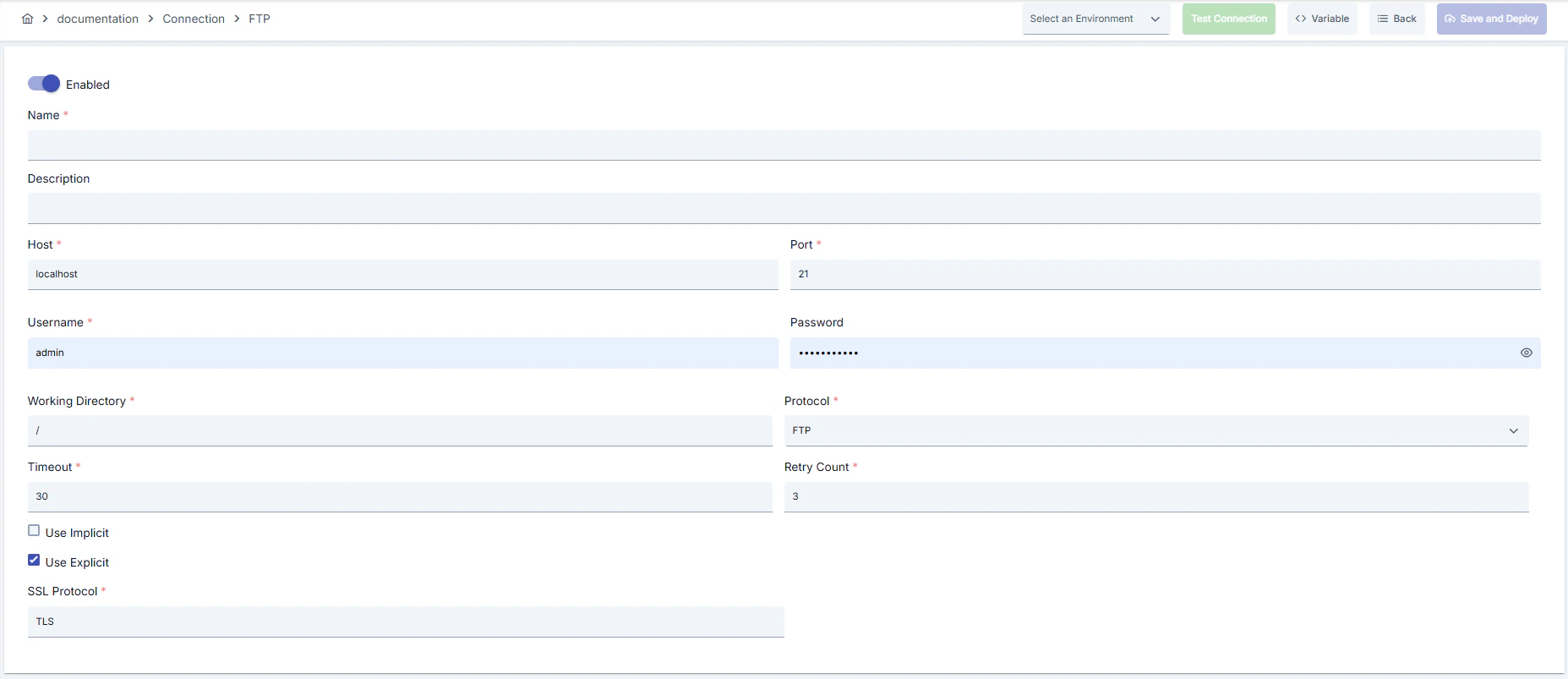 #### Configuration Steps
* Go to **Connection → FTP Connection** section from left menu.
* Click **\[+ Create]** button in top right.
**Enable Status (Active Status):**
* Set active/passive status with toggle. New connections are active by default.
**Name (Name) - Required:**
* Example: `Production_FTP`
* Enter unique name, should not start with space.
* System automatically checks. Green checkmark: available. Red X: existing name.
**Description (Description):**
* Example: "Partner FTP uploads"
* Max. 1000 characters.
* Describe the purpose of Connection.
In the action button area at the top of the page, you can use the **\[\<> Variable]** button to select dynamic values, and with global variables, you can manage connection parameters with variable-based values instead of fixed values. For detailed information, review the [Dynamic Variables](/en/concepts/core-concepts/dynamic-variables) page.
* Select environment from dropdown menu: **Development**, **Test**, or **Production**.
* Environment selection is required for Test Connection.
* **Host & Port:** Enter target FTP address, set port according to protocol.
* **Protocol:** Select FTP, SFTP, or FTPS.
* **WorkingDir:** Write full path of folder to be accessed.
* **Username/Password:** Enter username and password. You can select variable from **Variable** button and paste for environment variable.
* **UseImplicit / UseExplicit:** Select FTPS handshake type.
* **SSL Protocol:** Specify TLS version (e.g., TLS1.2).
* **Timeout:** Set between 30-90 seconds according to network delay.
* **RetryCount:** 3-5 recommended for unstable connections.
* Use username/password or environment variable.
* Load necessary certificates to trust store for FTPS (if using FTPS).
* **Warning:** Do not allow anonymous FTP access in Production environment.
* Click **\[Test Connection]** button.
* Ensure environment is selected.
* Test whether connection parameters are correct.
* **Successful:** Green confirmation message
* **Failed:** Error details are shown
* Click **\[Save and Deploy]** button in top right.
**Checklist:**
* Unique name
* Required fields filled
* Test connection successful (recommended)
**Result:**
* Connection is added to list
* Becomes available for use in Integration Flow and Connector steps
* Becomes active according to environment
Connection created successfully! You can now use it in Integration Flow and Connector steps.
### Deleting Connection
To delete a connection:
* From **⋮** menu at end of row in connection list, select **Delete**.
* Confirm deletion in the confirmation dialog.
**Check Before Deleting:**
* May be used in Integration Flow or Connector steps.
* Assign alternative connection if necessary.
* Backup with Export before deleting.
* Instead of deleting, set connection's active status to passive.
* Connection becomes passive but is not deleted.
* You can reactivate and reuse when needed.
### Exporting/Importing Connection
In this step, users can export (export) existing connections for backup, moving to different environments, or sharing purposes, or import (import) a previously exported connection again. This operation is used to maintain data integrity in version control, transitions between test and production environments, or inter-team sharing processes.
* From **⋮** menu at end of row in connection list, select **Export**.
* ZIP file is automatically downloaded.
Format: `{Date}-ftp-integration-{ConnectionName}-export.zip`\
Example: `13 Nov 2025-ftp-integration-Production_FTP-export.zip`
* Connection JSON file
* Metadata information
* Dependency information (e.g., certificates, key store)
* Backup
* Moving between environments (Test → Prod)
* Versioning
* Team or project-based sharing
* Click **\[Import FTP Connection]** button on main list.
* Select downloaded ZIP file.
* System checks: Is format valid? Is there name conflict? Are dependencies present?
* Then click **\[Import]** button.
**Scenario 1: Name Conflict** → Overwrite old connection or create with new name.
**Scenario 2: Missing Dependencies** → Create missing certificates or key stores first or exclude during import.
### Usage Areas of Connection
**Steps:**
1. Create Connection
2. Verify connection with **Test Connection**
3. Save and activate with **Save and Deploy**
4. Ensure Connection is in **Enabled** status
Connection is selected in steps requiring file transfer with FTP/SFTP/FTPS protocol. Example: "FTP Read File", "FTP List File" steps. Connection selection is performed from Connection field in step configuration. Same connection can be reused in both file sending and receiving steps.
Connection is selected in scheduled tasks (e.g., file receiving/sending at certain intervals, log archiving) to access FTP/SFTP servers. When connection changes, job behavior is updated accordingly.
Connection Test feature allows verifying connection correctness independently from Integration Flow. This test is critical in debugging process.
Test results are not guarantee of production transfer; test Integration Flow separately
## Best Practices
**Bad:** Giving user root directory access\
**Good:** Only giving permission to necessary folder\
**Best:** Defining separate workingDir for each scenario and limiting with ACL
**Bad:** Storing password as plain text in form\
**Good:** Storing sensitive information using environment variable\
**Best:** Using `${var}` references with Variable button
**Bad:** Using default FTP in every environment\
**Good:** Selecting SFTP or FTPS when needed\
**Best:** Managing protocol by environment and mapping with security requirement
**Bad:** Using same connection parameters in all environments\
**Good:** Creating separate connection for each environment\
**Best:** Managing all environments in single connection using environment option, only changing environment during inter-environment transitions
**Bad:** Saving and deploying Connection without testing\
**Good:** Verifying with Test Connection before saving\
**Best:** Testing after each parameter change, performing full integration test in test environment before moving to production
Open FTP servers only to Apinizer gateway IP range, whitelist passive FTP port range if necessary
Catch unexpected manipulations by performing checksum verification after transfer
Store sensitive information such as username and password using environment variable. Do not hardcode credentials in code or configuration files. Update passwords periodically
Always enable SSL/TLS in Production environment. Use self-signed certificates only in development environment. Track certificate expiration dates and renew on time
Allow only authorized users to change Connection configuration. Store Connection change logs. Apply change approval process for critical connections
**Why to avoid:** Authentication is bypassed, data leakage occurs\
**Alternative:** Define users with mandatory credentials
**Why to avoid:** Unnecessary delete/write permission increases risk\
**Alternative:** Use read-only or accounts authorized only to necessary directories
**Why to avoid:** Selecting FTP in environment requiring FTPS causes regulation violation\
**Alternative:** Select SFTP/FTPS according to requirement, document protocol
**Why to avoid:** Test data may be written to production system, real users may be affected, security risk occurs\
**Alternative:** Create separate connection for each environment, use environment parameter, separate connection names by adding prefix according to environment (Test\_, Prod\_)
**Why to avoid:** Connection constantly times out in network delays, Integration steps fail\
**Alternative:** Adjust timeout values according to real usage scenarios, measure network latency and determine timeouts accordingly
**Recommendation:** Break large files into parts at Integration Flow level\
**Effect:** Transfer time shortens, retry cost decreases
**Recommendation:** Use passive FTP behind firewall and narrow port range\
**Effect:** Network issues decrease, connection stability increases
**Recommendation:** Measure real network latency, adjust timeout values accordingly, avoid very low or very high timeouts\
**Effect:** Unnecessary waits are prevented, fast fail-over is provided, user experience improves
## Troubleshooting
Wrong workingDir, user may not have listing permission, or firewall may be blocking passive port range.
Verify WorkingDir value.
Check FTP user permissions.
Open passive port range.
Wrong sslProtocol value, certificate may have expired, or UseImplicit/UseExplicit may be incompatible.
Align TLS version with other party.
Renew certificate.
Select correct FTPS mode.
Network delay, target system responding slowly, or timeout value may be too low.
Check network connectivity.
Check target system health.
Increase timeout values.
Review Connection logs.
Wrong username/password, expired credentials, or permission problem may exist.
Verify credentials.
Check that user is active in target system.
Check that necessary permissions are granted.
Check SSL/TLS certificates.
Different connection may be selected in Integration/Connector step, step may be incorrectly configured, or Flow/Job may not have been redeployed.
Check that Connection's enable toggle is active.
Verify that correct connection is selected in Integration Flow.
Redeploy Connection.
Redeploy Integration Flow or Job.
Check Gateway logs.
## Frequently Asked Questions (FAQ)
You can change protocol in same connection but creating separate environment parameters for each protocol increases traceability.
Yes, all file paths used in Flow must be updated according to new workingDir; otherwise you will get "file not found" error.
Port range is defined on FTP server, same range must be opened in firewall on gateway side. You can note this in Connection document for information purposes.
SFTP connection supports only username and password authentication. SSH key-based authentication is not supported in the current version.
Yes, as long as user permissions allow both operations; same connection can be selected in Integration Flow steps.
Yes, the same connection can be used in multiple Integration Flow or Connector steps. This provides central management and guarantees configuration consistency. However, care should be taken as changes made to connection will affect all usage locations.
Yes, it is recommended that you create separate connection for each environment. Alternatively, you can manage all environments within a single connection using environment parameter. This approach provides easier management and less error risk.
Several reasons may exist:
1. Connection enable toggle may be passive
2. Different connection may be selected in Integration step
3. Connection may not have been deployed
4. Integration Flow may not have been redeployed yet
#### Configuration Steps
* Go to **Connection → FTP Connection** section from left menu.
* Click **\[+ Create]** button in top right.
**Enable Status (Active Status):**
* Set active/passive status with toggle. New connections are active by default.
**Name (Name) - Required:**
* Example: `Production_FTP`
* Enter unique name, should not start with space.
* System automatically checks. Green checkmark: available. Red X: existing name.
**Description (Description):**
* Example: "Partner FTP uploads"
* Max. 1000 characters.
* Describe the purpose of Connection.
In the action button area at the top of the page, you can use the **\[\<> Variable]** button to select dynamic values, and with global variables, you can manage connection parameters with variable-based values instead of fixed values. For detailed information, review the [Dynamic Variables](/en/concepts/core-concepts/dynamic-variables) page.
* Select environment from dropdown menu: **Development**, **Test**, or **Production**.
* Environment selection is required for Test Connection.
* **Host & Port:** Enter target FTP address, set port according to protocol.
* **Protocol:** Select FTP, SFTP, or FTPS.
* **WorkingDir:** Write full path of folder to be accessed.
* **Username/Password:** Enter username and password. You can select variable from **Variable** button and paste for environment variable.
* **UseImplicit / UseExplicit:** Select FTPS handshake type.
* **SSL Protocol:** Specify TLS version (e.g., TLS1.2).
* **Timeout:** Set between 30-90 seconds according to network delay.
* **RetryCount:** 3-5 recommended for unstable connections.
* Use username/password or environment variable.
* Load necessary certificates to trust store for FTPS (if using FTPS).
* **Warning:** Do not allow anonymous FTP access in Production environment.
* Click **\[Test Connection]** button.
* Ensure environment is selected.
* Test whether connection parameters are correct.
* **Successful:** Green confirmation message
* **Failed:** Error details are shown
* Click **\[Save and Deploy]** button in top right.
**Checklist:**
* Unique name
* Required fields filled
* Test connection successful (recommended)
**Result:**
* Connection is added to list
* Becomes available for use in Integration Flow and Connector steps
* Becomes active according to environment
Connection created successfully! You can now use it in Integration Flow and Connector steps.
### Deleting Connection
To delete a connection:
* From **⋮** menu at end of row in connection list, select **Delete**.
* Confirm deletion in the confirmation dialog.
**Check Before Deleting:**
* May be used in Integration Flow or Connector steps.
* Assign alternative connection if necessary.
* Backup with Export before deleting.
* Instead of deleting, set connection's active status to passive.
* Connection becomes passive but is not deleted.
* You can reactivate and reuse when needed.
### Exporting/Importing Connection
In this step, users can export (export) existing connections for backup, moving to different environments, or sharing purposes, or import (import) a previously exported connection again. This operation is used to maintain data integrity in version control, transitions between test and production environments, or inter-team sharing processes.
* From **⋮** menu at end of row in connection list, select **Export**.
* ZIP file is automatically downloaded.
Format: `{Date}-ftp-integration-{ConnectionName}-export.zip`\
Example: `13 Nov 2025-ftp-integration-Production_FTP-export.zip`
* Connection JSON file
* Metadata information
* Dependency information (e.g., certificates, key store)
* Backup
* Moving between environments (Test → Prod)
* Versioning
* Team or project-based sharing
* Click **\[Import FTP Connection]** button on main list.
* Select downloaded ZIP file.
* System checks: Is format valid? Is there name conflict? Are dependencies present?
* Then click **\[Import]** button.
**Scenario 1: Name Conflict** → Overwrite old connection or create with new name.
**Scenario 2: Missing Dependencies** → Create missing certificates or key stores first or exclude during import.
### Usage Areas of Connection
**Steps:**
1. Create Connection
2. Verify connection with **Test Connection**
3. Save and activate with **Save and Deploy**
4. Ensure Connection is in **Enabled** status
Connection is selected in steps requiring file transfer with FTP/SFTP/FTPS protocol. Example: "FTP Read File", "FTP List File" steps. Connection selection is performed from Connection field in step configuration. Same connection can be reused in both file sending and receiving steps.
Connection is selected in scheduled tasks (e.g., file receiving/sending at certain intervals, log archiving) to access FTP/SFTP servers. When connection changes, job behavior is updated accordingly.
Connection Test feature allows verifying connection correctness independently from Integration Flow. This test is critical in debugging process.
Test results are not guarantee of production transfer; test Integration Flow separately
## Best Practices
**Bad:** Giving user root directory access\
**Good:** Only giving permission to necessary folder\
**Best:** Defining separate workingDir for each scenario and limiting with ACL
**Bad:** Storing password as plain text in form\
**Good:** Storing sensitive information using environment variable\
**Best:** Using `${var}` references with Variable button
**Bad:** Using default FTP in every environment\
**Good:** Selecting SFTP or FTPS when needed\
**Best:** Managing protocol by environment and mapping with security requirement
**Bad:** Using same connection parameters in all environments\
**Good:** Creating separate connection for each environment\
**Best:** Managing all environments in single connection using environment option, only changing environment during inter-environment transitions
**Bad:** Saving and deploying Connection without testing\
**Good:** Verifying with Test Connection before saving\
**Best:** Testing after each parameter change, performing full integration test in test environment before moving to production
Open FTP servers only to Apinizer gateway IP range, whitelist passive FTP port range if necessary
Catch unexpected manipulations by performing checksum verification after transfer
Store sensitive information such as username and password using environment variable. Do not hardcode credentials in code or configuration files. Update passwords periodically
Always enable SSL/TLS in Production environment. Use self-signed certificates only in development environment. Track certificate expiration dates and renew on time
Allow only authorized users to change Connection configuration. Store Connection change logs. Apply change approval process for critical connections
**Why to avoid:** Authentication is bypassed, data leakage occurs\
**Alternative:** Define users with mandatory credentials
**Why to avoid:** Unnecessary delete/write permission increases risk\
**Alternative:** Use read-only or accounts authorized only to necessary directories
**Why to avoid:** Selecting FTP in environment requiring FTPS causes regulation violation\
**Alternative:** Select SFTP/FTPS according to requirement, document protocol
**Why to avoid:** Test data may be written to production system, real users may be affected, security risk occurs\
**Alternative:** Create separate connection for each environment, use environment parameter, separate connection names by adding prefix according to environment (Test\_, Prod\_)
**Why to avoid:** Connection constantly times out in network delays, Integration steps fail\
**Alternative:** Adjust timeout values according to real usage scenarios, measure network latency and determine timeouts accordingly
**Recommendation:** Break large files into parts at Integration Flow level\
**Effect:** Transfer time shortens, retry cost decreases
**Recommendation:** Use passive FTP behind firewall and narrow port range\
**Effect:** Network issues decrease, connection stability increases
**Recommendation:** Measure real network latency, adjust timeout values accordingly, avoid very low or very high timeouts\
**Effect:** Unnecessary waits are prevented, fast fail-over is provided, user experience improves
## Troubleshooting
Wrong workingDir, user may not have listing permission, or firewall may be blocking passive port range.
Verify WorkingDir value.
Check FTP user permissions.
Open passive port range.
Wrong sslProtocol value, certificate may have expired, or UseImplicit/UseExplicit may be incompatible.
Align TLS version with other party.
Renew certificate.
Select correct FTPS mode.
Network delay, target system responding slowly, or timeout value may be too low.
Check network connectivity.
Check target system health.
Increase timeout values.
Review Connection logs.
Wrong username/password, expired credentials, or permission problem may exist.
Verify credentials.
Check that user is active in target system.
Check that necessary permissions are granted.
Check SSL/TLS certificates.
Different connection may be selected in Integration/Connector step, step may be incorrectly configured, or Flow/Job may not have been redeployed.
Check that Connection's enable toggle is active.
Verify that correct connection is selected in Integration Flow.
Redeploy Connection.
Redeploy Integration Flow or Job.
Check Gateway logs.
## Frequently Asked Questions (FAQ)
You can change protocol in same connection but creating separate environment parameters for each protocol increases traceability.
Yes, all file paths used in Flow must be updated according to new workingDir; otherwise you will get "file not found" error.
Port range is defined on FTP server, same range must be opened in firewall on gateway side. You can note this in Connection document for information purposes.
SFTP connection supports only username and password authentication. SSH key-based authentication is not supported in the current version.
Yes, as long as user permissions allow both operations; same connection can be selected in Integration Flow steps.
Yes, the same connection can be used in multiple Integration Flow or Connector steps. This provides central management and guarantees configuration consistency. However, care should be taken as changes made to connection will affect all usage locations.
Yes, it is recommended that you create separate connection for each environment. Alternatively, you can manage all environments within a single connection using environment parameter. This approach provides easier management and less error risk.
Several reasons may exist:
1. Connection enable toggle may be passive
2. Different connection may be selected in Integration step
3. Connection may not have been deployed
4. Integration Flow may not have been redeployed yet