> ## Documentation Index
> Fetch the complete documentation index at: https://docs.apinizer.com/llms.txt
> Use this file to discover all available pages before exploring further.
# Linux Script
> Creates secure connections to execute commands and scripts on remote Linux servers via SSH. You can perform rapid DevOps automation by executing commands and scripts on remote Linux servers via SSH
## Overview
Enables Integration Flow or Connector steps to trigger scripts/commands on remote Linux servers and centralizes DevOps automation.
Makes maintenance, deployment, or monitoring scripts reusable with centralized credential management and reduces manual SSH dependency.
Enables traceable use of the same configuration across Development/Test/Production environments through project-based isolation.
Allows safe stopping of triggered tasks during planned maintenance through active/passive connection management.
When a Linux Script connection is requested from within an Integration Flow or Connector, the system reads the configured connection parameters.
Worker nodes open SSH sessions on-demand; a short-term lightweight cache is used for the same credentials to reduce unnecessary session opening costs.
Authentication to the target Linux server is performed with username/password-based SSH Authentication mechanism.
Script body and variables are sent over SSH channel, output stream returns to Connector as JSON.
After the operation completes, the connection is closed and temporary credential data on the worker is cleared from memory.
In case of connection error, timeout, or authentication error, detailed error code and message are generated with CustomParameterizedException; root cause is tracked through logs.
Automatic triggering of pre/post-deployment scripts
Periodic execution of log dumps or metric collection
Execution of system health checks for configuration drift control
Sequential deployment of security patches or package updates
## Technical Features and Capabilities
Executes parametric bash scripts on remote Linux server without requiring interaction.
Carries standard output and error streams back to Integration Flow steps; shares with Connector variables.
Each connection is tagged with a project, projects other than ADMIN\_PROJECT\_ID cannot see other projects' resources.
Ability to define separate connection parameters for each environment (Development, Test, Production).
Activating or deactivating the Connection (enable/disable toggle). In passive state, connection cannot be used but its configuration is preserved.
Global, previous task, or loop variables from Connector steps can be injected into script body.
connector-linux-script component pulls connection list in real-time and makes new connections available as soon as they are added.
Success/error scenarios are logged with ApinizerMessageService and monitored simultaneously at UI and log layers.
Ability to validate connection parameters before saving with "Test Connection" button.
Export connection configuration as ZIP file. Import to different environments (Development, Test, Production). Version control and backup capability.
Monitoring connection health, pool status, and performance metrics.
## Connection Parameters
**Description:** Connection name (must be unique)\
**Example Value:** `Production_LinuxScript`\
**Notes:** Cannot start with space, special characters should not be used
**Description:** Fully qualified domain name or IP address of Linux server to be accessed via SSH\
**Example Value:** `ops-runner-01.apmz.local`\
**Notes:** DNS resolution must be possible, must be accessible from relevant worker
**Description:** Port used to connect to SSH service\
**Example Value:** `22`\
**Notes:** Default 22; if different port is used for security reasons, it must be opened in Network/Firewall
**Description:** Service or automation user on remote server\
**Example Value:** `deploysvc`\
**Notes:** Should be a restricted user with only necessary folder/script permissions
**Description:** Password for the user (stored encrypted)\
**Example Value:** (Encrypted value)\
**Notes:** Required in UI; validated in test connection before saving
**Description:** Purpose or scope description of the Connection\
**Default Value:** (Empty)\
**Recommended Value:** Should include task, server, and risk information
**Description:** Determines whether the connection will be deployed to Integration Workers\
**Default Value:** `true`\
**Recommended Value:** Recommended to deploy only to worker pools where it will be used
**Description:** Development/Test/Production selection\
**Default Value:** `Development`\
**Recommended Value:** Appropriate credential selection should be made for the environment
### Timeout and Connection Pool Parameters
**Description:** Maximum wait time for connection establishment\
**Default:** 5000 ms\
**Min:** 1000 ms | **Max:** 30000 ms
**Description:** Maximum wait time for request response\
**Default:** 60000 ms\
**Min:** 5000 ms | **Max:** 180000 ms
**Description:** Maximum number of connections in connection pool\
**Default:** 5\
**Min:** 1 | **Max:** 20
**Description:** Keep-alive interval sent to keep session open during long operations\
**Default:** 30000 ms\
**Min:** 5000 ms | **Max:** 60000 ms
## Use Cases
**Situation:** Need to restart services after Rolling Deployment completes\
**Solution:** Define service node as host name, systemctl restart commands as script, SSH Port 22\
**Expected Result:** Script executes successfully, services restart sequentially
**Situation:** Compressing daily logs and sending to FTP\
**Solution:** Use tar and scp commands in script, give user relevant folder permission\
**Expected Result:** Logs are collected, file path returns in Connector output when transfer completes
**Situation:** Reporting patch level at certain intervals\
**Solution:** Select this connection in Scheduled Job, script returns yum check-update output\
**Expected Result:** Report is transferred to SIEM via Integration Flow
**Situation:** Checksum tracking of critical files under /etc\
**Solution:** Script produces sha256sum output, result is processed as JSON\
**Expected Result:** Files with detected drift are logged as warnings
**Situation:** Infrastructure validation before failover in DR scenario\
**Solution:** Create separate connection copies for host clusters, each runs health-check.sh\
**Expected Result:** DR conditions are confirmed on success, process is stopped on error
**Situation:** Automatic intervention when CPU/RAM increases\
**Solution:** Script analyzes top output and restarts services\
**Expected Result:** Automatic correction is performed when threshold is exceeded, connector log contains details
## Connection Configuration
### Creating New Linux Script
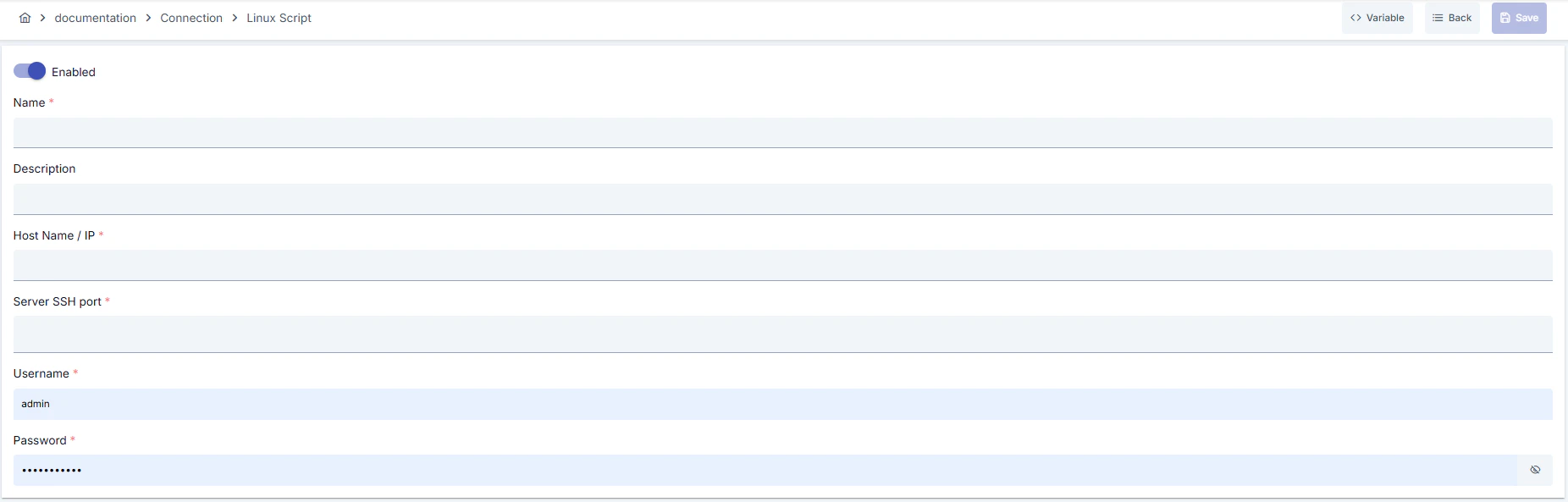 #### Configuration Steps
* Go to **Connection → Linux Script** section from left menu.
* Click **\[+ Create]** button at top right.
**Enable Status (Active Status):**
* Set active/passive status with toggle. New connections are active by default.
**Name - Required:**
* Example: `Production_LinuxScript`
* Enter unique name, cannot start with space.
* System automatically checks. Green checkmark: available. Red X: existing name.
**Description:**
* Example: "Prod node restart scripts"
* Max. 1000 characters.
* Describe the purpose of the Connection.
In the action button area at the top of the page, you can use the **\[\<> Variable]** button to select dynamic values, and with global variables, you can manage connection parameters with variable-based values instead of fixed values. For detailed information, review the [Dynamic Variables](/en/concepts/core-concepts/dynamic-variables) page.
* Select environment from dropdown menu: **Development**, **Test**, or **Production**.
* Different connection parameters can be defined for each environment.
* **Host Name:** Enter Linux server where script will run with fully qualified domain name (FQDN) or IP.
* **SSH Port:** Default is 22; if security policy is different, write new port and ensure it's opened in firewall.
* Host access should be tested from worker; inaccessible servers will error during save.
* **Username:** Use service user with only necessary directory/script permissions.
* **Password:** Password field is tested before saving and stored encrypted in database.
* Ensure user has execute permission on target scripts.
* Adjust connection timeout, request timeout, and pool size values according to workload.
* Prevent SSH session from closing by reducing keep-alive interval for long-running commands.
* Fill credentials from secret manager or environment variable.
* If SSL/TLS tunneling is required, configure port forwarding through bastion host.
* Do not use root account; define only service user with necessary permissions.
* Click **\[Test Connection]** button.
* Test whether connection parameters are correct.
* **Success:** Green confirmation message
* **Failed:** Error details are shown
* Click **\[Save and Deploy]** button at top right.
**Checklist:**
* Unique name
* Required fields filled
* Test connection successful (recommended)
**Result:**
* Connection is added to list
* Becomes available in Integration Flow and Connector steps
* Becomes active according to environment
Connection created successfully! You can now use it in Integration Flow and Connector steps.
### Deleting Connection
Select **Delete** from **⋮** menu at end of row or click **\[Delete]** button on connection detail page
**Check Before Deleting:** May be used in Integration Flow or Connector steps. If necessary, assign an alternative connection. Back up with **Export** before deleting
Use **Disable** option instead of deleting. Connection becomes passive but is not deleted. Can be reactivated when needed
### Exporting/Importing Connection
In this step, users can export existing connections for backup, moving to different environments, or sharing purposes, or import a previously exported connection again. This operation is used to maintain data integrity in version control, transitions between test and production environments, or inter-team sharing processes.
Select **⋮ → Export** from action menu. ZIP file is automatically downloaded.
Click **\[Export]** button on connection detail page. ZIP file is downloaded.
Format: `Date-connection-ConnectionName-export.zip`\
Example: `13 Nov 2025-connection-Production_LinuxScript-export.zip`
* Connection JSON file
* Metadata information
* Dependency information (e.g., certificates, key store)
* Backup
* Moving between environments (Test → Prod)
* Versioning
* Team or project-based sharing
* Click **\[Import Linux Script]** button on main list.
* Select downloaded ZIP file.
* System checks: Is format valid? Is there name conflict? Are dependencies present?
* Then click **\[Import]** button.
**Scenario 1: Name Conflict** → Overwrite old connection or create with new name.
**Scenario 2: Missing Dependencies** → Create missing certificates or key stores first or exclude during import.
### Connection Usage Areas
**Steps:**
1. Create the connection
2. Validate connection with **Test Connection**
3. Save and activate with **Save and Deploy**
4. Ensure connection is in **Enabled** state
Linux script connector selects this connection in Scheduled Job or ops steps within Integration Flow. Examples: "Execute Linux Script", "Pre-Deployment Hook", "Health Check" steps. Connection selection is made from Connection field in these steps' configuration
In scheduled tasks (e.g., daily log archiving, resource usage measurements), commands are executed on remote servers by selecting this connection. Job behavior is updated immediately when connection changes
Connection correctness can be checked independently from Integration Flow with Connection Test feature. This test is critical in debugging process
## Best Practices
**Bad:** Sharing root account for all scripts\
**Good:** Create separate service user for each team\
**Best:** Give permission only to necessary commands in sudoers file according to least privilege principle
**Bad:** Manually maintaining current scripts\
**Good:** Store script content in VCS and copy to Connector\
**Best:** Use IaC processes that automatically update script during pipeline
**Bad:** Writing long outputs directly to logs\
**Good:** Filter critical lines\
**Best:** Standardize output in JSON format and pass as parameter to subsequent steps in Integration Flow
**Bad:** Triggering dozens of long-running scripts simultaneously\
**Good:** Spread access with scheduled jobs\
**Best:** Continuously monitor and adjust pool size and keep-alive values according to traffic
**Bad:** Using same connection parameters in all environments\
**Good:** Create separate connection for each environment\
**Best:** Manage all environments in single connection using Environment option, only change environment during transitions between environments
**Bad:** Saving and deploying connection without testing\
**Good:** Validate with Test Connection before saving\
**Best:** Test after every parameter change, perform full integration test in test environment before going to production
Renew passwords periodically, create new connection during rotation plan and disable old one
Tunnel through bastion instead of leaving direct internet-exposed port for production servers and apply IP whitelisting
Give user permission to run scripts only in allowed directories, restrict sudo requirement command-based in sudoers file
Store sensitive information such as username and password using environment variable or secret manager. Do not hardcode credentials in code or configuration files. Update passwords periodically
Always enable SSL/TLS in production environment. Use self-signed certificates only in development environment. Track certificate expiration dates and renew on time
Allow only authorized users to change connection configuration. Store connection change logs. Apply change approval process for critical connections
**Why avoid:** Single error affects all servers, cannot be audited\
**Alternative:** Define role-based service users
**Why avoid:** Scripts fail if SSH port is closed\
**Alternative:** Get opening approval from network team for host/port and set up monitoring
**Why avoid:** Incorrect success messages mislead processes\
**Alternative:** Parse output and add conditional steps in Integration Flow
**Why avoid:** Test data may be written to production system, real users may be affected, security risk occurs\
**Alternative:** Create separate connection for each environment, use environment parameter, separate connection names by adding prefix according to environment (Test\_, Prod\_)
**Why avoid:** Connection constantly times out in network delays, Integration steps fail\
**Alternative:** Adjust timeout values according to real usage scenarios, measure network latency and set timeouts accordingly
**Why avoid:** New connection opens on every request, performance decreases, resource consumption increases, target system load increases\
**Alternative:** Enable connection pool, adjust pool size according to traffic volume, set up pool monitoring
**Recommendation:** Add duration metric to Connector outputs, monitor 95th percentile value\
**Impact:** Long scripts are detected early, scaling is performed
**Recommendation:** Compress large outputs and return as file, send only summary in Integration Flow\
**Impact:** Payload decreases, Gateway memory is optimized
**Recommendation:** Distribute workloads targeting same host, run sequentially with Cron envelopes\
**Impact:** Server resources are used balanced, SSH queues don't form
**Recommendation:** Set pool size according to peak traffic (recommended: concurrent request count × 1.5), set idle connection timeouts, perform pool health check\
**Impact:** Connection opening cost decreases by 80%, response times decrease, resource usage is optimized
**Recommendation:** Measure real network latency, adjust timeout values accordingly, avoid very low or very high timeouts\
**Impact:** Unnecessary waits are prevented, fast fail-over is provided, user experience improves
**Recommendation:** Monitor connection pool usage, track timeout rates, perform connection health check, set up alerting\
**Impact:** Problems are proactively detected, performance bottlenecks are identified early, downtime decreases
## Troubleshooting
Script may be writing to file instead of stdout, JSON format may be invalid, or output key validation may have failed.
Update script to write to stdout.
Validate JSON output with jq.
Check Connector output key setting.
User may not have access to target directory, sudo requirement may not be met, or host fingerprint may not be verified.
Check user permissions.
Add command-based permission to sudoers file.
Add host fingerprint to worker.
Network delay, target system responding slowly, or timeout value may be too low.
Check network connectivity.
Check target system health.
Increase timeout values.
Review connection logs.
Wrong username/password, expired credentials, or permission problem may exist.
Verify credentials.
Check that user is active on target system.
Check that necessary permissions are granted.
Check SSL/TLS certificates.
Pool size may be too low, connection leak may exist, or traffic may be too high.
Increase pool size.
Check that connections are properly closed.
Set idle connection timeouts.
Monitor connection usage metrics.
Different connection may be selected in Integration/Connector step, step may be misconfigured, or Flow/Job may not be redeployed.
Check that connection's enable toggle is active.
Verify that correct connection is selected in Integration Flow.
Redeploy connection.
Redeploy Integration Flow or Job.
Check Gateway logs.
## Frequently Asked Questions (FAQ)
No, each connection belongs to a specific project; if sharing is needed, export/import or move-to-global operation should be applied.
No, connector performs single execution. If retry is needed, Retry step should be configured in Integration Flow.
Passwords entered through UI are encrypted when saved, decrypted only at runtime on worker side with UtilCommon.decryptWithDefaultAlgorithm.
During save, ls command is triggered via UtilRemoteLinux.runLinuxCommand; thus SSH and permission validation is performed.
You can select output keys returned from Connector as variables in subsequent steps within Integration Flow; get only necessary fields with JSON path settings.
Yes, the same connection can be used in multiple Integration Flow or Connector steps. This provides centralized management and guarantees configuration consistency. However, changes made to the connection will affect all usage locations, so care should be taken.
Connection pool usage is not mandatory but strongly recommended in high-traffic systems. Reusing existing connections instead of opening new connection on every request significantly increases performance.
Yes, it is recommended to create separate connection for each environment. Alternatively, you can manage all environments in a single connection using environment parameter. This approach provides easier management and less error risk.
Several reasons may exist:
1. Connection enable toggle may be passive
2. Different connection may be selected in Integration step
3. Connection may not be deployed
4. Integration Flow may not be redeployed yet
#### Configuration Steps
* Go to **Connection → Linux Script** section from left menu.
* Click **\[+ Create]** button at top right.
**Enable Status (Active Status):**
* Set active/passive status with toggle. New connections are active by default.
**Name - Required:**
* Example: `Production_LinuxScript`
* Enter unique name, cannot start with space.
* System automatically checks. Green checkmark: available. Red X: existing name.
**Description:**
* Example: "Prod node restart scripts"
* Max. 1000 characters.
* Describe the purpose of the Connection.
In the action button area at the top of the page, you can use the **\[\<> Variable]** button to select dynamic values, and with global variables, you can manage connection parameters with variable-based values instead of fixed values. For detailed information, review the [Dynamic Variables](/en/concepts/core-concepts/dynamic-variables) page.
* Select environment from dropdown menu: **Development**, **Test**, or **Production**.
* Different connection parameters can be defined for each environment.
* **Host Name:** Enter Linux server where script will run with fully qualified domain name (FQDN) or IP.
* **SSH Port:** Default is 22; if security policy is different, write new port and ensure it's opened in firewall.
* Host access should be tested from worker; inaccessible servers will error during save.
* **Username:** Use service user with only necessary directory/script permissions.
* **Password:** Password field is tested before saving and stored encrypted in database.
* Ensure user has execute permission on target scripts.
* Adjust connection timeout, request timeout, and pool size values according to workload.
* Prevent SSH session from closing by reducing keep-alive interval for long-running commands.
* Fill credentials from secret manager or environment variable.
* If SSL/TLS tunneling is required, configure port forwarding through bastion host.
* Do not use root account; define only service user with necessary permissions.
* Click **\[Test Connection]** button.
* Test whether connection parameters are correct.
* **Success:** Green confirmation message
* **Failed:** Error details are shown
* Click **\[Save and Deploy]** button at top right.
**Checklist:**
* Unique name
* Required fields filled
* Test connection successful (recommended)
**Result:**
* Connection is added to list
* Becomes available in Integration Flow and Connector steps
* Becomes active according to environment
Connection created successfully! You can now use it in Integration Flow and Connector steps.
### Deleting Connection
Select **Delete** from **⋮** menu at end of row or click **\[Delete]** button on connection detail page
**Check Before Deleting:** May be used in Integration Flow or Connector steps. If necessary, assign an alternative connection. Back up with **Export** before deleting
Use **Disable** option instead of deleting. Connection becomes passive but is not deleted. Can be reactivated when needed
### Exporting/Importing Connection
In this step, users can export existing connections for backup, moving to different environments, or sharing purposes, or import a previously exported connection again. This operation is used to maintain data integrity in version control, transitions between test and production environments, or inter-team sharing processes.
Select **⋮ → Export** from action menu. ZIP file is automatically downloaded.
Click **\[Export]** button on connection detail page. ZIP file is downloaded.
Format: `Date-connection-ConnectionName-export.zip`\
Example: `13 Nov 2025-connection-Production_LinuxScript-export.zip`
* Connection JSON file
* Metadata information
* Dependency information (e.g., certificates, key store)
* Backup
* Moving between environments (Test → Prod)
* Versioning
* Team or project-based sharing
* Click **\[Import Linux Script]** button on main list.
* Select downloaded ZIP file.
* System checks: Is format valid? Is there name conflict? Are dependencies present?
* Then click **\[Import]** button.
**Scenario 1: Name Conflict** → Overwrite old connection or create with new name.
**Scenario 2: Missing Dependencies** → Create missing certificates or key stores first or exclude during import.
### Connection Usage Areas
**Steps:**
1. Create the connection
2. Validate connection with **Test Connection**
3. Save and activate with **Save and Deploy**
4. Ensure connection is in **Enabled** state
Linux script connector selects this connection in Scheduled Job or ops steps within Integration Flow. Examples: "Execute Linux Script", "Pre-Deployment Hook", "Health Check" steps. Connection selection is made from Connection field in these steps' configuration
In scheduled tasks (e.g., daily log archiving, resource usage measurements), commands are executed on remote servers by selecting this connection. Job behavior is updated immediately when connection changes
Connection correctness can be checked independently from Integration Flow with Connection Test feature. This test is critical in debugging process
## Best Practices
**Bad:** Sharing root account for all scripts\
**Good:** Create separate service user for each team\
**Best:** Give permission only to necessary commands in sudoers file according to least privilege principle
**Bad:** Manually maintaining current scripts\
**Good:** Store script content in VCS and copy to Connector\
**Best:** Use IaC processes that automatically update script during pipeline
**Bad:** Writing long outputs directly to logs\
**Good:** Filter critical lines\
**Best:** Standardize output in JSON format and pass as parameter to subsequent steps in Integration Flow
**Bad:** Triggering dozens of long-running scripts simultaneously\
**Good:** Spread access with scheduled jobs\
**Best:** Continuously monitor and adjust pool size and keep-alive values according to traffic
**Bad:** Using same connection parameters in all environments\
**Good:** Create separate connection for each environment\
**Best:** Manage all environments in single connection using Environment option, only change environment during transitions between environments
**Bad:** Saving and deploying connection without testing\
**Good:** Validate with Test Connection before saving\
**Best:** Test after every parameter change, perform full integration test in test environment before going to production
Renew passwords periodically, create new connection during rotation plan and disable old one
Tunnel through bastion instead of leaving direct internet-exposed port for production servers and apply IP whitelisting
Give user permission to run scripts only in allowed directories, restrict sudo requirement command-based in sudoers file
Store sensitive information such as username and password using environment variable or secret manager. Do not hardcode credentials in code or configuration files. Update passwords periodically
Always enable SSL/TLS in production environment. Use self-signed certificates only in development environment. Track certificate expiration dates and renew on time
Allow only authorized users to change connection configuration. Store connection change logs. Apply change approval process for critical connections
**Why avoid:** Single error affects all servers, cannot be audited\
**Alternative:** Define role-based service users
**Why avoid:** Scripts fail if SSH port is closed\
**Alternative:** Get opening approval from network team for host/port and set up monitoring
**Why avoid:** Incorrect success messages mislead processes\
**Alternative:** Parse output and add conditional steps in Integration Flow
**Why avoid:** Test data may be written to production system, real users may be affected, security risk occurs\
**Alternative:** Create separate connection for each environment, use environment parameter, separate connection names by adding prefix according to environment (Test\_, Prod\_)
**Why avoid:** Connection constantly times out in network delays, Integration steps fail\
**Alternative:** Adjust timeout values according to real usage scenarios, measure network latency and set timeouts accordingly
**Why avoid:** New connection opens on every request, performance decreases, resource consumption increases, target system load increases\
**Alternative:** Enable connection pool, adjust pool size according to traffic volume, set up pool monitoring
**Recommendation:** Add duration metric to Connector outputs, monitor 95th percentile value\
**Impact:** Long scripts are detected early, scaling is performed
**Recommendation:** Compress large outputs and return as file, send only summary in Integration Flow\
**Impact:** Payload decreases, Gateway memory is optimized
**Recommendation:** Distribute workloads targeting same host, run sequentially with Cron envelopes\
**Impact:** Server resources are used balanced, SSH queues don't form
**Recommendation:** Set pool size according to peak traffic (recommended: concurrent request count × 1.5), set idle connection timeouts, perform pool health check\
**Impact:** Connection opening cost decreases by 80%, response times decrease, resource usage is optimized
**Recommendation:** Measure real network latency, adjust timeout values accordingly, avoid very low or very high timeouts\
**Impact:** Unnecessary waits are prevented, fast fail-over is provided, user experience improves
**Recommendation:** Monitor connection pool usage, track timeout rates, perform connection health check, set up alerting\
**Impact:** Problems are proactively detected, performance bottlenecks are identified early, downtime decreases
## Troubleshooting
Script may be writing to file instead of stdout, JSON format may be invalid, or output key validation may have failed.
Update script to write to stdout.
Validate JSON output with jq.
Check Connector output key setting.
User may not have access to target directory, sudo requirement may not be met, or host fingerprint may not be verified.
Check user permissions.
Add command-based permission to sudoers file.
Add host fingerprint to worker.
Network delay, target system responding slowly, or timeout value may be too low.
Check network connectivity.
Check target system health.
Increase timeout values.
Review connection logs.
Wrong username/password, expired credentials, or permission problem may exist.
Verify credentials.
Check that user is active on target system.
Check that necessary permissions are granted.
Check SSL/TLS certificates.
Pool size may be too low, connection leak may exist, or traffic may be too high.
Increase pool size.
Check that connections are properly closed.
Set idle connection timeouts.
Monitor connection usage metrics.
Different connection may be selected in Integration/Connector step, step may be misconfigured, or Flow/Job may not be redeployed.
Check that connection's enable toggle is active.
Verify that correct connection is selected in Integration Flow.
Redeploy connection.
Redeploy Integration Flow or Job.
Check Gateway logs.
## Frequently Asked Questions (FAQ)
No, each connection belongs to a specific project; if sharing is needed, export/import or move-to-global operation should be applied.
No, connector performs single execution. If retry is needed, Retry step should be configured in Integration Flow.
Passwords entered through UI are encrypted when saved, decrypted only at runtime on worker side with UtilCommon.decryptWithDefaultAlgorithm.
During save, ls command is triggered via UtilRemoteLinux.runLinuxCommand; thus SSH and permission validation is performed.
You can select output keys returned from Connector as variables in subsequent steps within Integration Flow; get only necessary fields with JSON path settings.
Yes, the same connection can be used in multiple Integration Flow or Connector steps. This provides centralized management and guarantees configuration consistency. However, changes made to the connection will affect all usage locations, so care should be taken.
Connection pool usage is not mandatory but strongly recommended in high-traffic systems. Reusing existing connections instead of opening new connection on every request significantly increases performance.
Yes, it is recommended to create separate connection for each environment. Alternatively, you can manage all environments in a single connection using environment parameter. This approach provides easier management and less error risk.
Several reasons may exist:
1. Connection enable toggle may be passive
2. Different connection may be selected in Integration step
3. Connection may not be deployed
4. Integration Flow may not be redeployed yet