> ## Documentation Index
> Fetch the complete documentation index at: https://docs.apinizer.com/llms.txt
> Use this file to discover all available pages before exploring further.
# Webhook
> Sends secure calls to HTTP-based webhook endpoints via a single connection. You can perform secure data transmission and notifications to external services over HTTP/REST
## Overview
Webhook Connection makes the connection definition centralized, enabling all Integration Flow and Connector steps to call the same HTTP endpoint consistently
Reduces configuration errors during version transitions by managing HTTP method, URL, and security headers from a single point
Separates Development/Test/Production endpoints within a single connection thanks to environment-based connection parameters
Accelerates deployment processes with automatic name check, environment deployment, and Test Connection outputs
When a Webhook connection is requested from within an Integration Flow or Connector, the system reads the configured connection parameters
HTTP client reuses keep-alive supported single connections for a short time; if there is no open connection, a new TCP session is established
Authorization, Api-Key, or similar Authentication headers defined in Header tab are automatically added to the request
REST API call is made with selected HTTP method, payload is taken from Integration Flow step output and transmitted over TLS
When the request is completed, socket is closed or kept waiting for reuse within HTTP keep-alive duration
In case of connection error, timeout, or authentication error, error is notified to the user through Apinizer Message Service and written to deploymentResult logs
Transferring Apinizer logs to observability platforms such as Splunk, Datadog, Graylog via REST webhook
Triggering Slack or Teams channel after successful deployment in CI/CD pipelines
Forwarding events from external services to third-party webhook APIs instead of MongoDB/Redis
Making POST/PUT calls to external SaaS services in rapid prototypes
## Technical Features and Capabilities
All methods in EnumHttpRequestMethod list such as GET/POST/PUT/DELETE are selected from a single dropdown.
Endpoint in [https://host/path](https://host/path) format is defined with fullUrl field and can be combined with Integration Flow parameters.
Auto-completion is performed thanks to predefined HTTP header name/value services, and risk of entering incorrect headers decreases.
Ability to define separate connection parameters for each environment (Development, Test, Production).
Activating or deactivating the Connection (enable/disable toggle). In passive state, the connection cannot be used but its configuration is preserved.
Service-based nameExist check runs when Name field is entered and conflicts are shown instantly.
Headers with missing name/value are blocked during saving.
Connection becomes available for use by all projects with Move to Global action from list view.
Ability to validate connection parameters before saving with the "Test Connection" button.
Exporting Connection configuration as a ZIP file. Importing to different environments (Development, Test, Production). Version control and backup capability.
Monitoring connection health, pool status, and performance metrics.
## Connection Parameters
**Description:** Connection name (must be unique)\
**Example Value:** `Production_Webhook`\
**Notes:** Should not start with space, special characters should not be used
**Description:** Published environment ID that the Connection will be linked to\
**Example Value:** `Prod-Blue`\
**Notes:** Environment list is populated by EnvironmentService
**Description:** HTTP method to use in the call\
**Example Value:** `POST`\
**Notes:** GET/POST/PUT/DELETE/HEAD/OPTIONS/PATCH/TRACE are supported
**Description:** Full URL of the webhook endpoint\
**Example Value:** `https://hooks.partner.com/api/logs`\
**Notes:** HTTPS usage is recommended, query parameters are supported
**Description:** Request timeout duration (sec)\
**Example Value:** `10`\
**Notes:** Minimum 1 sec in UI, model default 2 sec
**Description:** Text describing Connection purpose or target system\
**Default Value:** -\
**Recommended Value:** Short and action-oriented description
**Description:** Custom HTTP headers to send in webhook call\
**Default Value:** (Empty list)\
**Recommended Value:** Security headers such as Authorization: Bearer token
**Description:** Whether the Connection is active\
**Default Value:** true\
**Recommended Value:** false in test phase, true in Production
### Timeout and Connection Pool Parameters
**Description:** Wait time for TCP connection establishment\
**Default:** 2000\
**Min:** 1000 | **Max:** 60000\
**Unit:** milliseconds
**Description:** Total response time of HTTP request\
**Default:** 2000\
**Min:** 1000 | **Max:** 60000\
**Unit:** milliseconds
**Description:** Maximum number of connections in Connection pool\
**Default:** 0\
**Min:** 0 | **Max:** 0\
**Unit:** count
**Description:** Wait between retries (can be used with manual flows)\
**Default:** -\
**Unit:** seconds
## Usage Scenarios
**Situation:** Need to transfer Gateway logs to central SIEM\
**Solution:** POST + JSON payload + Authorization header\
**Expected Result:** SIEM webhook receives log record at the end of each integration
**Situation:** Informing teams after CI/CD pipeline\
**Solution:** POST [https://hooks.slack.com/](https://hooks.slack.com/)... + ContentType: application/json\
**Expected Result:** Build/deployment result is shared in Slack channel
**Situation:** Opening ITSM ticket on threshold breaches\
**Solution:** POST [https://api.servicenow.com/](https://api.servicenow.com/)... + API key\
**Expected Result:** Automatic incident is created on ServiceNow
**Situation:** Triggering CRM activity\
**Solution:** PUT [https://crm.partner.com/events/id](https://crm.partner.com/events/id) + Bearer token\
**Expected Result:** CRM record is updated and reconciliation flow continues
**Situation:** Sending health-check data to Datadog Webhook API\
**Solution:** POST [https://api.datadoghq.com/api/v1/webhooks](https://api.datadoghq.com/api/v1/webhooks)\
**Expected Result:** Custom event opens in Datadog metrics dashboard
**Situation:** Notifying archive service for each Integration Flow execution\
**Solution:** POST [https://audit.internal/api/event](https://audit.internal/api/event) + X-Trace-Id header\
**Expected Result:** Audit service records the call and returns response
## Connection Configuration
### Creating New Webhook Integration
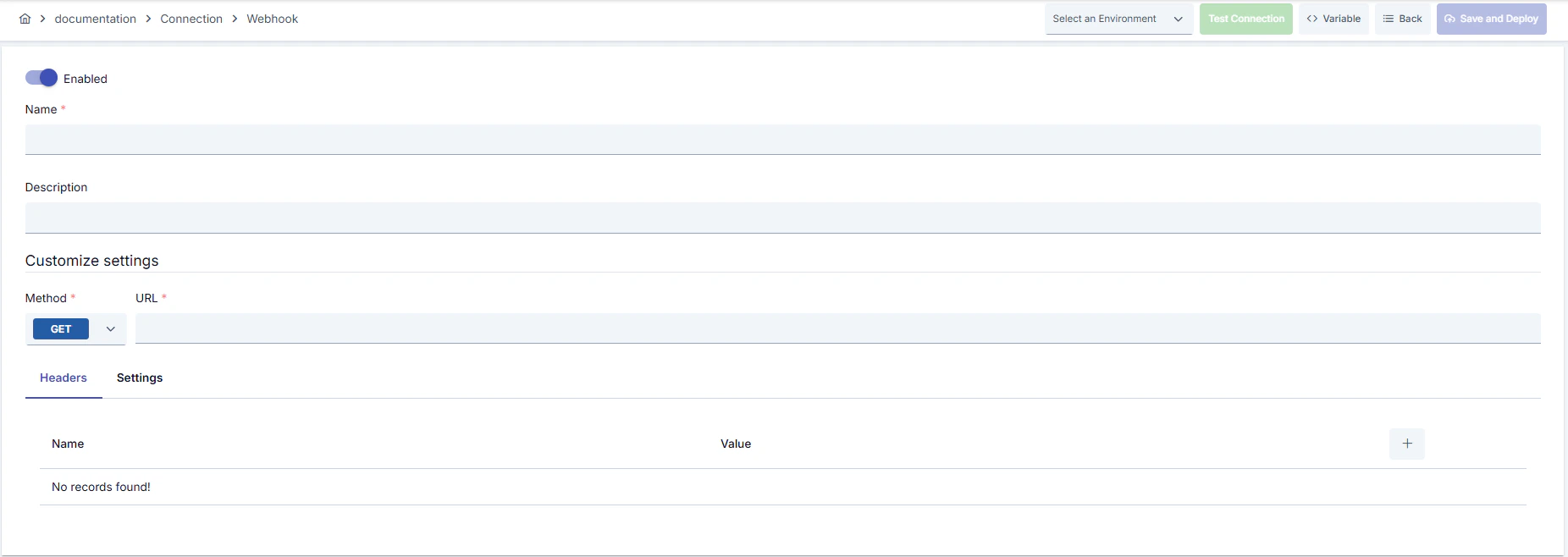 #### Configuration Steps
* Go to **Connection → Webhook Integration** section from the left menu.
* Click the **\[+ Create]** button in the top right.
**Enable Status (Active Status):**
* Set active/passive status with toggle. New connections are active by default.
**Name - Mandatory:**
* Example: `Production_Webhook`
* Enter a unique name, should not start with space.
* System automatically checks. Green checkmark: available. Red cross: existing name.
**Description:**
* Example: "Prod log forwarding webhook"
* Max. 1000 characters.
* Describe the purpose of the Connection.
In the action button area at the top of the page, you can use the **\[\<> Variable]** button to select dynamic values, and with global variables, you can manage connection parameters with variable-based values instead of fixed values. For detailed information, review the [Dynamic Variables](/en/concepts/core-concepts/dynamic-variables) page.
* Select environment from dropdown menu: **Development**, **Test**, or **Production**.
* Different connection parameters can be defined for each environment.
* Select GET/POST/PUT etc. from **HTTP Method** list.
* Enter full endpoint starting with https\:// in **Full URL** field.
* Use placeholders for query parameters or path variables if necessary.
* Add new row with **+** in **Headers** tab.
* **Header Name** and **Header Value** fields cannot be left empty.
* You can select common headers from auto-completion list.
* **Timeout** field in **Settings** tab determines maximum duration (seconds) for request completion.
* Pool size is managed server-side, so only timeout value is changed in UI.
* Write API keys or Bearer tokens in **Authorization** header.
* Create Authorization: Basic ... if basic HTTP auth is required.
* SSL/TLS protection is provided with HTTPS URLs; configure certificate connection at environment level for mutual TLS if needed.
* Click the **\[Test Connection]** button.
* Test whether connection parameters are correct.
* **Success:** Green confirmation message
* **Failed:** Error details are shown
* Click the **\[Save and Deploy]** button in the top right.
**Checklist:**
* Unique name
* Mandatory fields filled
* Test connection successful (recommended)
**Result:**
* Connection is added to the list
* Becomes available for use in Integration Flow and Connector steps
* Becomes active according to environment
Connection created successfully! You can now use it in Integration Flow and Connector steps.
### Deleting Connection
Select **Delete** from the **⋮** menu at the end of the row or click the **\[Delete]** button on the connection detail page
**Check Before Deleting:** It may be used in Integration Flow or Connector steps. If necessary, assign an alternative connection. Back up with **Export** before deleting
Use the **Disable** option instead of deleting. Connection becomes passive but is not deleted. Can be reactivated when needed
### Exporting/Importing Connection
In this step, users can export existing connections for backup, transfer to different environments, or sharing purposes, or import a previously exported connection again. This process is used to maintain data integrity in version management, transitions between test and production environments, or inter-team sharing processes.
Select **⋮ → Export** from the action menu. ZIP file is automatically downloaded.
Click the **\[Export]** button on the connection detail page. ZIP file is downloaded.
Format: `Date-connection-ConnectionName-export.zip`\
Example: `13 Nov 2025-connection-Production_Webhook-export.zip`
* Connection JSON file
* Metadata information
* Dependency information (e.g., certificates, key store)
* Backup
* Transfer between environments (Test → Prod)
* Versioning
* Team or project-based sharing
* Click the **\[Import Webhook Integration]** button on the main list.
* Select the downloaded ZIP file.
* System checks: Is format valid? Is there a name conflict? Are dependencies present?
* Then click the **\[Import]** button.
**Scenario 1: Name Conflict** → Overwrite the old connection or create with a new name.
**Scenario 2: Missing Dependencies** → Create missing certificates or key stores first or exclude them during import.
### Usage Areas of Connection
**Steps:**
1. Create the Connection
2. Validate the connection with **Test Connection**
3. Save and activate with **Save and Deploy**
4. Ensure the Connection is in **Enabled** status
Connection is selected in Connector steps that make REST requests. Example: Steps such as "Send Message", "Invoke REST API", "Log to External Endpoint". Connection selection is made from the Connection field in the configuration of these steps
Connection is selected to make webhook calls at certain intervals in scheduled tasks. Business logic running with cron expression automatically uses connection parameters
The correctness of the connection can be checked independently of the Integration Flow with the Connection Test feature. This test is critical in the debugging process
## Best Practices
**Bad:** Sending all calls as POST\
**Good:** Selecting method required by target service\
**Best:** Adjusting GET/POST/PUT/PATCH/DELETE usage for CRUD operations according to contract
**Bad:** Manually changing fixed v1/v2 paths in URL\
**Good:** Separating different versions by creating new connection\
**Best:** Managing versions environment-based using parametric URL definition
**Bad:** Sharing Authorization header as plain text\
**Good:** Storing API keys only in relevant connection\
**Best:** Using tokens dynamically retrieved through Secret Manager
**Bad:** Deploying untested connection to Production\
**Good:** Copying after validating in test environment\
**Best:** Versioning with Export/Import and storing change record
**Bad:** Using the same connection parameters in all environments\
**Good:** Creating separate connections for each environment\
**Best:** Managing all environments in a single connection using the Environment option, only changing environment when transitioning between environments
**Bad:** Saving and deploying the connection without testing\
**Good:** Validating with Test Connection before saving\
**Best:** Testing after every parameter change, performing full integration test in test environment before going to production
Do not use API keys in the same header for both Test and Prod. Define different keys for each environment and create rotation schedule
Disable logging of sensitive header values in console outputs. Keep only anonymized information such as X-Trace-Id open
Use IP whitelisting or HMAC signature verification at webhook endpoint. Automatically generate relevant signature header on Apinizer side
Store sensitive information such as usernames and passwords using environment variables or secret manager. Do not hardcode credentials in code or configuration files. Update passwords periodically
Always enable SSL/TLS in Production environment. Use self-signed certificates only in development environment. Track certificate expiration dates and renew them on time
Allow only authorized users to change Connection configuration. Store connection change logs. Apply change approval process for critical connections
**Why to avoid:** All environments are affected in token leakage\
**Alternative:** Use different Authorization values environment-based
**Why to avoid:** Data travels in unencrypted channel\
**Alternative:** Make URL HTTPS, provide certificate to target side if needed
**Why to avoid:** Same header sent multiple times causes error in target system\
**Alternative:** Regularly review header table and remove unnecessary rows
**Why to avoid:** Test data may be written to production system, real users may be affected, security risk occurs\
**Alternative:** Create separate connections for each environment, use environment parameter, separate connection names by adding prefix according to environment (Test\_, Prod\_)
**Why to avoid:** Connection constantly times out in network delays, Integration steps fail\
**Alternative:** Adjust timeout values according to real usage scenarios, measure network latency and determine timeouts accordingly
**Why to avoid:** New connection is opened for each request, performance decreases, resource consumption increases, target system load increases\
**Alternative:** Enable connection pool, adjust pool size according to traffic volume, set up pool monitoring
**Recommendation:** Keep webhook messages below 200 KB\
**Effect:** Shorter response times and lower timeout rate
**Recommendation:** Define concurrency limits on Integration Flow side in high-volume triggers\
**Effect:** Target system is not overloaded, error rate decreases
**Recommendation:** Add retry policy in Flow for idempotent endpoints, log error and take manual action in non-idempotent calls\
**Effect:** Data loss is prevented in critical operations
**Recommendation:** Adjust pool size according to peak traffic (recommended: concurrent request count × 1.5), set idle connection timeouts, perform pool health check\
**Effect:** Connection opening cost decreases by 80%, response times decrease, resource usage is optimized
**Recommendation:** Measure real network latency, adjust timeout values accordingly, avoid very low or very high timeouts\
**Effect:** Unnecessary waits are prevented, fast fail-over is provided, user experience improves
**Recommendation:** Monitor connection pool usage, track timeout rates, perform connection health check, set up alerting\
**Effect:** Problems are detected proactively, performance bottlenecks are identified early, downtime decreases
## Troubleshooting
Wrong endpoint, missing header, or incorrect payload format may exist.
Verify URL and HTTP method.
Check that mandatory headers are sent.
Reformat payload according to target documentation.
Target service may be down, TLS certificate rejected, or rate limit reached.
Check target service health.
Verify HTTPS certificate chain.
Review rate limit logs and add wait time.
Network delay, target system responding slowly, or timeout value may be too low.
Check network connectivity.
Check target system health.
Increase timeout values.
Review connection logs.
Wrong username/password, expired credentials, or permission problem may exist.
Verify credentials.
Check that the user is active in the target system.
Check that necessary permissions are granted.
Check SSL/TLS certificates.
Pool size may be too low, connection leak exists, or traffic may be too high.
Increase pool size.
Check that connections are properly closed.
Set idle connection timeouts.
Monitor connection usage metrics.
A different connection may be selected in Integration/Connector step, the step may be misconfigured, or Flow/Job may not be redeployed.
Check that the Connection's enable toggle is active.
Verify that the correct connection is selected in Integration Flow.
Redeploy the Connection.
Redeploy Integration Flow or Job.
Check Gateway logs.
## Frequently Asked Questions (FAQ)
The same connection routes to a single URL. You need to create different connections for different platforms or make the URL parametric.
If there is a connection with the same name in the list, service returns nameExist=true and does not allow saving. Update the name to be unique.
There is no limit but name and value fields of each row must be filled; otherwise saving is blocked.
UI takes value in seconds and backend converts this value to milliseconds and transfers it to HTTP client.
It runs on Publication Worker according to the environment ID you selected and tries to reach the real endpoint.
Yes, the same connection can be used in multiple Integration Flow or Connector steps. This provides centralized management and guarantees configuration consistency. However, changes made to the connection will affect all usage locations, so care should be taken.
Using Connection pool is not mandatory but strongly recommended in high-traffic systems. Reusing existing connections instead of opening a new connection for each request significantly increases performance.
Yes, it is recommended to create separate connections for each environment. Alternatively, you can manage all environments in a single connection using the environment parameter. This approach provides easier management and less error risk.
Several reasons may exist:
1. Connection enable toggle may be passive
2. A different connection may be selected in Integration step
3. Connection may not be deployed
4. Integration Flow may not have been redeployed yet
#### Configuration Steps
* Go to **Connection → Webhook Integration** section from the left menu.
* Click the **\[+ Create]** button in the top right.
**Enable Status (Active Status):**
* Set active/passive status with toggle. New connections are active by default.
**Name - Mandatory:**
* Example: `Production_Webhook`
* Enter a unique name, should not start with space.
* System automatically checks. Green checkmark: available. Red cross: existing name.
**Description:**
* Example: "Prod log forwarding webhook"
* Max. 1000 characters.
* Describe the purpose of the Connection.
In the action button area at the top of the page, you can use the **\[\<> Variable]** button to select dynamic values, and with global variables, you can manage connection parameters with variable-based values instead of fixed values. For detailed information, review the [Dynamic Variables](/en/concepts/core-concepts/dynamic-variables) page.
* Select environment from dropdown menu: **Development**, **Test**, or **Production**.
* Different connection parameters can be defined for each environment.
* Select GET/POST/PUT etc. from **HTTP Method** list.
* Enter full endpoint starting with https\:// in **Full URL** field.
* Use placeholders for query parameters or path variables if necessary.
* Add new row with **+** in **Headers** tab.
* **Header Name** and **Header Value** fields cannot be left empty.
* You can select common headers from auto-completion list.
* **Timeout** field in **Settings** tab determines maximum duration (seconds) for request completion.
* Pool size is managed server-side, so only timeout value is changed in UI.
* Write API keys or Bearer tokens in **Authorization** header.
* Create Authorization: Basic ... if basic HTTP auth is required.
* SSL/TLS protection is provided with HTTPS URLs; configure certificate connection at environment level for mutual TLS if needed.
* Click the **\[Test Connection]** button.
* Test whether connection parameters are correct.
* **Success:** Green confirmation message
* **Failed:** Error details are shown
* Click the **\[Save and Deploy]** button in the top right.
**Checklist:**
* Unique name
* Mandatory fields filled
* Test connection successful (recommended)
**Result:**
* Connection is added to the list
* Becomes available for use in Integration Flow and Connector steps
* Becomes active according to environment
Connection created successfully! You can now use it in Integration Flow and Connector steps.
### Deleting Connection
Select **Delete** from the **⋮** menu at the end of the row or click the **\[Delete]** button on the connection detail page
**Check Before Deleting:** It may be used in Integration Flow or Connector steps. If necessary, assign an alternative connection. Back up with **Export** before deleting
Use the **Disable** option instead of deleting. Connection becomes passive but is not deleted. Can be reactivated when needed
### Exporting/Importing Connection
In this step, users can export existing connections for backup, transfer to different environments, or sharing purposes, or import a previously exported connection again. This process is used to maintain data integrity in version management, transitions between test and production environments, or inter-team sharing processes.
Select **⋮ → Export** from the action menu. ZIP file is automatically downloaded.
Click the **\[Export]** button on the connection detail page. ZIP file is downloaded.
Format: `Date-connection-ConnectionName-export.zip`\
Example: `13 Nov 2025-connection-Production_Webhook-export.zip`
* Connection JSON file
* Metadata information
* Dependency information (e.g., certificates, key store)
* Backup
* Transfer between environments (Test → Prod)
* Versioning
* Team or project-based sharing
* Click the **\[Import Webhook Integration]** button on the main list.
* Select the downloaded ZIP file.
* System checks: Is format valid? Is there a name conflict? Are dependencies present?
* Then click the **\[Import]** button.
**Scenario 1: Name Conflict** → Overwrite the old connection or create with a new name.
**Scenario 2: Missing Dependencies** → Create missing certificates or key stores first or exclude them during import.
### Usage Areas of Connection
**Steps:**
1. Create the Connection
2. Validate the connection with **Test Connection**
3. Save and activate with **Save and Deploy**
4. Ensure the Connection is in **Enabled** status
Connection is selected in Connector steps that make REST requests. Example: Steps such as "Send Message", "Invoke REST API", "Log to External Endpoint". Connection selection is made from the Connection field in the configuration of these steps
Connection is selected to make webhook calls at certain intervals in scheduled tasks. Business logic running with cron expression automatically uses connection parameters
The correctness of the connection can be checked independently of the Integration Flow with the Connection Test feature. This test is critical in the debugging process
## Best Practices
**Bad:** Sending all calls as POST\
**Good:** Selecting method required by target service\
**Best:** Adjusting GET/POST/PUT/PATCH/DELETE usage for CRUD operations according to contract
**Bad:** Manually changing fixed v1/v2 paths in URL\
**Good:** Separating different versions by creating new connection\
**Best:** Managing versions environment-based using parametric URL definition
**Bad:** Sharing Authorization header as plain text\
**Good:** Storing API keys only in relevant connection\
**Best:** Using tokens dynamically retrieved through Secret Manager
**Bad:** Deploying untested connection to Production\
**Good:** Copying after validating in test environment\
**Best:** Versioning with Export/Import and storing change record
**Bad:** Using the same connection parameters in all environments\
**Good:** Creating separate connections for each environment\
**Best:** Managing all environments in a single connection using the Environment option, only changing environment when transitioning between environments
**Bad:** Saving and deploying the connection without testing\
**Good:** Validating with Test Connection before saving\
**Best:** Testing after every parameter change, performing full integration test in test environment before going to production
Do not use API keys in the same header for both Test and Prod. Define different keys for each environment and create rotation schedule
Disable logging of sensitive header values in console outputs. Keep only anonymized information such as X-Trace-Id open
Use IP whitelisting or HMAC signature verification at webhook endpoint. Automatically generate relevant signature header on Apinizer side
Store sensitive information such as usernames and passwords using environment variables or secret manager. Do not hardcode credentials in code or configuration files. Update passwords periodically
Always enable SSL/TLS in Production environment. Use self-signed certificates only in development environment. Track certificate expiration dates and renew them on time
Allow only authorized users to change Connection configuration. Store connection change logs. Apply change approval process for critical connections
**Why to avoid:** All environments are affected in token leakage\
**Alternative:** Use different Authorization values environment-based
**Why to avoid:** Data travels in unencrypted channel\
**Alternative:** Make URL HTTPS, provide certificate to target side if needed
**Why to avoid:** Same header sent multiple times causes error in target system\
**Alternative:** Regularly review header table and remove unnecessary rows
**Why to avoid:** Test data may be written to production system, real users may be affected, security risk occurs\
**Alternative:** Create separate connections for each environment, use environment parameter, separate connection names by adding prefix according to environment (Test\_, Prod\_)
**Why to avoid:** Connection constantly times out in network delays, Integration steps fail\
**Alternative:** Adjust timeout values according to real usage scenarios, measure network latency and determine timeouts accordingly
**Why to avoid:** New connection is opened for each request, performance decreases, resource consumption increases, target system load increases\
**Alternative:** Enable connection pool, adjust pool size according to traffic volume, set up pool monitoring
**Recommendation:** Keep webhook messages below 200 KB\
**Effect:** Shorter response times and lower timeout rate
**Recommendation:** Define concurrency limits on Integration Flow side in high-volume triggers\
**Effect:** Target system is not overloaded, error rate decreases
**Recommendation:** Add retry policy in Flow for idempotent endpoints, log error and take manual action in non-idempotent calls\
**Effect:** Data loss is prevented in critical operations
**Recommendation:** Adjust pool size according to peak traffic (recommended: concurrent request count × 1.5), set idle connection timeouts, perform pool health check\
**Effect:** Connection opening cost decreases by 80%, response times decrease, resource usage is optimized
**Recommendation:** Measure real network latency, adjust timeout values accordingly, avoid very low or very high timeouts\
**Effect:** Unnecessary waits are prevented, fast fail-over is provided, user experience improves
**Recommendation:** Monitor connection pool usage, track timeout rates, perform connection health check, set up alerting\
**Effect:** Problems are detected proactively, performance bottlenecks are identified early, downtime decreases
## Troubleshooting
Wrong endpoint, missing header, or incorrect payload format may exist.
Verify URL and HTTP method.
Check that mandatory headers are sent.
Reformat payload according to target documentation.
Target service may be down, TLS certificate rejected, or rate limit reached.
Check target service health.
Verify HTTPS certificate chain.
Review rate limit logs and add wait time.
Network delay, target system responding slowly, or timeout value may be too low.
Check network connectivity.
Check target system health.
Increase timeout values.
Review connection logs.
Wrong username/password, expired credentials, or permission problem may exist.
Verify credentials.
Check that the user is active in the target system.
Check that necessary permissions are granted.
Check SSL/TLS certificates.
Pool size may be too low, connection leak exists, or traffic may be too high.
Increase pool size.
Check that connections are properly closed.
Set idle connection timeouts.
Monitor connection usage metrics.
A different connection may be selected in Integration/Connector step, the step may be misconfigured, or Flow/Job may not be redeployed.
Check that the Connection's enable toggle is active.
Verify that the correct connection is selected in Integration Flow.
Redeploy the Connection.
Redeploy Integration Flow or Job.
Check Gateway logs.
## Frequently Asked Questions (FAQ)
The same connection routes to a single URL. You need to create different connections for different platforms or make the URL parametric.
If there is a connection with the same name in the list, service returns nameExist=true and does not allow saving. Update the name to be unique.
There is no limit but name and value fields of each row must be filled; otherwise saving is blocked.
UI takes value in seconds and backend converts this value to milliseconds and transfers it to HTTP client.
It runs on Publication Worker according to the environment ID you selected and tries to reach the real endpoint.
Yes, the same connection can be used in multiple Integration Flow or Connector steps. This provides centralized management and guarantees configuration consistency. However, changes made to the connection will affect all usage locations, so care should be taken.
Using Connection pool is not mandatory but strongly recommended in high-traffic systems. Reusing existing connections instead of opening a new connection for each request significantly increases performance.
Yes, it is recommended to create separate connections for each environment. Alternatively, you can manage all environments in a single connection using the environment parameter. This approach provides easier management and less error risk.
Several reasons may exist:
1. Connection enable toggle may be passive
2. A different connection may be selected in Integration step
3. Connection may not be deployed
4. Integration Flow may not have been redeployed yet