> ## Documentation Index
> Fetch the complete documentation index at: https://docs.apinizer.com/llms.txt
> Use this file to discover all available pages before exploring further.
# FTP List Connector
> You can perform file and directory listing operations using FTP connection definitions and create API Proxies. You can list files in the defined directory in your FTP connection and create API Proxies that return the result of this listing operation with advanced filtering and search capabilities.
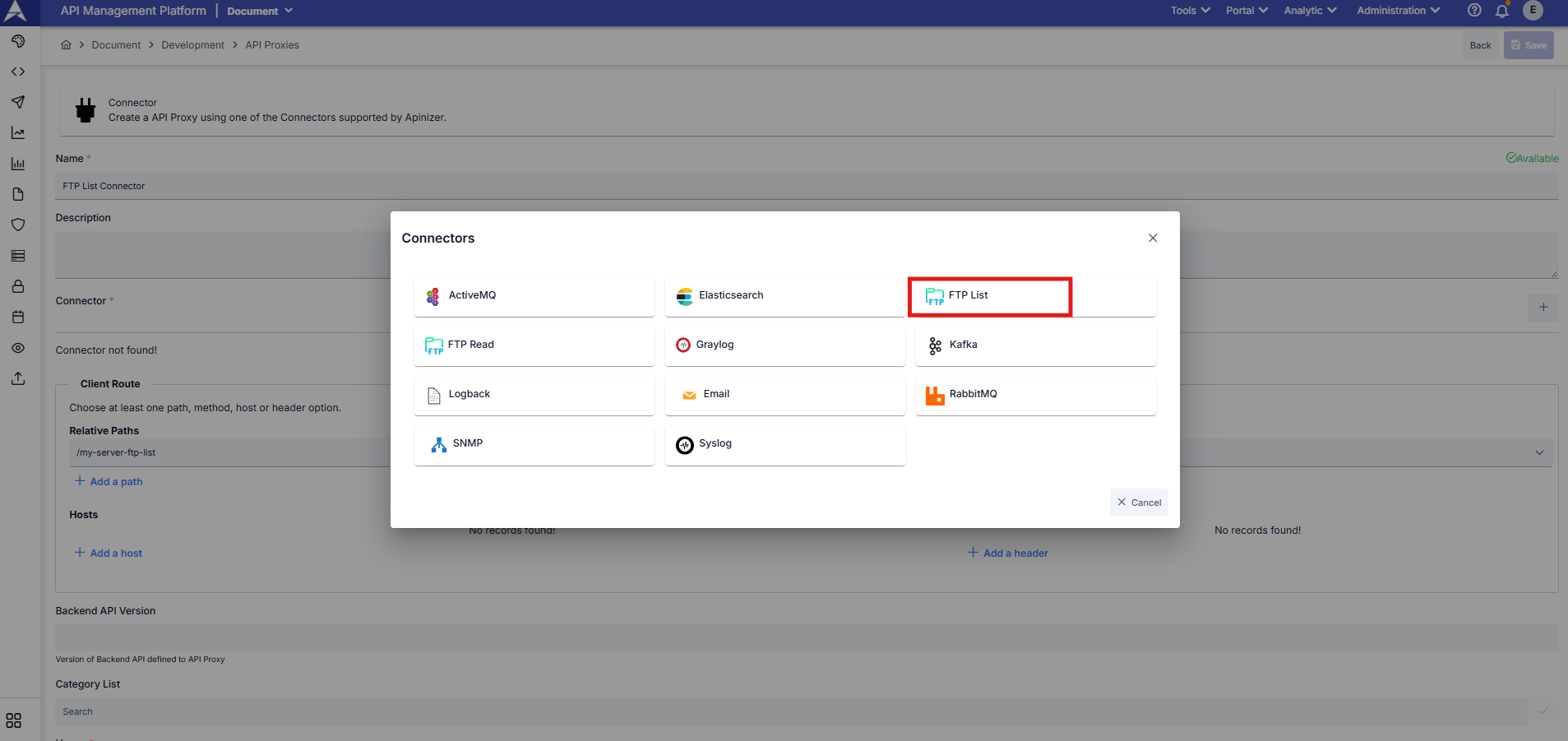 ## Usage
FTP List connector is used to list files and directories on FTP server. The created connector works as an API Proxy and can be triggered with either HTTP GET or POST request. When using POST request, you can apply advanced filtering criteria to search and filter files.
### Basic Usage (GET Request)
You can retrieve all files in the directory with a simple GET request:
```bash theme={null}
curl --location --request GET "https:///"
```
### Advanced Usage (POST Request)
You can apply filtering criteria by sending request body with POST request:
```bash theme={null}
curl --location --request POST "https:///" \
-H "Content-Type: application/json" \
--data-raw '{"searchType": "WILDCARD", "searchPattern": "*.json", "caseInsensitive": true}'
```
When request body is sent empty or GET request is made, all files in the directory are listed with default values.
## Request Body Parameters
**Type:** string
**Default Value:** STARTS\_WITH
**Description:** Specifies how file names will be searched. Available options:
* **STARTS\_WITH**: Checks if file name starts with the given pattern
* **EXACT\_MATCH**: Checks for exact match with the given file name
* **CONTAINS**: Checks if file name contains the given pattern
* **ENDS\_WITH**: Checks if file name ends with the given pattern
* **WILDCARD**: Uses wildcard pattern matching (\* matches any sequence, ? matches single character)
**Type:** string
**Default Value:** (empty - lists all files)
**Description:** File name or pattern to search for. Usage depends on searchType:
* For WILDCARD: `*.json`, `file?.txt`, `report_*.pdf`
* For ENDS\_WITH: `.json`, `.pdf`
* For STARTS\_WITH: `invoice_`, `report`
* For CONTAINS: `2025`, `data`
* For EXACT\_MATCH: `report.pdf`, `data.json`
**Type:** boolean
**Default Value:** true
**Description:** Determines whether file name search is case-sensitive. When set to true, "File.txt" and "file.txt" are treated as the same.
**Type:** string
**Default Value:** ALL\_MATCHES
**Description:** Specifies the amount of results to return:
* **FIRST\_MATCH**: Returns only the first matching file and stops searching
* **ALL\_MATCHES**: Returns all matching files
**Type:** integer
**Default Value:** (no limit)
**Description:** Maximum file size in kilobytes (KB). Files larger than this size are excluded from results. For example, setting it to 10240 means only files up to 10 MB are included.
**Note:** This parameter only affects file size filtering in listing results. It does not limit the file reading operation.
## Response Format
The response is returned in JSON or XML format based on the Accept header in the request.
### Successful Response (Files Found)
```json theme={null}
{
"files": [
"invoice_2025_001.pdf",
"invoice_2025_002.pdf",
"report.json"
],
"count": 3,
"searchType": "starts_with",
"caseInsensitive": true,
"returnType": "all_matches"
}
```
### Empty Response (No Files Found)
```json theme={null}
{
"files": [],
"count": 0,
"message": "No files matching pattern '*.xml'",
"searchType": "wildcard",
"caseInsensitive": true,
"returnType": "all_matches"
}
```
When no files are found, the `message` field provides information about why no results were returned.
## Example Scenarios
### Example 1: List All JSON Files
**Usage Scenario**: Find all files with .json extension in the directory
```json theme={null}
{
"searchType": "WILDCARD",
"searchPattern": "*.json",
"caseInsensitive": true
}
```
**Response:**
```json theme={null}
{
"files": ["data.json", "config.json", "report.json"],
"count": 3,
"message": null
}
```
### Example 2: Find Files Starting with "invoice"
**Usage Scenario**: List all files starting with "invoice" prefix
```json theme={null}
{
"searchType": "STARTS_WITH",
"searchPattern": "invoice",
"caseInsensitive": false,
"returnType": "ALL_MATCHES"
}
```
### Example 3: Find First PDF File
**Usage Scenario**: Get only the first PDF file and stop searching
```json theme={null}
{
"searchType": "ENDS_WITH",
"searchPattern": ".pdf",
"returnType": "FIRST_MATCH"
}
```
**Response:**
```json theme={null}
{
"files": ["report.pdf"],
"count": 1
}
```
### Example 4: Exact File Name Match
**Usage Scenario**: Check if a specific file exists
```json theme={null}
{
"searchType": "EXACT_MATCH",
"searchPattern": "config.json"
}
```
### Example 5: Wildcard with Multiple Patterns
**Usage Scenario**: Find files matching complex patterns
```json theme={null}
{
"searchType": "WILDCARD",
"searchPattern": "report_2025_??.pdf"
}
```
This will match files like `report_2025_01.pdf`, `report_2025_12.pdf` but not `report_2025_123.pdf`
## Response Content Type
The connector returns response based on the Accept header:
* **application/json** (default): Returns response in JSON format
* **application/xml**: Returns response in XML format
Example with XML request:
```bash theme={null}
curl --location --request POST "https:///" \
-H "Accept: application/xml" \
-H "Content-Type: application/json" \
--data-raw '{"searchPattern": "*.json"}'
```
## Usage
FTP List connector is used to list files and directories on FTP server. The created connector works as an API Proxy and can be triggered with either HTTP GET or POST request. When using POST request, you can apply advanced filtering criteria to search and filter files.
### Basic Usage (GET Request)
You can retrieve all files in the directory with a simple GET request:
```bash theme={null}
curl --location --request GET "https:///"
```
### Advanced Usage (POST Request)
You can apply filtering criteria by sending request body with POST request:
```bash theme={null}
curl --location --request POST "https:///" \
-H "Content-Type: application/json" \
--data-raw '{"searchType": "WILDCARD", "searchPattern": "*.json", "caseInsensitive": true}'
```
When request body is sent empty or GET request is made, all files in the directory are listed with default values.
## Request Body Parameters
**Type:** string
**Default Value:** STARTS\_WITH
**Description:** Specifies how file names will be searched. Available options:
* **STARTS\_WITH**: Checks if file name starts with the given pattern
* **EXACT\_MATCH**: Checks for exact match with the given file name
* **CONTAINS**: Checks if file name contains the given pattern
* **ENDS\_WITH**: Checks if file name ends with the given pattern
* **WILDCARD**: Uses wildcard pattern matching (\* matches any sequence, ? matches single character)
**Type:** string
**Default Value:** (empty - lists all files)
**Description:** File name or pattern to search for. Usage depends on searchType:
* For WILDCARD: `*.json`, `file?.txt`, `report_*.pdf`
* For ENDS\_WITH: `.json`, `.pdf`
* For STARTS\_WITH: `invoice_`, `report`
* For CONTAINS: `2025`, `data`
* For EXACT\_MATCH: `report.pdf`, `data.json`
**Type:** boolean
**Default Value:** true
**Description:** Determines whether file name search is case-sensitive. When set to true, "File.txt" and "file.txt" are treated as the same.
**Type:** string
**Default Value:** ALL\_MATCHES
**Description:** Specifies the amount of results to return:
* **FIRST\_MATCH**: Returns only the first matching file and stops searching
* **ALL\_MATCHES**: Returns all matching files
**Type:** integer
**Default Value:** (no limit)
**Description:** Maximum file size in kilobytes (KB). Files larger than this size are excluded from results. For example, setting it to 10240 means only files up to 10 MB are included.
**Note:** This parameter only affects file size filtering in listing results. It does not limit the file reading operation.
## Response Format
The response is returned in JSON or XML format based on the Accept header in the request.
### Successful Response (Files Found)
```json theme={null}
{
"files": [
"invoice_2025_001.pdf",
"invoice_2025_002.pdf",
"report.json"
],
"count": 3,
"searchType": "starts_with",
"caseInsensitive": true,
"returnType": "all_matches"
}
```
### Empty Response (No Files Found)
```json theme={null}
{
"files": [],
"count": 0,
"message": "No files matching pattern '*.xml'",
"searchType": "wildcard",
"caseInsensitive": true,
"returnType": "all_matches"
}
```
When no files are found, the `message` field provides information about why no results were returned.
## Example Scenarios
### Example 1: List All JSON Files
**Usage Scenario**: Find all files with .json extension in the directory
```json theme={null}
{
"searchType": "WILDCARD",
"searchPattern": "*.json",
"caseInsensitive": true
}
```
**Response:**
```json theme={null}
{
"files": ["data.json", "config.json", "report.json"],
"count": 3,
"message": null
}
```
### Example 2: Find Files Starting with "invoice"
**Usage Scenario**: List all files starting with "invoice" prefix
```json theme={null}
{
"searchType": "STARTS_WITH",
"searchPattern": "invoice",
"caseInsensitive": false,
"returnType": "ALL_MATCHES"
}
```
### Example 3: Find First PDF File
**Usage Scenario**: Get only the first PDF file and stop searching
```json theme={null}
{
"searchType": "ENDS_WITH",
"searchPattern": ".pdf",
"returnType": "FIRST_MATCH"
}
```
**Response:**
```json theme={null}
{
"files": ["report.pdf"],
"count": 1
}
```
### Example 4: Exact File Name Match
**Usage Scenario**: Check if a specific file exists
```json theme={null}
{
"searchType": "EXACT_MATCH",
"searchPattern": "config.json"
}
```
### Example 5: Wildcard with Multiple Patterns
**Usage Scenario**: Find files matching complex patterns
```json theme={null}
{
"searchType": "WILDCARD",
"searchPattern": "report_2025_??.pdf"
}
```
This will match files like `report_2025_01.pdf`, `report_2025_12.pdf` but not `report_2025_123.pdf`
## Response Content Type
The connector returns response based on the Accept header:
* **application/json** (default): Returns response in JSON format
* **application/xml**: Returns response in XML format
Example with XML request:
```bash theme={null}
curl --location --request POST "https:///" \
-H "Accept: application/xml" \
-H "Content-Type: application/json" \
--data-raw '{"searchPattern": "*.json"}'
```