> ## Documentation Index
> Fetch the complete documentation index at: https://docs.apinizer.com/llms.txt
> Use this file to discover all available pages before exploring further.
# Disk Expansion on Linux
> Step-by-step explanation of how to configure a new disk added to a Linux system using LVM (Logical Volume Manager). Covers creating physical volume, adding to volume group, and expanding logical volume operations.
Very Important: This is a risky operation and is not recommended if the server does not have a backup.
## Checking Disks
To list disks in the system:
```bash theme={null}
lsblk
```
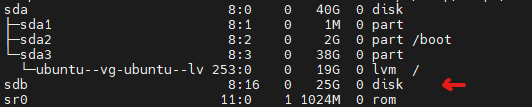 As seen in the image, the added disk appears as **/dev/sdb**. Example commands will proceed with **/dev/sdb**.
## Creating Partition on New Disk
```bash theme={null}
sudo fdisk /dev/sdb
```
Follow the steps below in the `fdisk` interface:
Press
As seen in the image, the added disk appears as **/dev/sdb**. Example commands will proceed with **/dev/sdb**.
## Creating Partition on New Disk
```bash theme={null}
sudo fdisk /dev/sdb
```
Follow the steps below in the `fdisk` interface:
Press n key and create a new partition.
Press p key to create a primary partition.
Type 1 to specify the partition number.
Press Enter key (twice) to accept all default settings.
Press w key to save changes.
## Creating Physical Volume
```bash theme={null}
sudo pvcreate /dev/sdb1
```
## Listing Volume Groups
```bash theme={null}
vgdisplay
```
 ## Adding New Disk to Existing Volume Group
You can use the following command to add the `/dev/sdb1` disk to the volume group in your system:
```bash theme={null}
sudo vgextend /dev/sdb1
```
## Listing Logical Volumes
```bash theme={null}
lvdisplay
```
## Adding New Disk to Existing Volume Group
You can use the following command to add the `/dev/sdb1` disk to the volume group in your system:
```bash theme={null}
sudo vgextend /dev/sdb1
```
## Listing Logical Volumes
```bash theme={null}
lvdisplay
```
 ## Expanding Logical Volume
To expand the logical volume named **ubuntu-lv** in the volume group named ubuntu-vg with 100% free space, you can run the following command:
```bash theme={null}
sudo lvextend -l +100%FREE /dev/ubuntu-vg/ubuntu-lv
```
## Expanding File System
```bash theme={null}
sudo resize2fs /dev/ubuntu-vg/ubuntu-lv
```
## Expanding Logical Volume
To expand the logical volume named **ubuntu-lv** in the volume group named ubuntu-vg with 100% free space, you can run the following command:
```bash theme={null}
sudo lvextend -l +100%FREE /dev/ubuntu-vg/ubuntu-lv
```
## Expanding File System
```bash theme={null}
sudo resize2fs /dev/ubuntu-vg/ubuntu-lv
```