> ## Documentation Index
> Fetch the complete documentation index at: https://docs.apinizer.com/llms.txt
> Use this file to discover all available pages before exploring further.
# Geographic Access Control Using Geolocation in Apinizer
> Blocking or allowing requests from specific cities using the geolocation feature
This document explains how to **block** or **allow** requests from specific cities using the **geolocation** (geographic location) feature on the Apinizer platform.
At the end of the work, we will display which cities these incoming requests come from through **Kibana Map**.
## 1) Providing Geolocation Data
To provide this data, you can use services such as [MaxMind](https://www.maxmind.com/), [IpGeolocation](http://ipgeolocation.io). These services allow you to download databases containing IP and city information.
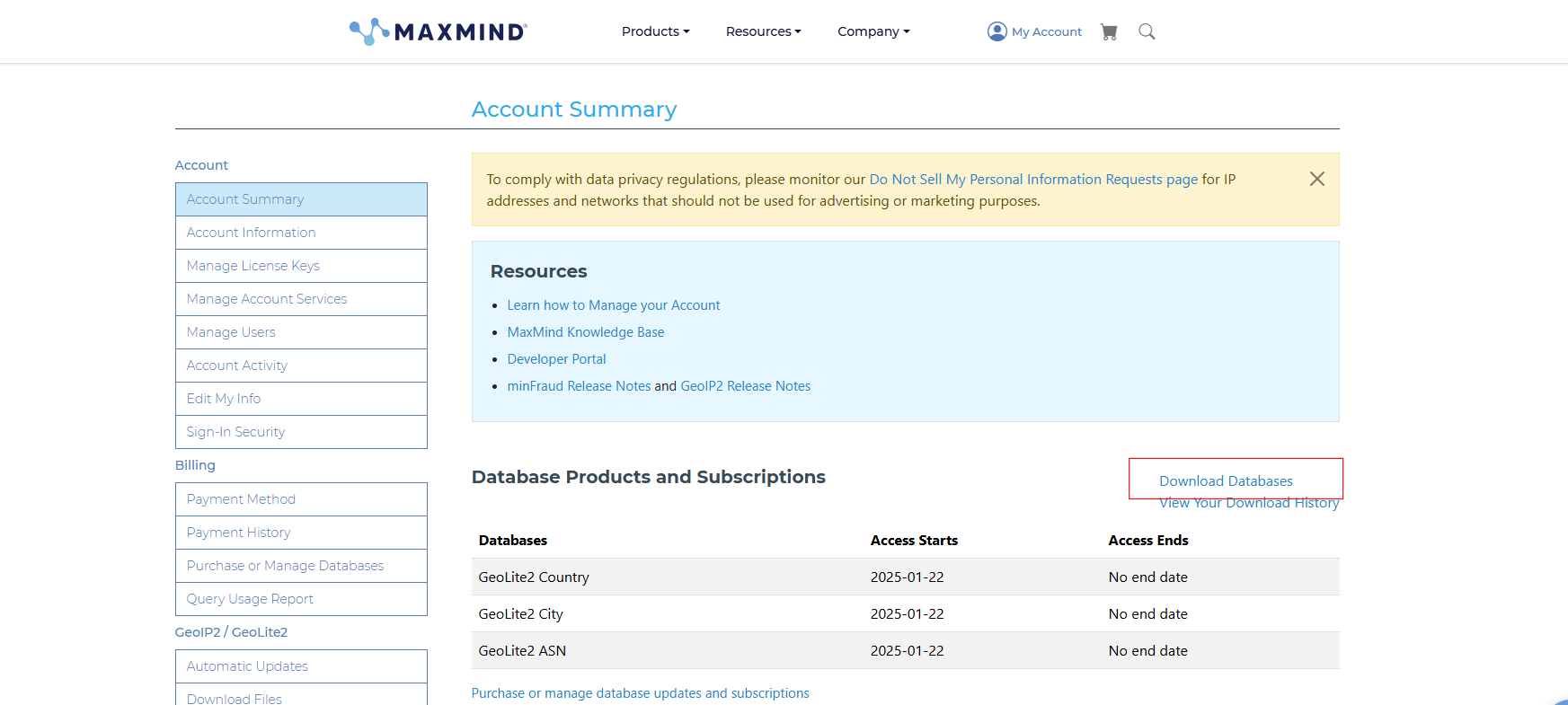
In this step, we will explain how to use the free **GeoLite2 City** **database** offered by **MaxMind** by downloading it.
Apinizer usually uses the client IP address to obtain **geolocation** data. The incoming IP address is queried through a database to determine which city the request comes from.
After completing the registration process on the page, we go to the red marked area specified below and download the zip file in the GeoLite2 City section, extract it, and obtain our .mmdb extension file:
 ## 2) Integration of Geolocation Database into Apinizer
The **.mmdb** extension file is added from the **Administration → System Settings → IP Geolocation Setting** page and deployed.
## 2) Integration of Geolocation Database into Apinizer
The **.mmdb** extension file is added from the **Administration → System Settings → IP Geolocation Setting** page and deployed.
 ## 3) Enabling XFF and Adding Allowed/Blocked IP List Policy
Through Apinizer, the real **IP** address of the **client** in requests can be **determined** using the **X-Forwarded-For (XFF)** header information.
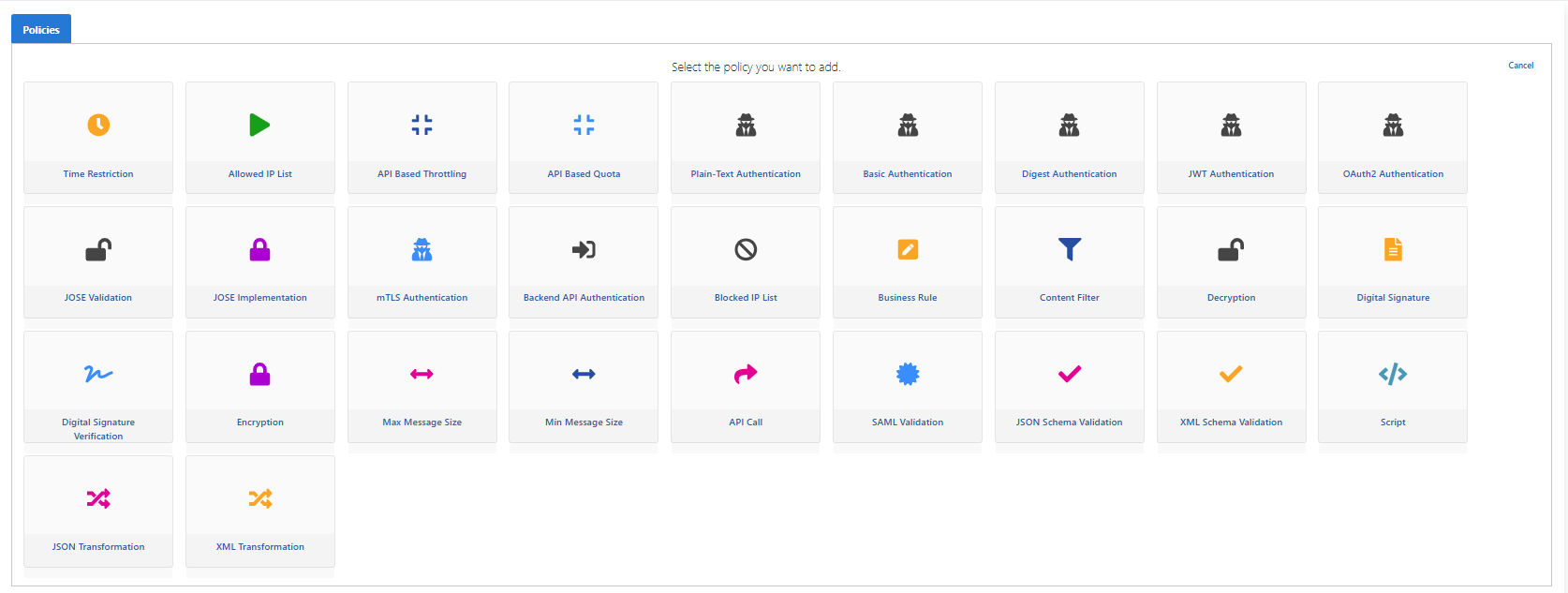
With the **Allowed IP** policy, requests from specific IP addresses or specific cities can be **allowed**. Using the **Blocked IP** policy, these requests can be **blocked**.
To use XFF information, you can enable it from the Settings tab in Proxy settings:
## 3) Enabling XFF and Adding Allowed/Blocked IP List Policy
Through Apinizer, the real **IP** address of the **client** in requests can be **determined** using the **X-Forwarded-For (XFF)** header information.
With the **Allowed IP** policy, requests from specific IP addresses or specific cities can be **allowed**. Using the **Blocked IP** policy, these requests can be **blocked**.
To use XFF information, you can enable it from the Settings tab in Proxy settings:
 Let's block requests coming from Istanbul by adding the Blocked IP List policy to this Proxy:
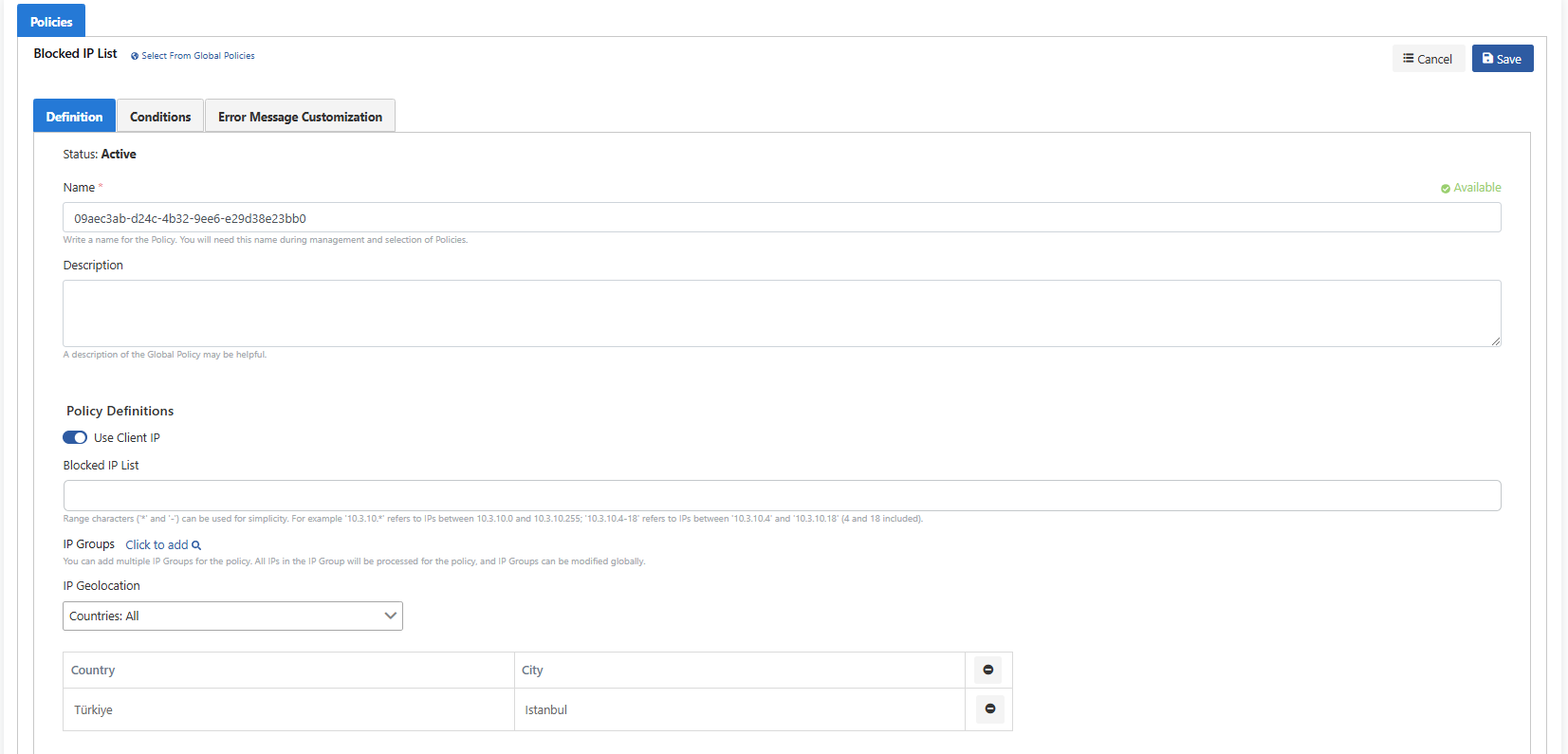
 Istanbul is selected from the IP Geolocation field and saved:
 ## 4) Access Blocking and Result
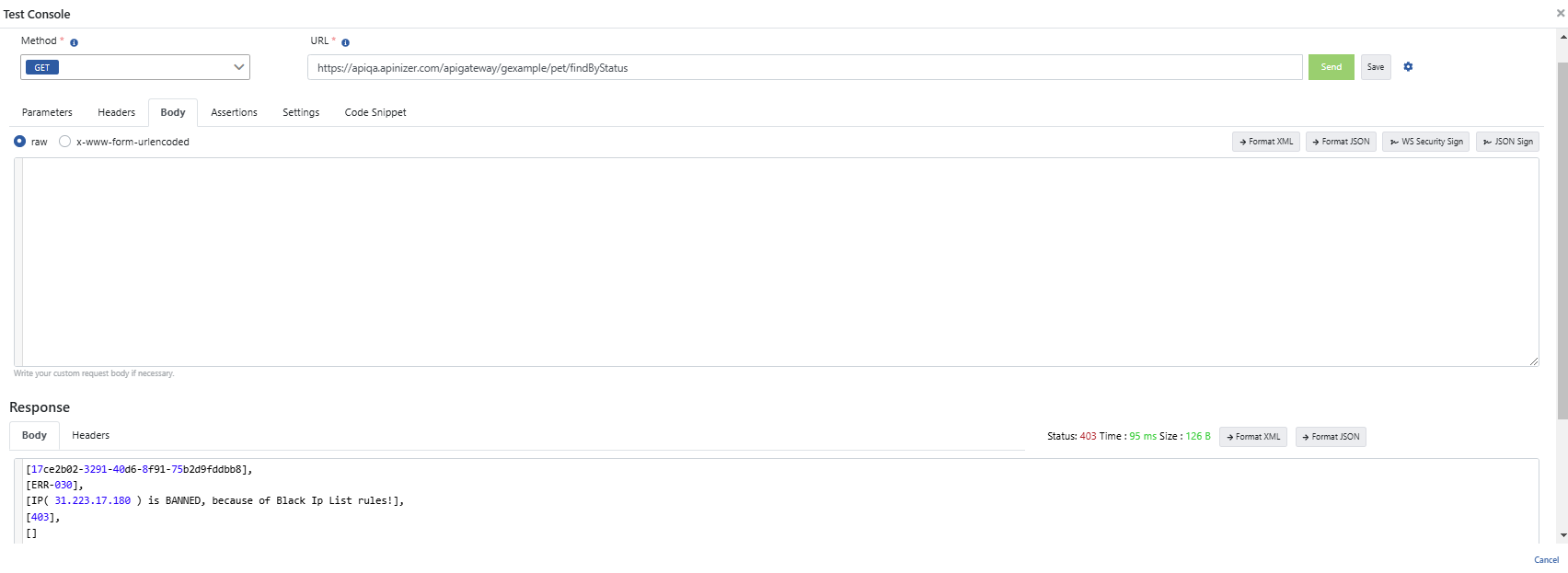
Access was blocked in a request made to the service with an IP address from Istanbul location:
## 4) Access Blocking and Result
Access was blocked in a request made to the service with an IP address from Istanbul location:
 ## Summary
1. We explained how to block requests coming from Istanbul on the Apinizer platform.
2. We downloaded the GeoLite2 City database offered by MaxMind and integrated this data into Apinizer.
3. We controlled requests from specific cities by determining the real IP addresses of clients using X-Forwarded-For (XFF) header information.
4. We selected Istanbul using Block Ip List policies to block requests coming from Istanbul and successfully blocked access from this city.
To visualize which cities incoming requests come from on Kibana, see the [Geographic Visualization with Kibana Maps](/en/operations/administrator-guides/kibana-maps-geographic-visualization) documentation.
## Summary
1. We explained how to block requests coming from Istanbul on the Apinizer platform.
2. We downloaded the GeoLite2 City database offered by MaxMind and integrated this data into Apinizer.
3. We controlled requests from specific cities by determining the real IP addresses of clients using X-Forwarded-For (XFF) header information.
4. We selected Istanbul using Block Ip List policies to block requests coming from Istanbul and successfully blocked access from this city.
To visualize which cities incoming requests come from on Kibana, see the [Geographic Visualization with Kibana Maps](/en/operations/administrator-guides/kibana-maps-geographic-visualization) documentation.