> ## Documentation Index
> Fetch the complete documentation index at: https://docs.apinizer.com/llms.txt
> Use this file to discover all available pages before exploring further.
# Geographic Visualization of Requests Coming to Apinizer with Kibana Maps
> Visualizing geolocation data on a map using Kibana Maps
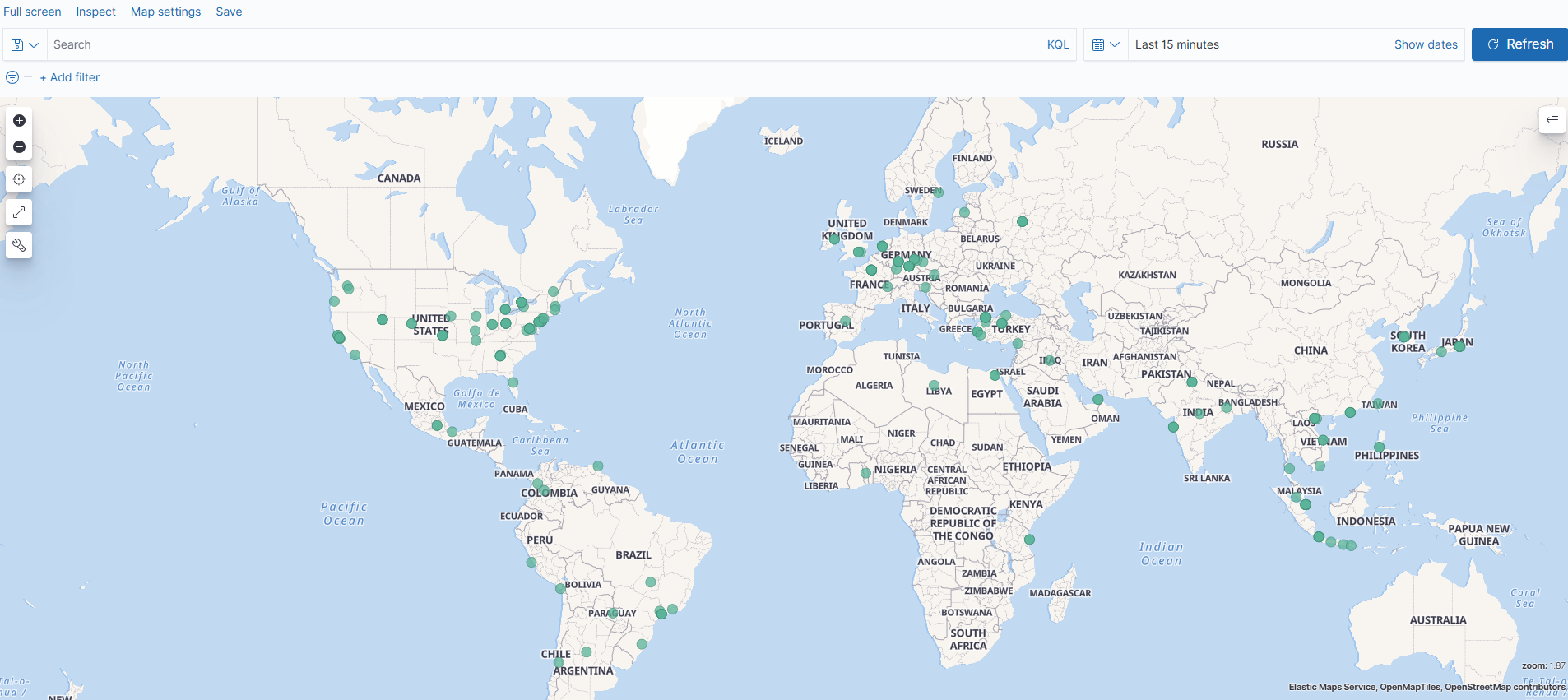
This document will explain how to visualize which cities requests come from on a map using the Kibana Maps feature for geolocation data used in Apinizer.
You can use the geolocation feature in Apinizer with version 2025. To use the geolocation feature, you can check the relevant documentation on the [Geolocation City-Based Access Control](/en/operations/administrator-guides/geolocation-city-based-access-control) page.
## 1) Geolocation Data Provided by Apinizer
In Apinizer, the geographic location data of incoming requests is represented in Elasticsearch in JSON format as follows.
```json theme={null}
{
"toClientBody": "[]",
"loc": {
"lat": 41.0,
"lon": 28.0
}
}
```
Lat (latitude) and lon (longitude) values are geographic coordinates used to determine the position of a point on Earth.
**For example:**
* Latitude: 41.0082° N, Longitude: 28.9784° E (Istanbul, Turkey)
* Latitude: 40.7128° N, Longitude: 74.0060° W (New York, USA)
## 2) Transferring Data to Kibana
### 2.1) Creating Index Pattern
In the step of transferring data to Kibana, Kibana **installation** and **integration** must be provided. For Kibana installation, you can check the relevant documentation on the [Kibana API Traffic Log Visualization](/en/tutorials/api-analytics-and-observability-scenarios/kibana-api-traffic-log-visualization) page.
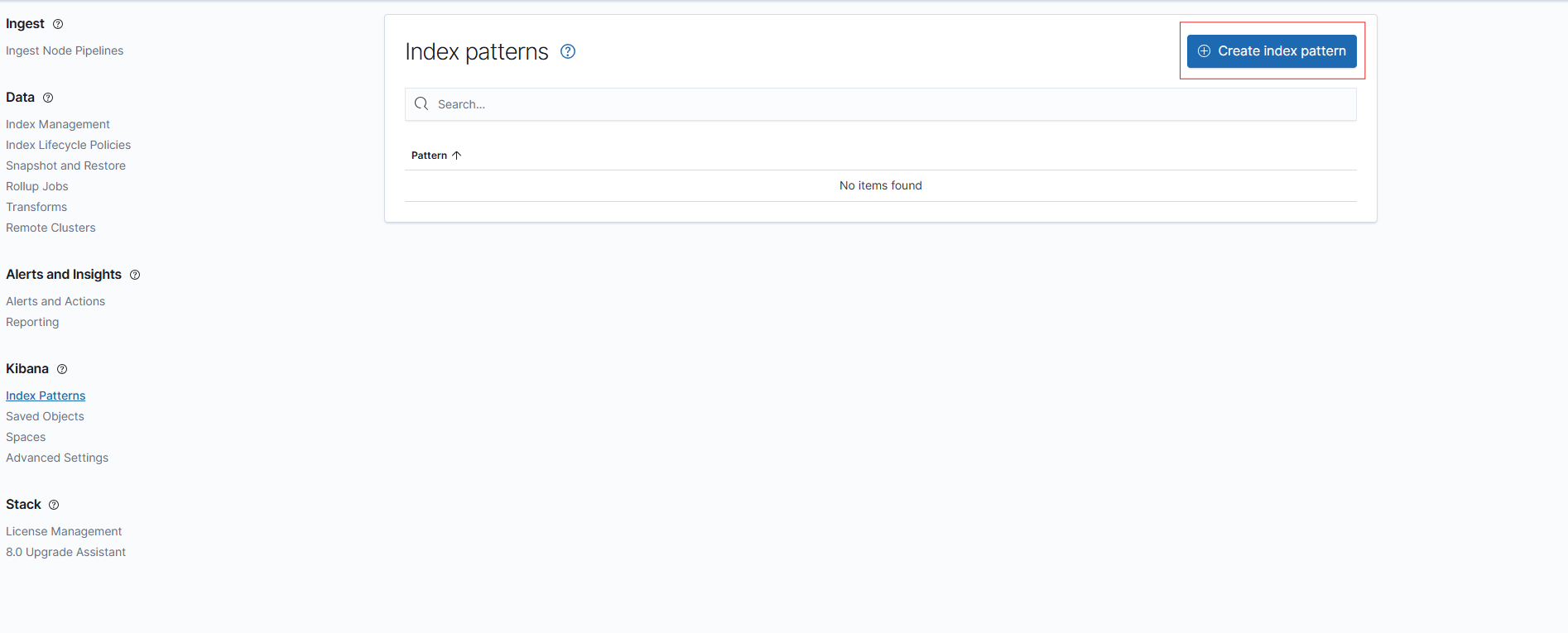
After installation, in Kibana, on the **Stack Management → Index Patterns** page, a new index pattern can be created from the '**Create Index Pattern**' section:
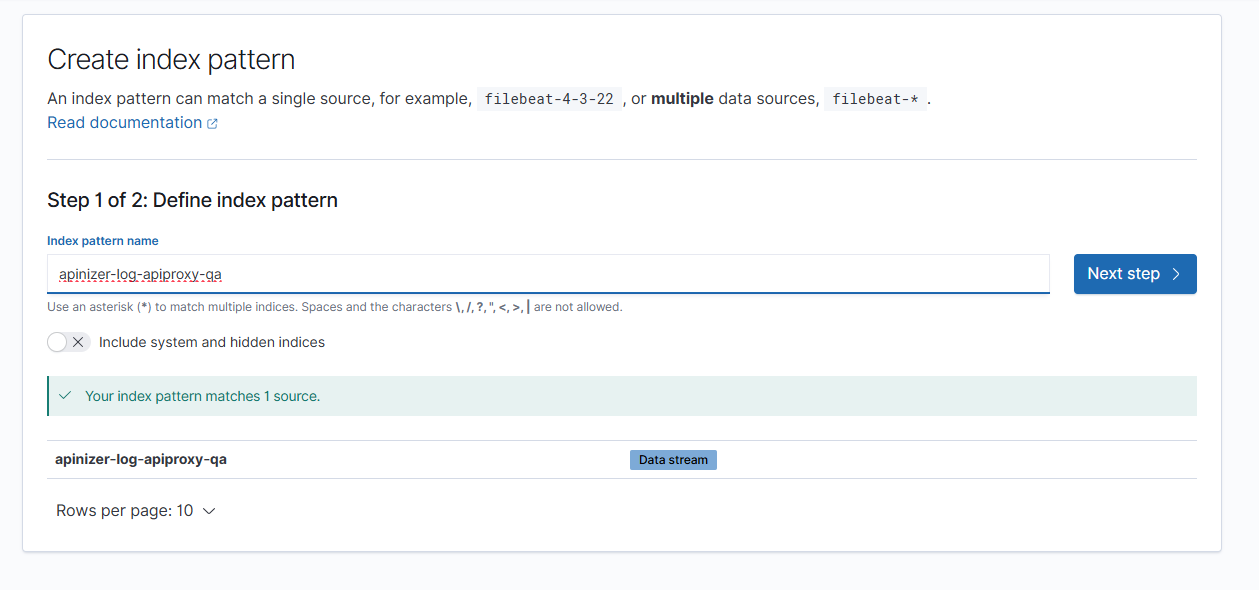
 The steps are completed by selecting the **data stream** used in Elasticsearch and the creation process is performed:
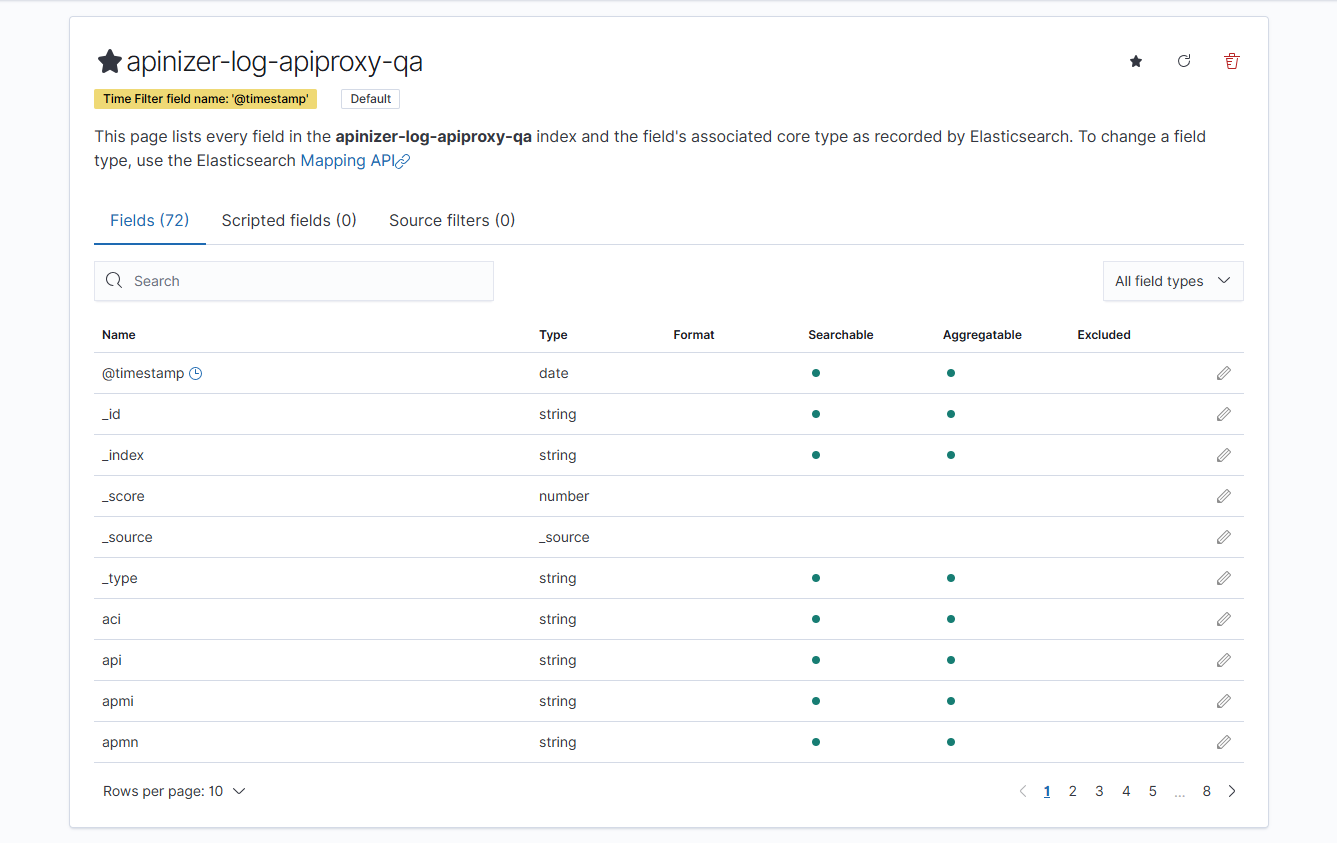
 After the creation process is completed, you can see the relevant fields (**fields**) on the page below:
 ### 2.2) Checking Existing Index Pattern
If Kibana was **previously installed** and **index pattern exists**, refresh the index you added to Kibana from the **Stack Management → Index Patterns** page below. You should check that the relevant value exists by writing **'loc'** in the search section.
### 2.2) Checking Existing Index Pattern
If Kibana was **previously installed** and **index pattern exists**, refresh the index you added to Kibana from the **Stack Management → Index Patterns** page below. You should check that the relevant value exists by writing **'loc'** in the search section.
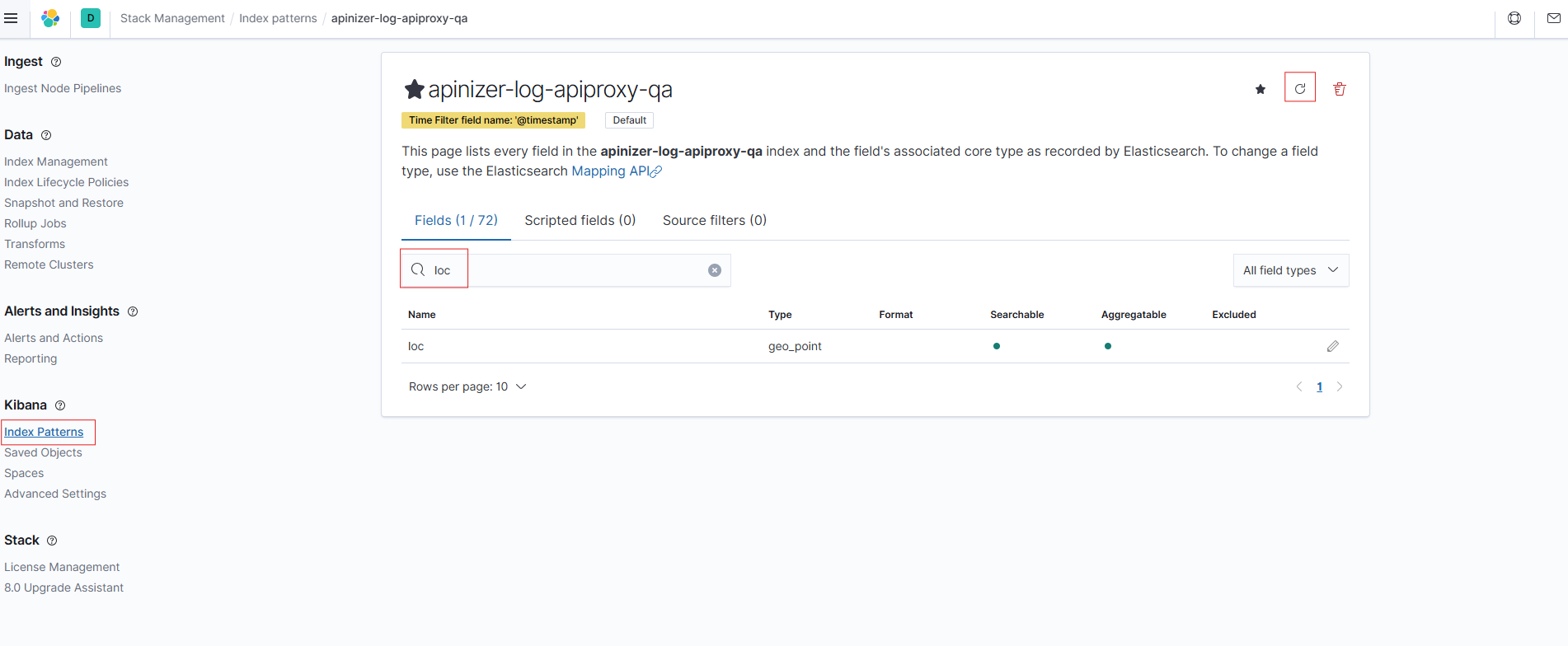 Kibana enables the **visualization** of incoming requests on a **map** using this **'loc'** data (**latitude and longitude**).
## 3) Adding Map Panel with Kibana Maps and Visualization
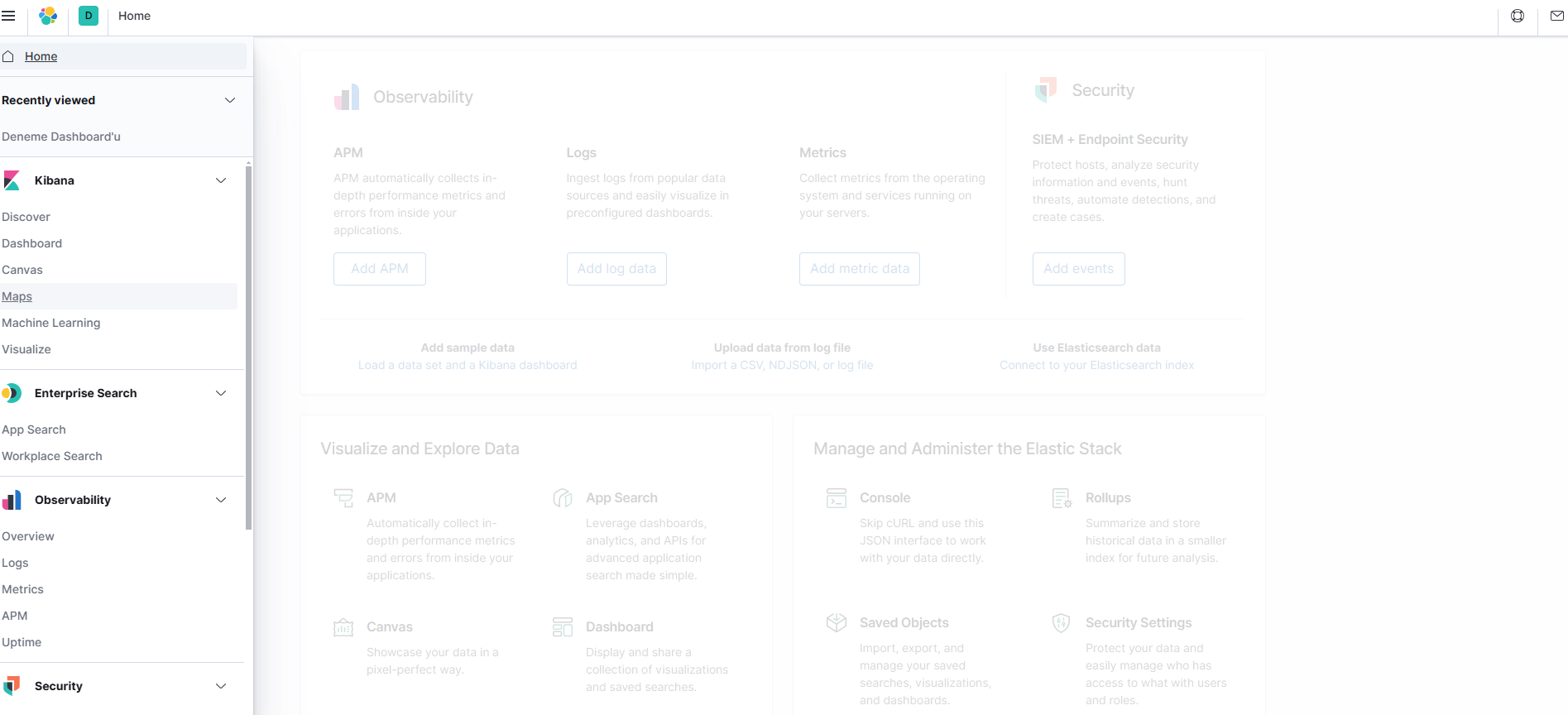
Click on the "**Maps**" tab in the left menu on the **Kibana** main page. This is the application you will use to create map visualizations:
Kibana enables the **visualization** of incoming requests on a **map** using this **'loc'** data (**latitude and longitude**).
## 3) Adding Map Panel with Kibana Maps and Visualization
Click on the "**Maps**" tab in the left menu on the **Kibana** main page. This is the application you will use to create map visualizations:
 Click the **Add layer** button. Prefer the **Documents** option:
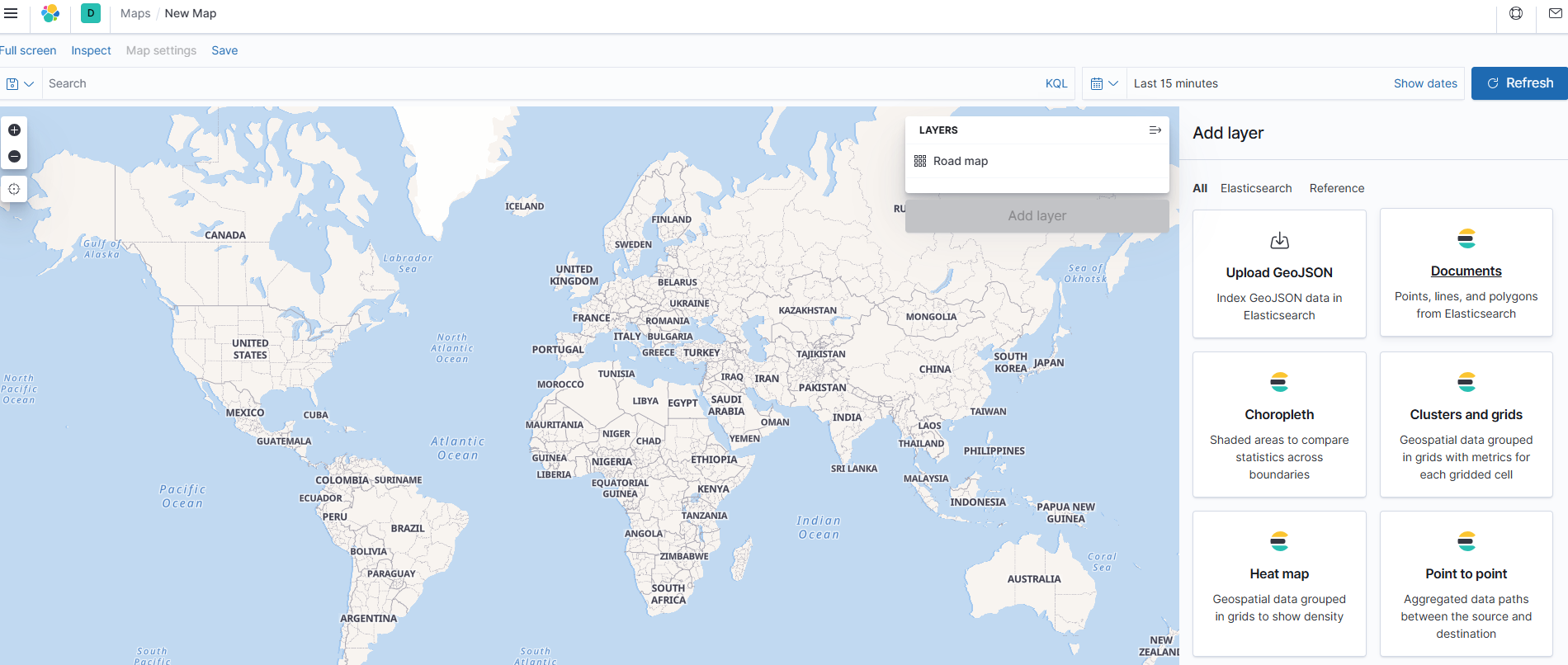 After selecting the index pattern, the 'loc' field will be automatically selected. Then, click the '**Add layer'** button to **add** the layer, **name** it and **save** it:
 ## 4) Result
In this document, after the **IP information of requests coming to Apinizer is converted to geographic data** and sent to Elasticsearch, it was explained step by step how to **visualize** which cities requests come from using **Kibana Maps**.
Thanks to this structure, user accesses can be analyzed on a city basis.
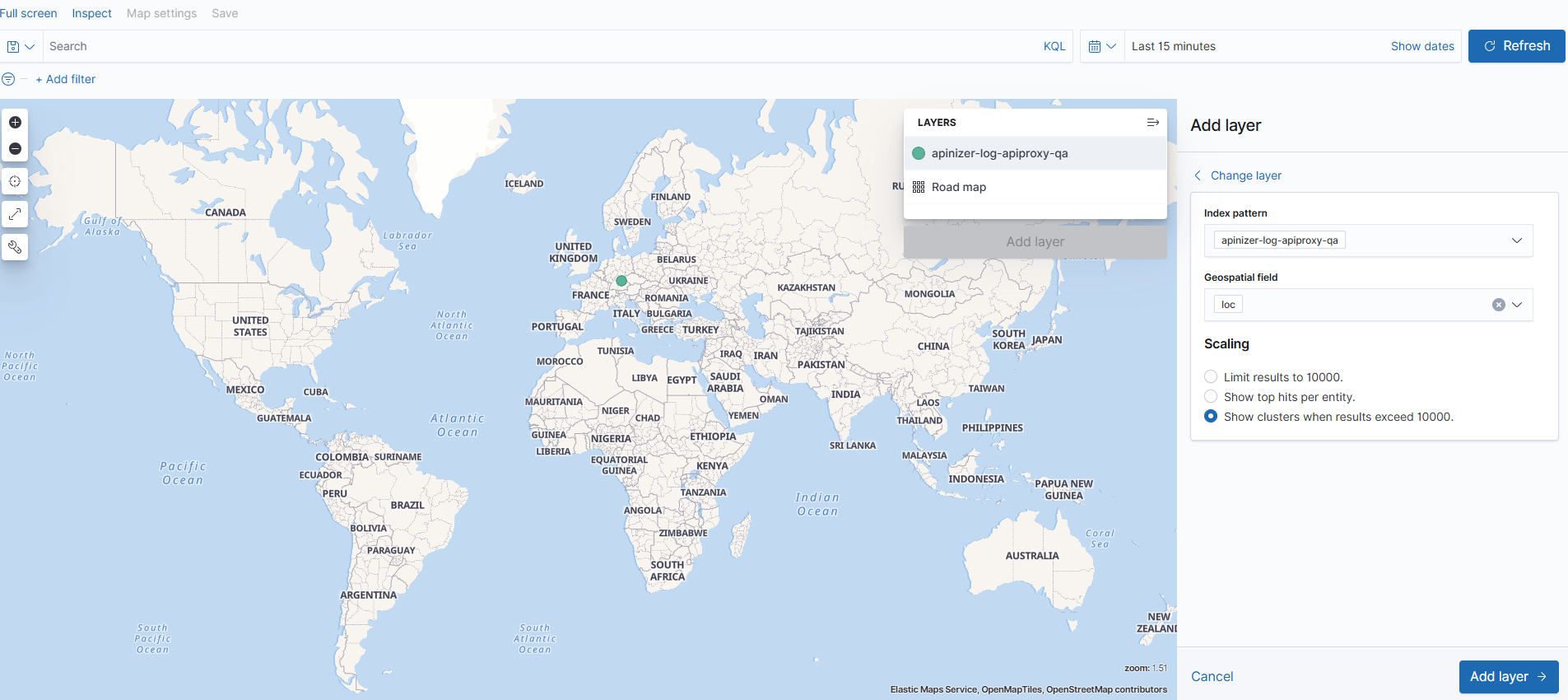
Incoming requests on the map will be shown with **green markers**:
## 4) Result
In this document, after the **IP information of requests coming to Apinizer is converted to geographic data** and sent to Elasticsearch, it was explained step by step how to **visualize** which cities requests come from using **Kibana Maps**.
Thanks to this structure, user accesses can be analyzed on a city basis.
Incoming requests on the map will be shown with **green markers**: