

Task-1: Reading data with API Call connector
1
Add API Call task
Click the API Call option from the dialog listing tasks.
2
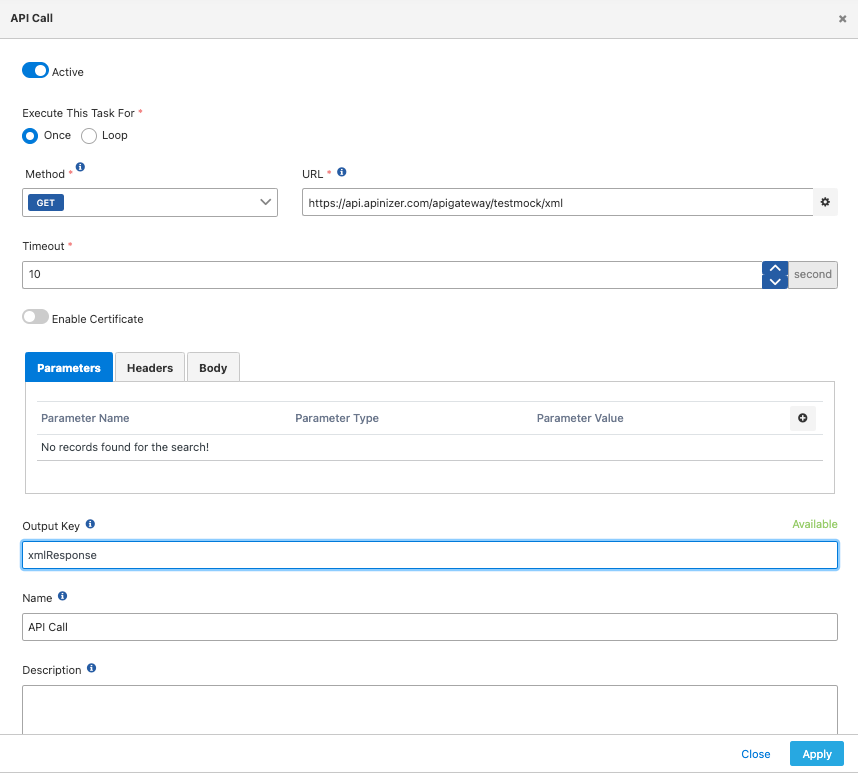
Select Once mode
Select the “Once” option to indicate that the task will run once.
3
Enter API access information
Enter the relevant API access information where data reading will be performed.
4
Set output key information
To use the data returned from the API in the next task, set the output key information to “xmlResponse”. (You can name this value as you wish.)
Task-2: Sending data to API with API Call connector
1
Add API Call task
Click the API Call option from the dialog listing tasks.
2
Select Loop mode
Select the “Loop” option to indicate that work will be done in a loop on the array data from the previous task.
3
Specify XPath
Write as XPath which part of the output key information value entered in the previous task (“xmlResponse”) should be processed as an array.When writing XPath, add the ”#/” sign to the key information (“xmlResponse”) to indicate that XML operations will be performed on the previous data. Then enter the path where the array elements are located as XPath. In this case, for this example, the following should be written in the XPath field:
4
Enter target API access information
Enter the relevant API access information where the data will be sent.
5
Enter template message information
Enter the template message information you want to send. If you want to use the values of elements in the loop within the template message information, add the relevant data within the element to the template using the “LOOP_VARIABLE” expression. Along with LOOP_VARIABLE, the XPath information to access the XML data within the element indicated as the target for the loop must be entered.

{{xmlResponse#/root/users/user}} is executed on the xmlResponse data returned from the previous task, 3 elements are returned, indicating that this task will run 3 times.
In the first run, the LOOP_VARIABLE value will contain the following XML.