

Checking Disks
To list disks in the system: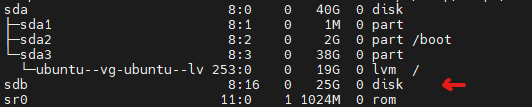
Creating Partition on New Disk
fdisk interface:
1
Add New Partition
Press
n key and create a new partition.2
Select Type
Press
p key to create a primary partition.3
Enter Partition Number
Type
1 to specify the partition number.4
Use Default Settings
Press
Enter key (twice) to accept all default settings.5
Write and Exit
Press
w key to save changes.Creating Physical Volume
Listing Volume Groups

Adding New Disk to Existing Volume Group
You can use the following command to add the/dev/sdb1 disk to the volume group in your system:
Listing Logical Volumes
