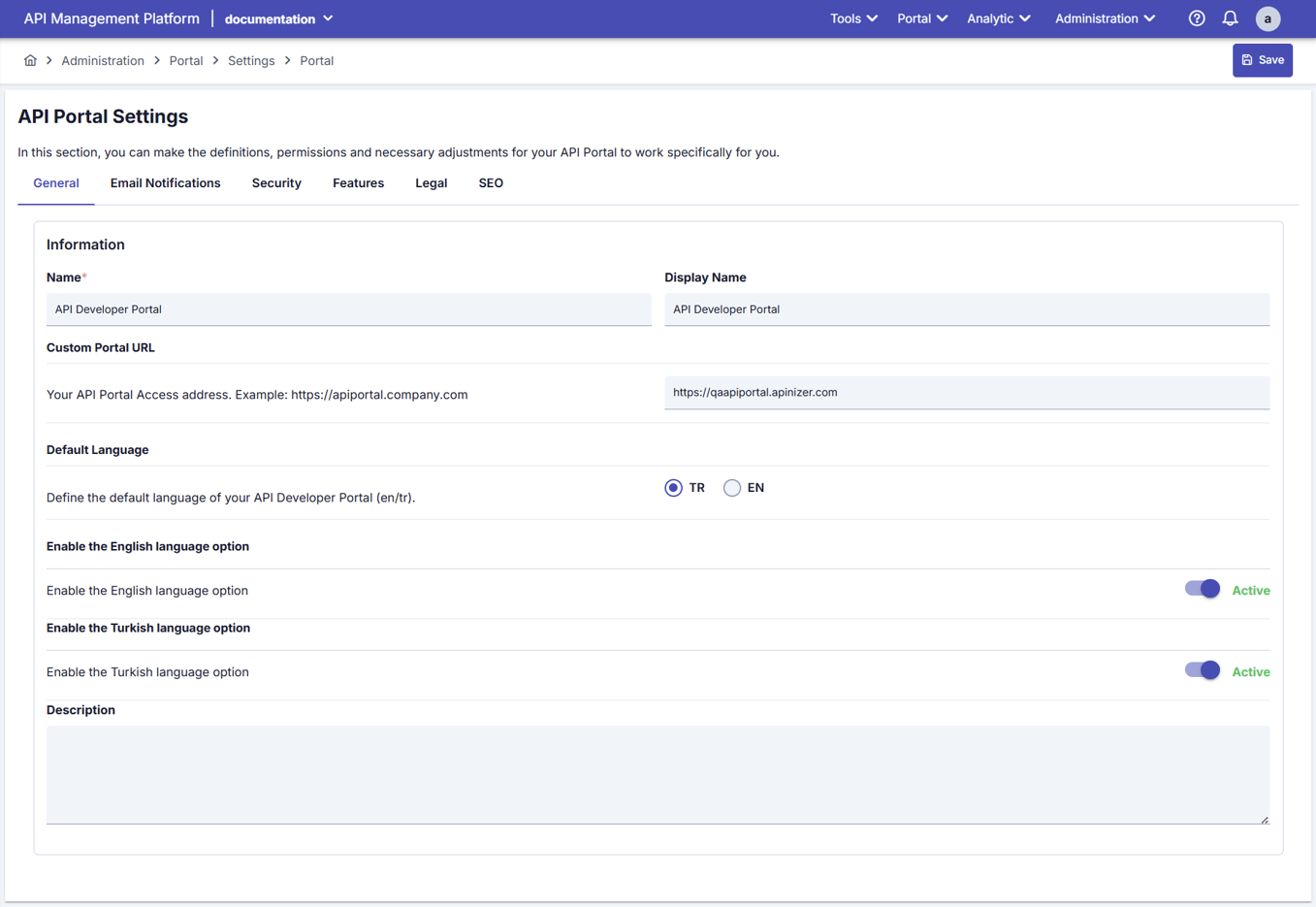
Portal Settings

Portal Settings

Portal Settings controls the basic settings and behaviors of the portal. Portal Appearance controls visual elements (logo, colors, HTML content).

General Settings

Portal Settings

Portal Settings

The fields used for Portal Settings configuration are shown in the table below.
Multi-Language Mode

Multi-Language Mode

When both Turkish Language Option and English Language Option are enabled in Portal settings, the system automatically switches to Multi-Language mode. If the Multi-Language feature is activated from Portal Settings, Interface and form fields are displayed in both English and Turkish, and separate data entry can be made for each language.

Email Notifications

Automatic emails sent to users from the Portal are configured in this tab. Automatic emails are sent for user registration, approval, rejection, API subscription, etc.
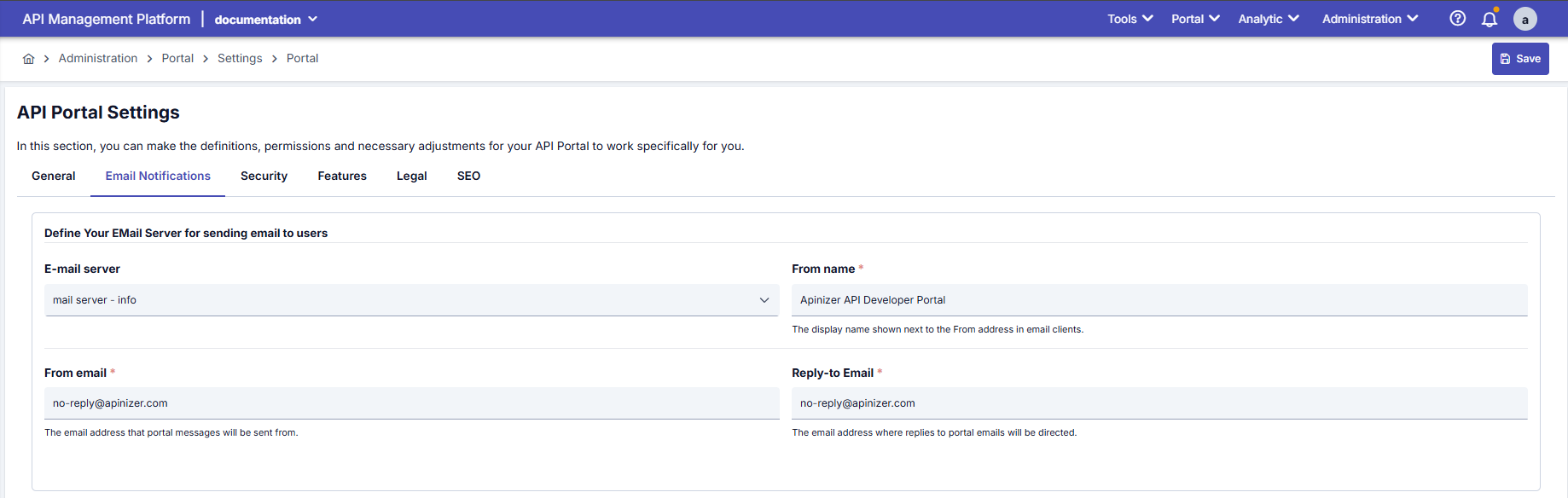
Email Settings

Email Settings

The fields used for Email Settings are shown in the table below.

Email Templates

There are 8 different email types sent automatically from the Portal. Each can be customized separately. Templates and their usage purposes are explained in the table.

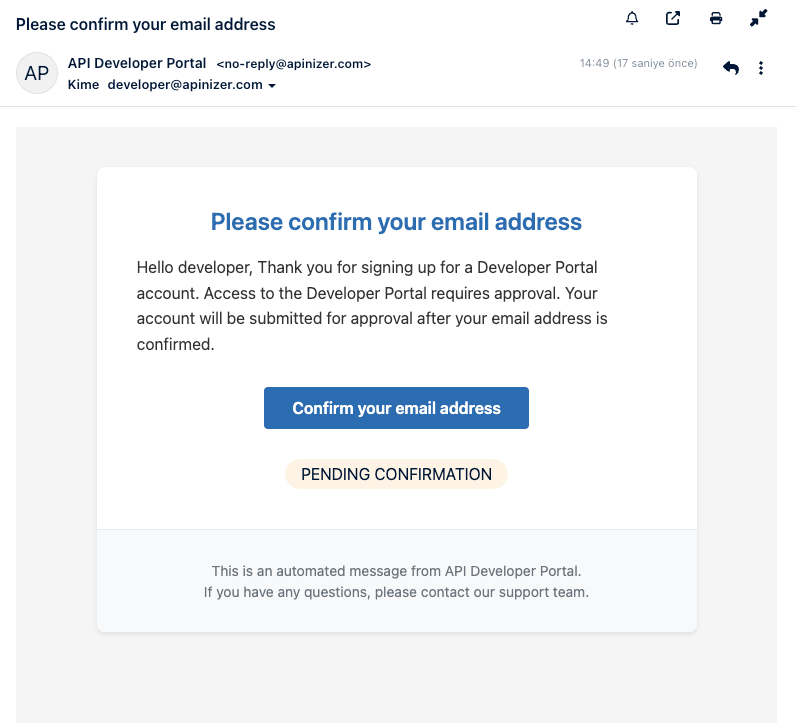
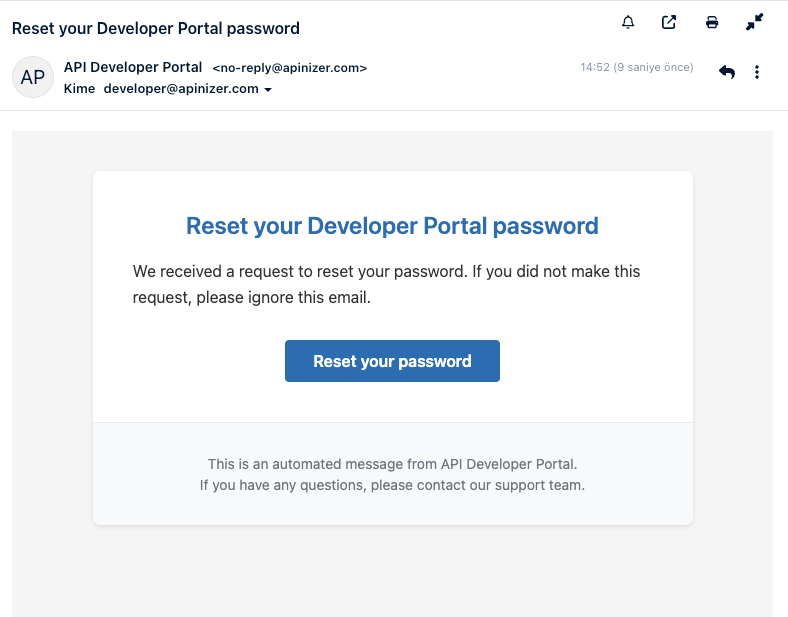
Email Template Images

Confirm Email

Confirm Email

Welcome Email

Welcome Email

Reset Password Email
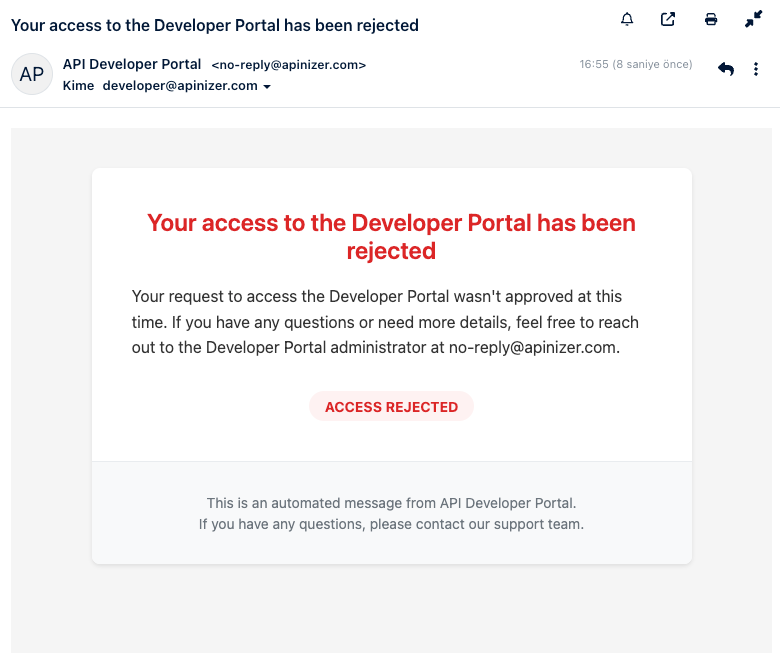
Reset Password Email

Account Rejected Email

Account Rejected Email

Account Revoked Email

Account Revoked Email

App Approved Email

App Approved Email

App Rejected Email
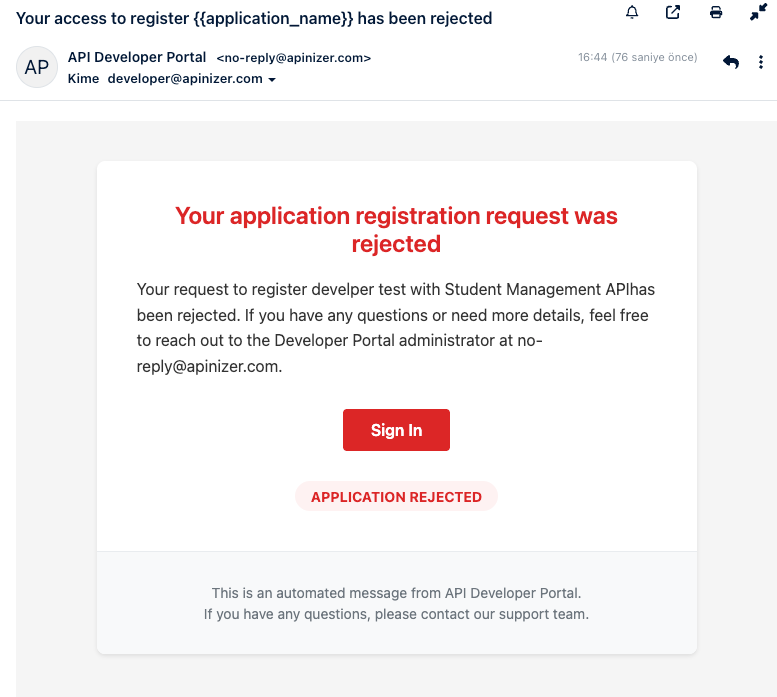
App Rejected Email

App Revoked Email
App Revoked Email

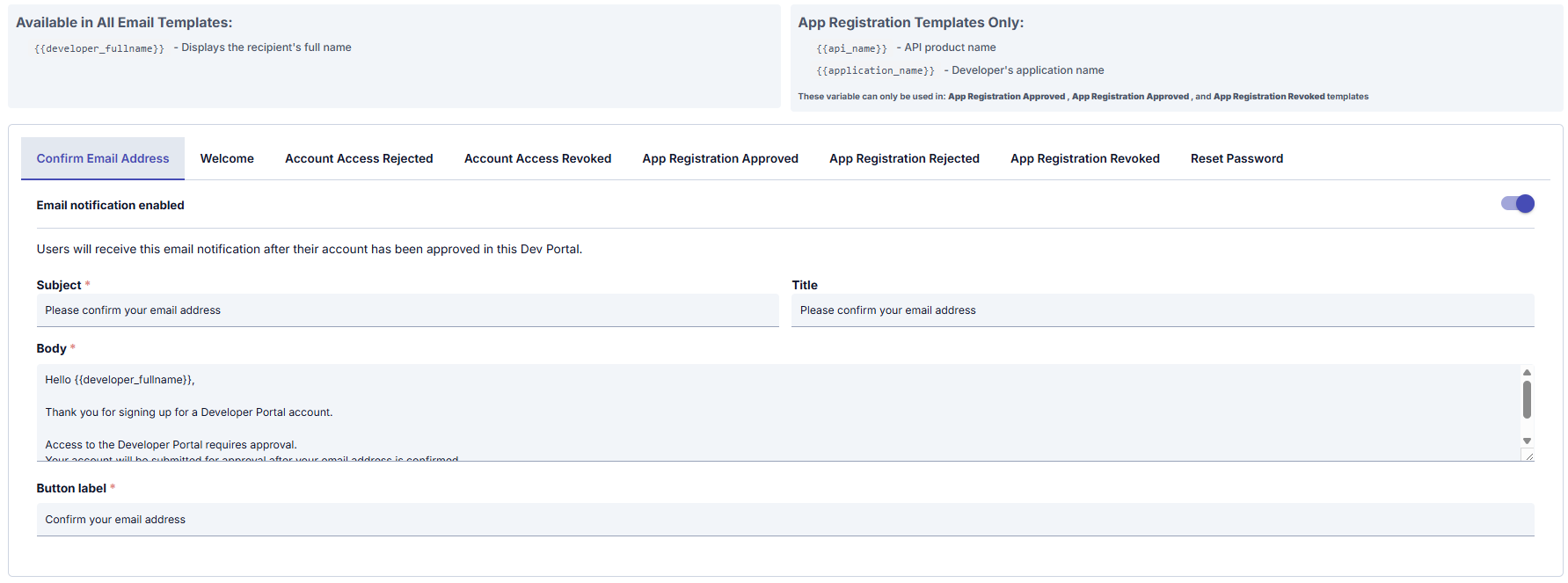
The template shown in the image below should be used for Confirm email address, Welcome, Account Access Rejected, Account Access Revoked, App Registration approved, App Registration Rejected, App Registration Revoked, and Password Reset emails.
Email Template

Email Template

In All Email Templates:
  • If “{{developer_fullname}}” is used in the email template → The name of the user who will receive the notification is automatically written in that place. This way, personalized addressing is provided in sent emails
In App Registration Approved , App Registration Approved and App Registration Revoked Email templates:
  • API product name
  • Developer’s application name
  • If “{{api_name}}” is used in the email template → The name of the API product related to the notification is automatically written in that place.
  • If “{{application_name}}” is used in the email template → The name of the application related to the notification is automatically written in that place.
This way, the user sees which API the notification they received is for. If they have multiple applications, they can easily understand which application the notification is about. The fields used for Email Settings configuration are shown in the table below.

Security

Privacy settings to be used on the API Developer Portal side are managed through this screen.
Security Settings

Security Settings

The fields used for Security Settings configuration are shown in the table below.

Features

Features to be used on the API Developer Portal side are managed through this screen.
Features Settings

Features Settings

The fields used for Feature Settings configuration are shown in the table below. Legal settings to be used on the API Developer Portal side are managed through this screen.
Legal Settings

Legal Settings

The field used for Legal Settings configuration is shown in the table below.

SEO

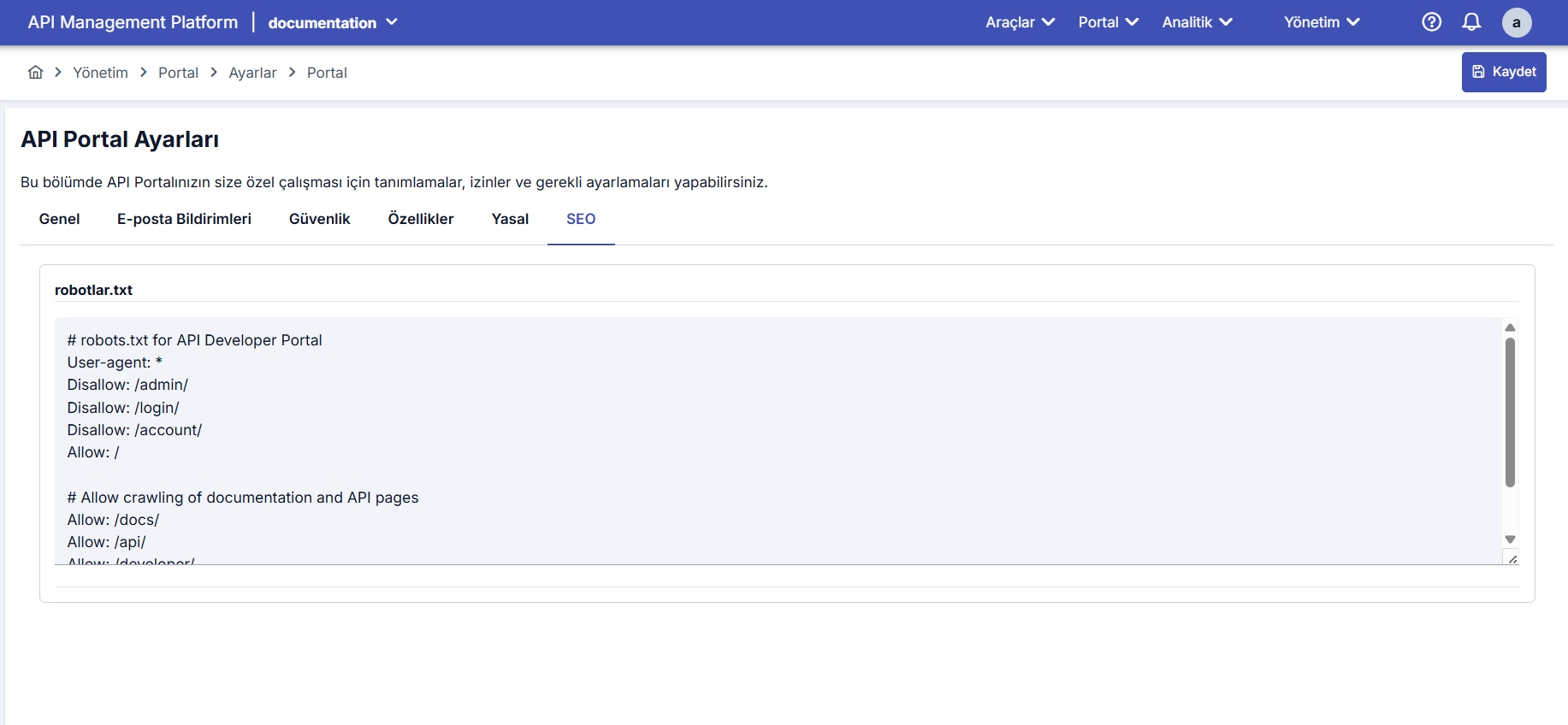
SEO settings to be used on the API Developer Portal side are managed through this screen.
SEO Settings

SEO Settings

The field used for SEO Settings configuration is shown in the table below.