Creating Certificates, Keystore and Truststore for MTLS (Mutual TLS)
To run keytool commands, you must be in the path where Java is installed or Java’s bin directory must be defined in your environment variables.It is recommended that you use Java version 1.8.400 or later for private keys to be created correctly.
If Apinizer is behind NGINX or a different Load Balancer, or if SSL offloading is done by the firewall, certificates cannot reach Apinizer, so settings must be made in these tools for certificates to pass to Apinizer.
Step 1: Creating CA Certificate and Key
The CA certificate is used to sign both client and server certificates. This ensures that both parties can verify each other.
If you have a CA Certificate, you can continue from Step 2.
openssl genpkey -algorithm RSA -out ca-key.pem
openssl req -x509 -new -nodes -key ca-key.pem -sha256 -days 365 -out ca-cert.pem -subj "/C=US/ST=California/L=San Francisco/O=MyOrg/OU=MyDept/CN=MyRootCA"
ca-key.pem: CA private keyca-cert.pem: CA certificate
Step 2: Creating Keystore and Certificate for Server
The server needs its own certificate to be verified by the client. This certificate must be signed by the CA.
If you have already created server Keystore and Truststore values, you do not need to repeat this step for new clients. In this case, you can continue from step 3.
openssl req -new -newkey rsa:2048 -nodes -keyout server-key.pem -out server.csr -subj "/C=US/ST=California/L=San Francisco/O=MyOrg/OU=MyDept/CN=server"
openssl x509 -req -in server.csr -CA ca-cert.pem -CAkey ca-key.pem -CAcreateserial -out server-cert.pem -days 365 -sha256
openssl pkcs12 -export -out server-keystore.pfx -inkey server-key.pem -in server-cert.pem -certfile ca-cert.pem -passout pass:changeit
server-key.pem: Server private keyserver.csr: Server CSRserver-cert.pem: Server certificateserver-keystore.pfx: Server keystore file (in PFX format)
Step 3: Creating Keystore and Certificate for Client
The client needs its own certificate to be verified by the server. This certificate must be signed by the CA.
If you are doing these operations on the server side, you need to share your CA certificate with your client so that this step can be performed by your client.
openssl req -new -newkey rsa:2048 -nodes -keyout client-key.pem -out client.csr -subj "/C=US/ST=California/L=San Francisco/O=MyOrg/OU=MyDept/CN=client"
openssl x509 -req -in client.csr -CA ca-cert.pem -CAkey ca-key.pem -CAcreateserial -out client-cert.pem -days 365 -sha256
openssl pkcs12 -export -out client-keystore.pfx -inkey client-key.pem -in client-cert.pem -certfile ca-cert.pem -passout pass:changeit
client-key.pem: Client private keyclient.csr: Client CSRclient-cert.pem: Client certificateclient-keystore.pfx: Client keystore file (in PFX format)
Step 4: Creating TrustStore
TrustStore is used to verify the certificates of the other party. Both the server and client sides must have the CA certificate.
Import CA certificate into server truststore (If you have done this before, you can skip this step. This operation will be done once on the server side, do not repeat for each client! )
keytool -importcert -file ca-cert.pem -alias ca-cert -keystore server-truststore.pfx -storetype PKCS12 -storepass changeit -noprompt
keytool -importcert -file ca-cert.pem -alias ca-cert -keystore client-truststore.pfx -storetype PKCS12 -storepass changeit -noprompt
server-truststore.pfx: Server truststore file (in PFX format)client-truststore.pfx: Client truststore file (in PFX format)
Summary
“As a result of these steps, we have the following files:”
On the CA Side, “the following files to be used to sign client and server certificates were created:”
ca-key.pem: CA private keyca-cert.pem: CA certificate
On the Server Side: private key and CSR were created for the server. CSR was signed by the CA and server certificate was obtained. This certificate and private key were converted to server keystore file (server-keystore.pfx):
server-key.pem: Server private keyserver.csr: Server CSRserver-cert.pem: Server certificateserver-keystore.pfx: Server keystore file (in PFX format)server-truststore.pfx: Server truststore file (in PFX format)
On the Client Side: own private key and CSR were created for the client. CSR was signed by the CA and client certificate was obtained. This certificate and private key were converted to client keystore file (client-keystore.pfx).
client-key.pem: Client private keyclient.csr: Client CSRclient-cert.pem: Client certificateclient-keystore.pfx: Client keystore file (in PFX format)client-truststore.pfx: Client truststore file (in PFX format)
Setting Up Client Certificate for Apinizer
After these operations are completed, the user-truststore.pfx file is created for the client’s certificate to be verified in Apinizer and added to Apinizer from the KeyStores screen.
keytool -import -trustcacerts -file client-cert.pem -keypass password -storepass changeit -keystore user-truststore.pfx -deststoretype pkcs12
The .p12 and .pfx extensions actually specify the same file format - PKCS#12. PKCS#12 is a file format that typically contains a server certificate, associated private key, and optionally any intermediate certificates..pfx is generally used on Windows platform, while .p12 is generally used on Unix or Linux-based systems. However, there is no difference between these two file extensions and you do not need to perform any operation to convert one extension to another.
- The following command can be used to convert p12 format to jks:
keytool -importkeystore -srckeystore serverkeystore.pfx -srcstoretype pkcs12 -destkeystore serverkeystore.jks -deststoretype jks
- The following command can be used to convert jks format to pfx/p12:
keytool -importkeystore -srckeystore serverkeystore.jks -srcstoretype jks -destkeystore serverkeystore.pfx -deststoretype pkcs12
Uploading Created User Truststore to Apinizer
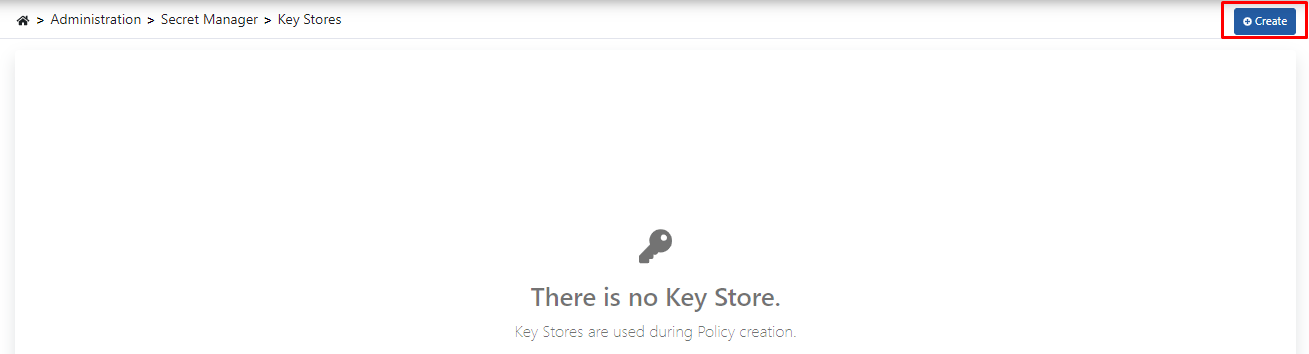
Click the Create button from the Key Stores screen.
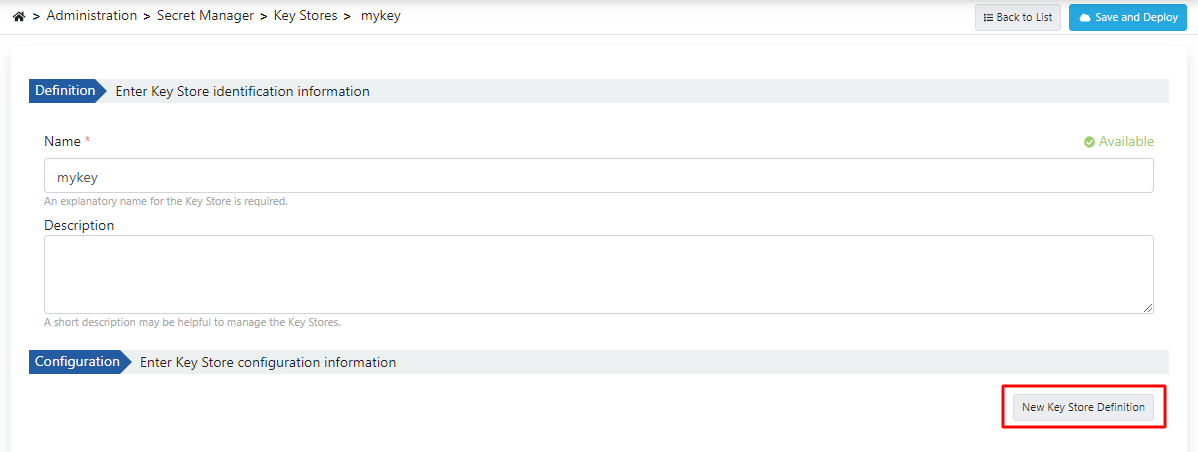
 Click the New Key Store Definition button from the opened screen.
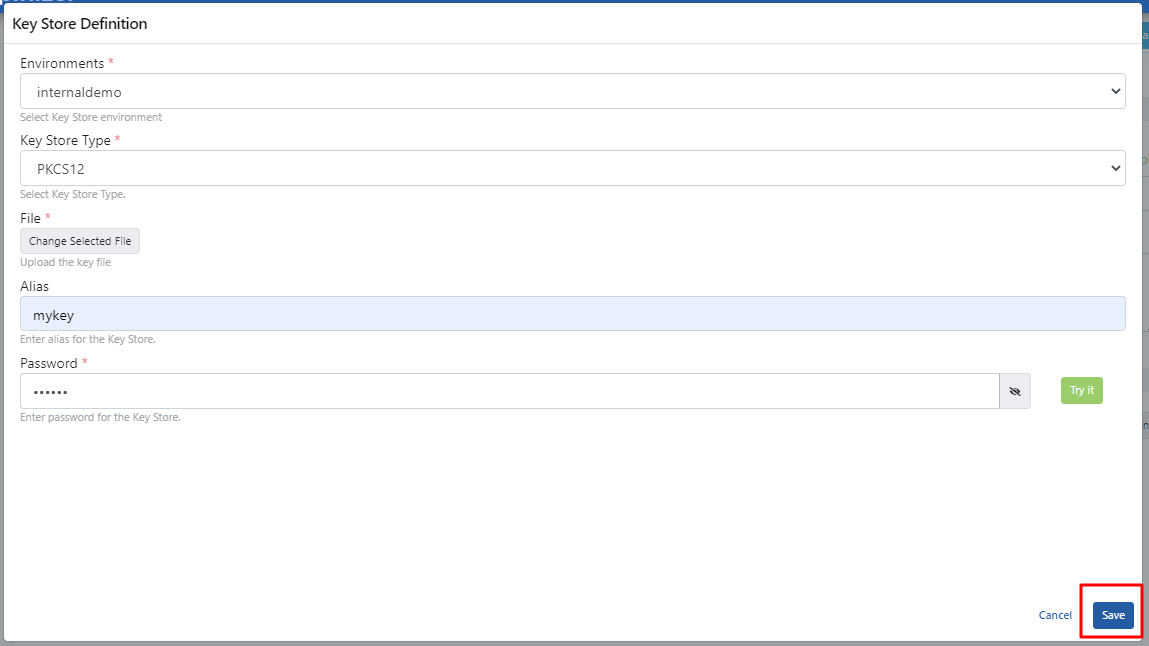
 Select the created user-truststore.pfx file, enter the necessary information, and click the Save button.
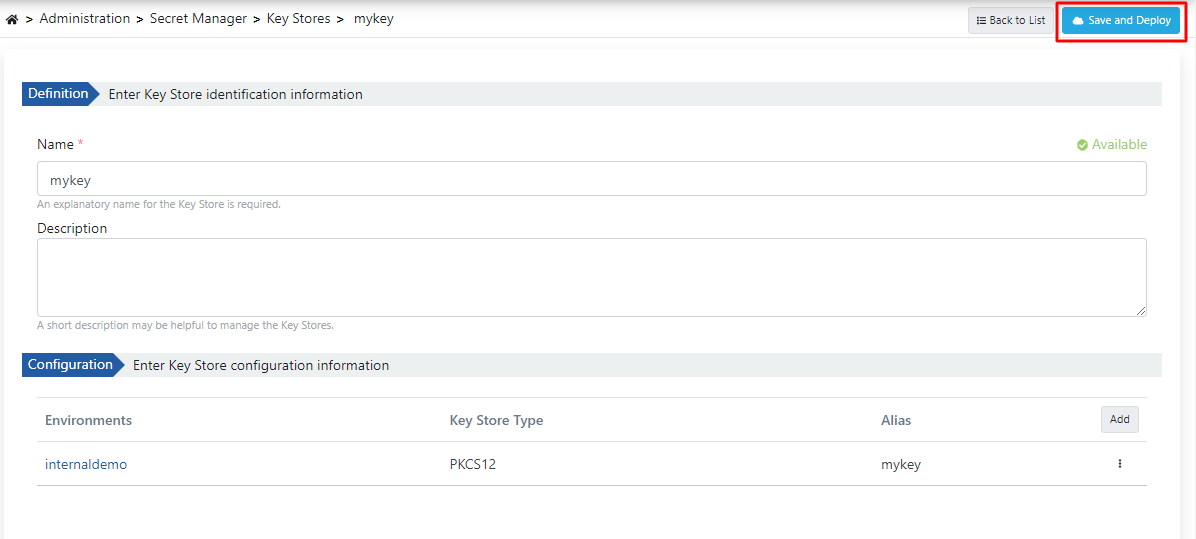
 Click the Save and Deploy button to save the client keystore.
Making Necessary Settings on Apinizer Environments
For the mTLS policy to be usable, SSL Offloading must be done on Apinizer Environment’s and the mTLS option must be selected.
For this, the HTTPS Enabled option and the mTLS options that come with it are activated on the Gateway Environment’s deployment settings.
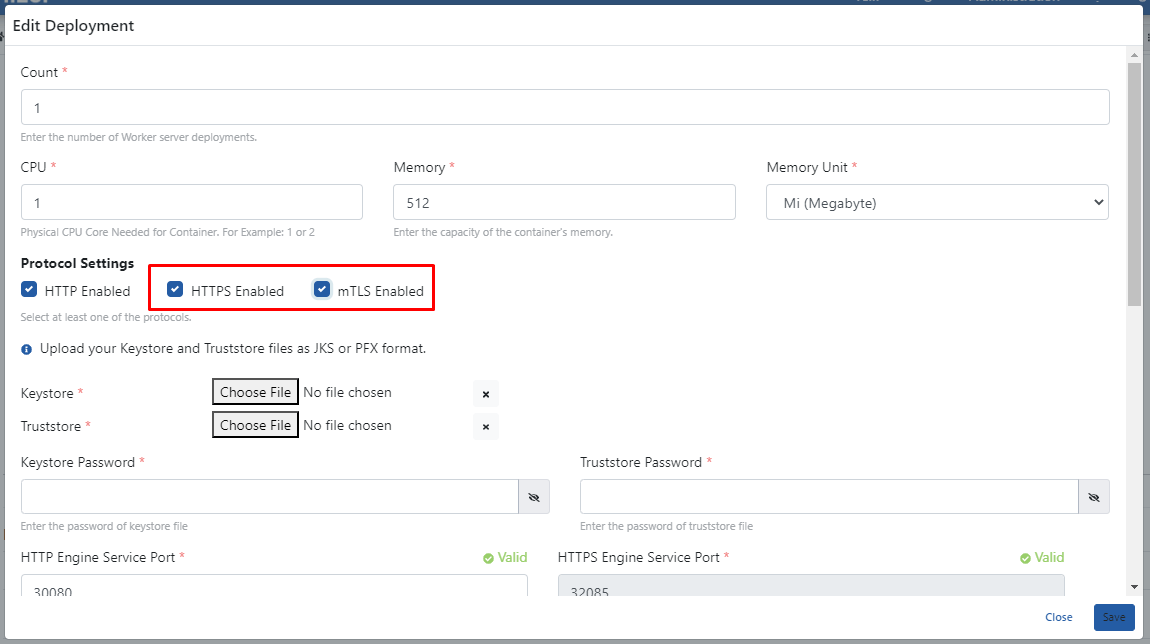 The created server-keystore.pfx and server-truststore.pfx files are added. Password information is entered. Click the Save button.
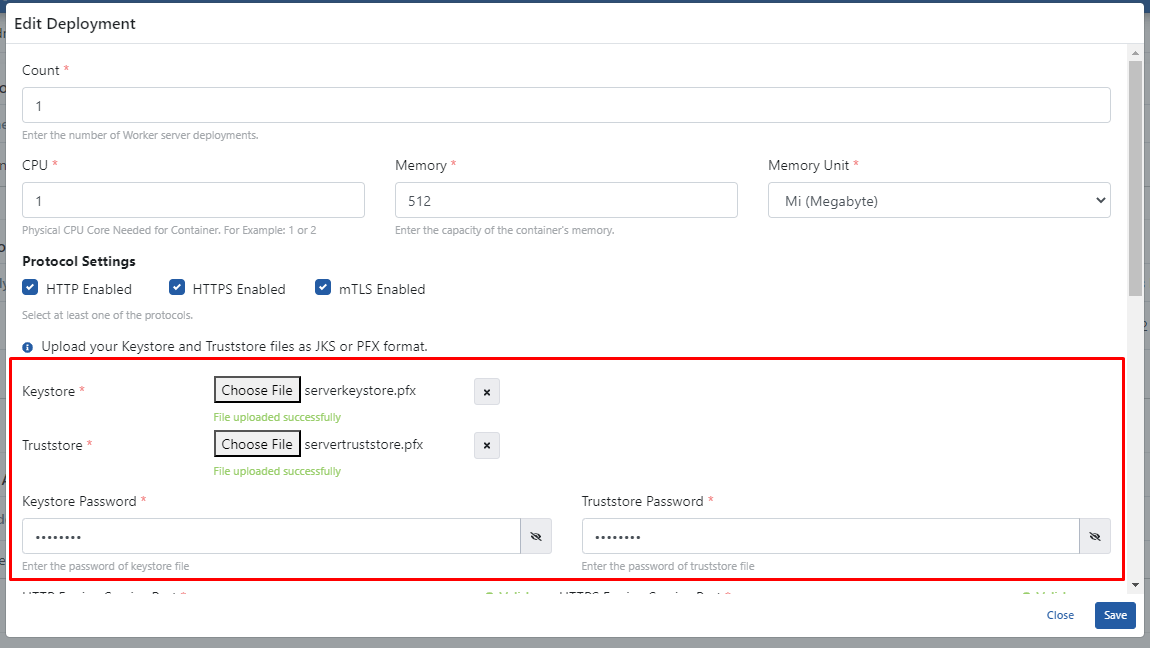 After saving, Republish is required.

Adding mTLS Authentication Policy to API Proxy
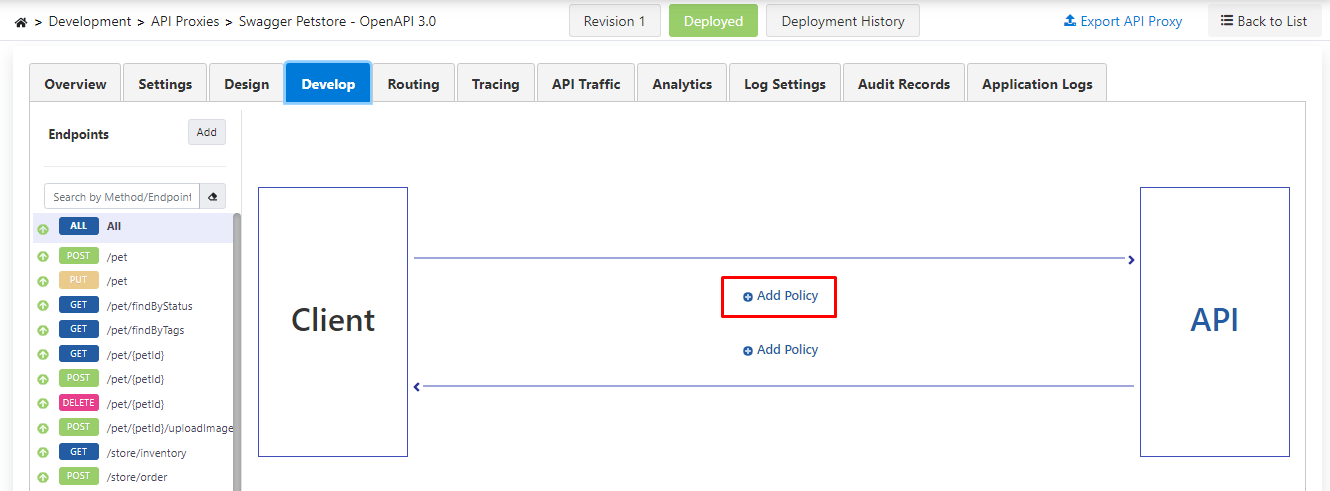
Click the Add Policy link from the Development (Develop) tab of the API Proxy.
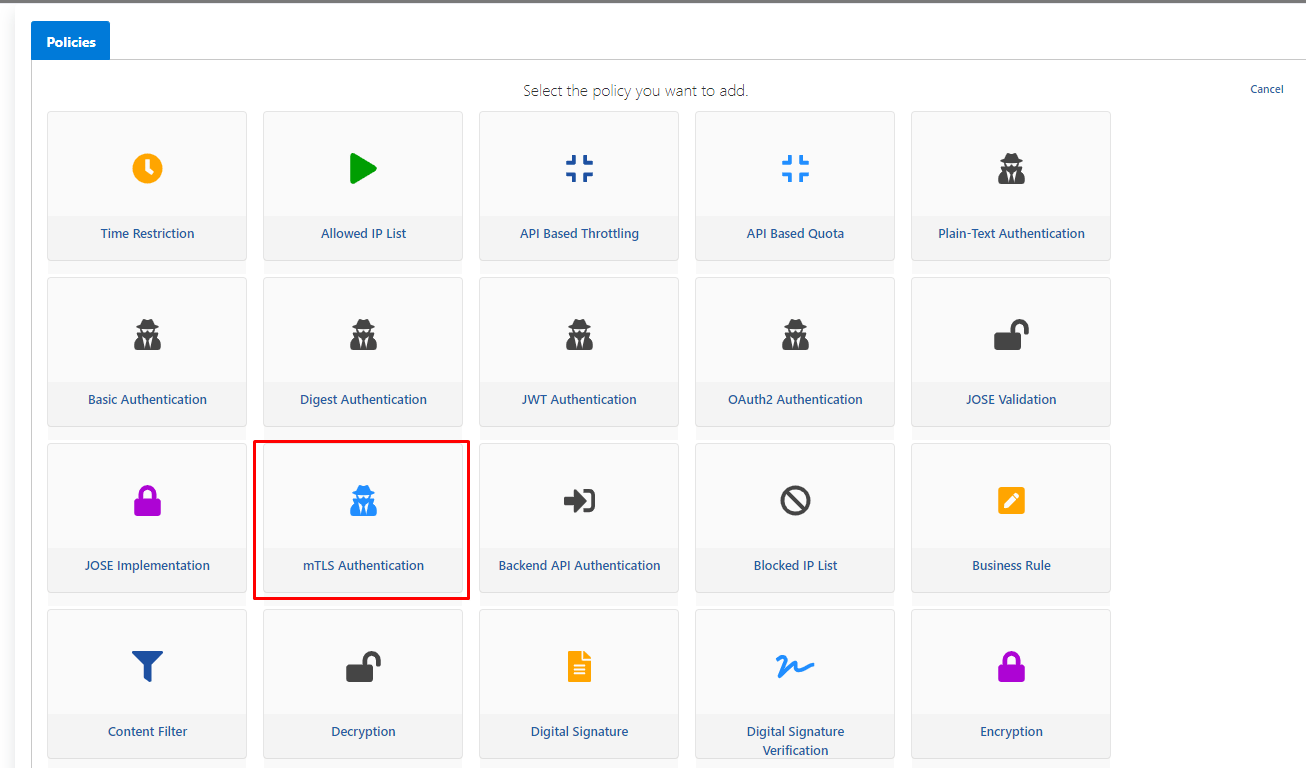
 mTLS is selected from the policies.
 Policy settings are made as follows and the Save button is clicked.
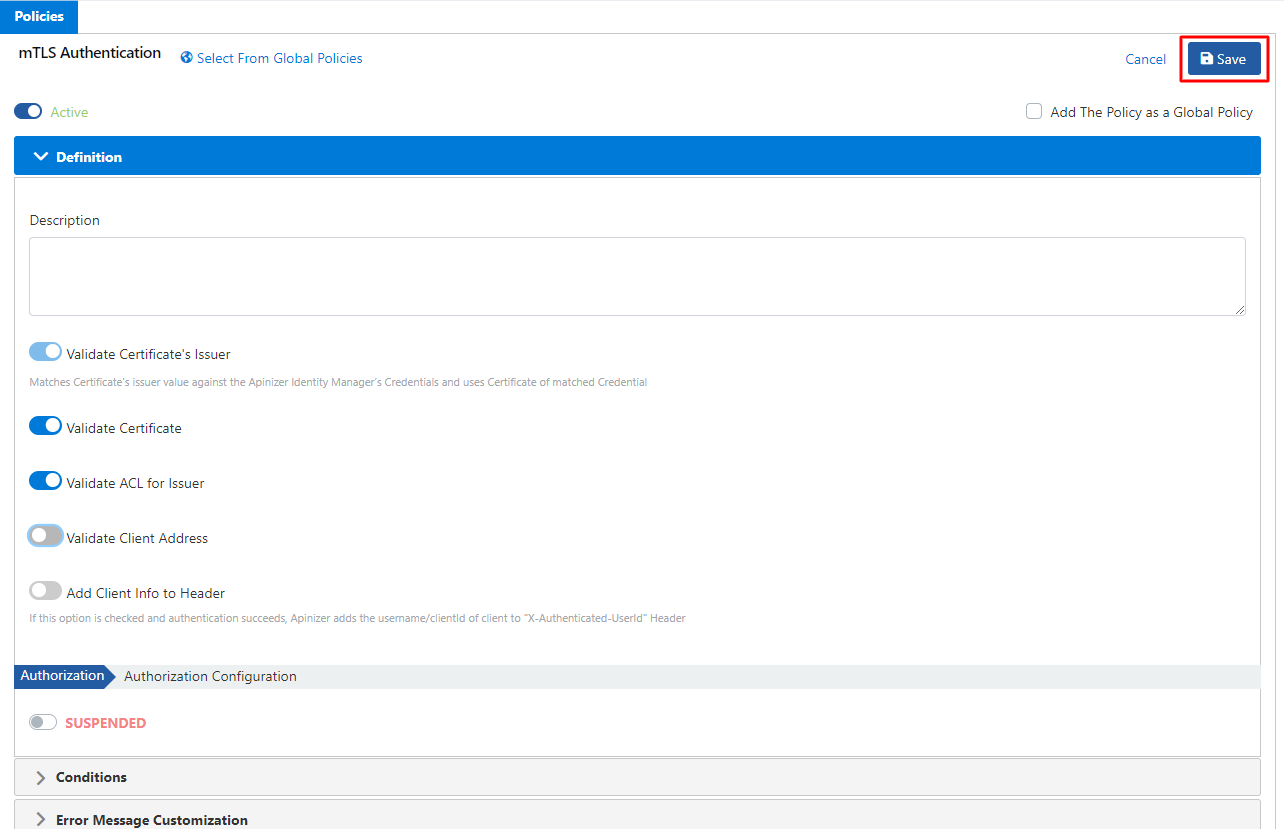
Click here for detailed information about mTLS Settings. Credential’s mTLS Settings
The username information of the credential must be the same as the “cn name” information in the “issuer” value in the certificate owned by the client.
The API Proxy with mTLS policy added must be added to the API Proxy ACL tab of the credential.
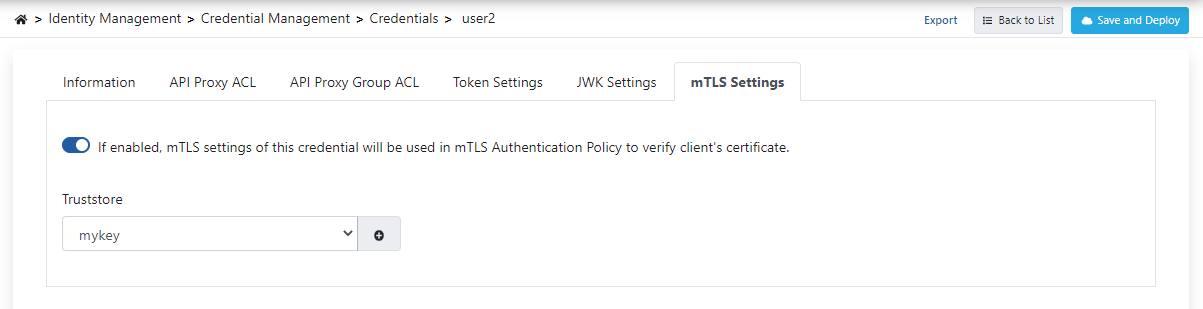
Truststore is added to the mTLS Settings tab of the credential as shown in the image below:
Making Request to API Proxy
A request can be made to the API Proxy with the following client Java code example and its pom file.
Example Java Code:
package mtls;

import org.apache.http.HttpEntity;
import org.apache.http.client.methods.CloseableHttpResponse;
import org.apache.http.client.methods.HttpGet;
import org.apache.http.conn.ssl.SSLConnectionSocketFactory;
import org.apache.http.impl.client.CloseableHttpClient;
import org.apache.http.impl.client.HttpClients;
import org.apache.http.ssl.SSLContexts;
import org.apache.http.util.EntityUtils;

import javax.net.ssl.KeyManagerFactory;
import javax.net.ssl.SSLContext;
import javax.net.ssl.TrustManagerFactory;
import java.io.FileInputStream;
import java.security.KeyStore;

public class MTLSClientTest {
    public static void main(String[] args) throws Exception {
        KeyStore keystore = KeyStore.getInstance("PKCS12");
        keystore.load(new FileInputStream("/Users/mhy/Downloads/mtls/client-keystore.pfx"), "changeit".toCharArray());

        KeyManagerFactory keyManagerFactory = KeyManagerFactory.getInstance(KeyManagerFactory.getDefaultAlgorithm());
        keyManagerFactory.init(keystore, "changeit".toCharArray());

        SSLContext sslContext = SSLContext.getInstance("TLS");
        SSLConnectionSocketFactory sslConnectionSocketFactory;
        boolean verifyServerCertificate=true;

        if(verifyServerCertificate){
            //if verifying server certificate is needed, use this code:
            KeyStore truststore = KeyStore.getInstance("PKCS12");
            truststore.load(new FileInputStream("/Users/mhy/Downloads/mtls/client-truststore.pfx"), "changeit".toCharArray());

            TrustManagerFactory trustManagerFactory = TrustManagerFactory.getInstance(TrustManagerFactory.getDefaultAlgorithm());
            trustManagerFactory.init(truststore);

            sslContext.init(keyManagerFactory.getKeyManagers(), trustManagerFactory.getTrustManagers(), null);
            sslConnectionSocketFactory = new SSLConnectionSocketFactory(sslContext);
        }else{
            //if verifying server certificate is NOT needed, use this code:
            sslContext = SSLContexts.custom()
                    .loadKeyMaterial(keystore, "changeit".toCharArray())
                    .loadTrustMaterial((chain, authType) -> true) // Trust all certificates
                    .build();
            sslConnectionSocketFactory = new SSLConnectionSocketFactory(sslContext);
        }

        CloseableHttpClient httpClient = HttpClients.custom()
                .setSSLSocketFactory(sslConnectionSocketFactory)
                .build();

        HttpGet httpGet = new HttpGet("https://api.apinizer.com/apigw/mtls/pet/findByStatus?status=sold");

        try (CloseableHttpResponse response = httpClient.execute(httpGet)) {
            HttpEntity entity = response.getEntity();
            if (entity != null) {
                String responseBody = EntityUtils.toString(entity);
                System.out.println(responseBody);
            }
        } catch (Exception e) {
            e.printStackTrace();
        } finally {
            httpClient.close();
        }
    }
}
Pom:
<?xml version="1.0" encoding="UTF-8"?>
<project xmlns="http://maven.apache.org/POM/4.0.0"
         xmlns:xsi="http://www.w3.org/2001/XMLSchema-instance"
         xsi:schemaLocation="http://maven.apache.org/POM/4.0.0 http://maven.apache.org/xsd/maven-4.0.0.xsd">
    <modelVersion>4.0.0</modelVersion>
    <groupId>Jose-SenderReceiver</groupId>
    <artifactId>Jose-SenderReceiver</artifactId>
    <version>1.0-SNAPSHOT</version>
    <build>
        <plugins>
            <plugin>
                <groupId>org.apache.maven.plugins</groupId>
                <artifactId>maven-compiler-plugin</artifactId>
                <configuration>
                    <source>7</source>
                    <target>7</target>
                </configuration>
            </plugin>
        </plugins>
    </build>
    <dependencies>
        <dependency>
            <groupId>com.nimbusds</groupId>
            <artifactId>nimbus-jose-jwt</artifactId>
            <version>9.25.6</version>
        </dependency>
        <dependency>
            <groupId>org.bouncycastle</groupId>
            <artifactId>bcprov-jdk15to18</artifactId>
            <version>1.69</version>
        </dependency>
        <dependency>
            <groupId>org.apache.commons</groupId>
            <artifactId>commons-text</artifactId>
            <version>1.8</version>
        </dependency>
        {/* Apache HttpClient */}
        <dependency>
            <groupId>org.apache.httpcomponents</groupId>
            <artifactId>httpclient</artifactId>
            <version>4.5.13</version>
        </dependency>
        {/* SSLContext for mTLS */}
        <dependency>
            <groupId>org.apache.httpcomponents</groupId>
            <artifactId>httpcore-nio</artifactId>
            <version>4.4.13</version>
        </dependency>
        {/* BouncyCastle for mTLS */}
        <dependency>
            <groupId>org.bouncycastle</groupId>
            <artifactId>bcprov-jdk15to18</artifactId>
            <version>1.69</version>
        </dependency>
    </dependencies>
</project>