
Report Types

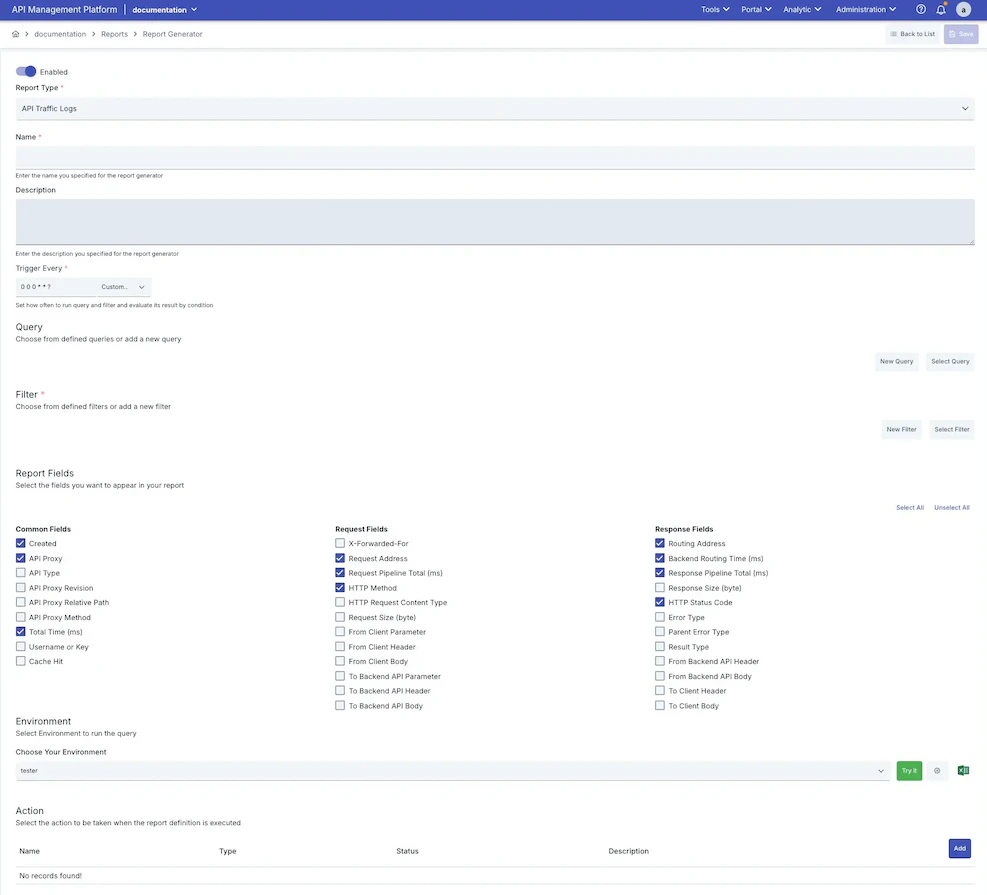
When creating a Report Generator, you first select which dataset the report will be based on. The available fields in subsequent steps vary depending on the selected type.
Report TypeDescription
API Traffic LogsA report is generated on raw traffic records by adding a custom query and filter to log data.
Interval API TrafficAPI traffic is analyzed by grouping into specific time intervals (hourly, daily, etc.).
API Traffic MetricsMetrics such as traffic volume and success/error rates are reported per API Proxy.
Endpoint Traffic MetricsTraffic metrics are reported per endpoint.
Canary & Mirror MetricsTraffic metrics for Canary and Mirror configurations are reported.
Endpoint Size MetricsMetrics related to endpoint request and response sizes are reported.
Client Traffic MetricsTraffic metrics are reported per client (credential).
IP Traffic MetricsTraffic metrics are reported per IP address.
API Proxy ReportThe general status and information of API Proxies are reported.
API Endpoint ReportThe general status and information of API Endpoints are reported.
Inactive EndpointsEndpoints that have not received requests within a specified period are listed.
Inactive ClientsClients that have not sent requests within a specified period are listed.
ACL ReportAuthorization statuses on the access control list (ACL) are reported.
Route Conflict ReportConflicts between defined routes are detected and reported.
ACL Audit RecordsAudit records of changes made to the ACL are reported.

Report Creation

Report Generator Overview

Definition

FieldDescription
EnabledDetermines whether the Report Generator is active. Reports in passive state are not run even if scheduled.
Report TypeDetermines which dataset the report will be based on. Subsequent steps are shaped according to the selected type.
NameThe unique name given to the Report Generator.
DescriptionAn optional description field summarizing the purpose of the Report Generator.
Trigger EverySets how often the report will be run automatically. Schedules such as per-minute, hourly, daily, and weekly can be defined using cron expression format.

Query

This step is only visible for the API Traffic Logs report type.
An optional custom query can be added to narrow down raw log data. The query is used to select log records that meet certain conditions. Two options are available:
  • New Query — A new query can be created on the fly.
  • Select Query — An existing previously defined query can be selected.
The selected query is displayed on screen and can be edited or removed.
Selecting a query is not mandatory. When no query is added, all log records matching the filter conditions are included in the report.

Filter

The filter determines which log records will be evaluated in the report. This step is required. Two options are available:
  • New Filter — A new filter can be created on the fly.
  • Select Filter — An existing previously defined filter can be selected.
The following settings can be configured when creating a filter:
FieldDescription
NameThe name given to the filter.
Proxy ListDetermines which API Proxies the report will run on. If not selected, all proxies are included.
Date RangeDetermines which time period’s log records the report will cover. A fixed anchor (e.g. “Today”) or a dynamic range (e.g. “Last 7 days”) can be selected.
Operation Result TypeA filter can be applied to include only successful, failed, or blocked requests. (Only applicable for the API Traffic Logs type.)
SortingDetermines by which field and in which direction the report records will be sorted. (Only applicable for the API Traffic Logs type.)

Report Fields

This step is only visible for the API Traffic Logs report type.
The log fields to appear in the report are selected in this section. Fields are grouped into three categories. Select All and Unselect All buttons allow bulk operations.
FieldDescription
CreatedThe date and time the request was created.
API ProxyThe name of the API Proxy the request passed through.
API TypeThe type of the API (REST, SOAP, etc.).
API Proxy RevisionThe API Proxy revision used.
API Proxy Relative PathThe relative path of the API Proxy.
API Proxy MethodThe HTTP method used in the request (at proxy level).
Total Time (ms)The total processing time of the request (in milliseconds).
Username or KeyThe username or API key of the user who made the request.
Cache HitWhether the request was served from cache.
Selecting only the required fields reduces report size and allows it to be generated faster.

Report Parameters

Additional parameters appear based on the selected report type. These parameters allow the scope of the report to be defined in more detail.
ParameterRelevant Report TypesDescription
ProjectsMultiple report typesDetermines which projects the report will cover. (Only visible to Admin users.)
IntervalInterval API TrafficThe time interval by which traffic data will be grouped (minute, hour, day, etc.).
API Proxy TypeVarious metric typesAllows filtering by specific proxy types.
Creation TypeVarious metric typesAllows filtering by proxy creation method.
OrganizationsACL ReportDetermines which organizations the report will cover.
CredentialsACL ReportDetermines which credentials the report will cover.
Query BasisACL ReportDetermines whether the report will run on an API Proxy or organization basis.
API ProxyAPI Traffic MetricsAllows the report to run on a specific proxy only.

Environment

The environment on which the report will run is selected in this step.
For Elasticsearch-based report types, environment selection is required. The selected environment must have an active Elasticsearch integration.

Trigger Every

The frequency at which the report will run automatically is set in this section. Scheduling settings are created in cron expression format.
Before scheduling, it is recommended to use the Try It feature to verify that the report produces correct results.

Action

Where the file generated when the report runs will be sent is defined in this section. One or more recipients can be added. Supported action types include email and webhook. For detailed information about actions, see the Connectors page.
When the report file size exceeds the 25 MB limit, the action is not executed and a notification is shown to the user. In this case, it is recommended to narrow the date range.

Retention Period

How long result records from past report runs will be kept is set in this section. At the end of the specified period, old results are automatically cleaned up.

Testing the Report

An option is provided to test the report instantly with current settings before saving.
After the query and filter are defined, the query is run instantly on the selected environment using the Query button. Results are listed in a paginated table view on screen.
Only the first 10 records are shown in the preview. To see all results, you need to schedule and run the report.
Results can be exported as Excel, allowing the instant query output to be examined in more detail.

Report Results

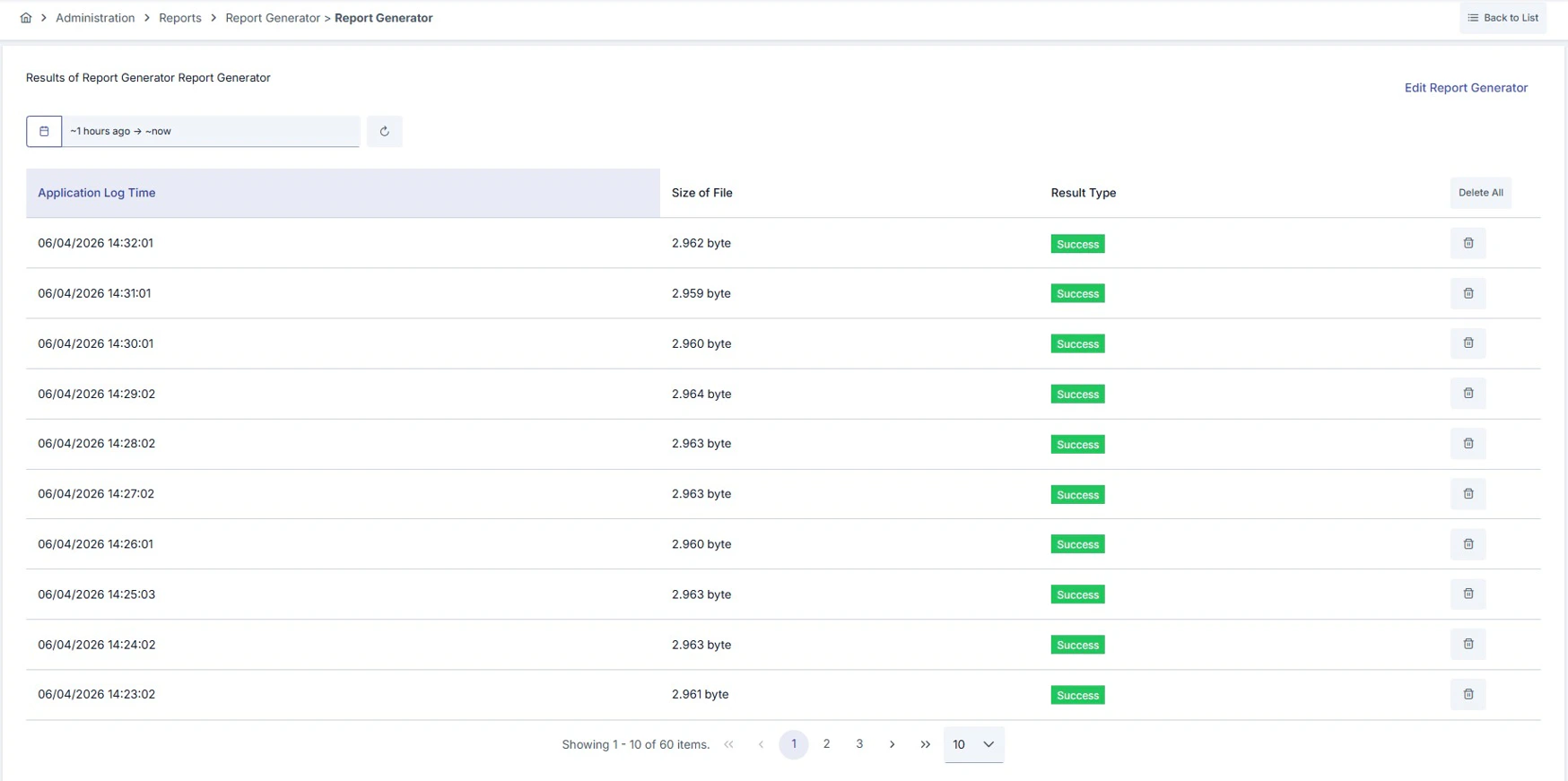
Past run results of a saved Report Generator can be viewed from the detail screen opened by clicking the relevant record in the list. The Edit Report Generator link in the top right of the screen navigates to the definition edit page. Report Generator Results
ColumnDescription
Application Log TimeThe date and time the report was run.
Size of FileThe size of the generated report file (in bytes).
Result TypeShows whether the report completed successfully or with an error.

Date Range Filter

Results can be filtered using the date range picker at the top of the screen. Relative time ranges (e.g. “Last 1 hour”) or fixed date ranges can be defined.

Result Management

  • A single result record can be deleted using the delete icon on the right side of each row.
  • All past results for that Report Generator can be cleared at once using the Delete All button in the table header.
Deleting all results is irreversible. It is recommended to export any necessary records before deleting.