

- Understanding how policies work
- Detecting performance issues
- Debugging
- Examining request/response flow
- Validating transformations
API Proxy-Based Trace
You can start a separate trace session for each API Proxy
Detailed Tracking
You can track each policy’s execution step by step and view log records
Performance Analysis
You can analyze timing metrics and detect bottlenecks
Debugging
You can easily detect errors and perform root cause analysis
Trace runs per API Proxy. Clicking a log row opens the trace detail drawer on the right, with timing breakdown, the Client–Gateway–API map, and before/after policy panels. For the full walkthrough, see Step-by-Step Tracing.
Starting Trace Mode
Trace mode is started separately for each API Proxy. You can activate trace mode from the API Proxy’s own page.Prerequisites
Before starting trace mode:1
API Proxy Must Be Loaded
The API Proxy you want to track must be loaded into at least one Environment
2
Go to API Proxy Page
Go to the detail page of the API Proxy you want to trace
3
Make Environment Selection
Select the Environment for which trace mode will be opened from the Environments where the API Proxy is loaded
4
Click Start Button
Activate trace mode by clicking the Start button

Trace Records
After trace mode is activated, requests coming to the API Proxy are automatically tracked and detailed records are created.
Log records being displayed are not automatically updated. Use the Refresh Logs button to see new records.
Since the log record of API Call Policy is kept separately, double logs appear for the same request. The first is the before and after state of the message in the main flow, and the second is the request and response message coming out of the API Call.
Trace List
The following information is displayed for each record in the trace list:When API Call Policy is used, double log records appear for the same request:
- Before and after state of the message in the main flow
- Request and response message coming out of the API Call
Trace Operations
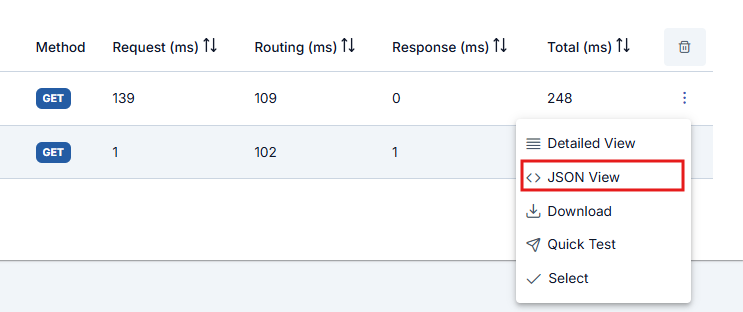
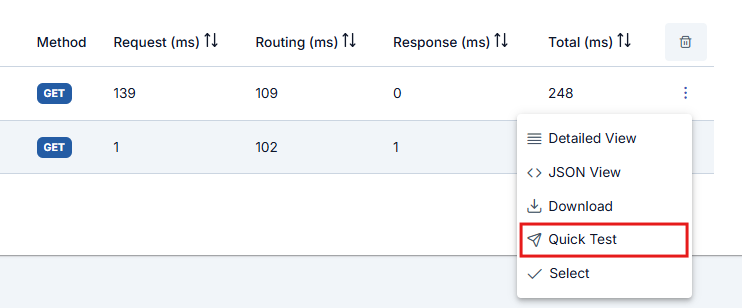
The following operations can be performed for each trace record:- Detailed viewing
- View in JSON format
- Download
- Quick Test
The first control at the end of the row for the request message to be examined opens a window that displays the log records of that message.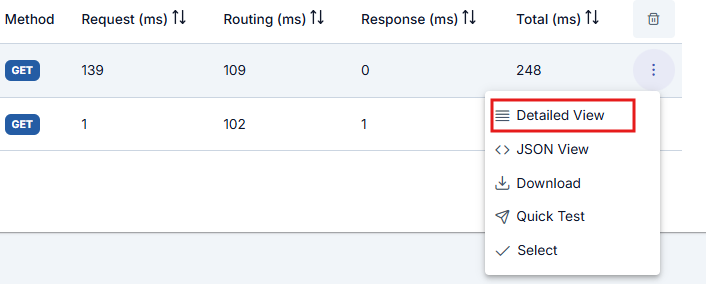



Tracking Policy Flow
Click the Select button to view the detailed execution information Apinizer keeps for policies run on the API Proxy while step-by-step tracing is on.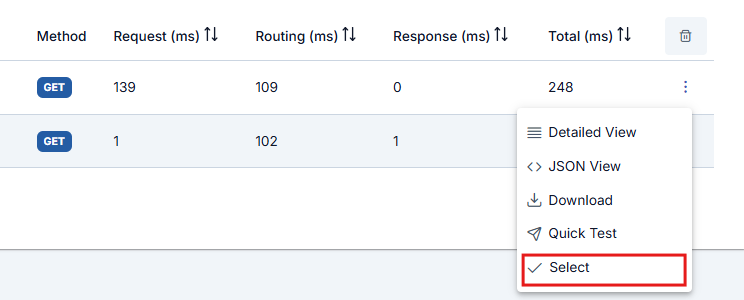
- Successful Flow
- Failed Flow
Example when all steps succeed: timing bar, map, and Client step with request/response panels.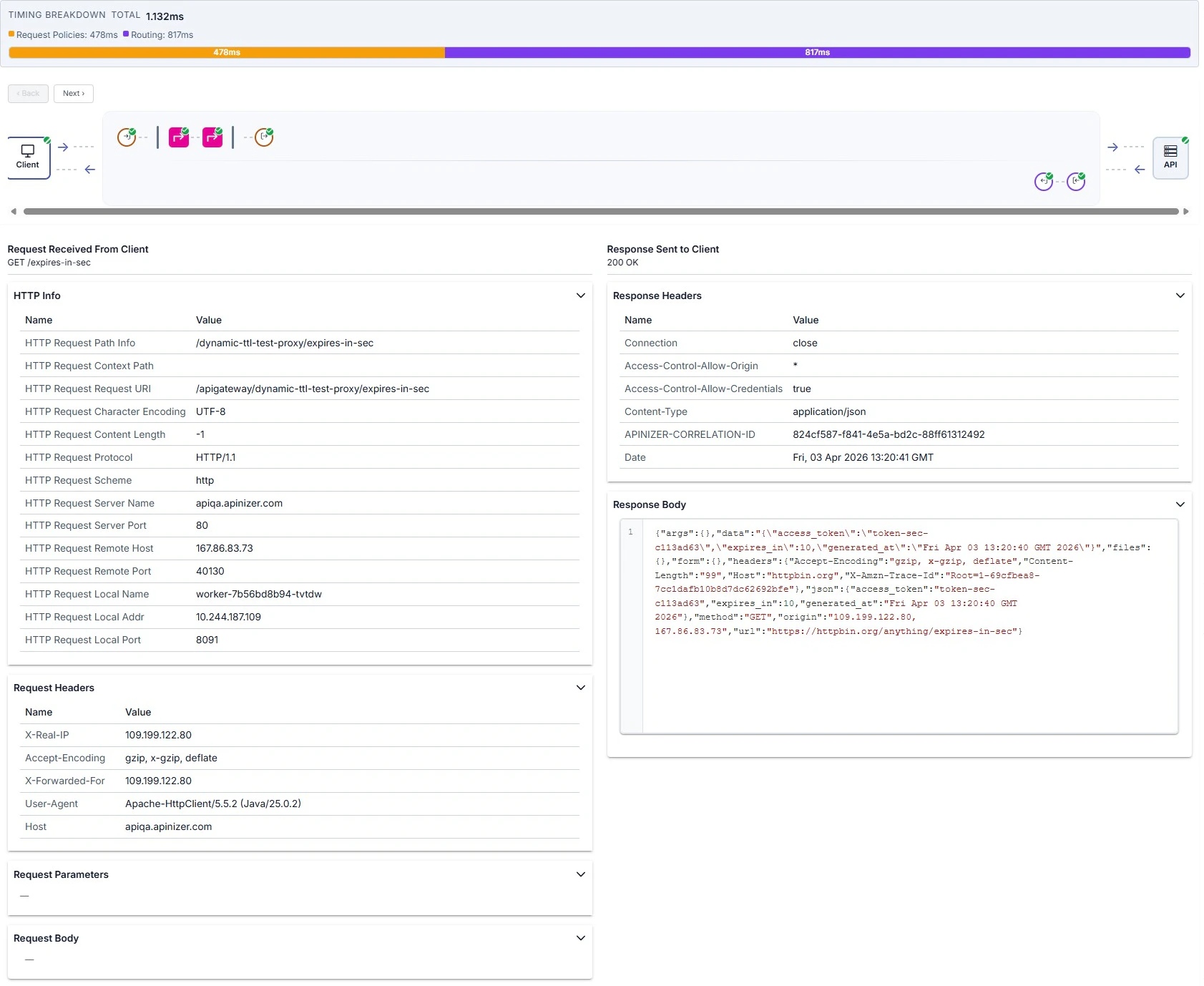
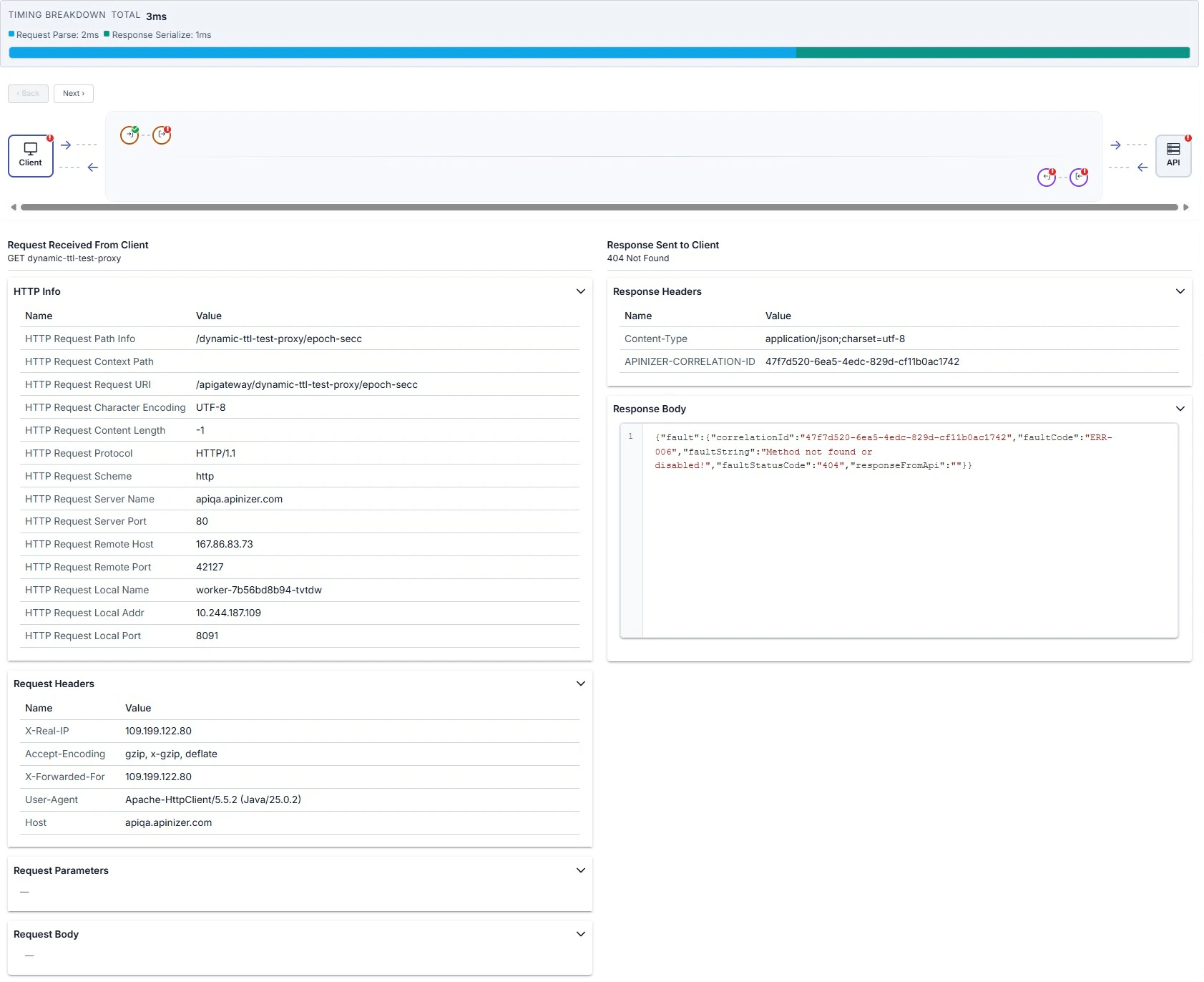
Policy Execution Details
Pre-flow Policies
Pre-flow Policies
Policies executed first when a request arrives:
- Policy Name: Name of the executed policy
- Execution Time: Policy execution time (ms)
- Status: Success / Failure status
- Changes: Changes made by the policy to the message (header, body, variable changes)
Route Step (Routing)
Route Step (Routing)
Routing step to Backend API:
- Selected Upstream: Selected upstream target
- Load Balancing Decision: Load balancing algorithm decision
- Connection Time: Connection time to backend (ms)
- Backend Response Time: Backend response time (ms)
- Retry/Failover: Retry or failover status
Post-flow Policies
Post-flow Policies
Policies executed after response comes from backend:
- Policy Name: Name of the executed policy
- Execution Time: Policy execution time (ms)
- Status: Success / Failure status
- Changes: Changes made to the response message
Fault Handler
Fault Handler
Policies executed in case of error:
- Error Type: Error type (authentication, routing, policy, etc.)
- Error Message: Error message
- Handler Policies: Executed error handler policies
- Final Response: Final response returned to client
Fault Handler only runs when an error occurs and allows you to customize the error response.
Policy-Specific Execution Details
Certain policy types display an “Execution Details” button in the policy panel header bar. Clicking the button opens a modal with policy-type-specific domain information presented in accordion sections. This detailed view is available on both request-side (pre-flow, request) and response-side (response, post-flow) policy nodes in the trace detail drawer.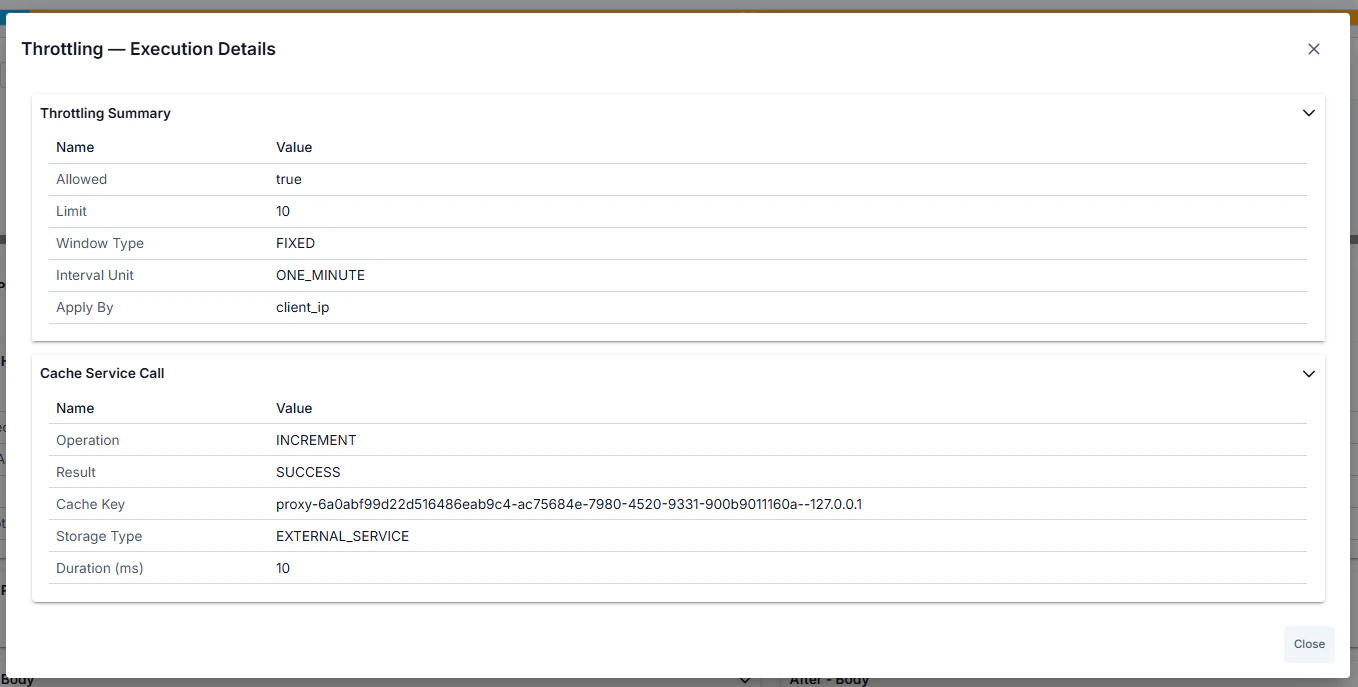
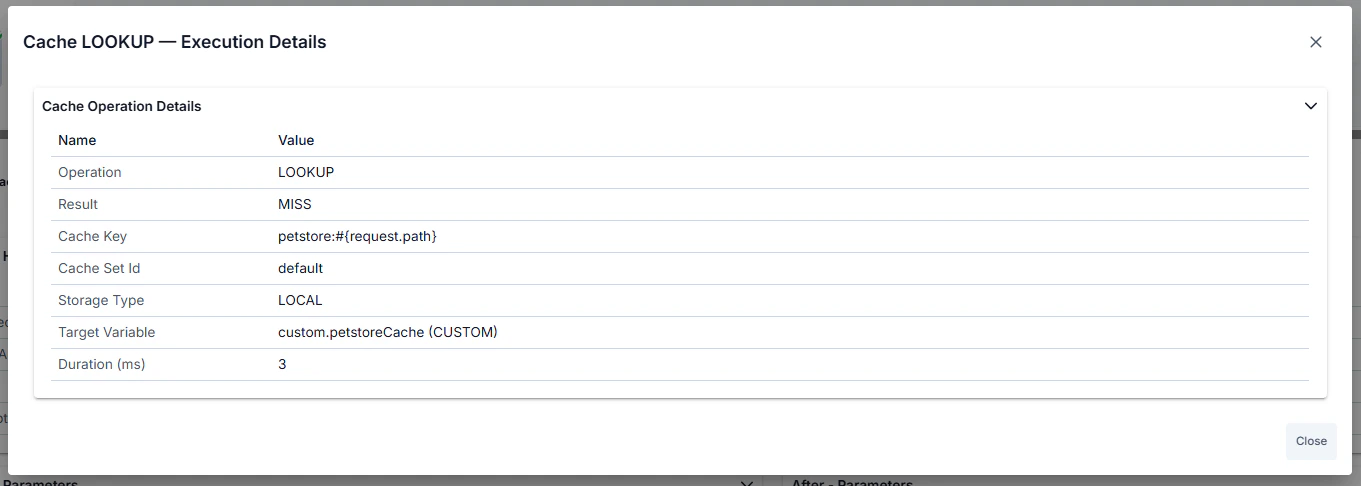
- Cache Policy — Operation (LOOKUP/POPULATE/INVALIDATE), cache key, cache set name, hit/miss status (for LOOKUP), source/target variable names, TTL applied, time remaining in cache.
- API Call Policy — Cache status (HIT/MISS/DISABLED), backend service URL, HTTP method and status code, request/response headers, full request/response body, connection time, backend response time, retry/failover details.
- Backend API Authentication Policy — Authentication result (authenticated true/false), extracted username or principal, assigned roles, extracted claims or attributes, HTTP authentication call details (URL, method, headers).
- JOSE Validation / Implementation Dynamic Key Fetch Policy — Key cache lookup status (hit/miss), validation or implementation mode, key extraction path (JSONPath/XPath), key ID (kid), algorithm used, HTTP call details for remote key fetch (if applicable).
- Client Ban Policy — Ban status (banned/not banned), ban source (IP address or other identifier), remaining ban duration, ban reason, cache lookup details.
- API Based Throttling Policy — Current request count and limit threshold, time window, allowed/blocked decision, cache lookup status (hit/miss), sliding window details.
- API Based Quota Policy — Current quota usage and quota limit, period end time, allowed/blocked decision, cache lookup status (hit/miss), reset time for next period.
- Business Rule Policy — Per-action execution list showing: action type, operator, execution status (executed/skipped/error), condition evaluation result, input and output values, execution duration in milliseconds.
Detailed Log Records
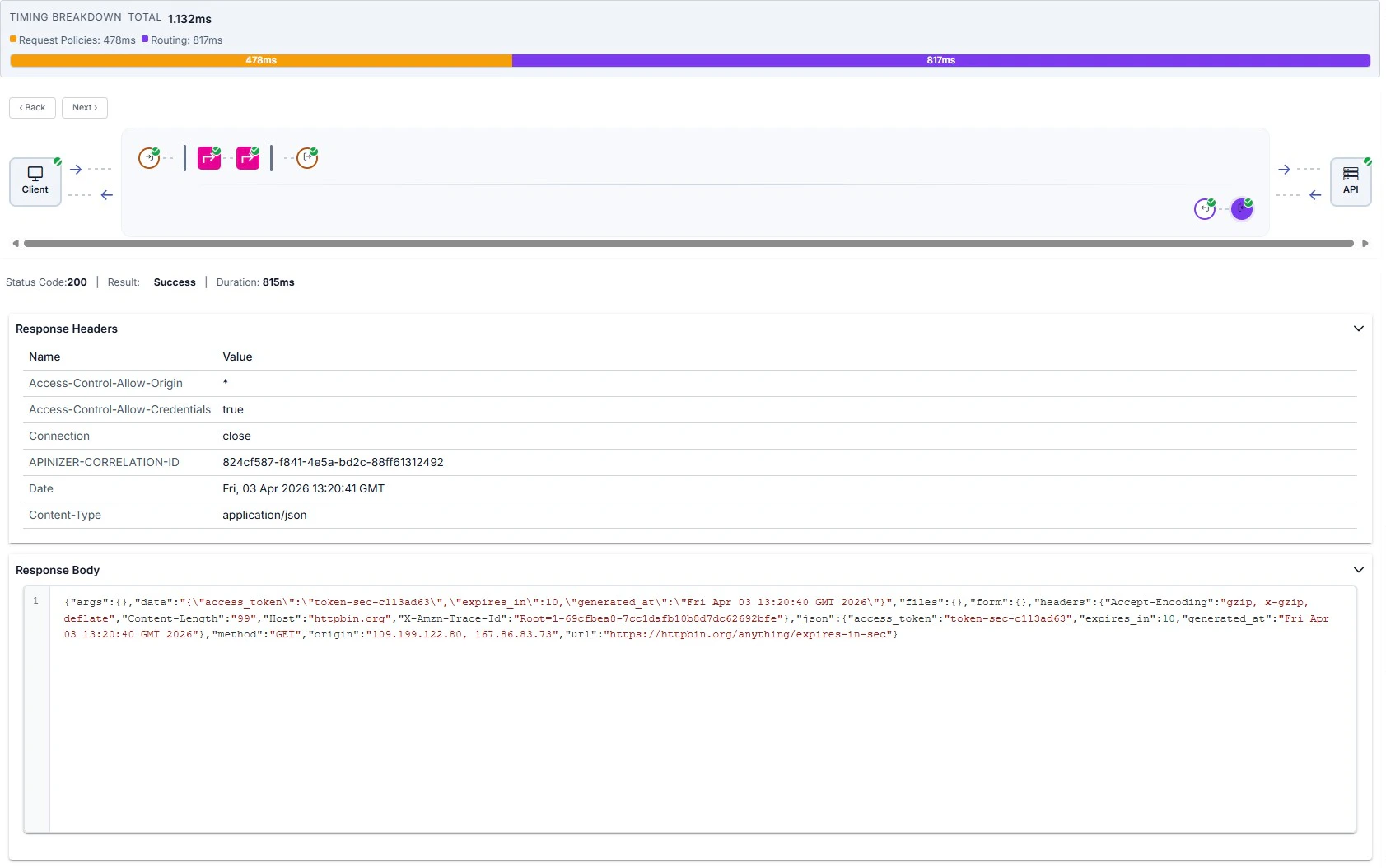
When you select a log row, the drawer summarizes success or failure via the map and header; the lower panel shows tables and bodies for the selected node. Overview example — map, summary line, and request headers: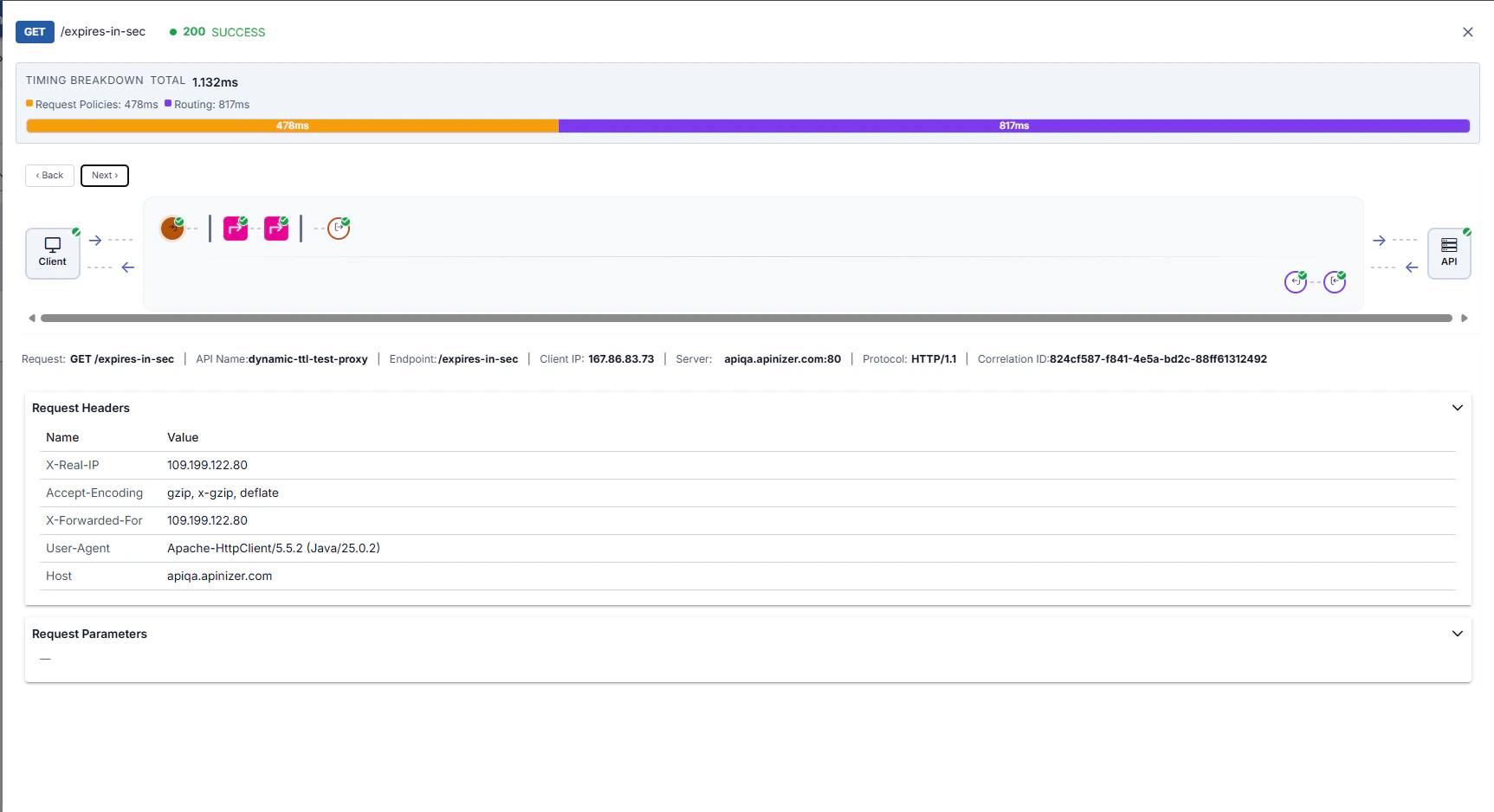
Client step
Client step
When the Client node is selected on the map, the left column shows the request from the client (HTTP Info, headers, parameters, body) and the right column shows the response sent to the client.
Policy step (Before / After)
Policy step (Before / After)
Click a policy node on the map to see execution info and Before / After accordions comparing message state.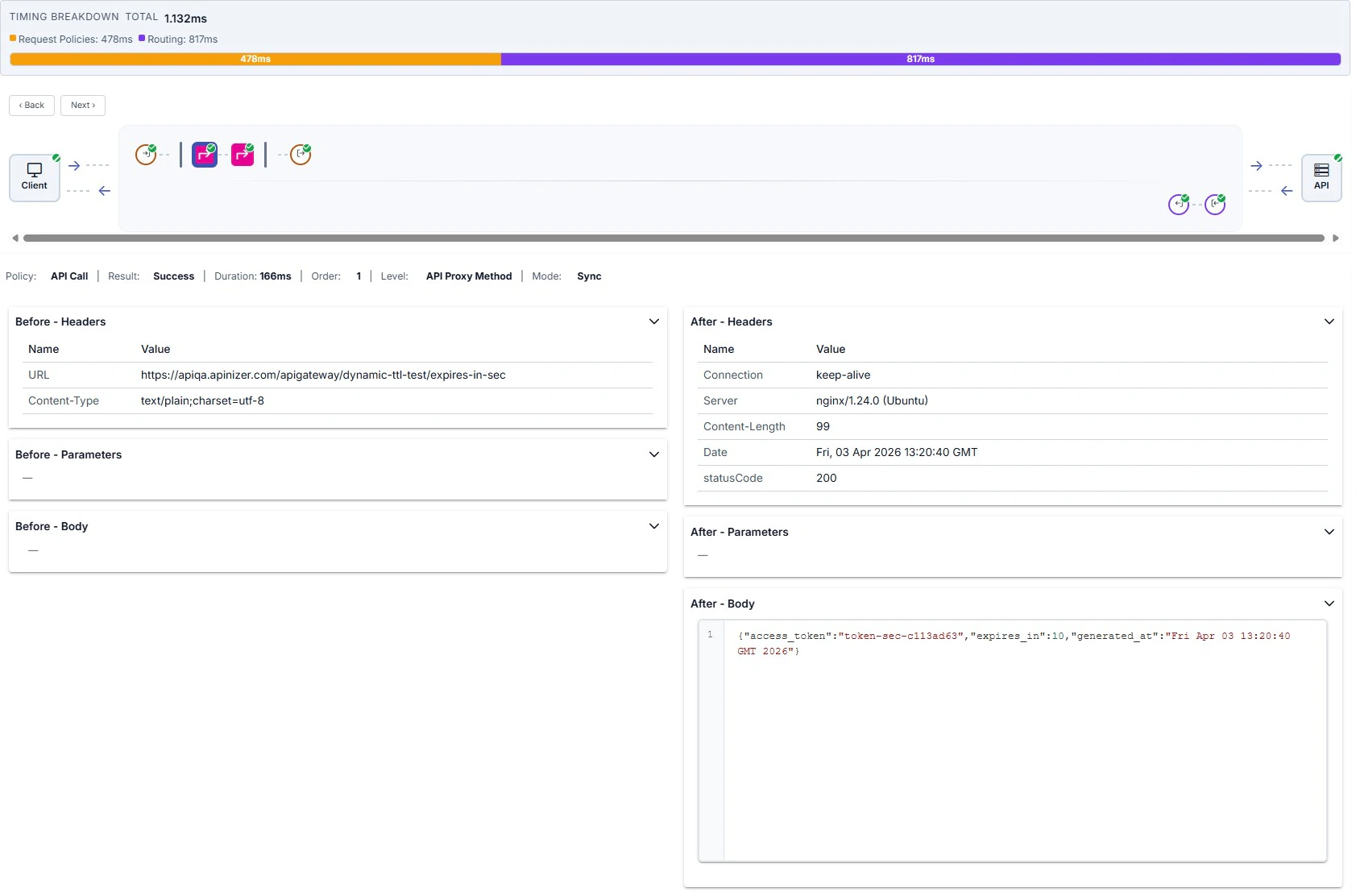
Backend API and routing
Backend API and routing
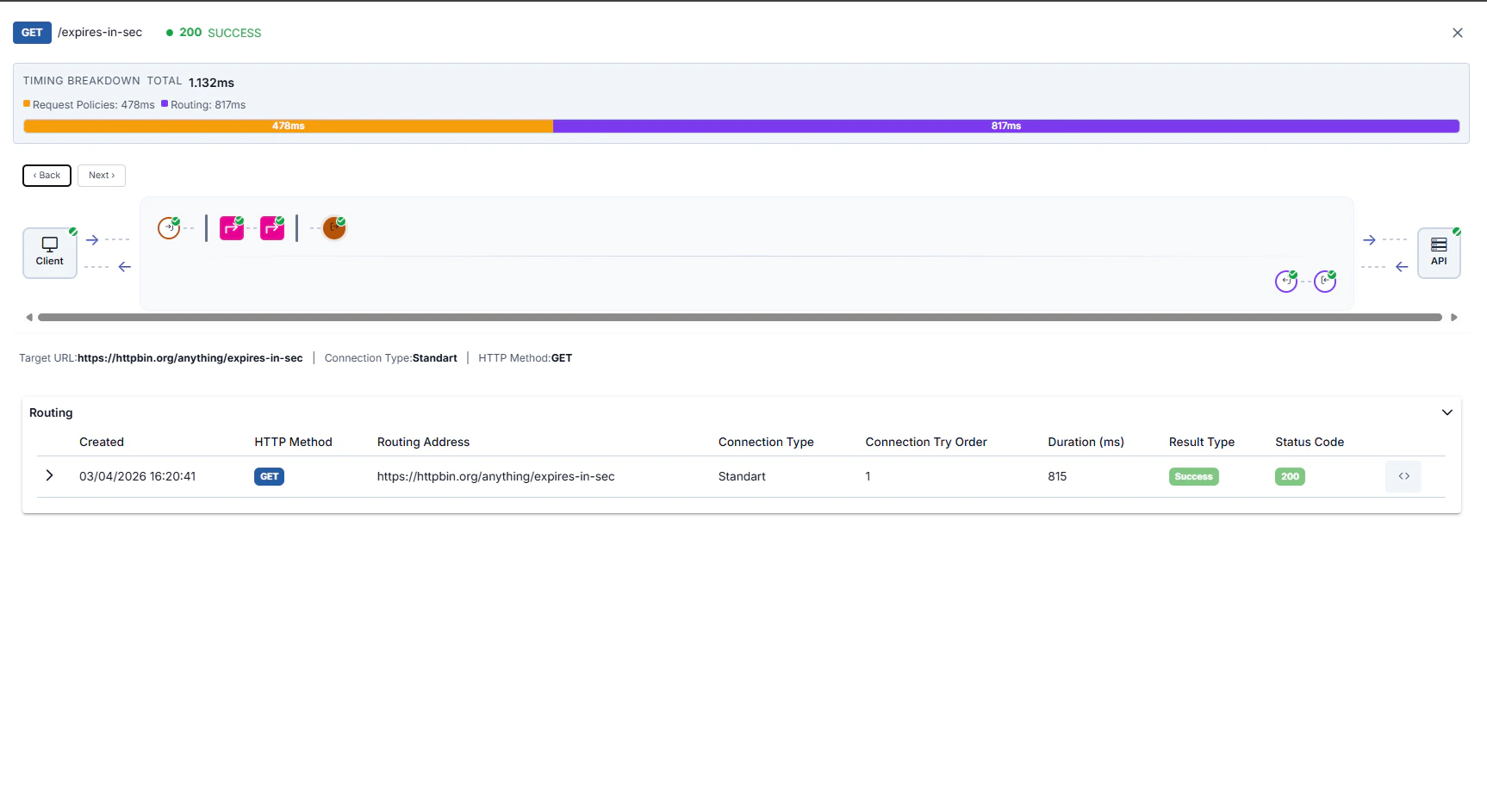
Target (API) summary, Routing table (expanded row; see HTTP Routing), and response from target are illustrated below in order.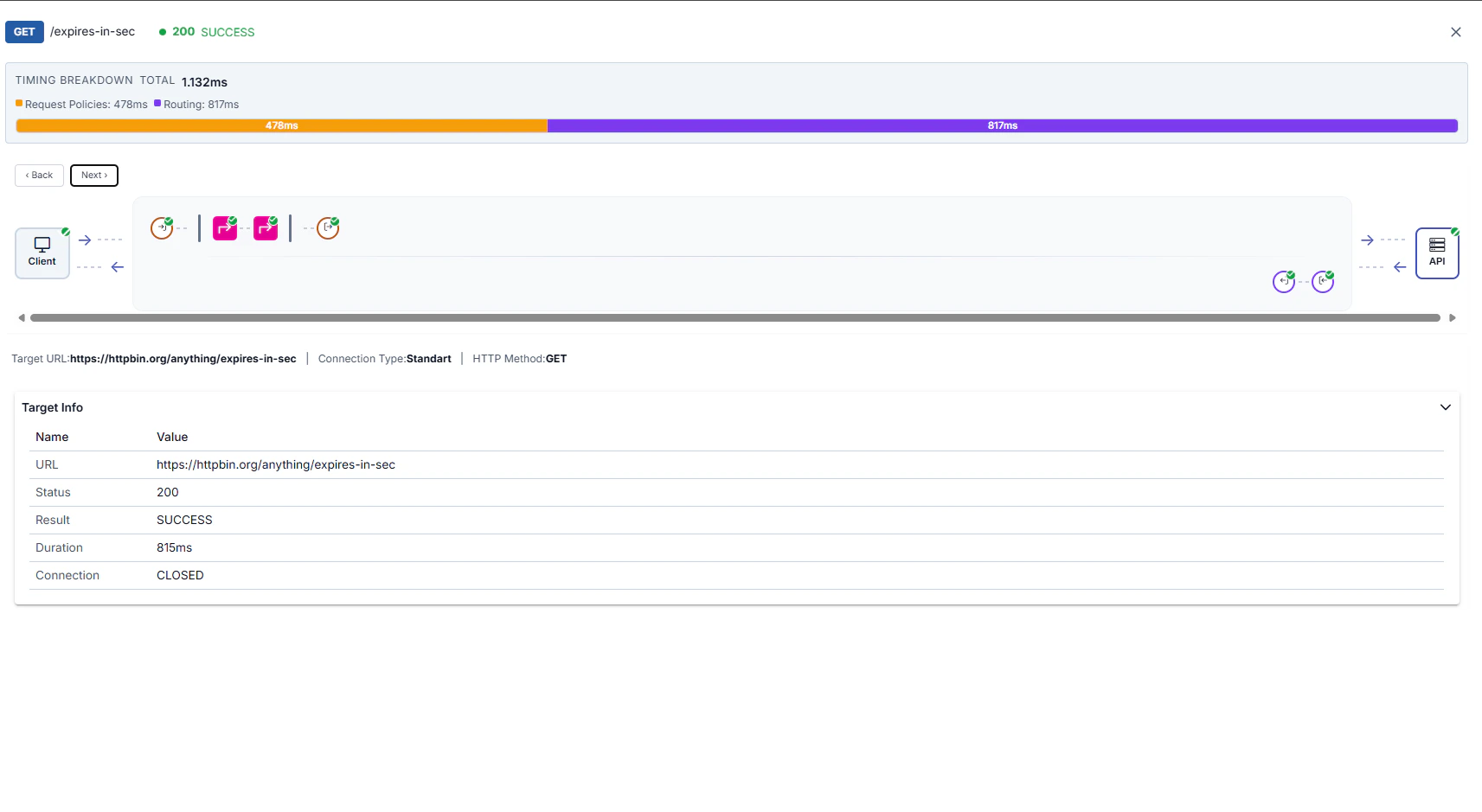
Request/Response Comparison
Trace mode shows how the message changes along the flow:Before/After
You can compare the before and after state of the message for each policy
Transformation Analysis
You can see the effect of transformation policies
Header Changes
You can see added, modified, or deleted headers
Body Changes
You can see JSON/XML transformations and content changes
Performance Analysis
Trace mode provides detailed timing metrics to detect performance issues.Timing Metrics
The following metrics are displayed for each trace record:Policy Performance Analysis
To analyze policy performance:Slowest Policies
You can identify and optimize policies taking the longest time
Policy Count
You can see the total number of policies executed, remove unnecessary policies
Average Policy Duration
You can monitor the average execution time of each policy
Policy Execution Order
You can improve performance by changing the order of policies
- Cache Policy: Use cache to reduce backend calls
- Conditional Flow: Conditionally skip unnecessary policies
- Script Optimization: Optimize slow operations in script policies
- Transformation: Remove unnecessary transformations
Backend Performance Metrics
To monitor backend API performance:Use Cases
Scenario 1: Performance Issue Detection
Situation: Response times of an API Proxy are higher than expected.1
Start Trace
Activate trace mode from the API Proxy page
2
Examine Slow Requests
Find slow requests (e.g., >1000ms) in trace records
3
Examine Policy Flow
Open the trace detail drawer (table row or Select) and identify the slowest policies
4
Detect Bottlenecks
- Is backend API slow? → Backend should be optimized
- Are policies slow? → Script/transformation should be optimized
- Is database query slow? → Cache can be used
5
Perform Optimization
Fix detected issues and test again with trace
Scenario 2: Debugging
Situation: Some requests return 500 error and the cause is unknown.1
Start Trace
Activate trace mode from the API Proxy page
2
Find Failed Requests
Find 5xx errors in trace records
3
Find Policy Where Error Occurred
Open the trace detail drawer (table row or Select) and find the policy marked with !
4
Examine Policy Details
- Examine the message coming to the policy (Before)
- Read the error message
- Examine detailed log records
5
Perform Root Cause Analysis
- Is data format wrong?
- Is header missing?
- Is it a script error?
- Is backend unreachable?
6
Fix and Test
Fix the issue and test again with trace
Scenario 3: Transformation Validation
Situation: Checking if JSON to XML transformation works correctly.1
Start Trace
Activate trace mode from the API Proxy page
2
Send Test Request
Send a sample JSON request from Test Console
3
Select Transformation Policy
Open the trace detail drawer (table row or Select) and click the transformation policy node
4
Compare Before/After
- Before: Incoming JSON message
- After: Converted XML message
- Check if the transformation is correct
5
Check Message Going to Backend
Verify in Backend API log records that the outgoing message is in XML format and correct
Scenario 4: Conditional Flow Testing
Situation: Testing if conditional policies work correctly.1
Start Trace
Activate trace mode from the API Proxy page
2
Send Requests for Different Conditions
- Request for premium user
- Request for normal user
- Request for guest
3
Examine Trace for Each Request
Open the trace detail drawer (table row or Select) and see which policies ran
4
Check Condition Evaluation
- What was the condition expression?
- What was the evaluation result?
- Did the correct policies run?
5
Fix Conditions if Necessary
Fix incorrect conditions and test again with trace
Best Practices
Trace Usage
Use Frequently in Development Environment
- Trace continuously during development
- Always test with trace when adding new policies
- Validate API changes with trace
Be Careful in Production
- Activate trace in production only when necessary
- Trace automatically closes after 5 minutes
- Consider performance impact
Use Custom Query
- Filter with Custom Query from the filter field next to environment selection
- Trace only relevant endpoints
- Minimize unnecessary trace records
Use on API Proxy Basis
- Start trace separately for each API Proxy
- Activate trace mode from the relevant API Proxy’s page
- Trace records are stored in MongoDB
Performance Monitoring
Regular Monitoring:- Run performance trace once a week
- Perform trend analyses
- Detect slowdowns early
- Detect bottlenecks with trace
- Optimize
- Validate improvement with trace
- Document results
Debugging
Systematic Approach:- Isolate the problem (which endpoint, under which condition?)
- Collect detailed information with trace
- Perform root cause analysis
- Fix
- Validate with trace
- Document the process
- Compare input/output messages for each policy
- Detect unexpected changes
- Check transformation correctness
Related Resources
Step-by-Step Tracing
API Proxy-based trace operations
Test Console
API test and debug console
Policy Management
Managing and configuring policies
API Traffic Log Settings
Configuring log record settings
Message Processing and Policy Application
Information about message flow and policy execution
Conditional Policy Execution
Detailed information about conditional flow