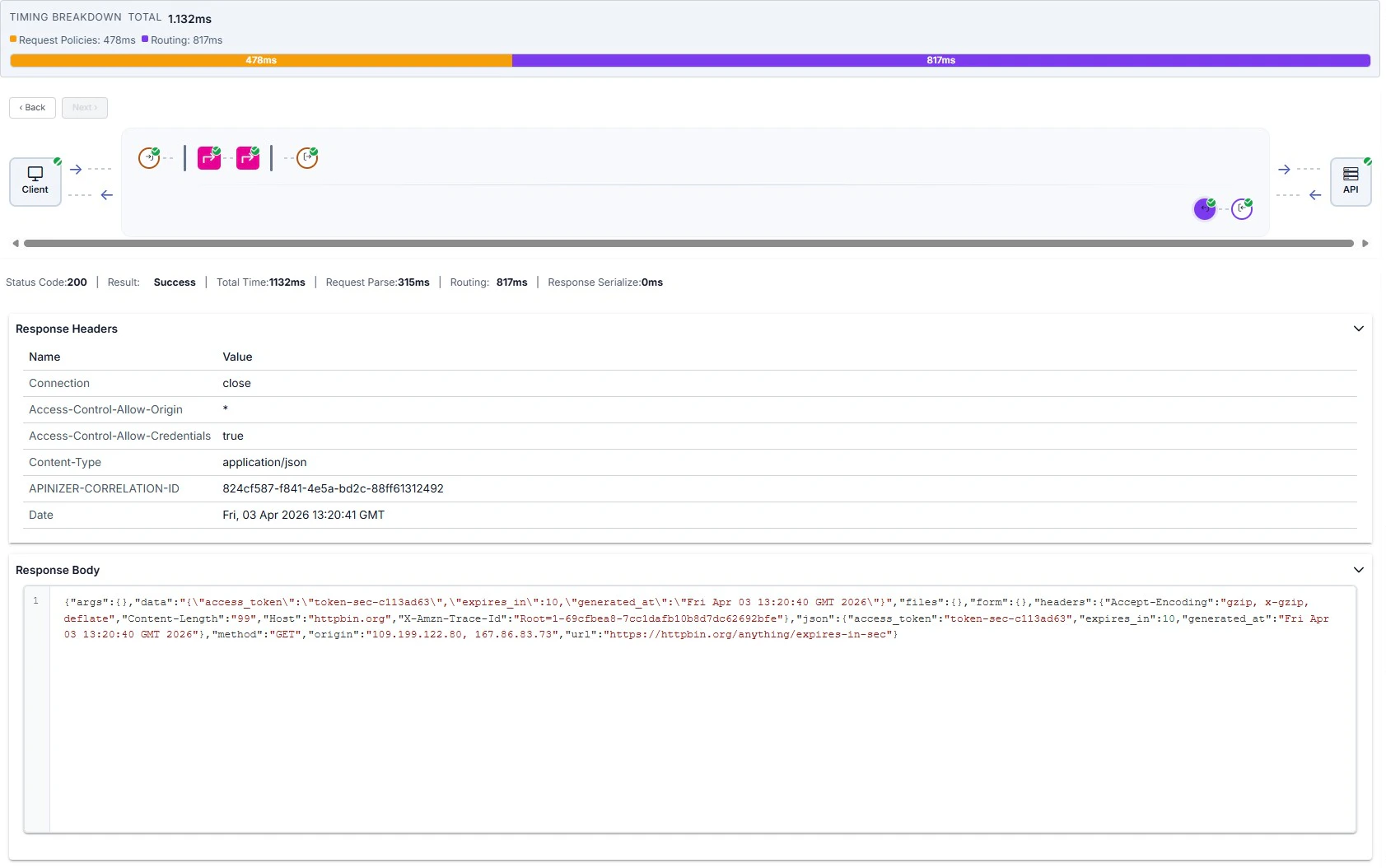

Starting step-by-step tracing mode
Prerequisite: deployed to an environment
For an API Proxy to enter tracing mode, it must first be deployed to at least one Environment.Environment selection, filter, and Start
Select the Environment for which tracing will run and click Start. From the filter field next to the environment selector, use Custom Query to trace only the data you need.
Mode duration and log content
When Step-by-Step Tracing is enabled, stored log content for the API Proxy is expanded for detailed review and remains in this form until the mode is stopped or automatically closed by the platform after 5 minutes.Refreshing logs
Displayed log records are not auto-refreshed, so you do not lose rows you are inspecting. Use Refresh Logs to load the latest list.Log table
Example log records:
Because the API Call Policy log is stored separately, you may see duplicate logs for the same request.
Row actions
From the list view, use the row menu or shortcut buttons for the following.Detailed View
The first item in the menu at the end of the row opens a window with log records for that message.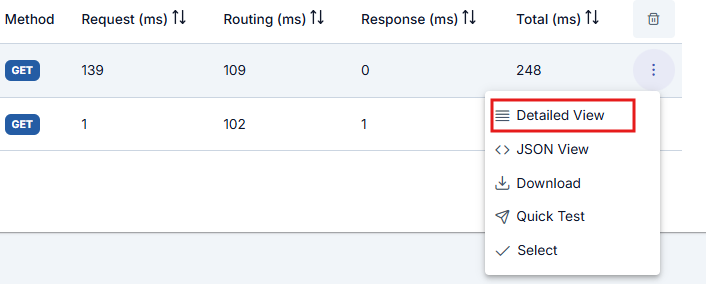

JSON View
The button next to Detailed View shows log records in JSON format.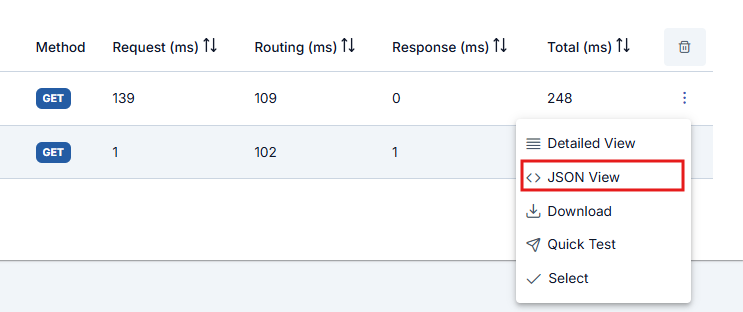

Download
You can download log records in bulk for deeper analysis. While step-by-step tracing is on, Apinizer produces detailed logs for all policies executed for the API Proxy; download gathers per-request records in one bundle.
Quick Test
Quick Test on the row switches to the Test Console so you can resend the request for immediate testing.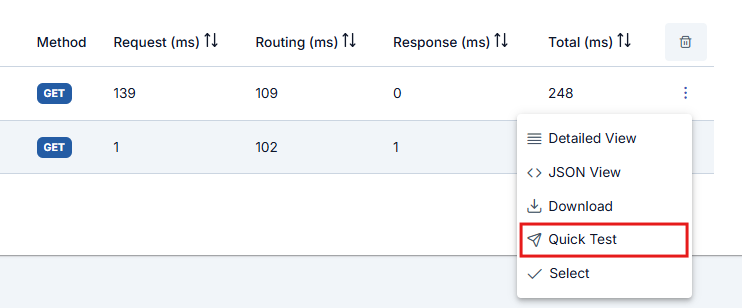
Trace detail: Select
Click Select to open detailed policy execution logs for the API Proxy while step-by-step tracing is active.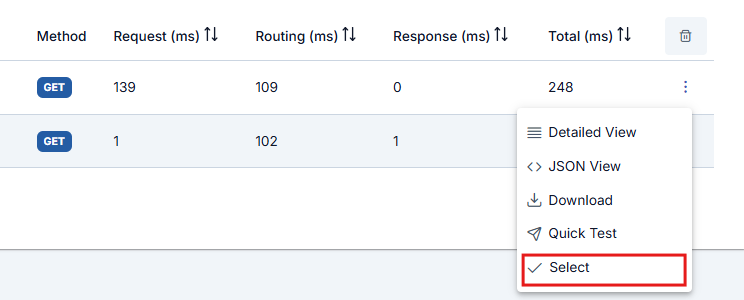
Time and flow
Timing breakdown
Total time (ms) and a colored bar show how time is split. Only segments with duration greater than zero are listed; labels can include Request Parse, Request Policies, Routing, Response Policies, and Response Serialize. Hover a segment to see its duration.Flow map (Client → Gateway → API)
- Use ‹ Back and Next › to move through steps in order: Client → gateway ingress node → request policies (left to right) → gateway egress node → API (target) → return-from-target node → response policies → client egress node.
- Click a node to jump directly to that step.
- Successful steps show a green check; errors or blocks show !.
- Skipped policies appear faded, with an S badge and a tooltip that includes the skip reason.
Lower panel: content for the selected step
Content is one or two columns depending on the step; sections use accordions (tables with Name / Value). JSON bodies appear in a read-only editor.Client
Left: request from client (HTTP Info, Request Headers, Request Parameters, Request Body). Right: response to client (Response Headers, Response Body).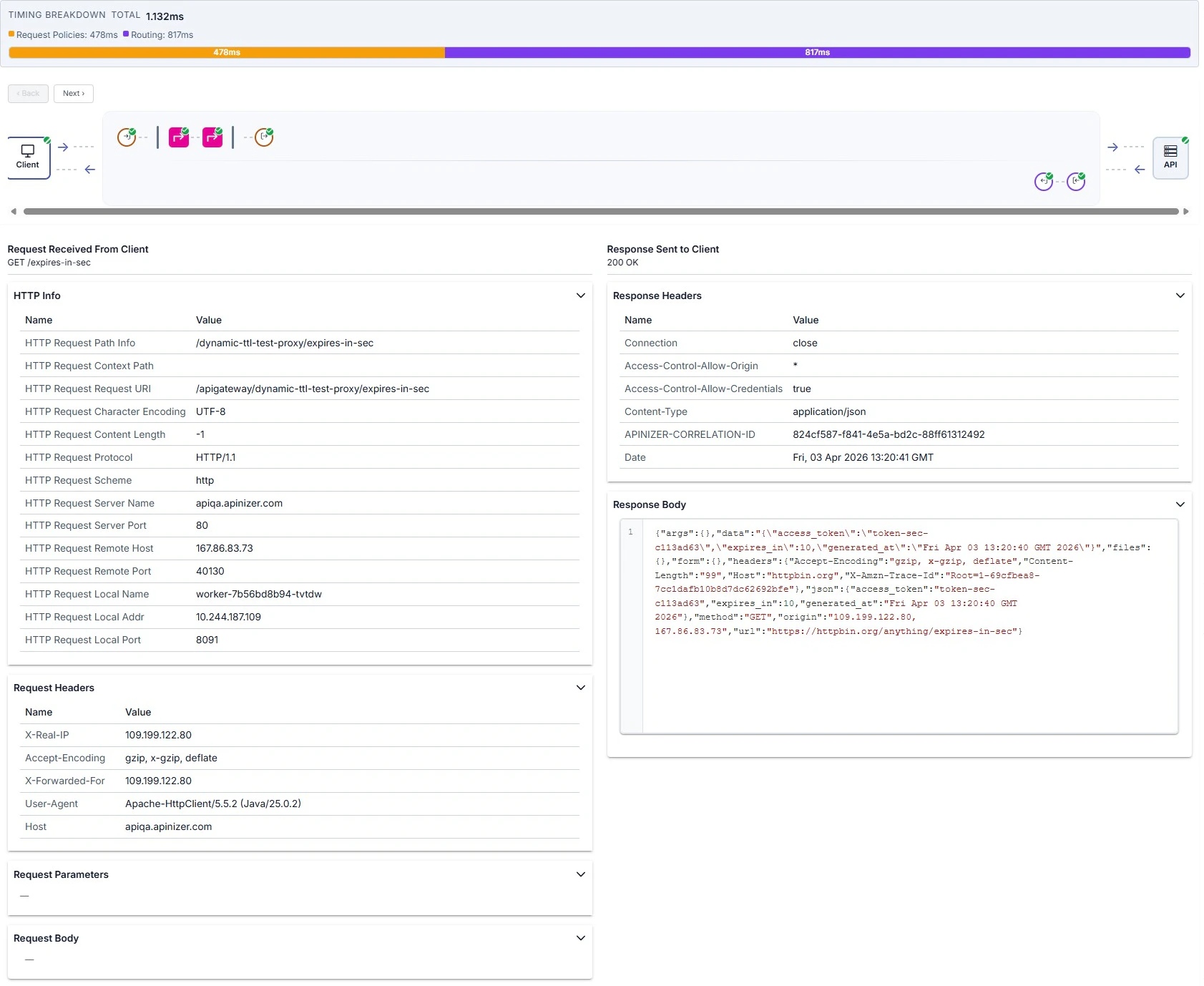
Gateway ingress (request received at gateway)
Summary line with request line, API name, endpoint, client IP, server host/port, protocol, and Correlation ID; below that, request headers and parameters.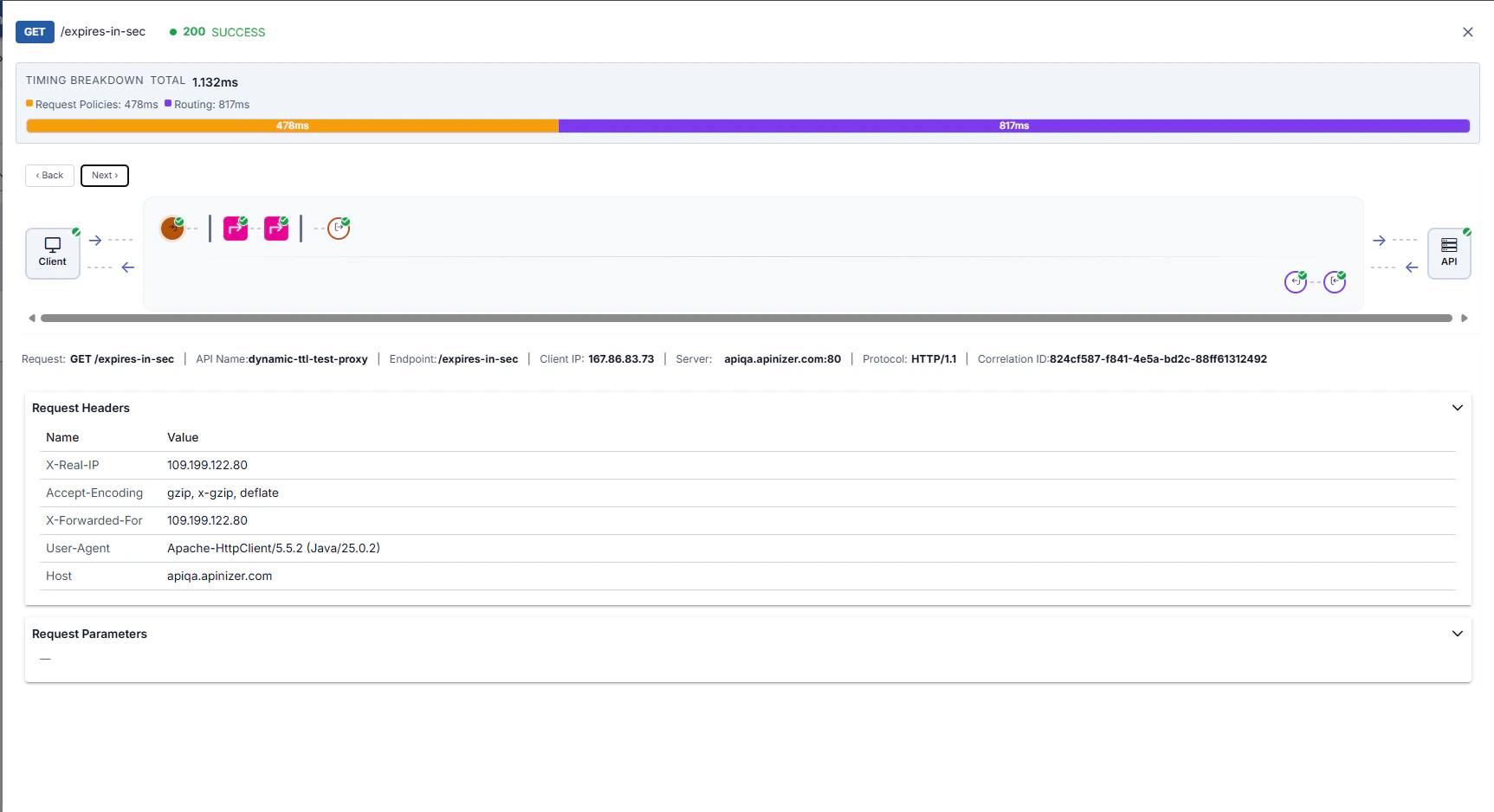
Request policy
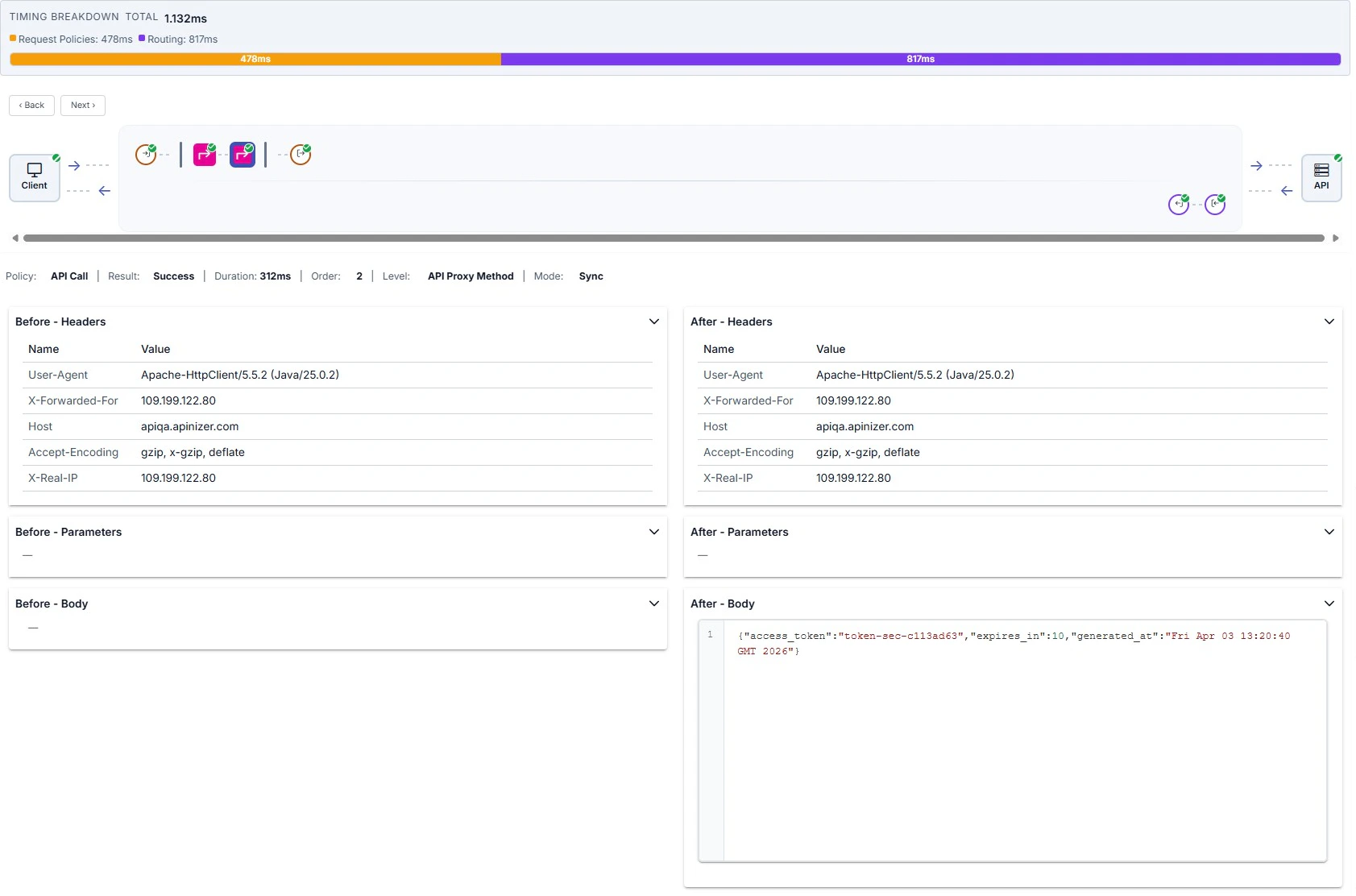
Execution strip — Policy, Result, Duration, Order, Level, Mode; if skipped, Skip reason. When executed: left Before - Headers / Parameters / Body, right After - Headers / Parameters / Body.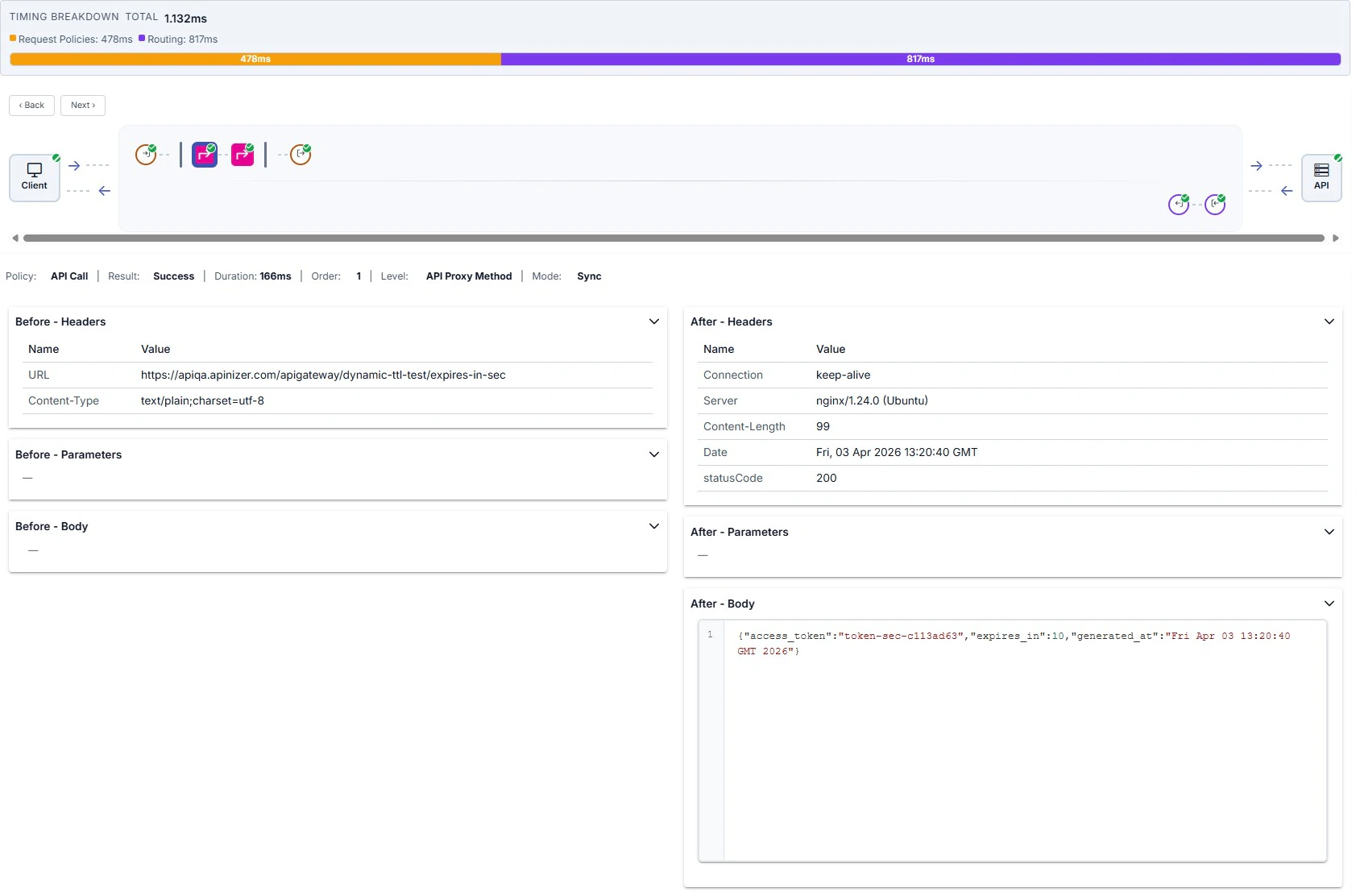
Request toward target (pre-routing egress)
If the request never reached the backend, an informational message is shown. Otherwise Target URL, Connection Type, and HTTP Method appear. On this step the Routing accordion lists routing rows; expand a row for request/response headers and bodies; the code icon opens that routing record as JSON. See HTTP routing for routing options.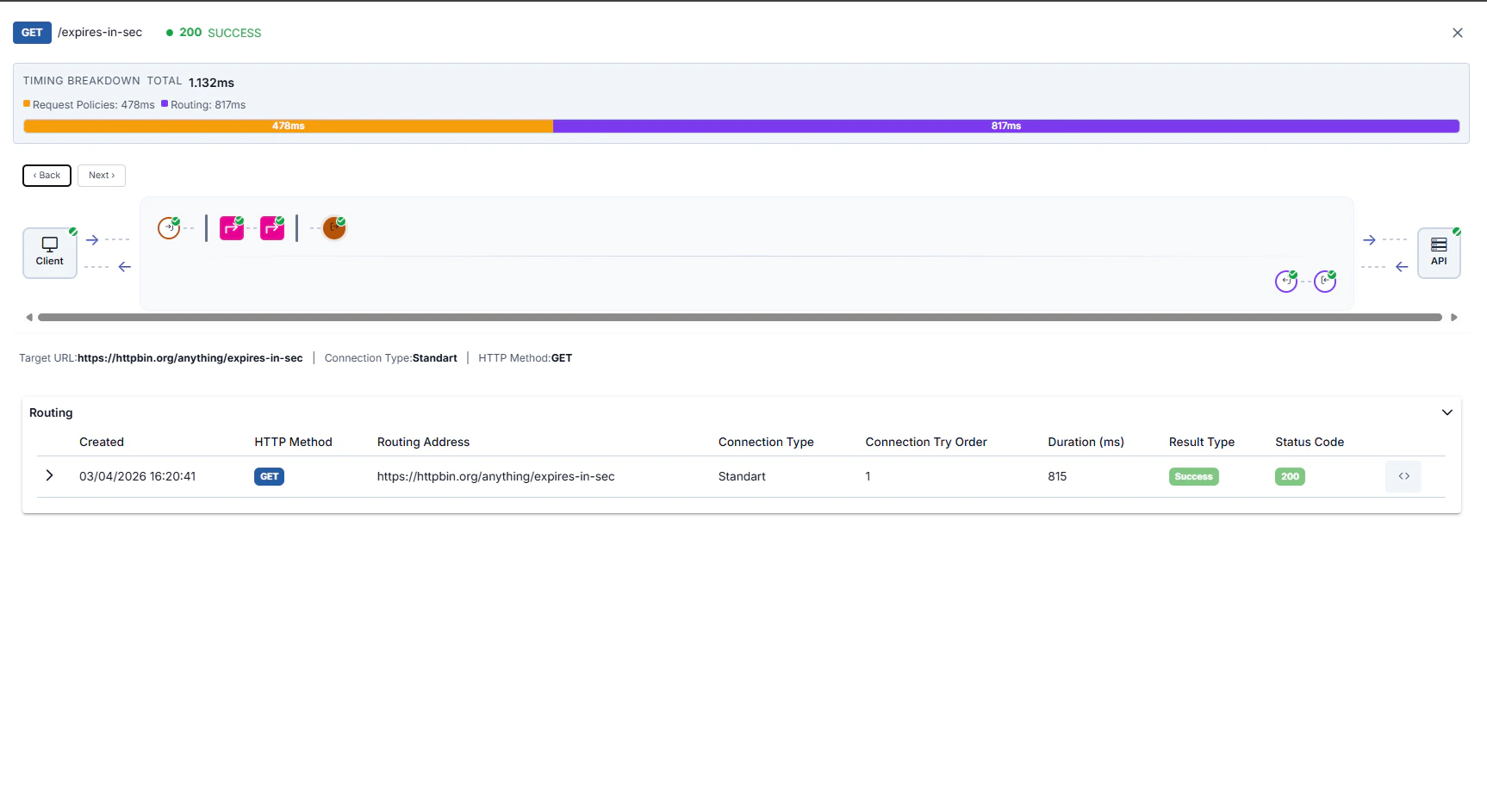
Backend target (API)
If the request did not reach the target, an explanatory message; otherwise a Target Info table with URL, status, result, duration, connection state, and related fields.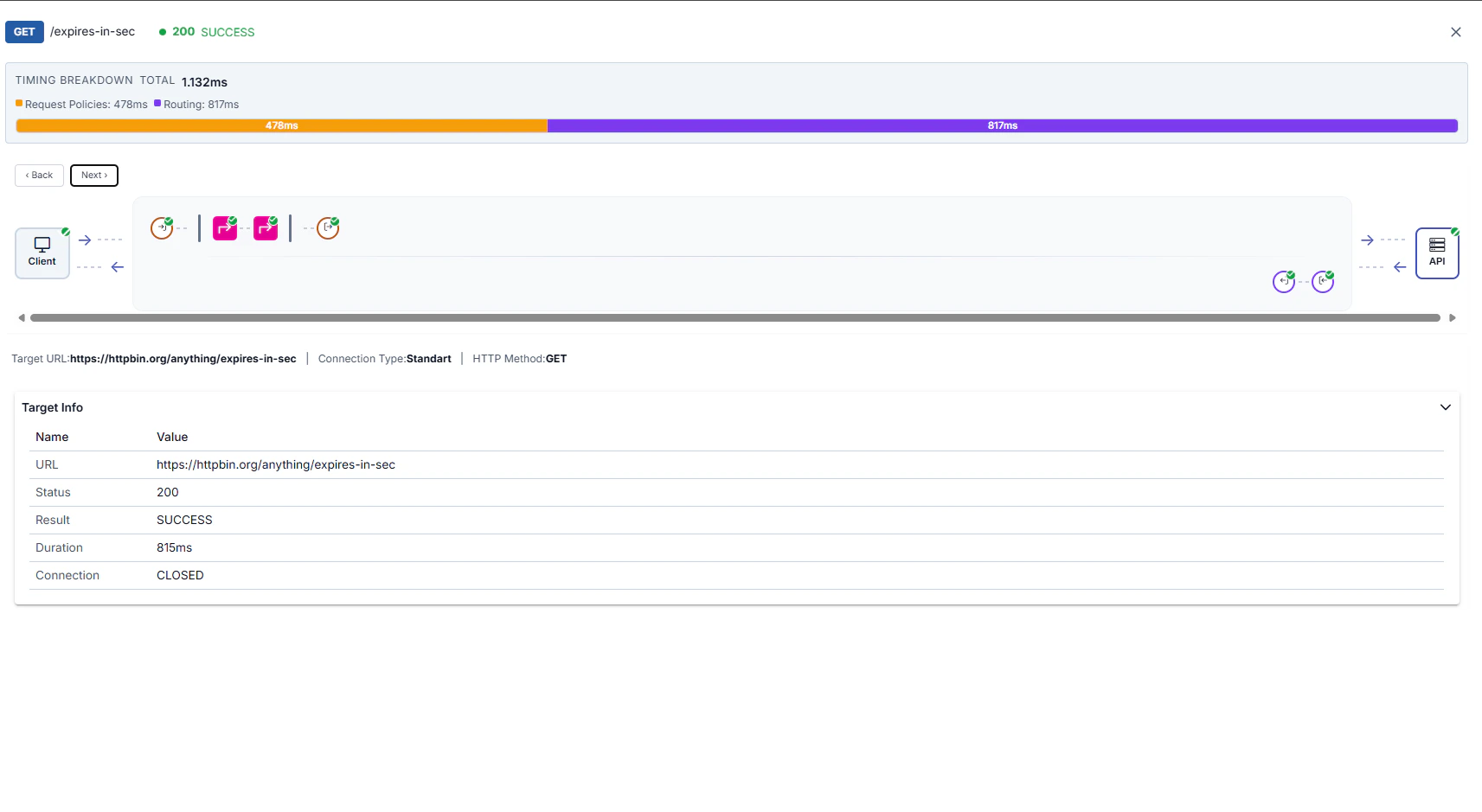
Response from target
Status summary plus Response Headers / Response Body.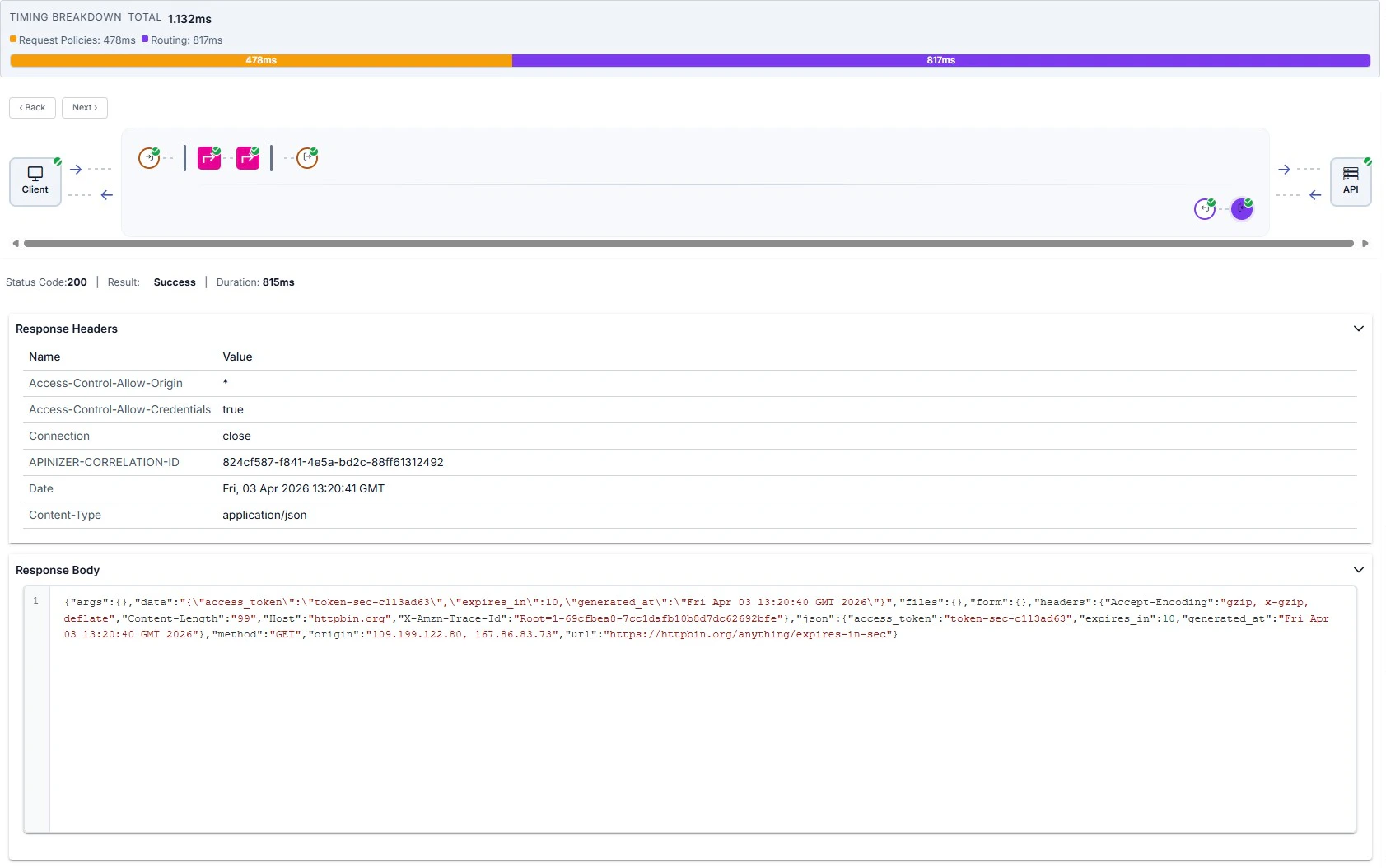
Response sent to client
Status, result, total time, and breakdown fields such as request processing, routing, and response serialization; Response Headers and Response Body.