
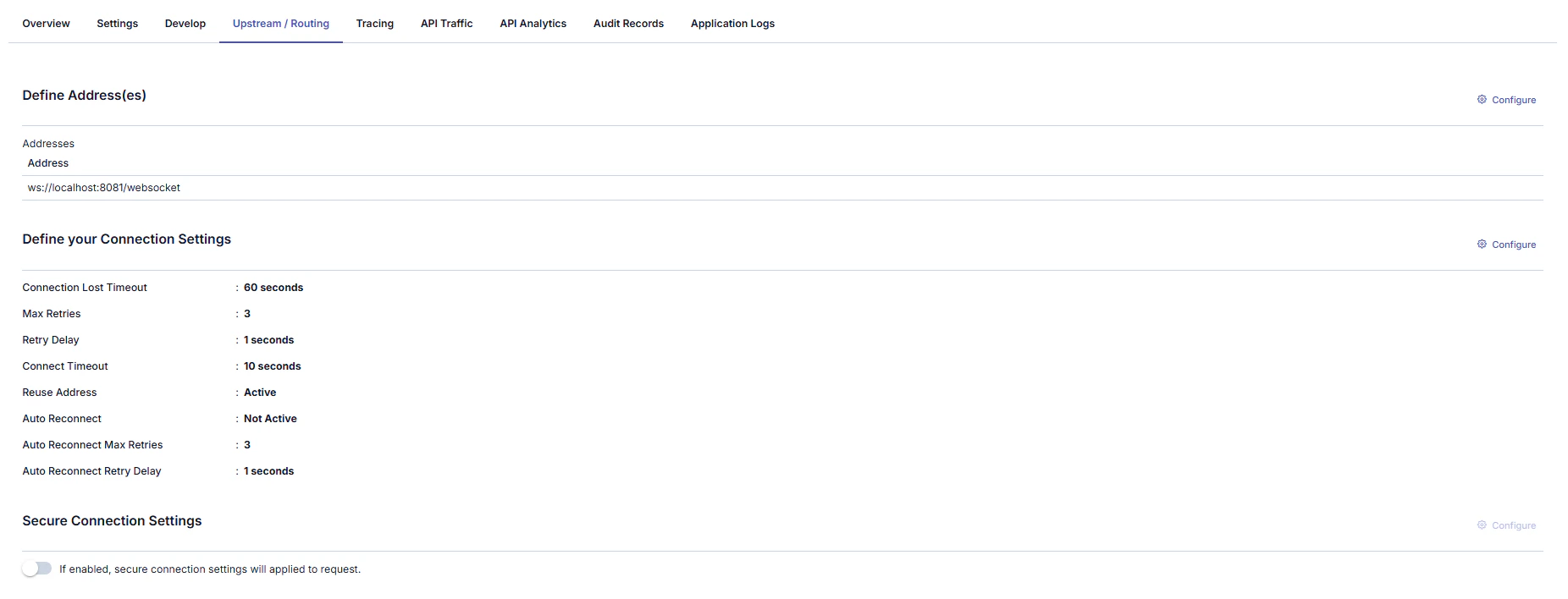
If API type is WebSocket, this tab is visible.
Adding New Address
A new address can be added from the window that opens when the ➕ button in the column header area at the far right of the window opened with the Configure button is clicked.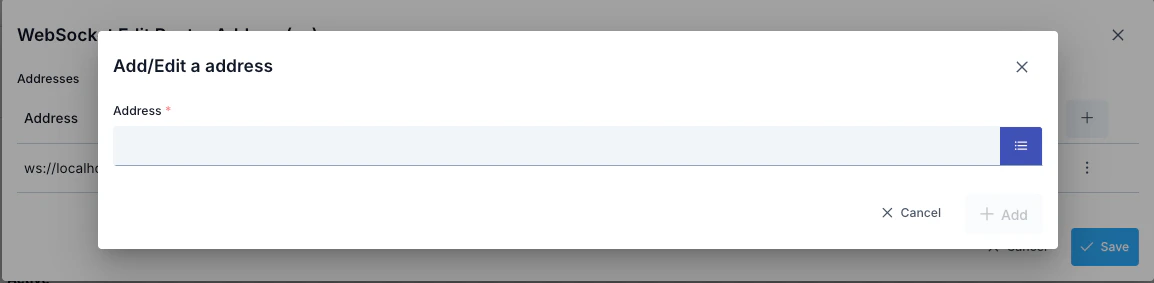
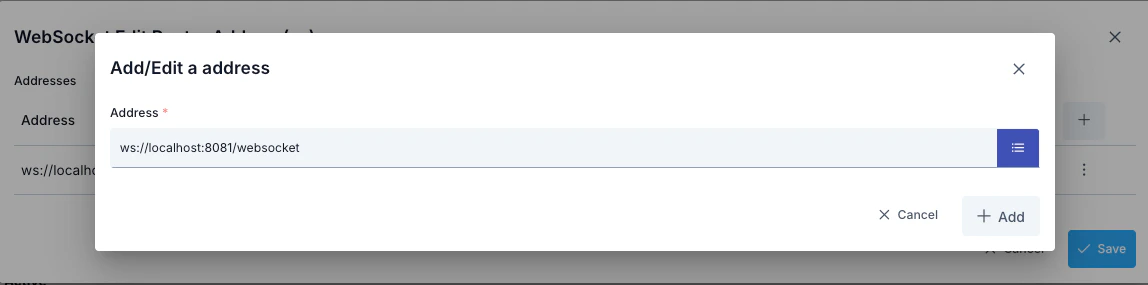
- Backend API address is entered in the Address field or environment variable is used
- Environment Variables Selection Dialog can be opened by clicking the list icon button on the right of the Address field
- Selected environment variable is copied to clipboard and pasted into the Address field
- Conditional routing can be defined with the Condition section
Updating Address
The backend address information where the request will be sent can be updated in the window that opens when the Configure button in the Address (Address) column of the table showing addresses is clicked.
- All environment variables are listed (Global and Environment-Specific)
- Filtering can be done by variable name or description with the search box
- Key Name, Description, Type information is displayed for each variable
- The format of the selected variable (
${variableName}) is automatically copied to clipboard with the Copy button - The copied value can be used by pasting it into the Address field
- Environment variable:
BACKEND_URL = ws://dev-api.example.com(for Development environment) - Environment variable:
BACKEND_URL = wss://api.example.com(for Production environment) - Value entered in Address field:
${BACKEND_URL} - At runtime in Development environment:
ws://dev-api.example.com - At runtime in Production environment:
wss://api.example.com
Deleting Address
The address is deleted by selecting the Remove option from the dropdown menu at the end of the row of the address to be deleted.Connection Settings Configuration
The WebSocket Connection Settings Definition Tab enables configuration of connections made over the WebSocket protocol. This tab contains various parameters necessary to optimize the performance and security of connections. Below are the details of the settings in this tab. The parameters used for WebSocket Connection settings configuration are shown below.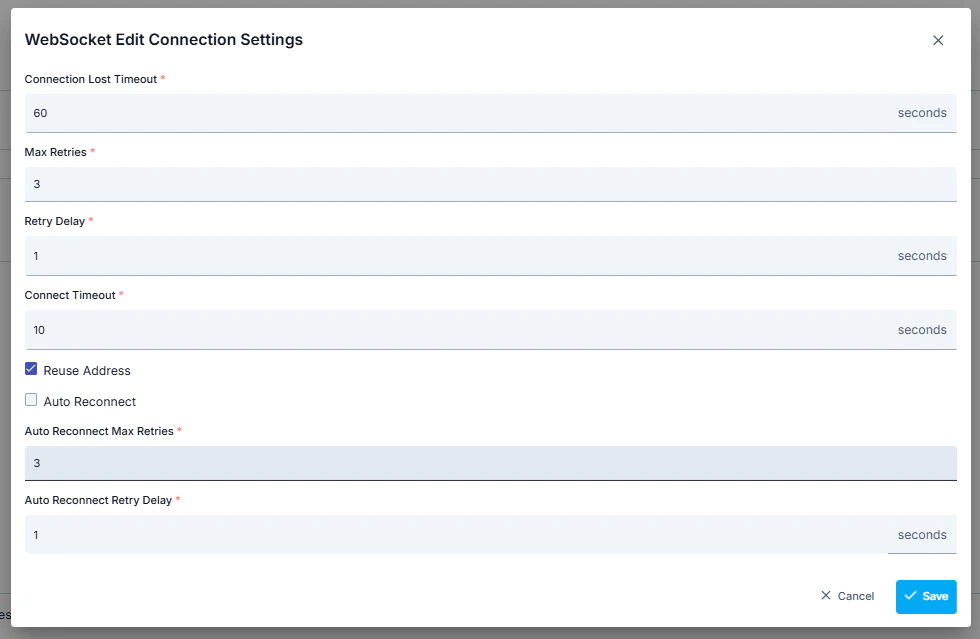
These settings provide important information about how your WebSocket connection will be managed and how it will respond to errors.
Secure Connection Setting
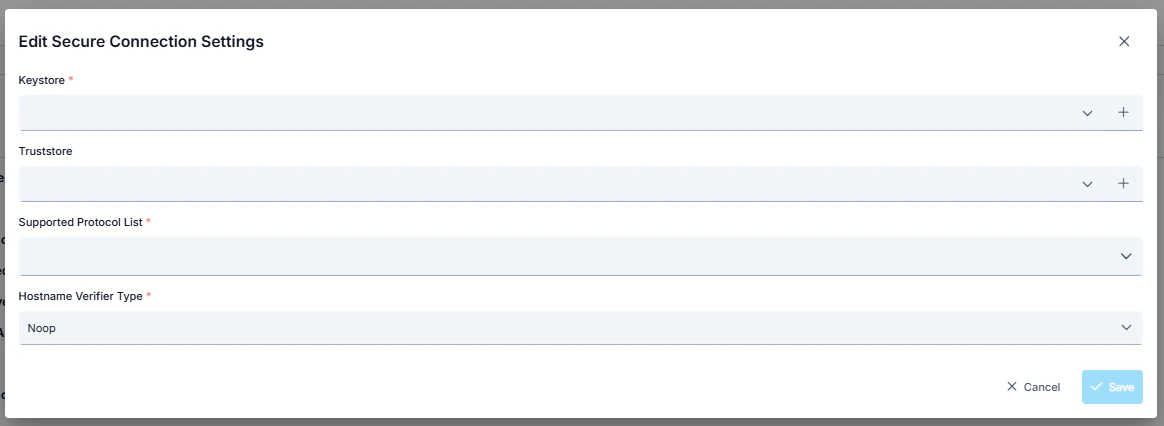
When this setting is enabled, the selected connection settings are applied to the request. Thus, the Apinizer client that will send from Apinizer to the target service verifies the target service’s certificate and indicates that it also has a certificate and must be verified by the target service. The target service also verifies the client’s certificate, and thus secure communication is established with the client. The parameters used for connection settings configuration are shown below.