

Basic Settings
Theme and Appearance settings on the Apinizer API Portal are managed from this screen. Visual identity, color palette, font, and page titles are edited from this screen. The image containing the Appearance and Theme screen details is provided below:
Impact on API Portal Interface
The images below show the Theme and Appearance (Appearance) settings screen of the Apinizer API Portal. The numbers on the images indicate the locations of configurable fields: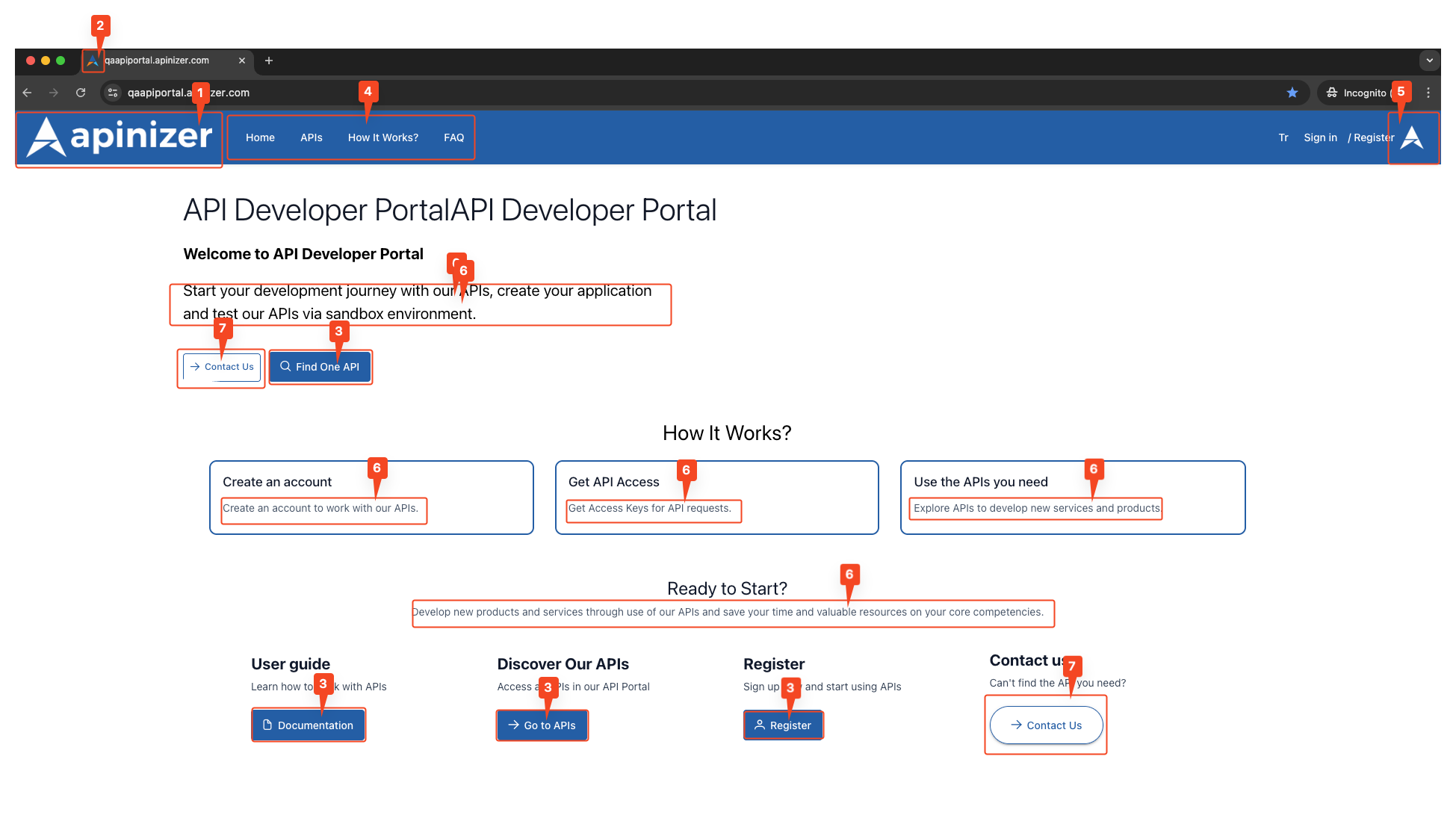
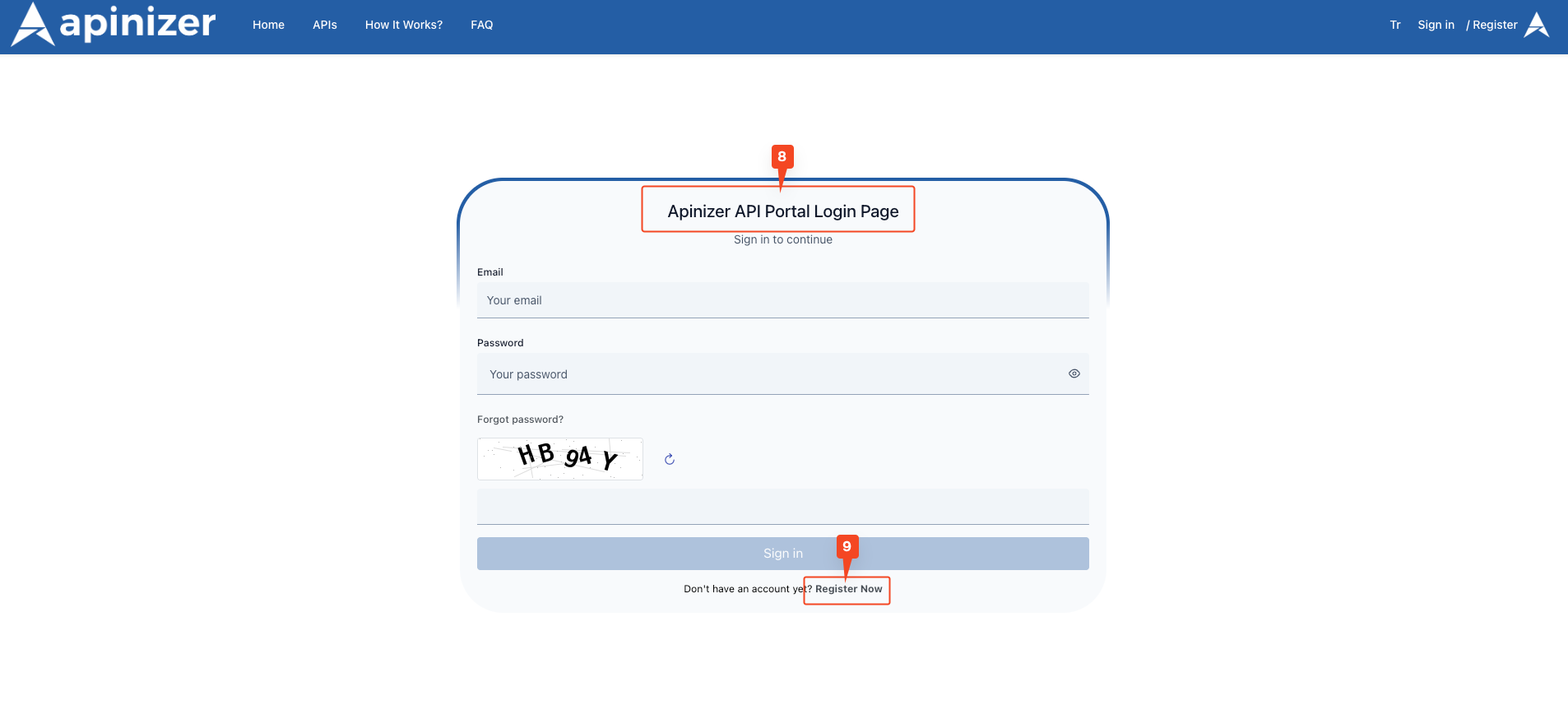
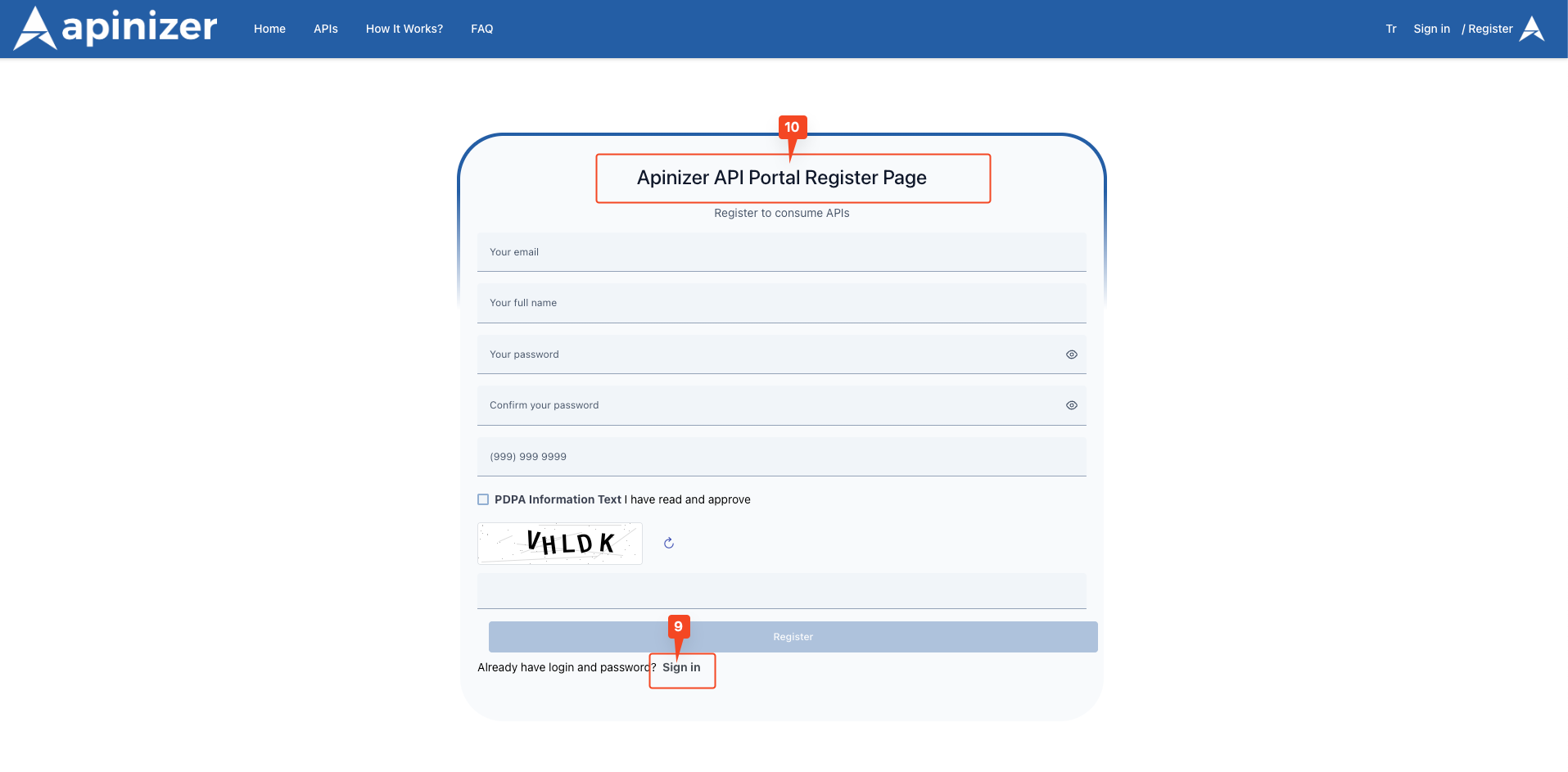
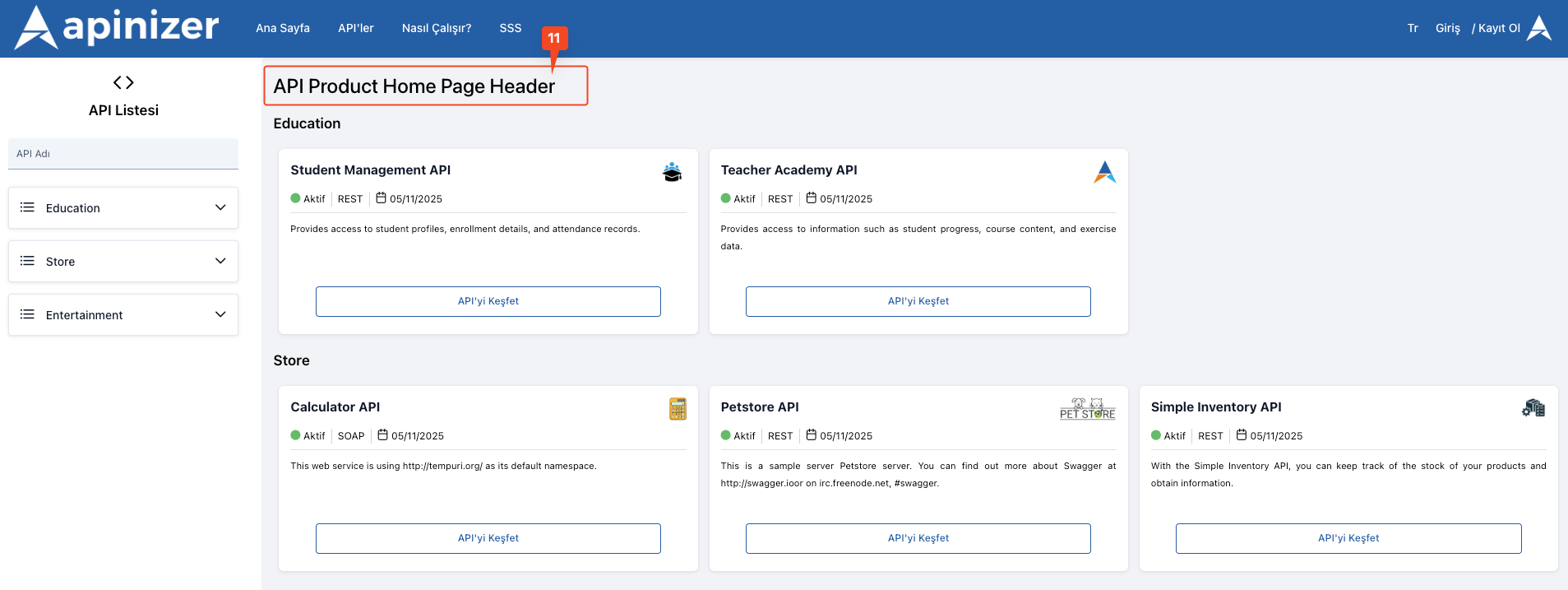
Important: Homepage, “How It Works”, and Footer content management have been removed from this page. To manage these contents, you can use the “Portal Content Management” section on the API Portal Settings page.
Saving and Preview
Saving Process
How to Save:- Click the “Save” button in the top right corner
- All appearance settings are saved
- After successful save, changes are reflected on the portal instantly.
Basic Fields
Frequently Encountered Issues
Why Are Changes Not Visible on Portal?
Why Are Changes Not Visible on Portal?
- Refresh the page (Ctrl+F5 or Cmd+Shift+R)
- Clear browser cache
- Make sure you clicked the Save button
- Try in a different browser
Why is Favicon not updating?
Why is Favicon not updating?
- Completely clear browser cache
- Close and reopen the browser
- Check favicon format and size
Why is HTML Preview Not Working?
Why is HTML Preview Not Working?
- There may be a syntax error in the HTML code
- Check browser console errors (F12)
- Check for unclosed tags
Why are Colors Different Than Expected?
Why are Colors Different Than Expected?
- Check hex code format (#RRGGBB)
- Clear browser cache
- There may be CSS specificity issues
Why are Multilingual Contents Not Visible?
Why are Multilingual Contents Not Visible?
- Make sure both languages are active in Portal Settings
- Make sure you entered content for each language
- Make sure the user selected the correct language