

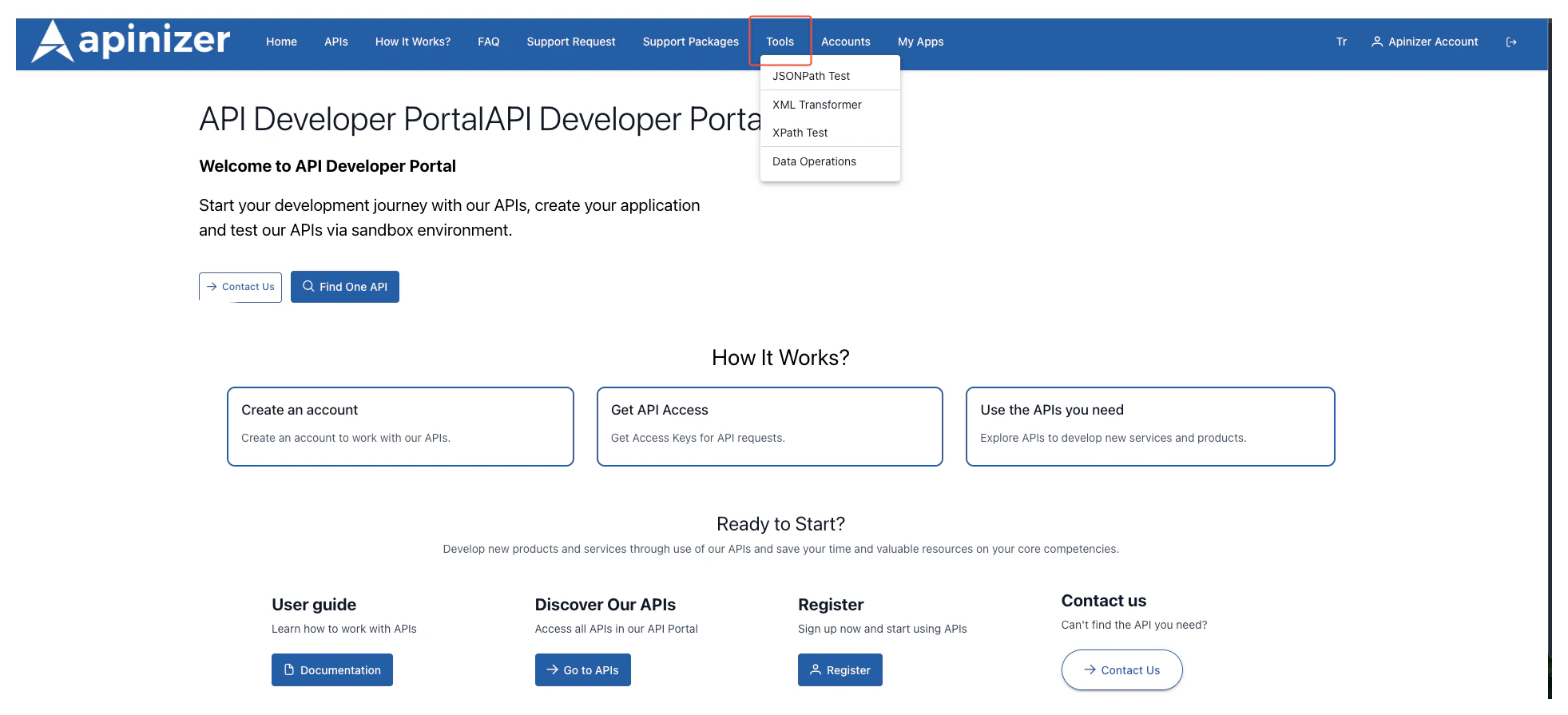
Test Tools Menu
JSONPath Test
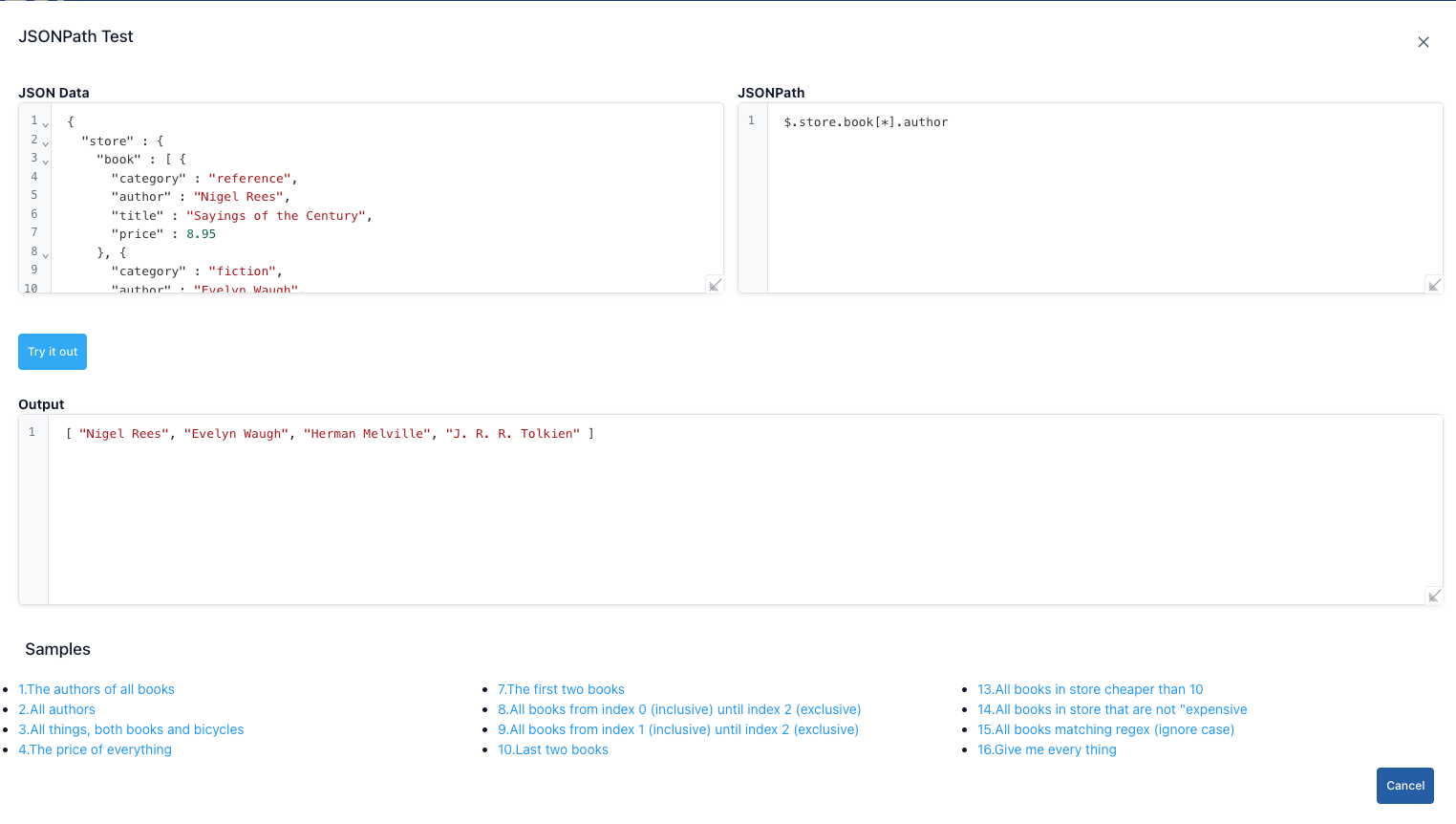
JSONPath Test Screen
1
Click JSONPath option from Test Tools menu
Click JSONPath option from Test Tools menu.
2
Paste your JSON into JSON Data field
Paste the entire JSON you want to query into the JSON Data field.
3
Write JSONPath expression
Write an expression in the JSONPath box, for example:
$.store.book[*].author.4
Press Try It Out button
Press the Try It Out button. Matching results are listed in JSON format in the bottom section.
5
Close dialog
Use the
Cancel button or the close icon in the top right to close the dialog.6
Adjust dialog width (optional)
If you are working with large JSONs, you can increase the dialog width by dragging.
XML Transformer

XML Transformer Screen
1
Open Transform XML option
Click the Transform XML option from the
Test Tools menu.2
Select message type
Select one of the
XML to XML or XML to JSON options from the Message Type field at the top.3
Enter XML data
Paste the XML you want to transform into the
XML Data editor or click the links at the bottom to use one of the sample data.4
Run transformation
When you press the
Try button, transformation is performed according to the type you selected and the result is shown in the Result panel at the bottom.5
Close dialog
If you press the
Cancel button, the dialog closes.- You write the transformation template in the XSLT editor that opens on the right. XSLT’s
matchandtemplaterules shape the output according to how they will match. - When you press the
Trybutton, XSLT is applied to the XML on the left and the response is written to theResultfield again as XML. - If you use namespace in XSLT, place
xmlns:definitions at the beginning; otherwise you will get a"Namespace prefix ... is not defined"error. - To test, the example links in the bottom section automatically fill both the input XML and XSLT in a matched way.
- The output editor comes with XML syntax highlight by default; the result does not convert to JSON format.
- When this option is selected, the XSLT editor is hidden, and instead options to shape the JSON output are shown.
- Ignore NULL values: Check if there are
xsi:nil="true"or empty elements in XML and you don’t want them transferred to JSON. - Ignore empty values: Does not include elements containing only empty strings in JSON.
- Write numbers as strings: Stores numeric values as strings in JSON output; ideal for services requiring type conversion.
- Use null for xsi:nil: Produces real
nullvalue instead of"null"for elements containingxsi:nil="true". - Unwrap element: Single child nodes return directly as value in JSON; prevents intermediate nodes from being crowded.
- Path Arrays: Enter XPath-like paths (e.g.,
/Envelope/Body/authors/name) to make multiple repeating nodes mandatory as arrays in JSON. The AutoComplete field stores entered paths as a list. - Options are connected to the
jhi-xml-to-json-transformationcomponent; after theTrybutton, JSON output is shown in theResultpanel and the editor switches to JSON highlight. - If an error occurs during transformation (corrupted XML, etc.), the process stops and you need to fix the XML before changing the relevant checkbox settings.
XPath Test

XPath Test Screen
1
Open XPath option
Click the XPath option from the
Test Tools menu.2
Enter XML data
Paste the XML content you want to query into the
XML Data section.3
Write XPath expression
Write an expression in the
XPath field, for example /catalog/book[price>10].4
Press Try it out button
Press the
Try it out button; matching nodes are listed in a table below along with <book> tags.5
Close dialog
Click the
Cancel button to close the dialog.Data Operations
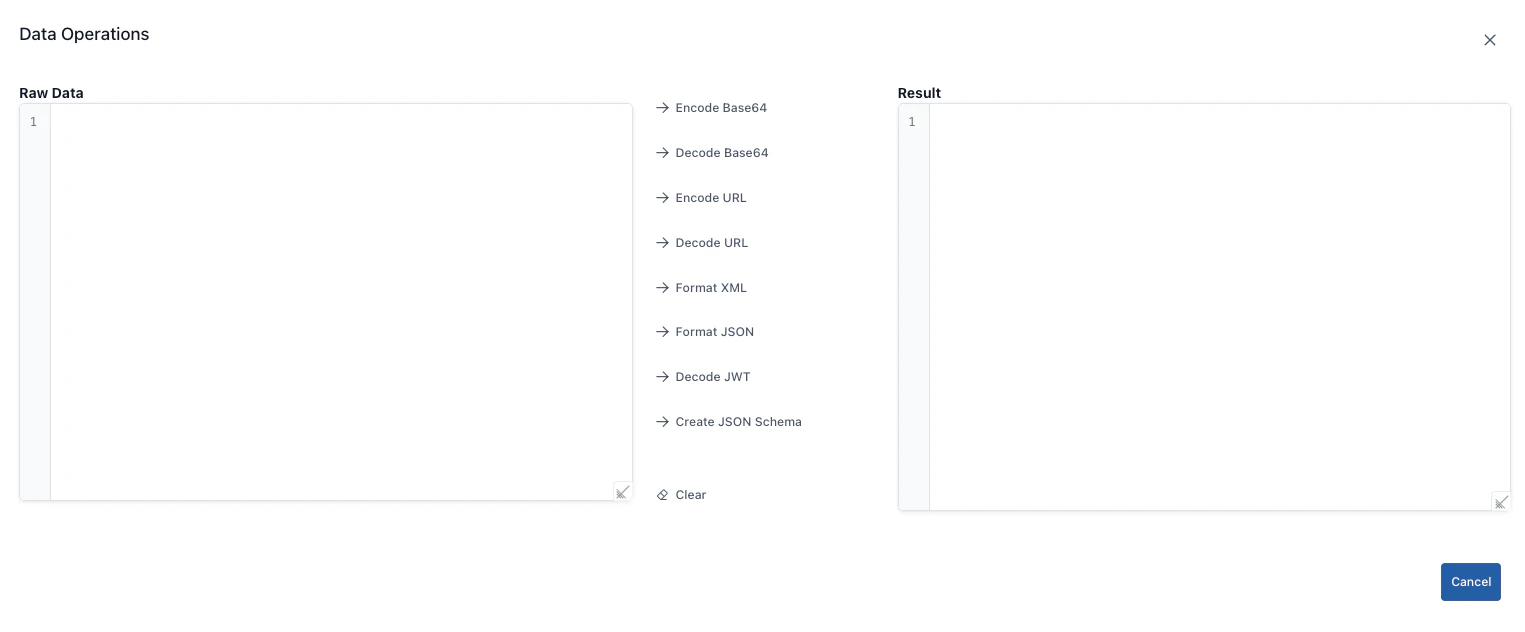
Data Processing Tools