

Overview
What is its Purpose?
What is its Purpose?
Centralized Management
Connection provides reliable access to ActiveMQ brokers, centralizing message sending and receiving operations.
Reusability
Eliminates configuration repetition by providing reusable connection parameters across different Integration Flow steps.
Environment-Based Management
Provides consistent deployment processes between Development, Test, and Production through environment-based management.
Performance and Durability
Provides performance and durability in high-traffic scenarios thanks to advanced timeout and pool management.
Working Principle
Working Principle
Connection Initiation
When a Message Queue connection is requested from within an Integration Flow or Connector, the system reads the configured connection parameters.
Connection Pool Management
Previously opened connections are reused with active connection pool strategy; if pool is full, a new connection is created.
Authentication
Authentication to broker is performed with basic Authentication mechanism (username/password) or optional SSL/TLS certificate verification.
Data Communication
JMS messages are transmitted or consumed synchronously/asynchronously to Queue or Topic targets over AMQP/TCP protocol.
Connection Management
When the operation completes, the connection returns to the pool; passive connections are closed according to pool policies.
Error Management
In case of connection error, timeout, or authentication error, error details are logged, system automatically retries and produces a warning message to the user.
Usage Areas
Usage Areas
Asynchronous Message Queue
Application components executing asynchronous message queue operations via ActiveMQ.
Reliable Message Broadcast
Reliable message broadcast and consumption in Queue or Topic-based integrations.
High Volume Message Scenarios
High volume message scenarios in business intelligence, notification, or integration services.
Inter-Microservice Communication
AMQP-based event sharing in inter-microservice communication.
Legacy JMS Integration
Including legacy JMS applications in modern Integration Flow steps.
Technical Features and Capabilities
Basic Features
Protocol Flexibility: Provides connections suitable for different ActiveMQ distributions with AMQP or TCP protocol selection. Destination Management: Manages Queue or Topic destinations from a single screen, storing them together with necessary credentials. Session Acknowledgement Policy: Fast integration with AUTO_ACKNOWLEDGE default; provides advanced control with CLIENT_ACKNOWLEDGE or TRANSACTED. Environment-Based Configuration: Ability to define separate connection parameters for each environment (Development, Test, Production). Enable/Disable Control: Activating or deactivating the Connection (enable/disable toggle). In passive state, the connection cannot be used but its configuration is preserved.Advanced Features
Timeout Management: Connection, request response, and message sending durations can be precisely adjusted in milliseconds. Content Customization: Message metadata is standardized with Content-Type and Content-Encoding fields. Client ID Definition: Persistent subscription or durable consumer scenarios become possible thanks to JMS ClientID support. Connection Test Feature: Ability to validate connection parameters before saving via “Test Connection” button. Export/Import Feature: Exporting Connection configuration as a ZIP file. Importing to different environments (Development, Test, Production). Version control and backup capability. Connection Monitoring: Monitoring connection health, pool status, and performance metrics.Connection Parameters
Mandatory Parameters
Mandatory Parameters
Name
Description: Connection name (must be unique)
Example Value:
Notes: Should not start with space, special characters should not be used
Example Value:
Production_ActiveMQNotes: Should not start with space, special characters should not be used
Broker URL
Description: ActiveMQ broker access address
Example Value:
Notes: Includes protocol (amqp/tcp) and port value
Example Value:
tcp://mq.prod.local:61616Notes: Includes protocol (amqp/tcp) and port value
Username
Description: ActiveMQ access username
Example Value:
Notes: Authorized account should be used
Example Value:
mq_service_userNotes: Authorized account should be used
Password
Description: Password belonging to the user
Example Value:
Notes: Secret manager should be used for password storage
Example Value:
********Notes: Secret manager should be used for password storage
Destination Type
Description: Queue or Topic selection
Example Value:
Notes: Enum values: QUEUE, TOPIC
Example Value:
QUEUENotes: Enum values: QUEUE, TOPIC
Destination Name
Description: Message queue or topic name
Example Value:
Notes: Should comply with namespace rules
Example Value:
order.events.queueNotes: Should comply with namespace rules
ActiveMQ Connection Protocol Type
Description: Connection protocol to be used
Example Value:
Notes: Enum values: AMQP, TCP
Example Value:
AMQPNotes: Enum values: AMQP, TCP
Session Acknowledgement
Description: JMS session acknowledgement type
Example Value:
Notes: Enum values: AUTO_ACKNOWLEDGE, CLIENT_ACKNOWLEDGE, SESSION_TRANSACTED, DUPS_OK_ACKNOWLEDGE
Example Value:
AUTO_ACKNOWLEDGENotes: Enum values: AUTO_ACKNOWLEDGE, CLIENT_ACKNOWLEDGE, SESSION_TRANSACTED, DUPS_OK_ACKNOWLEDGE
Environment Id
Description: Environment selection reference
Example Value:
Notes: Environment list comes from Environment service
Example Value:
env-prod-01Notes: Environment list comes from Environment service
Optional Parameters
Optional Parameters
Send Timeout
Description: Wait time for message sending
Default Value: 60000
Recommended Value: 30000 - 120000 range according to need
Default Value: 60000
Recommended Value: 30000 - 120000 range according to need
Request Timeout
Description: Response wait time
Default Value: 60000
Recommended Value: 45000 for critical operations
Default Value: 60000
Recommended Value: 45000 for critical operations
Close Timeout
Description: Connection closing time
Default Value: 60000
Recommended Value: 90000 for long sessions
Default Value: 60000
Recommended Value: 90000 for long sessions
Connect Timeout
Description: Time to connect to broker
Default Value: 60000
Recommended Value: 90000 ms in high latency networks
Default Value: 60000
Recommended Value: 90000 ms in high latency networks
Content Type
Description: Message content type
Default Value: application/json
Recommended Value: application/xml according to workload
Default Value: application/json
Recommended Value: application/xml according to workload
Content Encoding
Description: Message character set
Default Value: UTF-8
Recommended Value: Standard UTF-8 usage is recommended
Default Value: UTF-8
Recommended Value: Standard UTF-8 usage is recommended
Client ID
Description: Persistent subscription identity
Default Value: durable-consumer-1
Recommended Value: Mandatory in durable topic subscriptions
Default Value: durable-consumer-1
Recommended Value: Mandatory in durable topic subscriptions
Timeout and Connection Pool Parameters
Connection Timeout
Description: Maximum wait time for connection establishment
Default: 60000
Min: 1000 | Max: 180000
Unit: milliseconds
Default: 60000
Min: 1000 | Max: 180000
Unit: milliseconds
Request Timeout
Description: Maximum wait time for request response
Default: 60000
Min: 1000 | Max: 180000
Unit: milliseconds
Default: 60000
Min: 1000 | Max: 180000
Unit: milliseconds
Pool Size
Description: Maximum number of connections in Connection pool
Default: 10
Min: 1 | Max: 200
Unit: count
Default: 10
Min: 1 | Max: 200
Unit: count
Send Timeout
Description: Expected longest duration for message sending
Default: 60000
Min: 5000 | Max: 180000
Unit: milliseconds
Default: 60000
Min: 5000 | Max: 180000
Unit: milliseconds
Usage Scenarios
Order Queue Consumption
Situation: New order messages are falling into ActiveMQ queue
Solution: Destination Type=QUEUE, Destination Name=order.events.queue, Protocol=AMQP
Expected Behavior: Integration Flow consumes order messages sequentially
Solution: Destination Type=QUEUE, Destination Name=order.events.queue, Protocol=AMQP
Expected Behavior: Integration Flow consumes order messages sequentially
Live Notification Broadcast
Situation: Websocket notifications will be distributed via topic
Solution: Destination Type=TOPIC, Destination Name=notifications.topic, ClientID=notif-producer
Expected Behavior: All subscribers receive real-time notifications
Solution: Destination Type=TOPIC, Destination Name=notifications.topic, ClientID=notif-producer
Expected Behavior: All subscribers receive real-time notifications
High Security Broker
Situation: Production broker only accepts SSL
Solution: Protocol=TCP, Broker URL=ssl://mq.prod.local:61617, SSL certificate attachments
Expected Behavior: Encrypted connection is successfully established
Solution: Protocol=TCP, Broker URL=ssl://mq.prod.local:61617, SSL certificate attachments
Expected Behavior: Encrypted connection is successfully established
Long Duration Operation
Situation: Batch job is sending large message packages
Solution: Send Timeout=120000, Request Timeout=120000, Pool Size=30
Expected Behavior: Message sending completes without interruption
Solution: Send Timeout=120000, Request Timeout=120000, Pool Size=30
Expected Behavior: Message sending completes without interruption
Test Environment Simulation
Situation: Test broker is low-resource
Solution: Pool Size=5, Request Timeout=45000, Content Type=application/json
Expected Behavior: Resource usage is optimized, test runs stably
Solution: Pool Size=5, Request Timeout=45000, Content Type=application/json
Expected Behavior: Resource usage is optimized, test runs stably
Disaster Recovery
Situation: Need to switch to backup broker
Solution: Broker URL is updated to secondary address, activated with Enable toggle
Expected Behavior: Traffic seamlessly shifts to backup broker
Solution: Broker URL is updated to secondary address, activated with Enable toggle
Expected Behavior: Traffic seamlessly shifts to backup broker
Connection Configuration
Creating New Apache ActiveMQ
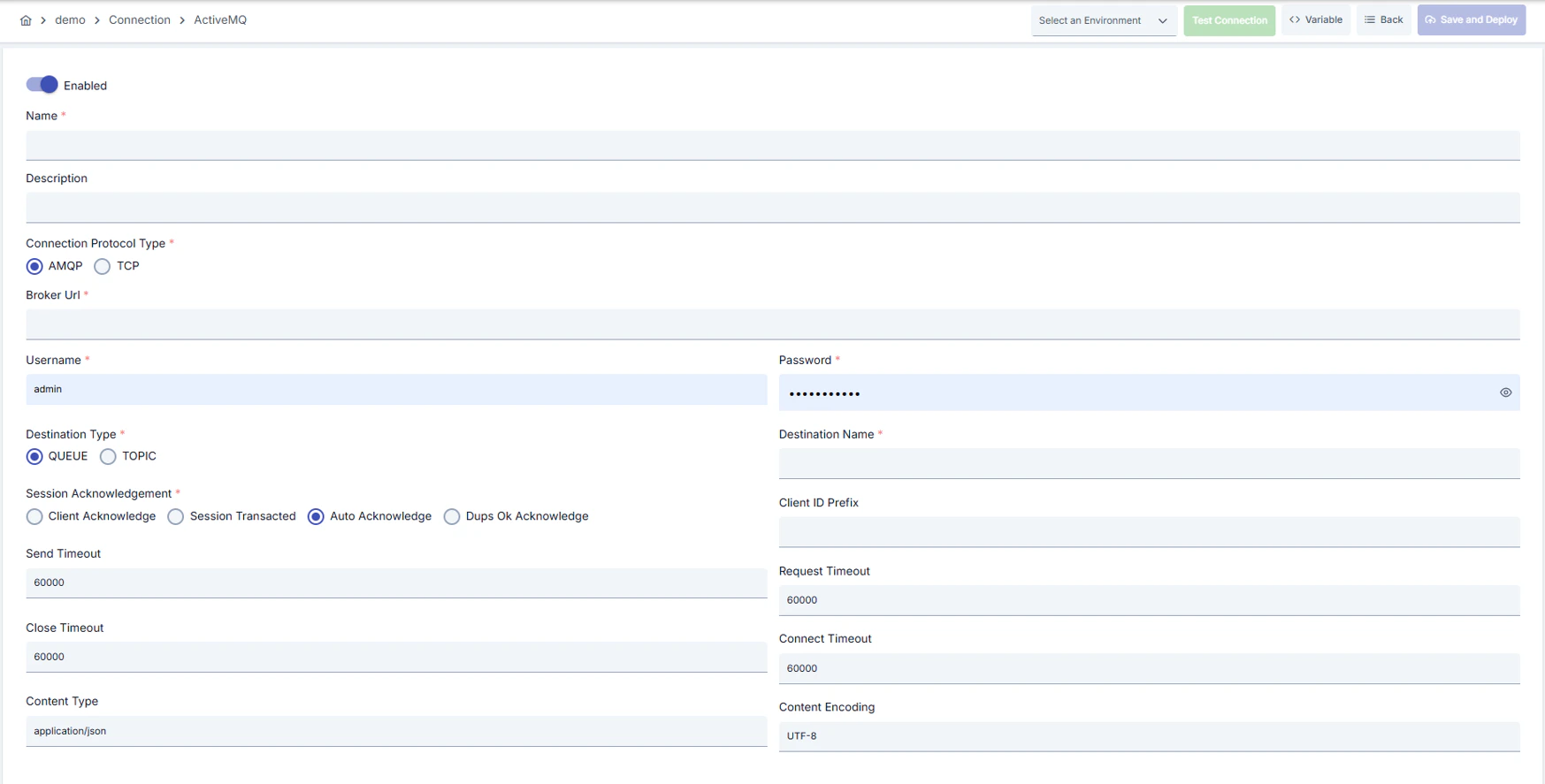
Configuration Steps
1
Navigating to Creation Page
- Go to Connection → Apache ActiveMQ section from the left menu.
- Click the [+ Create] button at the top right.
2
Entering Basic Information
Enable Status (Active Status):Set active/passive status with toggle. New connections are active by default.Name (Mandatory):Example:
Production_ActiveMQ- Enter unique name, should not start with space.
- System automatically checks. Green checkmark: available. Red X: existing name.
- Max. 1000 characters.
- Describe the purpose of the connection.
In the action button area at the top of the page, you can use the [<> Variable] button to select dynamic values, and using global variables, you can manage connection parameters with variable-based values instead of fixed values. For detailed information, review the Dynamic Variables page.
3
Environment Selection
- Select environment from dropdown menu: Development, Test, or Production.
- Different connection parameters can be defined for each environment.
4
ActiveMQ Basic Parameters
- Enter Broker URL, ActiveMQ Connection Protocol Type, Destination Type, Destination Name fields.
- Broker URL should comply with AMQP/TCP schema; destination type should be selected as Queue or Topic.
5
Messaging Session and Content Settings
- Determine Session Acknowledgement type according to your JMS strategy. Optionally fill Content Type, Content Encoding, Client ID fields.
- Client ID is required in durable topic subscriptions.
6
Timeout and Connection Pool Settings
- Enter Send Timeout, Request Timeout, Connect Timeout, Close Timeout values in milliseconds.
- Optimize pool sizes and durations for heavy traffic.
7
Security and Authentication Settings
- Fill Username and Password fields. If SSL/TLS requirements exist, configure broker URL with ssl:// and add necessary certificates to Environment repository.
8
Test Connection
- Click the [Test Connection] button.
- Test whether connection parameters are correct.
- Successful: Green confirmation message, Failed: Error details are shown.
9
Saving
- Click the [Save and Deploy] button at the top right.
- Unique name
- Mandatory fields filled
- Test connection successful (recommended)
- Connection is added to list.
- Becomes available for use in Integration Flow and Connector steps.
- Becomes active according to environment.
Deleting Connection
Deletion Process
- Select Delete from the ⋮ menu at the end of the row.
- Or click the [Delete] button on the connection detail page.
Deletion Tips
Check Before Deleting:
- May be used in Integration Flow or Connector steps.
- Assign an alternative connection if necessary.
- Take backup with Export before deleting.
- Use Disable option instead of deleting.
- Connection becomes passive but is not deleted.
- Can be reactivated when needed.
Exporting/Importing Connection
In this step, users can export (export) existing connections for backup, moving to different environments, or sharing purposes, or import (import) a previously exported connection again. This operation is used to maintain data integrity in version control, transition between test and production environments, or inter-team sharing processes.
Export
Export
Method 1
Select ⋮ → Export from the action menu. ZIP file is automatically downloaded.
Method 2
Click the [Export] button on the connection detail page. ZIP file is downloaded.
File Format
Format:
Example:
{Date}-connection-{ConnectionName}-export.zipExample:
13 Nov 2025-connection-Production_ActiveMQ-export.zipZIP Contents
- Connection JSON file
- Metadata information
- Dependency information (e.g., certificates, key store)
Usage Areas
- Backup
- Moving between environments (Test → Prod)
- Versioning
- Team or project-based sharing
Import
Import
Import Steps
- Click the [Import Apache ActiveMQ] button on the main list.
- Select the downloaded ZIP file.
- System checks: Is format valid? Is there a name conflict? Are dependencies available?
- Then click the [Import] button.
Import Scenarios
Scenario 1: Name Conflict → Overwrite the old connection or create with a new name.Scenario 2: Missing Dependencies → Create missing certificates or key stores first or exclude them during import.
Connection Usage Areas
Creating and Activating Connection
Steps:
- Create the connection.
- Verify the connection with Test Connection.
- Save and activate with Save and Deploy.
- Make sure the connection is in Enabled status.
Usage in Integration / Connector Steps
- Connection is selected in steps that require communication with external systems such as message queue (queue), topic, email, FTP/SFTP, LDAP, or similar.
- Example: Steps like “Send Message”, “Consume Message”, “Upload File”, “Read Directory”.
- Connection selection is made from the Connection field in the configuration of these steps.
Scheduled Job Usage
- In scheduled tasks (e.g., sending messages at certain intervals, file processing, etc.), access to external systems is provided by selecting connection.
- When connection changes, job execution behavior is updated accordingly.
Test Purpose Usage
- Connection correctness can be checked independently from Integration Flow with Connection Test feature.
- This test is critical in the debugging process.