

Overview
What is its Purpose?
What is its Purpose?
Centralized Log Transfer
Flexible Log Transport
Environment-Based Configuration
Security Warning
Working Principle
Working Principle
Connection Initiation
Connection Pool Management
Authentication
Data Communication
Connection Management
Error Management
Use Cases
Use Cases
SIEM/SOC Integration
Security Events
Log Correlation
Test and Validation
Technical Features and Capabilities
Basic Features
Basic Features
Dual Protocol Support
Format and Metadata Flexibility
Environment ID-Based Routing
Environment-Based Configuration
Enable/Disable Control
Advanced Features
Advanced Features
Dynamic Deployment Results
Move to Global
Bulk Import/Export
Connection Test Feature
Export/Import Feature
Connection Monitoring
Connection Parameters
Required Parameters
Required Parameters
Name
Environment
Syslog Protocol Type
Syslog Server Hostname
Syslog Port
Syslog Message Format
Syslog App Name
Syslog Facility
Syslog Severity
Syslog Timeout (TCP)
Optional Parameters
Optional Parameters
Description
Syslog Message Hostname
Syslog SSL Enabled
Deploy To Worker
Timeout and Connection Pool Parameters
Connection Timeout
Default: 5000
Min: 1000 | Max: 60000
Unit: milliseconds
Request Timeout
Default: 15000
Min: 5000 | Max: 60000
Unit: milliseconds
Pool Size
Default: 1
Min: 1 | Max: 5
Unit: count
UDP Burst Interval
Default: 0
Min: 0 | Max: 100
Unit: milliseconds
Queue Capacity
Default: 10000
Min: 100 | Max: 1000000
Unit: messages
Write Timeout
Default: 5
Min: 1 | Max: 60
Unit: seconds
Use Cases
SOC Integration
Solution: Protocol: TCP, SSL Enabled: true, Port: 6514
Expected Behavior: Logs transmitted securely over TLS, facility/severity fields fall to SIEM rules
Network Monitoring
Solution: Protocol: UDP, Port: 514, Message Format: RFC_3164
Expected Behavior: Log flow performed with low latency, packet loss is tolerant
Application Debug
Solution: Severity: DEBUG, Facility: LOCAL0, Message Hostname: test-gw
Expected Behavior: Test syslog server receives detailed debug events
Compliance Audit
Solution: Facility: AUDIT, Severity: NOTICE, App Name: ComplianceGW
Expected Behavior: Separated log flow provided for audit reports
Multi-Project Sharing
Solution: Move to Global, Environment ID: admin project, Name prefix: Global_
Expected Behavior: Single connection shared across all projects, changes managed centrally
DR Scenario
Solution: Export ZIP, Import to different environment, Port/Hostname updated to DR address
Expected Behavior: DR syslog server starts receiving logs in same format
Connection Configuration
Creating New Syslog Connection
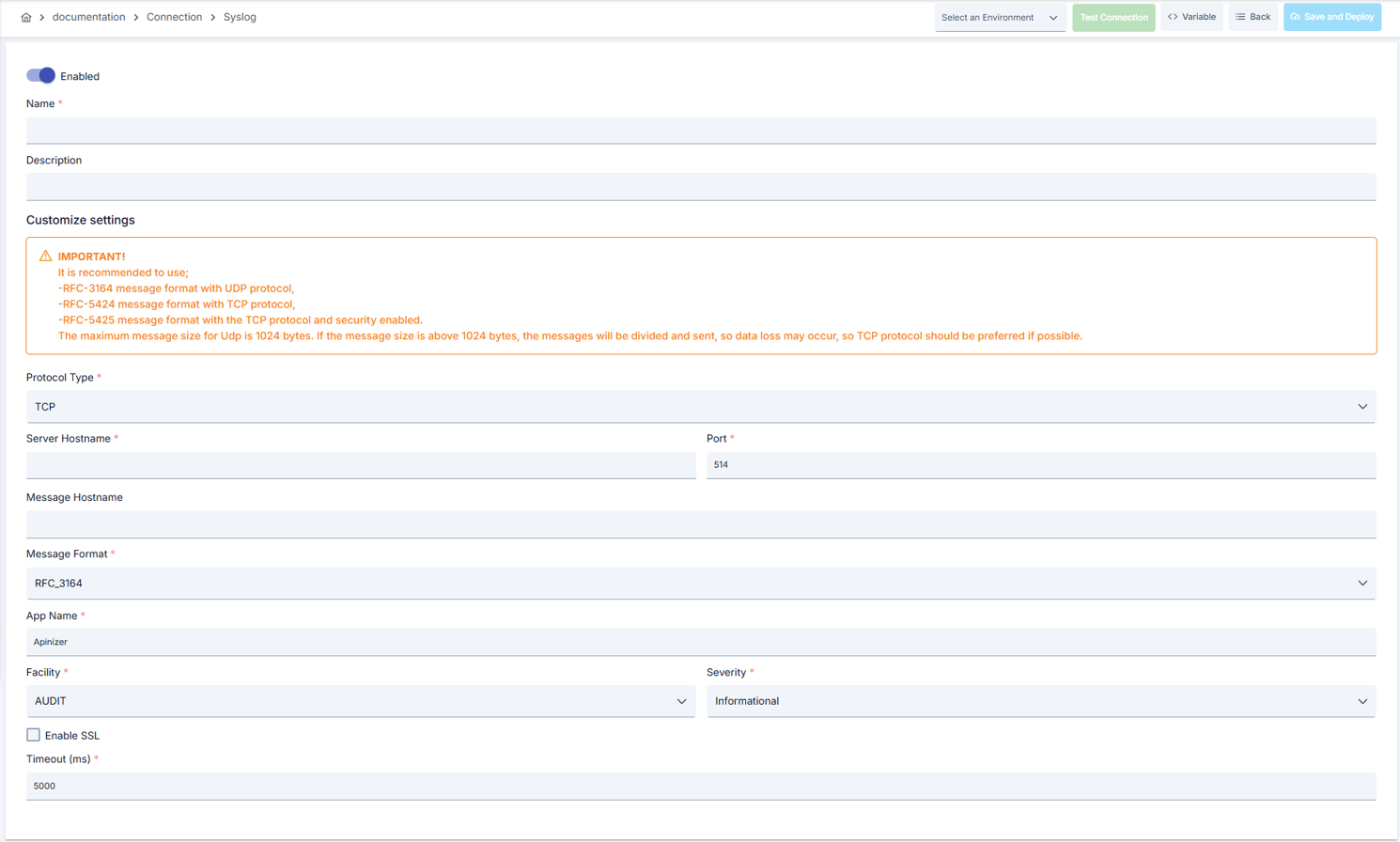
Navigate to Creation Page
- Go to Connection → Syslog Connection section from left menu.
- Click [+ Create] button at top right.
Enter Basic Information
- Example:
Production_Syslog - Enter unique name, cannot start with space.
- System automatically checks. Green checkmark: available. Red X: existing name.
- Example: “Gateway prod log flow”
- Max. 1000 characters.
- Describe the purpose of the Connection.
Environment Selection
- Select environment from dropdown menu: Development, Test, or Production.
- Different connection parameters can be defined for each environment.
Syslog Network Parameters
- Select TCP or UDP from Syslog Protocol Type field.
- Enter Syslog Server Hostname and Syslog Port values.
- Incorrect port leads to log loss; verify network firewall openings.
Message Format and Metadata
- Select Syslog Message Format (RFC 3164/5424/5425).
- Fill Syslog Message Hostname, Syslog App Name, Facility, and Severity fields according to your log policy.
Timeout and Connection Pool Settings
- When TCP is selected, Syslog Timeout value is entered in milliseconds (default 5000).
- Timeout field is hidden in UDP mode; consider UDP Burst Interval recommendations for high traffic.
Security and Authentication Settings
- Enable TLS tunneling by setting Syslog SSL Enabled option to true in TCP mode.
- Match certificate chain with syslog server; assign from certificate store if mutual TLS is required.
Test Connection
- Click [Test Connection] button.
- Test whether connection parameters are correct.
- Success: Green confirmation message, Failed: Error details shown.
Save
- Click [Save and Deploy] button at top right.
- Connection is added to list.
- Becomes available in Integration Flow and Connector steps.
- Becomes active according to environment.
Deleting Connection
Delete Operation
Delete Tips
Alternative: Deactivate
Exporting/Importing Connection
Export
Export
Method 1
Method 2
File Format
Date-connection-ConnectionName-export.zipExample:
13 Nov 2025-connection-Production_Syslog-export.zipZIP Contents
- Connection JSON file
- Metadata information
- Dependency information (e.g., certificates, key store)
Use Cases
- Backup
- Moving between environments (Test → Prod)
- Versioning
- Team or project-based sharing
Import
Import
Import Steps
- Click [Import Syslog Connection] button on main list.
- Select downloaded ZIP file.
- System checks: Is format valid? Is there name conflict? Are dependencies present?
- Then click [Import] button.
Import Scenarios
Connection Usage Areas
Creating and Activating Connection
- Create the connection.
- Validate connection with Test Connection.
- Save and activate with Save and Deploy.
- Ensure connection is in Enabled state.
Usage in Integration / Connector Steps
- Connection is selected in steps with syslog output such as “Send Message”, “Notify”.
- Can also be used for custom log sending in API Gateway policies.
- Connection selection is made from Connection field in configuration screen.
Scheduled Job Usage
- Jobs that collect logs at certain intervals or perform health checks send notifications via syslog connection.
- If environment is changed in job update, connection is automatically adjusted.
Test Usage
- Connection correctness can be checked independently from Integration Flow with Connection Test feature.
- This test is critical in debugging process.
Best Practices
Do's and Best Practices
Do's and Best Practices
Log Format Management
Facility/Severity Planning
Hostname Management
Naming Standard
Test_Syslog).Best: Making {Environment}_{Purpose}_{Region} template mandatory.Environment Management
Connection Test
Security Best Practices
Security Best Practices
Network Segmentation
TLS Certificate Management
Signing Access Logs
Credential Management
SSL/TLS Usage
Access Control
Don'ts
Don'ts
Sending Critical Logs with UDP
Incorrect Facility Usage
Leaving Hostname Field Empty
Using Production Connection in Test Environment
Test_, Prod_).Very Low Timeout Values
Not Using Connection Pool
Performance Tips
Performance Tips
UDP Traffic Balancing
TCP Reconnection
Format Optimization
Connection Pool Optimization
Timeout Values Optimization
Connection Monitoring
Troubleshooting
TLS Handshake Failed
TLS Handshake Failed
Port and Protocol Validation
Certificate Update
TLS Listener
UDP Logs Missing
UDP Logs Missing
Packet Loss Measurement
Burst Interval
Switch to TCP Mode
Connection Timeout
Connection Timeout
Network Check
System Health
Timeout Settings
Log Review
Authentication Failed
Authentication Failed
Credentials
User Status
Permission Check
Certificate Check
Pool Exhausted
Pool Exhausted
Pool Size
Connection Check
Idle Timeout
Metric Monitoring
Connection Test Successful But Integration Flow Errors
Connection Test Successful But Integration Flow Errors
Enable Toggle
Connection Selection
Connection Deploy
Flow/Job Deploy
Log Check
Frequently Asked Questions (FAQ)
Can Syslog connection send to multiple syslog servers at once?
Can Syslog connection send to multiple syslog servers at once?
Do I need to create new connection when switching from UDP to TCP?
Do I need to create new connection when switching from UDP to TCP?
Is additional configuration required to select RFC 5425?
Is additional configuration required to select RFC 5425?
Which component does timeout value affect?
Which component does timeout value affect?
Can I use the same connection in multiple Integration Flows?
Can I use the same connection in multiple Integration Flows?
Is using connection pool mandatory?
Is using connection pool mandatory?
Should I create different connections for Test and Production?
Should I create different connections for Test and Production?
Test Connection is successful but not working in Integration Flow, why?
Test Connection is successful but not working in Integration Flow, why?
- Connection enable toggle may be passive
- Different connection may be selected in Integration step
- Connection may not be deployed
- Integration Flow may not be redeployed yet