

When API traffic on API Proxies in Gateway Runtime environments needs to be recorded, the setting of where the relevant logs should be stored can be made with the following settings. The following connectors can be used to send API traffic in Gateway Runtime environments to other environments:
Database
Elasticsearch
Kafka
RabbitMQ
ActiveMQ
Syslog
Webhook
Logback
To examine the structure of the data to be sent to these connectors, you can check this document.

Common Fields in Connectors
When creating a connector, there are some input fields that are the same for each type. This information is shown in the selected fields in the image below.
Logging Disabled Fields on Failure or Block
When adding a connector, the two options under Override on Block / Failure control whether fields marked as disabled in log settings (such as headers, parameters, and bodies) should still be logged in specific situations:
These options were previously managed centrally for the entire platform via General Settings; they are now configured independently per connector.
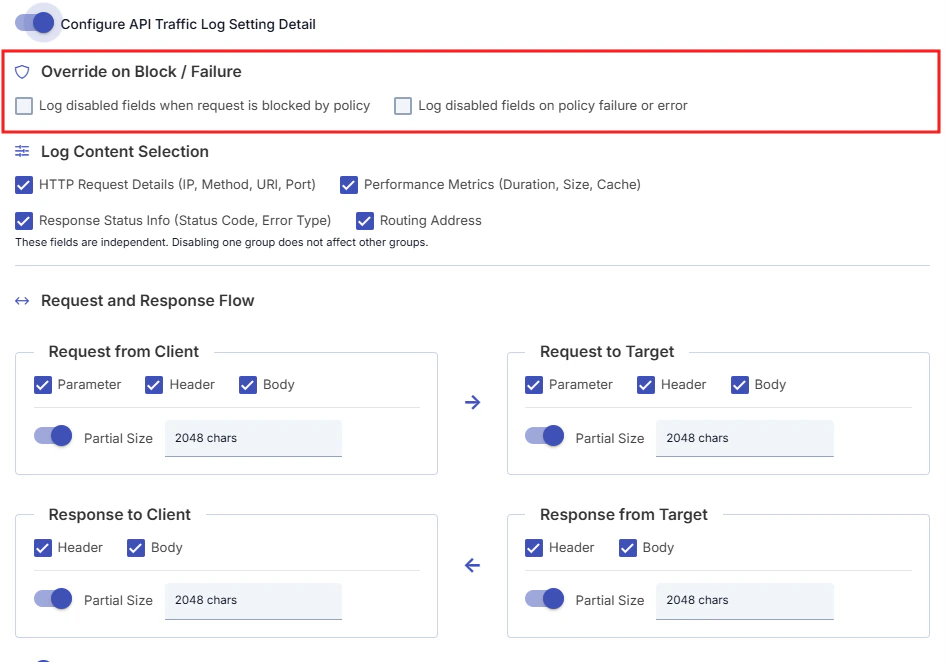
Configuring API Proxy Traffic Log Setting Details
When the “Configure API Traffic Log Setting Detail” option is enabled, you can customize how API traffic logs will be recorded. Apinizer logs are divided into four different regions according to the traffic flow in the system.API Traffic Log Regions
Apinizer logs API traffic in these four regions:- Request from Client (Request from Client)
- Request to Target (Request to Target)
- Response from Target (Response from Target)
- Response to Client (Response to Client)
For production environments, it is recommended to disable logging of elements belonging to the following regions:
- Request to Target (Request to Target)
- Response from Target (Response from Target)
Log Settings Screen
An image containing the log settings screen that appears when the “Configure API Traffic Log Setting Detail” option is enabled is shown below: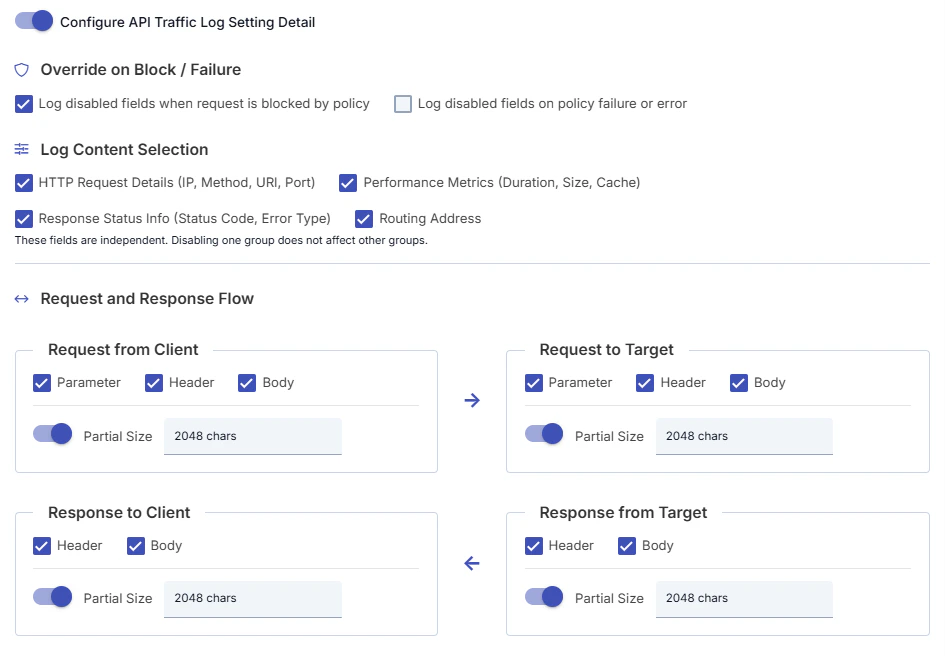
Customizable Log Fields
Fields that can be customized in API traffic log settings are given below. For each field, whether it will be logged or not can be selected, and size limits can be set for fields containing long texts.
These groups are independent; disabling one group does not affect the other groups.
In the Request and Response Flow section, you can also enable or disable the following fields separately for each region:
- Request from Client: Parameter, Header, Body
- Request to Target: Parameter, Header, Body
- Response from Target: Header, Body
- Response to Client: Header, Body
Size Limits
If there are long texts among the fields to be sent for logging, size limits can be set for these fields. This way, the size of log records can be kept under control and storage space in the database or log target system can be optimized. A separate size limit can be determined for each field. When the determined limit is exceeded, the content of the relevant field is logged by truncating it or can be completely skipped.Configuring API Proxy Traffic Privacy Settings
Apinizer keeps records of message traffic (request and response) flowing through Apinizer. Sensitive or personal data such as credit card information, password, phone number may be present in any part of the messages (header, parameter, body). When it is not desired for this data to be accessed clearly within log records, Apinizer can prevent the data from being displayed as is by applying the following operations to fields carrying sensitivity/privacy within log records with “API Proxy Traffic Privacy Settings”:For API Proxy-based log settings, you can check the API Traffic Log Settings section on the API Proxy Configuration - Settings Tab page.
- Masking: A mask is applied to the field’s value with the * sign.
- Deletion: The field’s value is deleted while logging.
- Encryption: The field’s value is encrypted with a salt code generated on an application basis.
- Hashing: The field’s value is logged by hashing it.
Applying Privacy Settings
At the time of log record creation, scanning is performed on the “header, parameter, and body” fields of request and response messages with the element names defined. For found element names, the operation (masking, deletion, encryption, hashing) defined specifically for the element name is applied. For the element name to be searched on the request or response body, the body value must be XML, JSON, or Form data (form-data, x-www-form-urlencoded). If the data is XML or JSON, the “sensitive data element name” value is searched in all element names (recursively), if it is form data, it is searched in all keywords, and if found, the relevant operation (masking, deletion, encryption, hashing) is applied to the element value if XML or JSON, or to the value corresponding to the key if form data. The “-PA” suffix is also added to the end of the relevant element/key name on the data to indicate that the operation was performed. PA: Privacy Applied. For “API Proxy Traffic Privacy Settings” to be applied per defined field, scanning is performed in all of the following fields:- Header, Query Parameter, and Body of Message Coming from Client
- Header, Query Parameter, and Body of Message Going to Backend
- Header and Body of Message Returning from Backend
- Header and Body of Message Returning to Client
Definitions Screen
The Activate option must be active to activate “API Proxy Traffic Privacy Settings”. An image containing the screen that appears when API Proxy Traffic Privacy Settings is activated is shown below: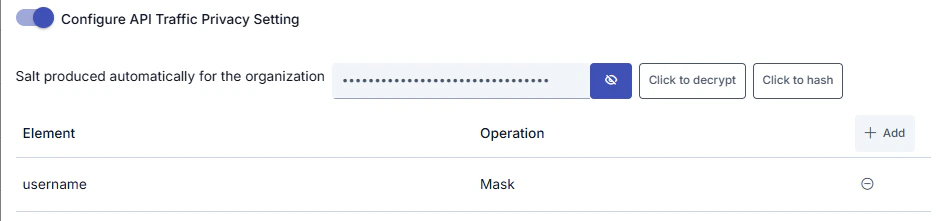
If an API Proxy does not exist, all definitions are applied to incoming requests.