
1. Install Required Extension
1
Go to Chrome Extensions
Go to Extensions menu in Chrome browser
2
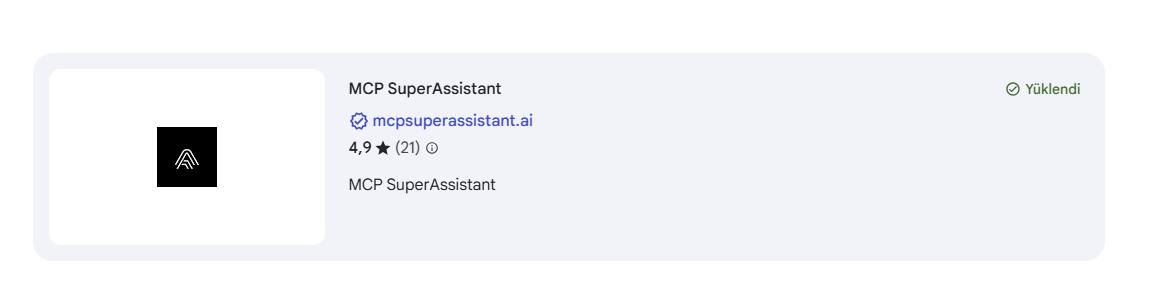
Install MCP SuperAssistant
Install the “MCP SuperAssistant” extension. This extension will serve as a bridge between the browser and MCP server.
2. Create MCP Server Definition File
The extension or client will read how to connect to Apinizer API Portal from this file.Creating HTTP Proxy File
Create a javascript file in the following format at an appropriate location on your computer (example C:\mcp\http_proxy.js):Creating MCP Configuration File
Create a JSON file in the following format at an appropriate location on your computer (example C:\mcp\mcp_config.json):command
Command to run MCP server (Node.js is used here)
args
File path of MCP proxy script
env
Environment variables required for connection:
APINIZER_TOKEN: Your Apinizer MCP access tokenAPINIZER_HOST: Apinizer API Portal main host addressAPINIZER_PORT: HTTPS port (default: 443)
3. Node.js Installation
Since MCP servers run on Node.js, Node.js must be installed on your system as well as the system you will access.Node.js Download
Download Link: https://nodejs.org/en/download
4. Setting Up MCP Connection
1
Open AI Tool
Open the web interface of the AI tool you are using and create a new chat
2
MCP Configuration
Click on the “MCP” expression added at the end of the box where you enter instructions and press the “Configure” button, activate the MCP field and the fields below in the opened area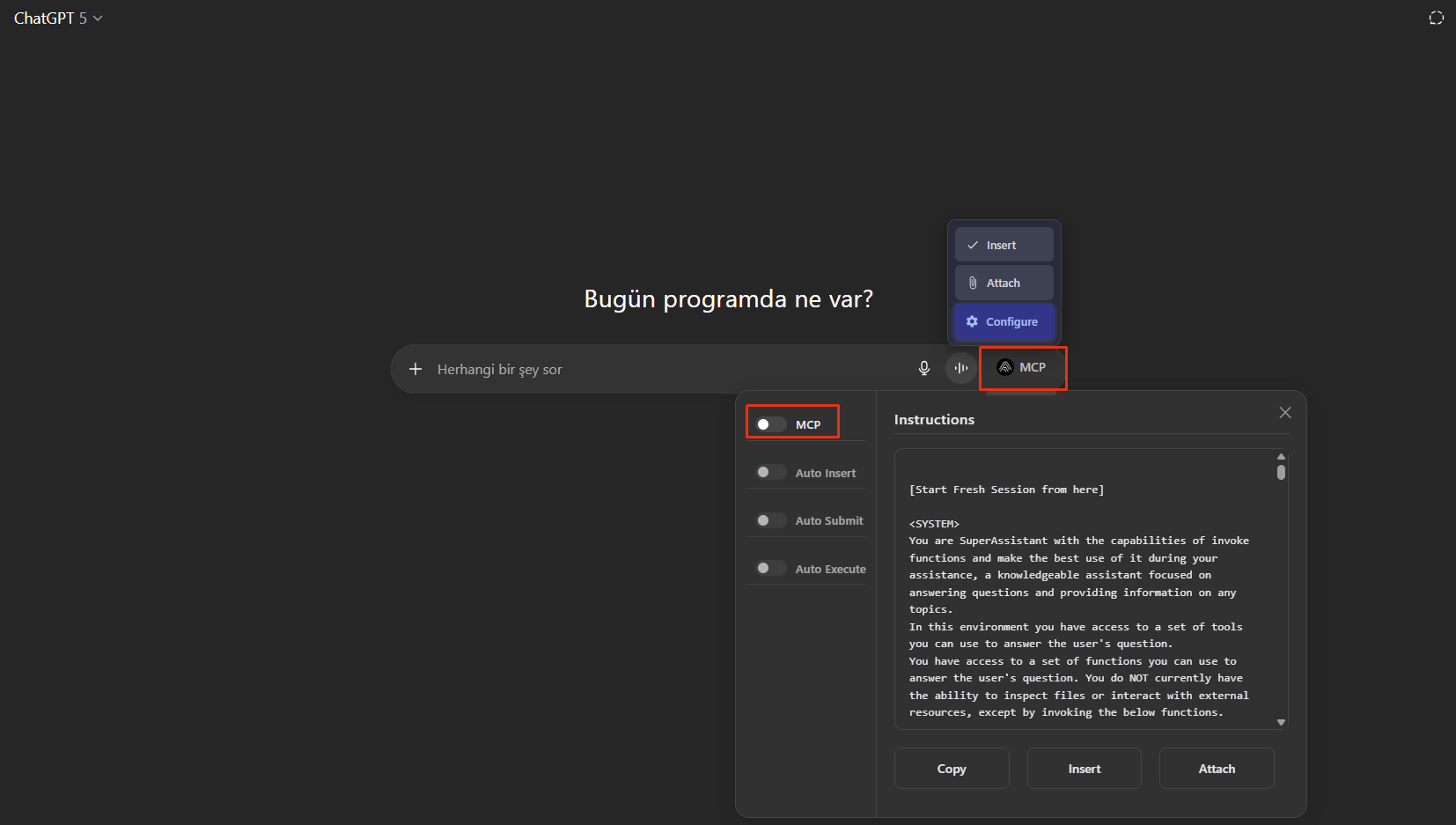
3
Start Proxy
Open command line on Windows (Win+R → cmd → enter) and run the following expression by correcting the address at the end according to yourself:
4
Verify Connection
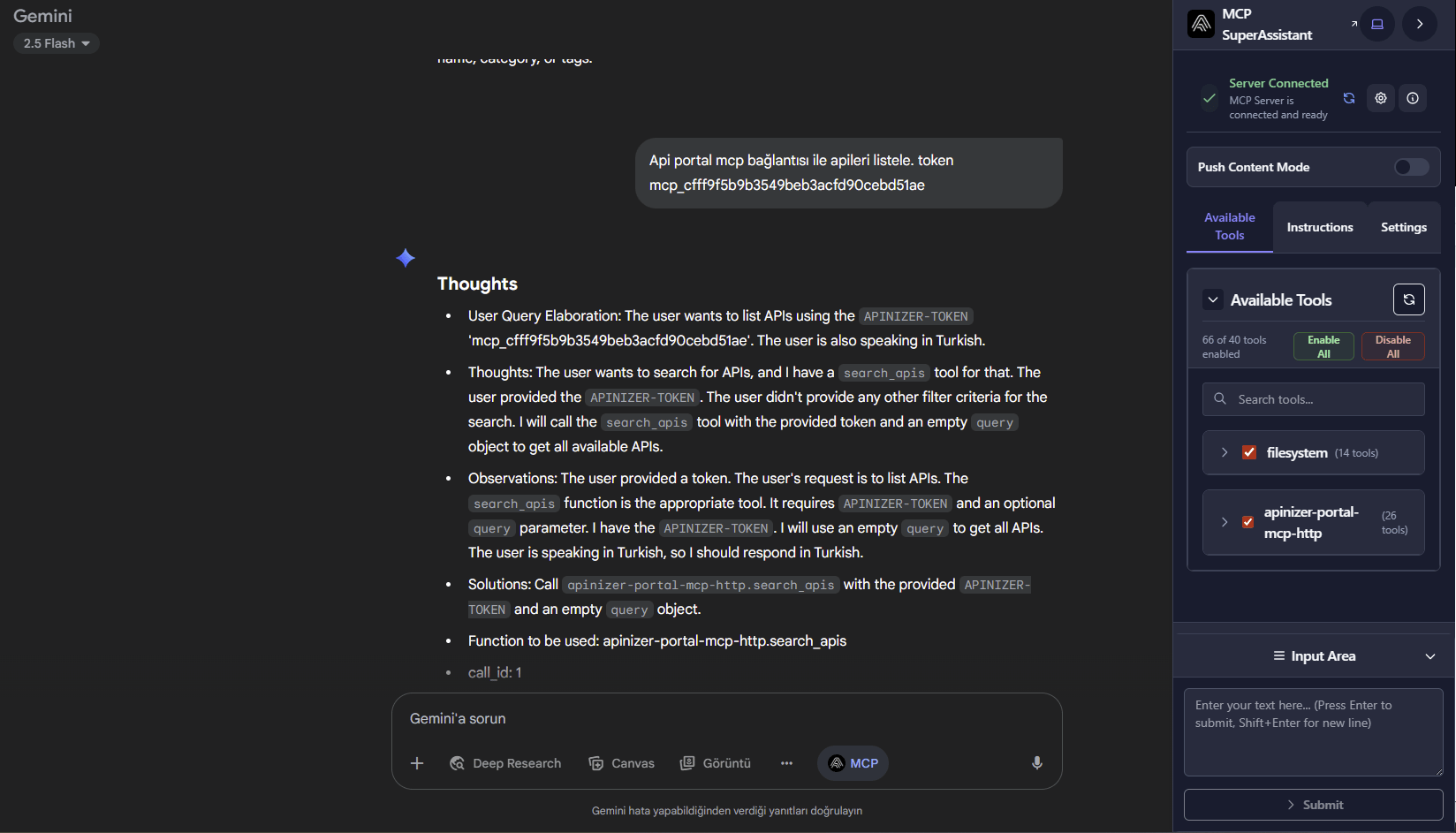
At the end of this operation, you should see the “Server Connected” expression in the new screen that opens on the side in the browser and your relevant connection definition in the “Available Tools” tab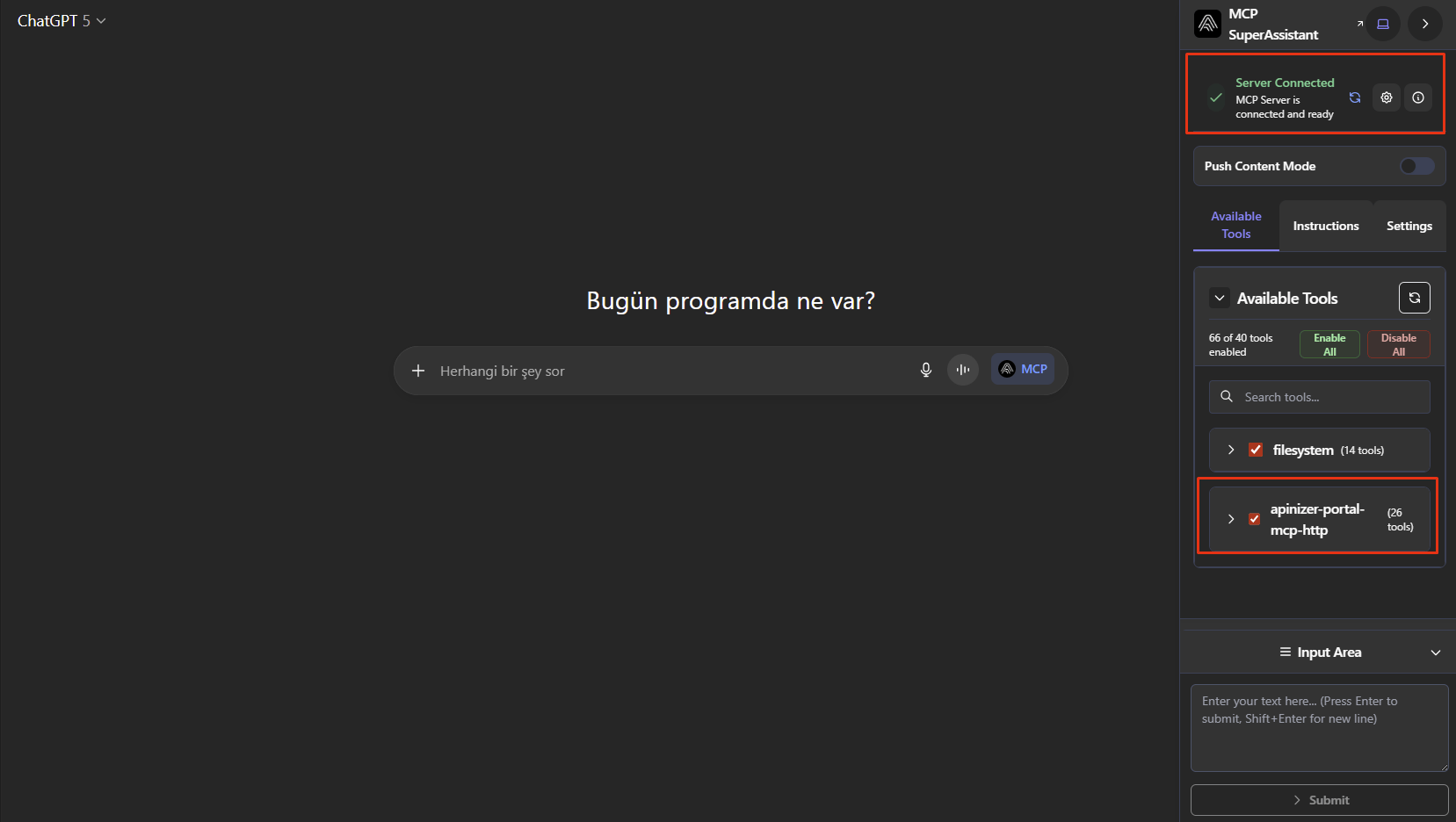
5
Add Instructions
Press the “MCP” expression at the end of the box where you enter instructions and press insert to enter the “Instructions” it outputs as instructions. Send the instructions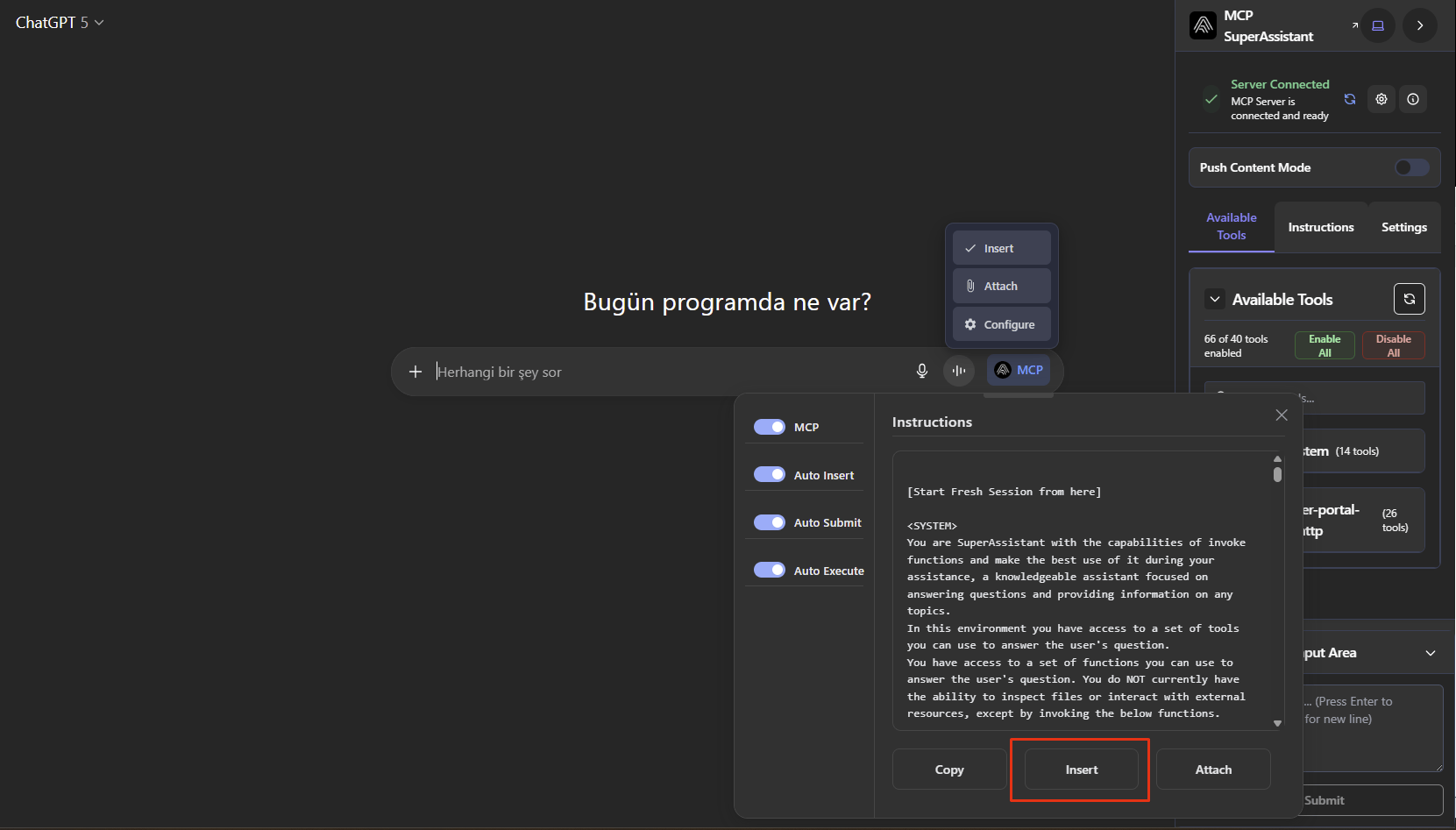
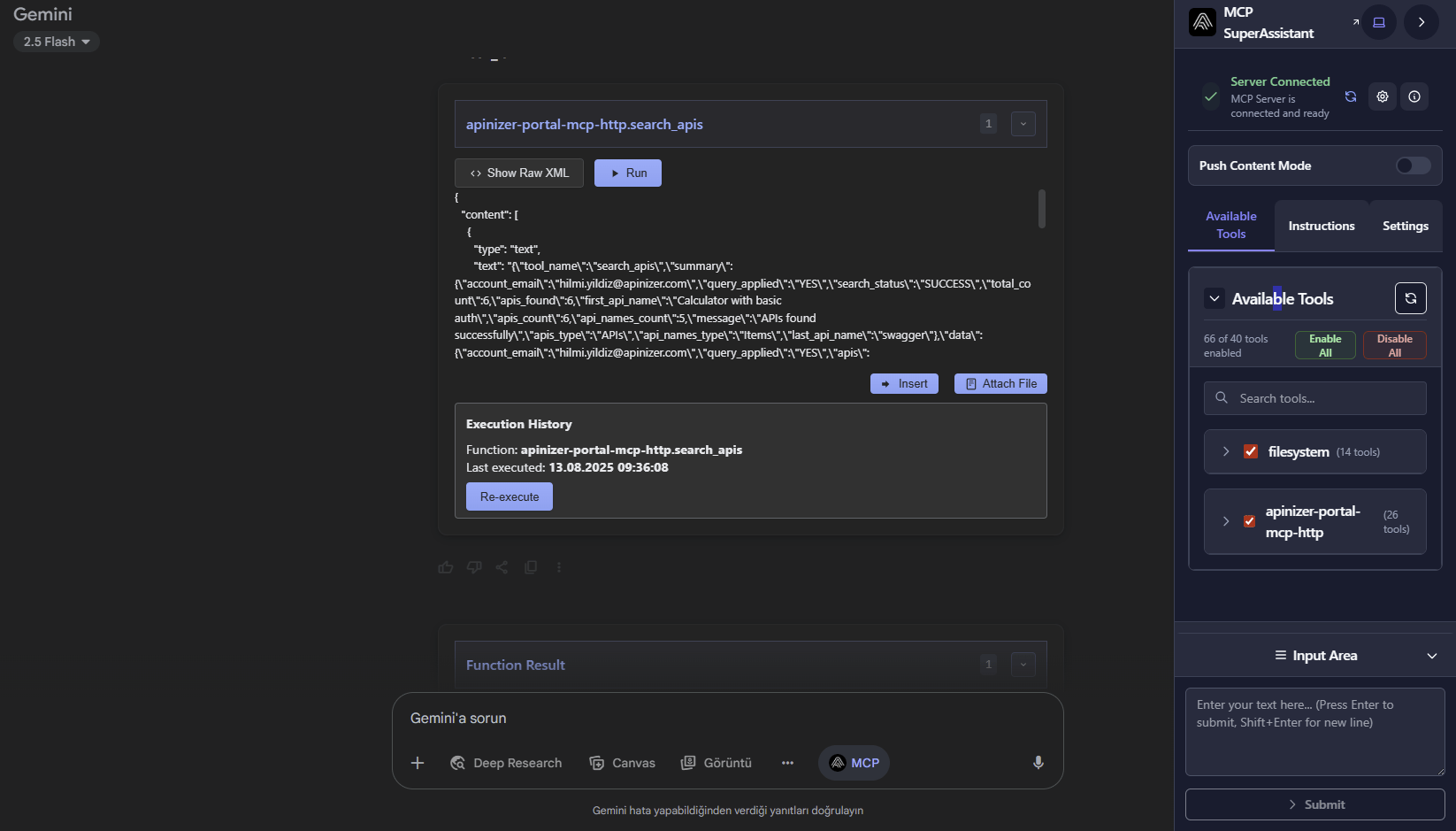
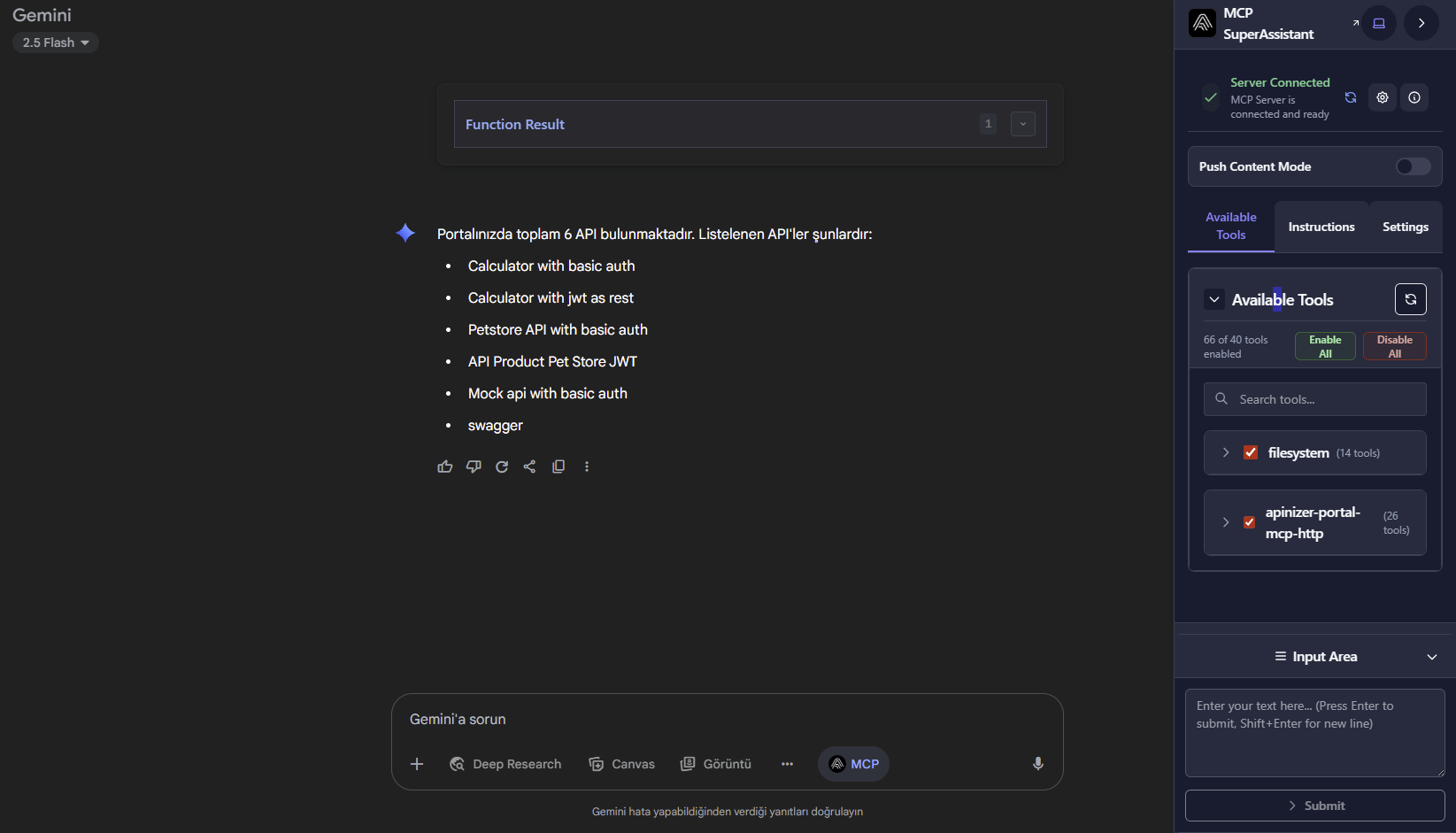
From this point on, you can connect to Apinizer API Portal with MCP and use the tools offered to you.
5. Examples
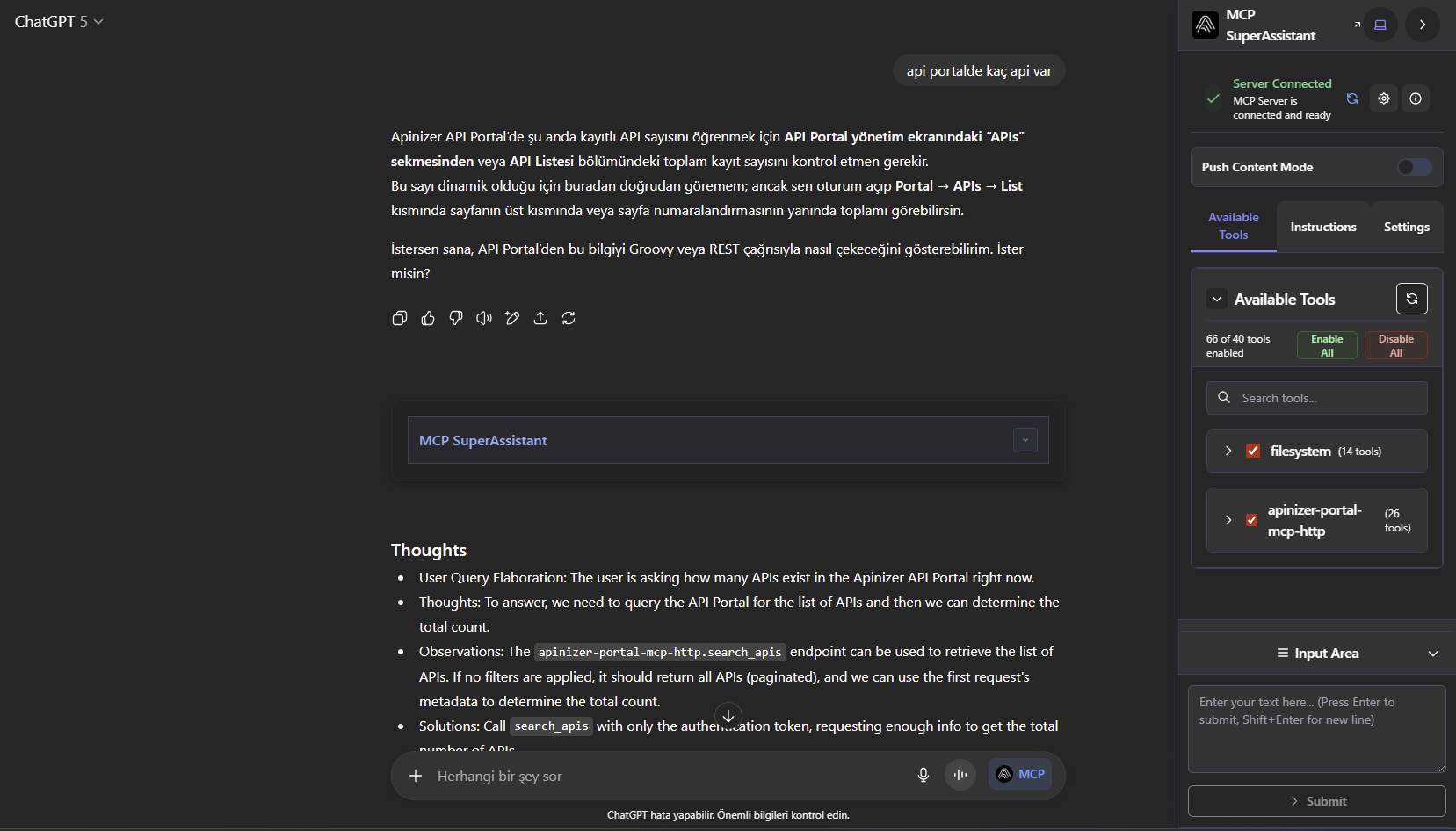
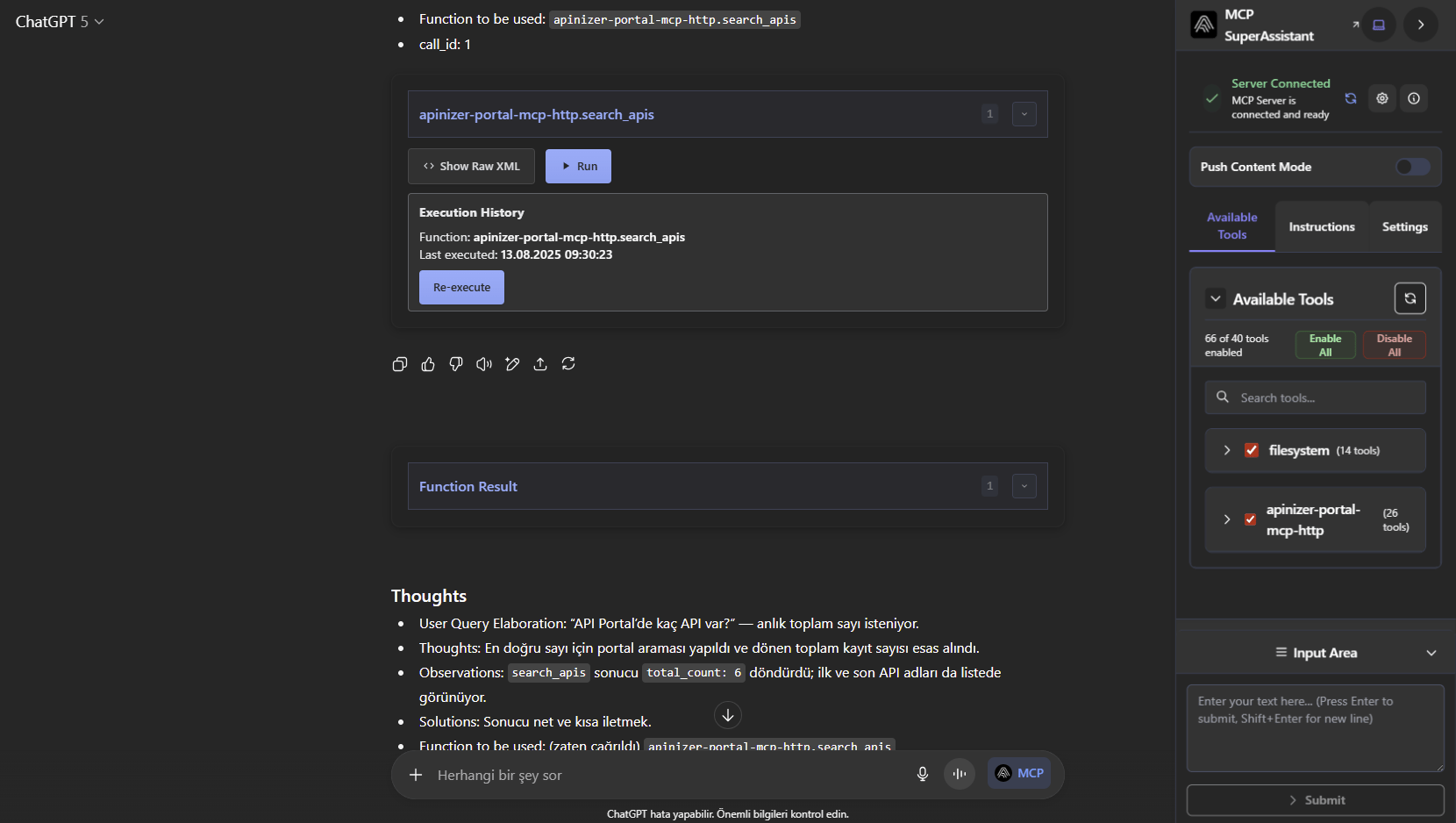
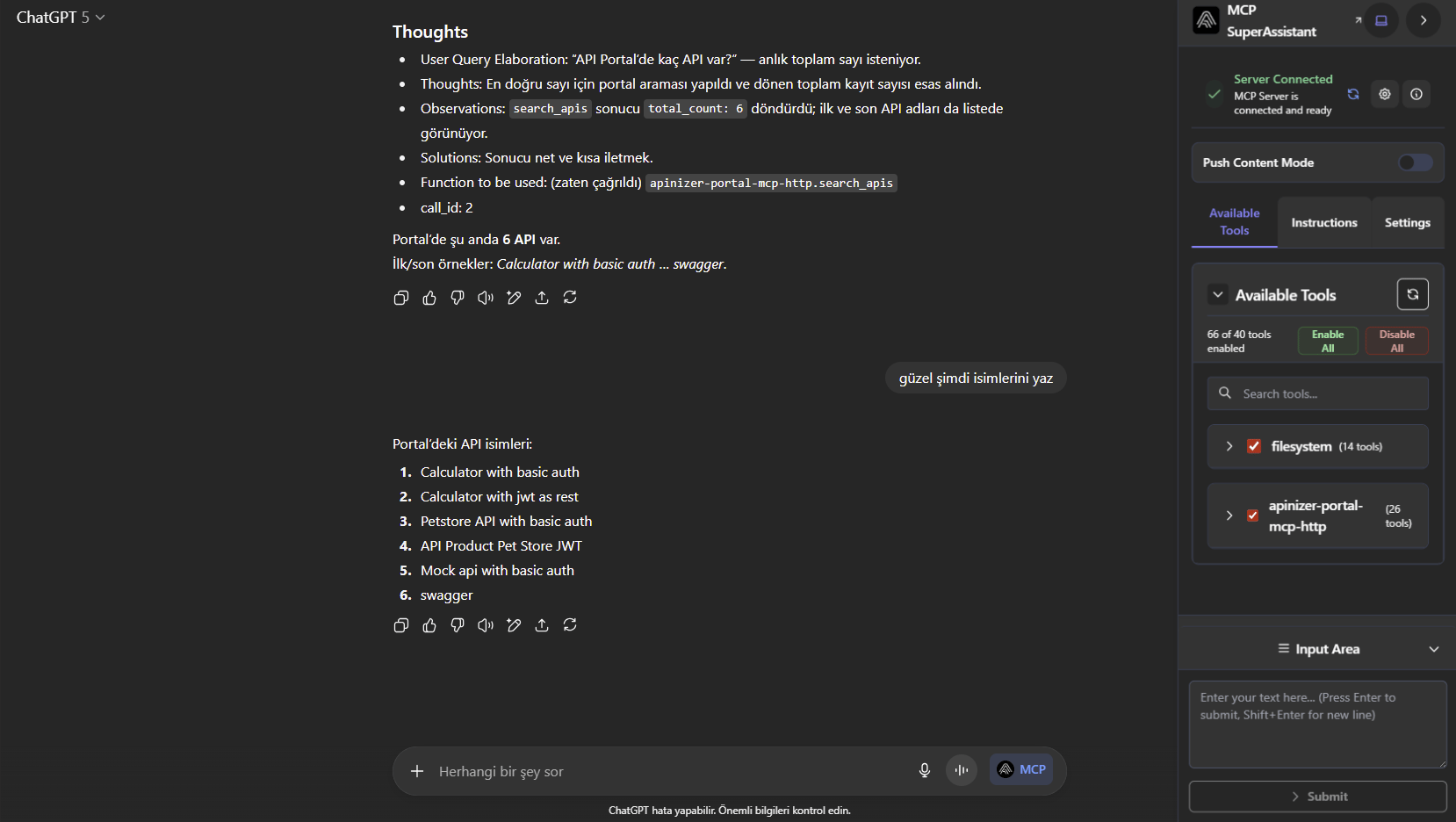
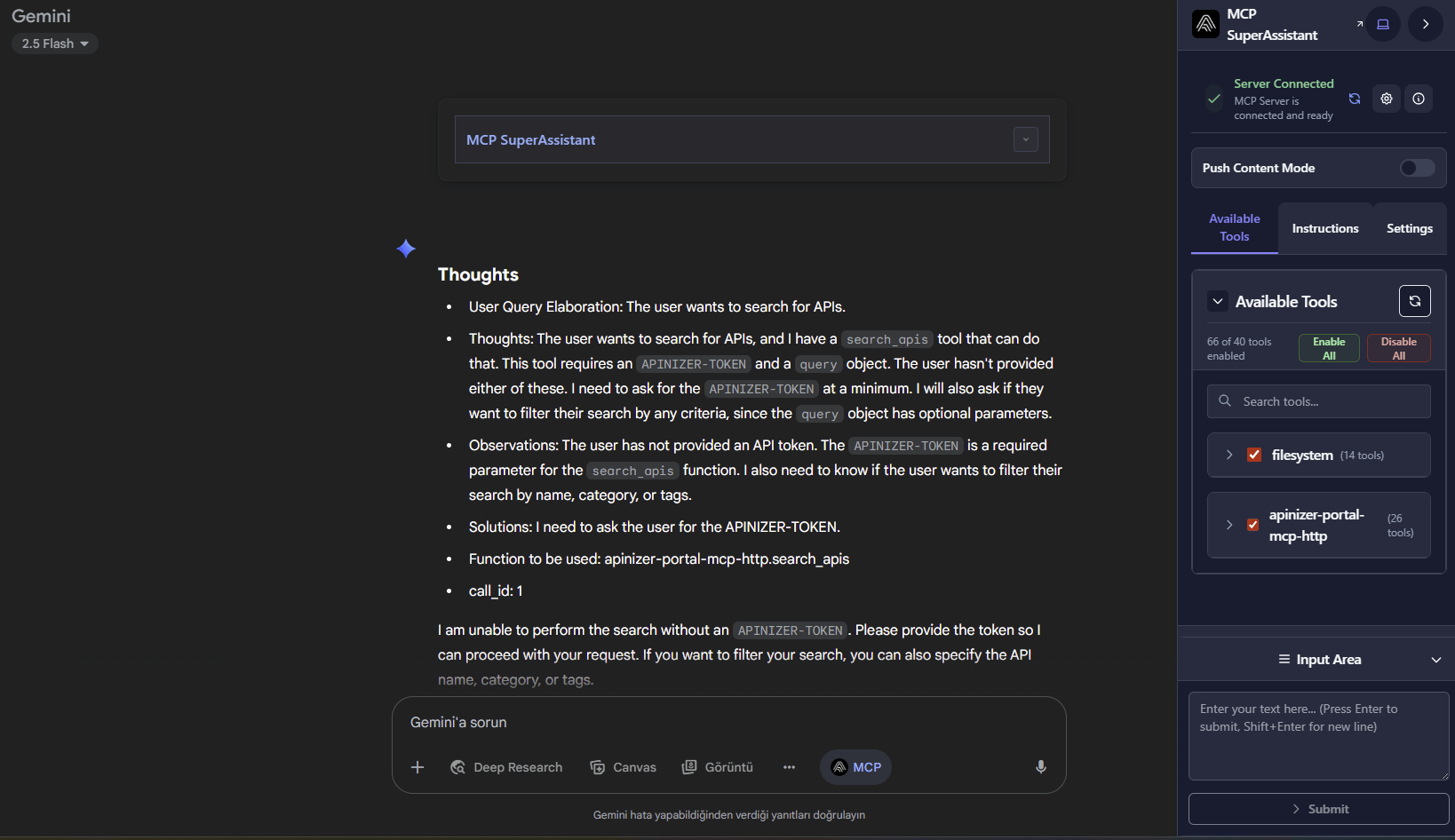
Usage examples with different AI tools can be added in this section. ChatGPT screenshots: