
In some cases, services to be provided to clients may need to be opened and/or used through a contract/protocol. In such cases, it may be necessary to keep the contract/protocol text with its history and know which services and credentials are associated with this contract/protocol.
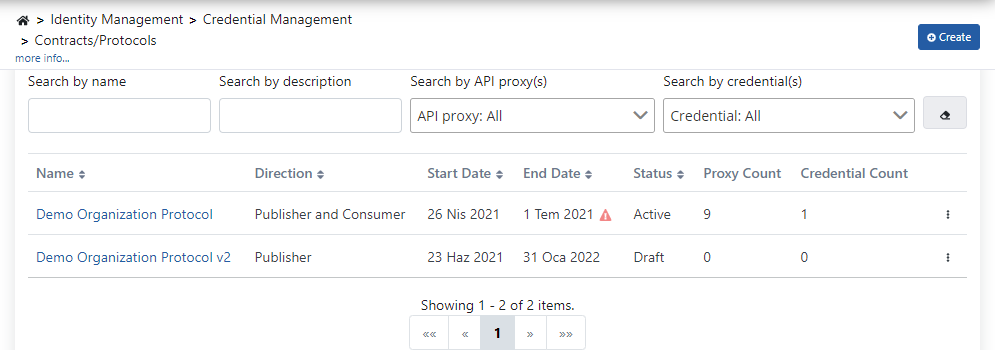
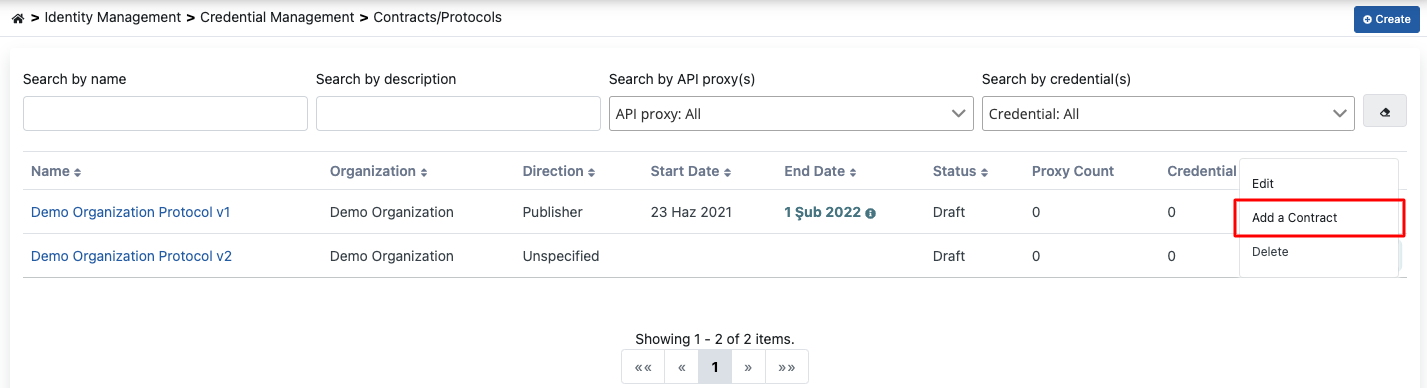
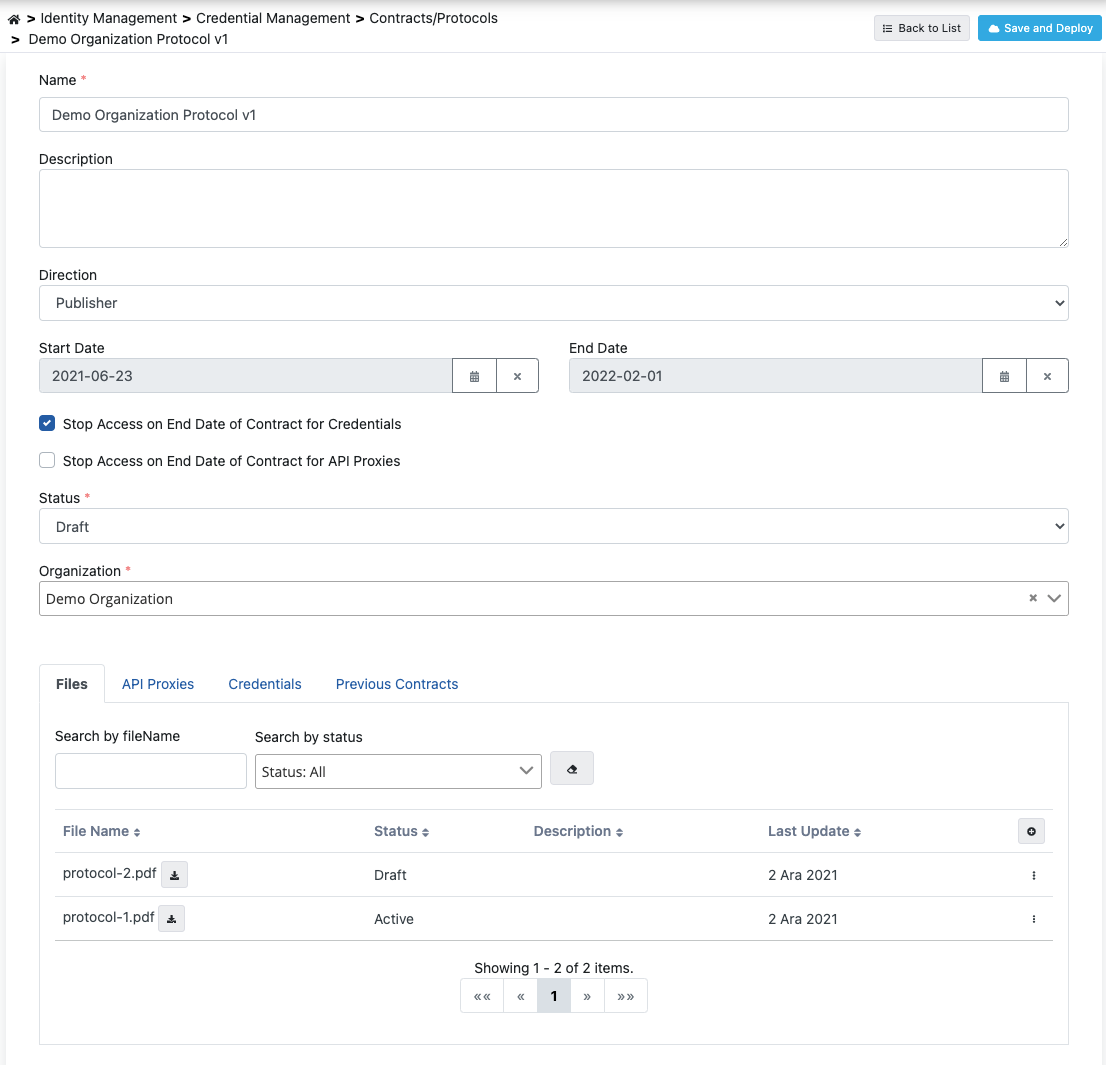
When the Contracts/Protocols page is first entered, all existing contract/protocol records are listed as shown in the image below: Contracts/Protocols List To create a new contract/protocol, press the Create button in the upper right corner and complete the contract/protocol record by saving the information shown in the image below. Or to create a new contract/protocol based on settings from an existing contract/protocol, click the Add a Contract option from the detail menu of the record. Adding Contract/Protocol An image containing Contract/Protocol settings is shown below: Contract/Protocol Settings The fields used for contract/protocol configuration are shown in the table below.

Files Tab

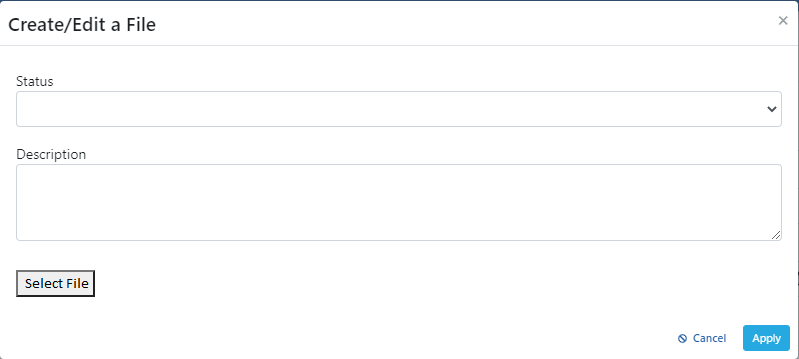
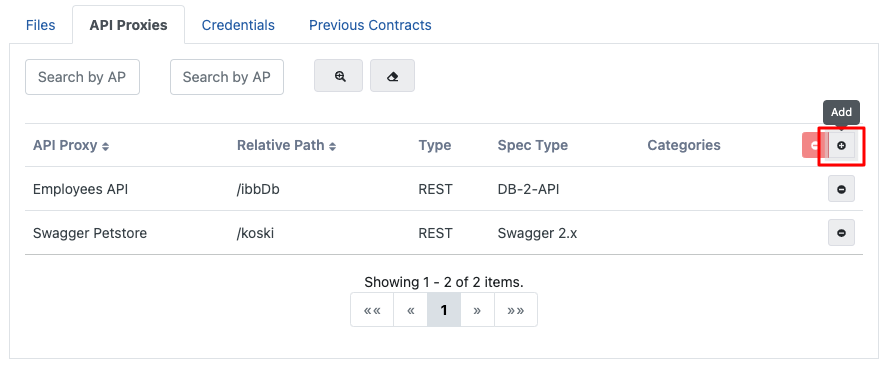
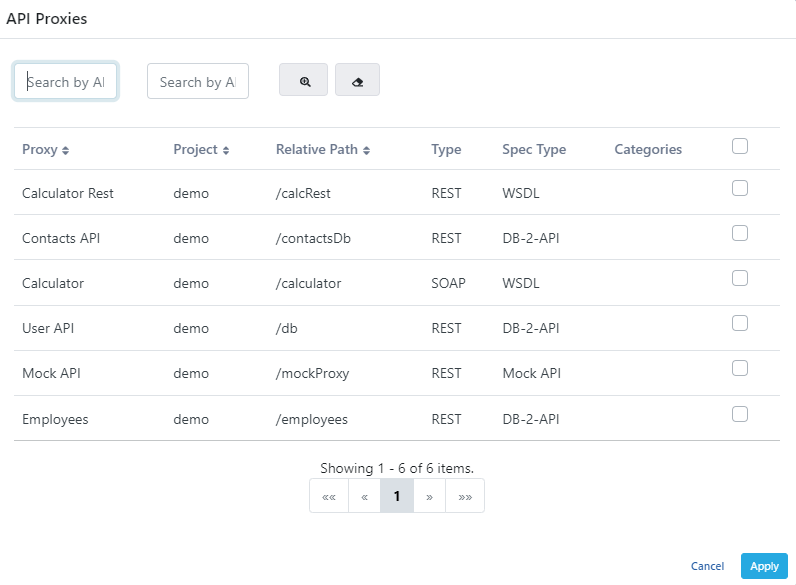
If it is desired for documents related to the contract/protocol to be included within the contract/protocol record, press the Add button marked in red in the image above and save the file to the contract/protocol by entering the necessary information shown in the image below. Adding Contract/Protocol File The fields used for file configuration are shown in the table below. If it is desired for API Proxies related to the contract/protocol to be included within the contract/protocol record, press the Add button marked in red in the image below. API Proxies Tab When the Add button is pressed, API Proxies within the project are listed as shown in the image below. API Proxy List API proxies for which a relationship with the contract is desired to be established are selected from this list and saved.
Credentials Tab

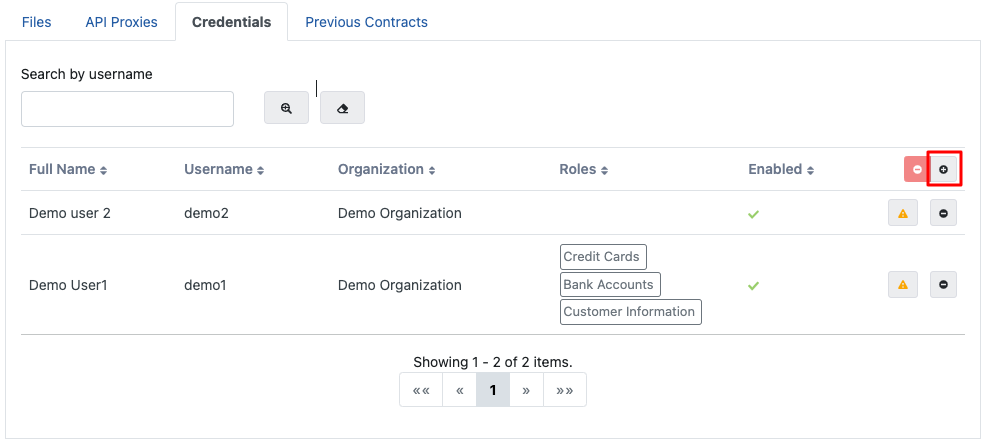
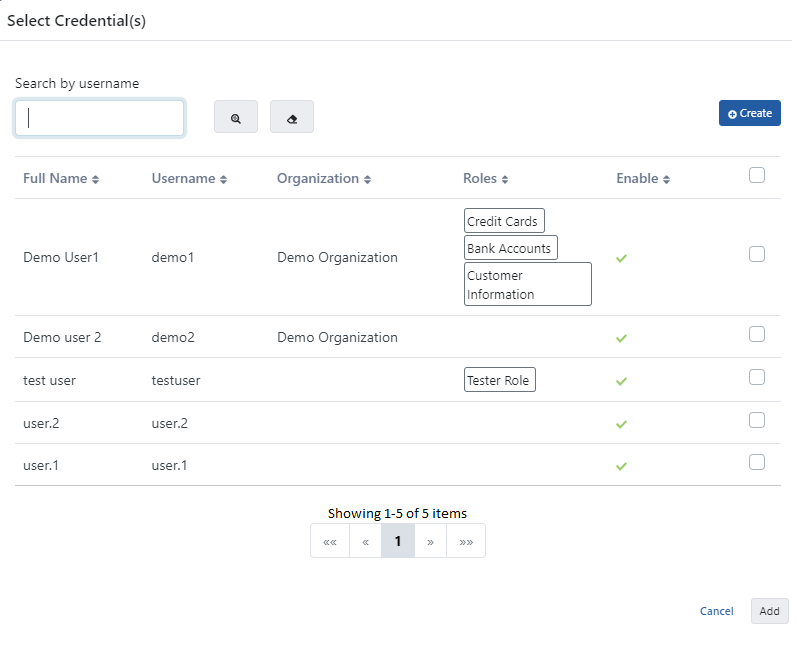
If it is desired for credentials related to the contract/protocol to be included within the contract/protocol record, press the Add button marked in red in the image below. Credentials Tab When the Add button is pressed, the credential list within the project or defined globally is listed as shown in the image below. Adding Credential List Credentials for which a relationship with the contract is desired to be established are selected from this list and saved. If the desired credential is not in this list, a new credential can be created by pressing the Create button.
For more detailed information about the credential screen, you can visit the Credential Management page.

Previous Contracts Tab

This section contains the list of contracts/protocols from which the current contract/protocol was derived. Previous Contracts Tab